---
title: Microsoft 365
metaTitle: Microsoft 365 Integration Guide
description: Learn how to ingest Microsoft 365 logs into OpenObserve using Azure Event Hub and Azure Functions.
---
# Integration with Microsoft 365
Managing and analyzing logs from Microsoft 365 services (Graph APIs, audit logs, sign-ins, managed identities) is critical for security, compliance, and performance optimization.
## Overview
While Microsoft 365 provides rich telemetry, collecting and centralizing these logs for real-time observability can be challenging without a scalable pipeline.
This guide shows you how to stream Microsoft 365 logs into **OpenObserve** using **Azure Event Hub** and **Azure Functions**.
## Steps to Integrate
:::accordion[Prerequisites]
- Active **Azure subscription**
- Familiarity with **Azure Functions**
- [Visual Studio Code](https://code.visualstudio.com/) with Azure Functions extension installed
- OpenObserve account ([Cloud](https://cloud.openobserve.ai/web/) or [Self-Hosted](../../getting-started.md))
:::
:::accordion[Step 1: Create an Azure Event Hub]
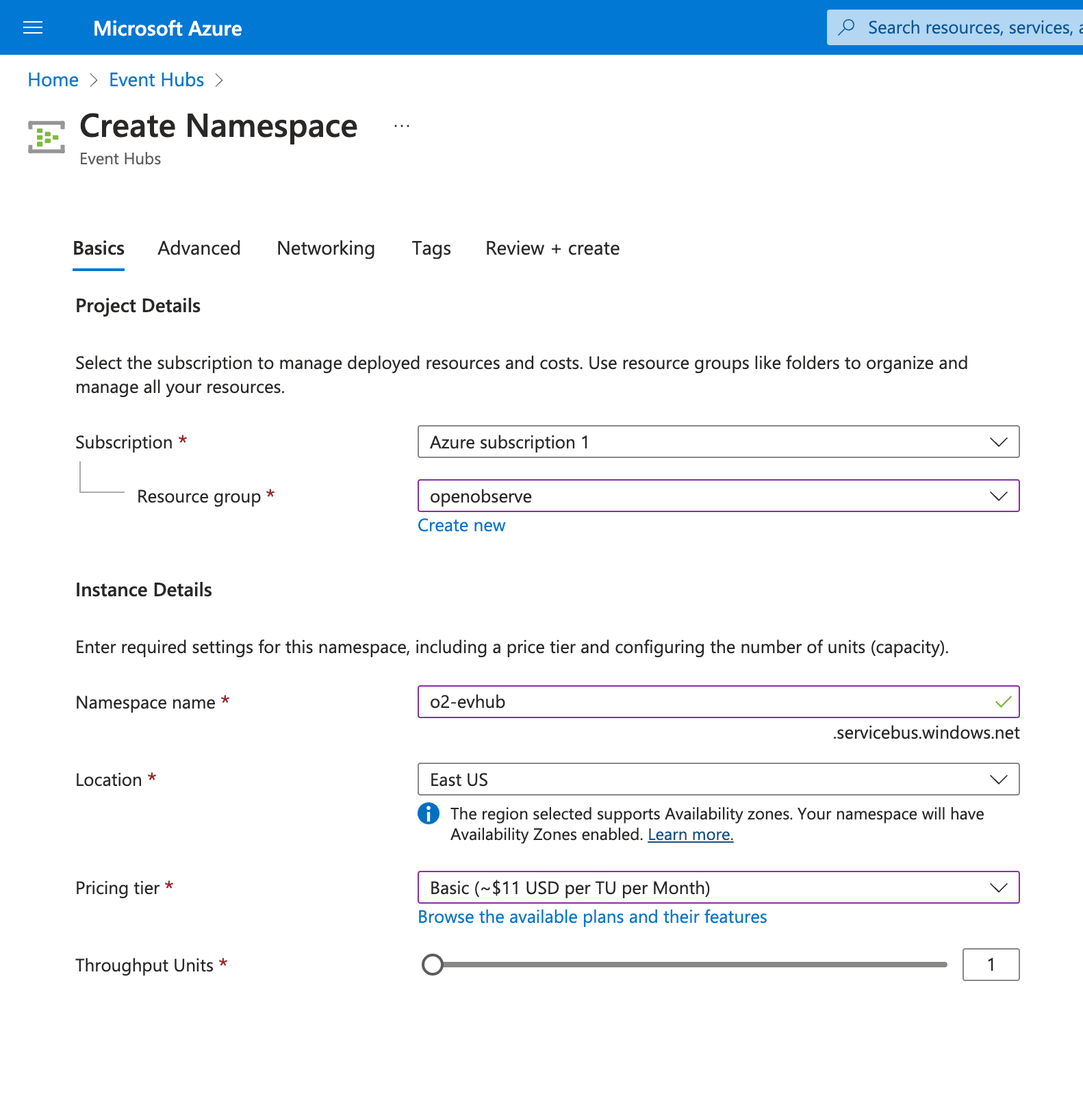
1. In the Azure Portal, search for **Event Hubs** → click **+ Add** to create a namespace.
- **Resource Group:** choose existing or create new
- **Namespace Name:** e.g., `m365-eventhub`
- **Pricing Tier:** select based on log volume
- Click **Review + Create**
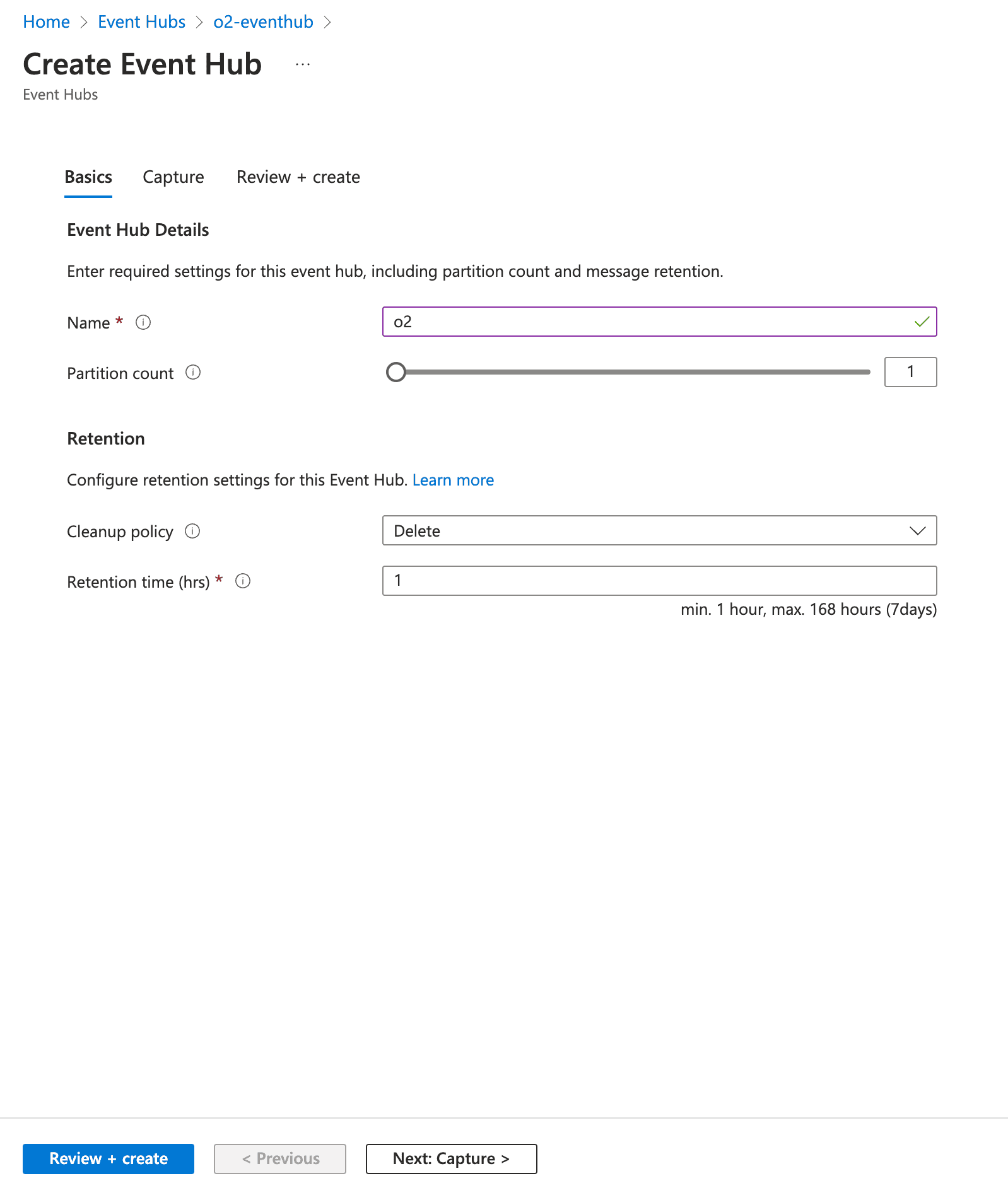
 2. Once the namespace is created, click **+ Event Hub** inside it.
- Name it (e.g., `o2`)
- Leave default settings for partitions and retention and Save
2. Once the namespace is created, click **+ Event Hub** inside it.
- Name it (e.g., `o2`)
- Leave default settings for partitions and retention and Save
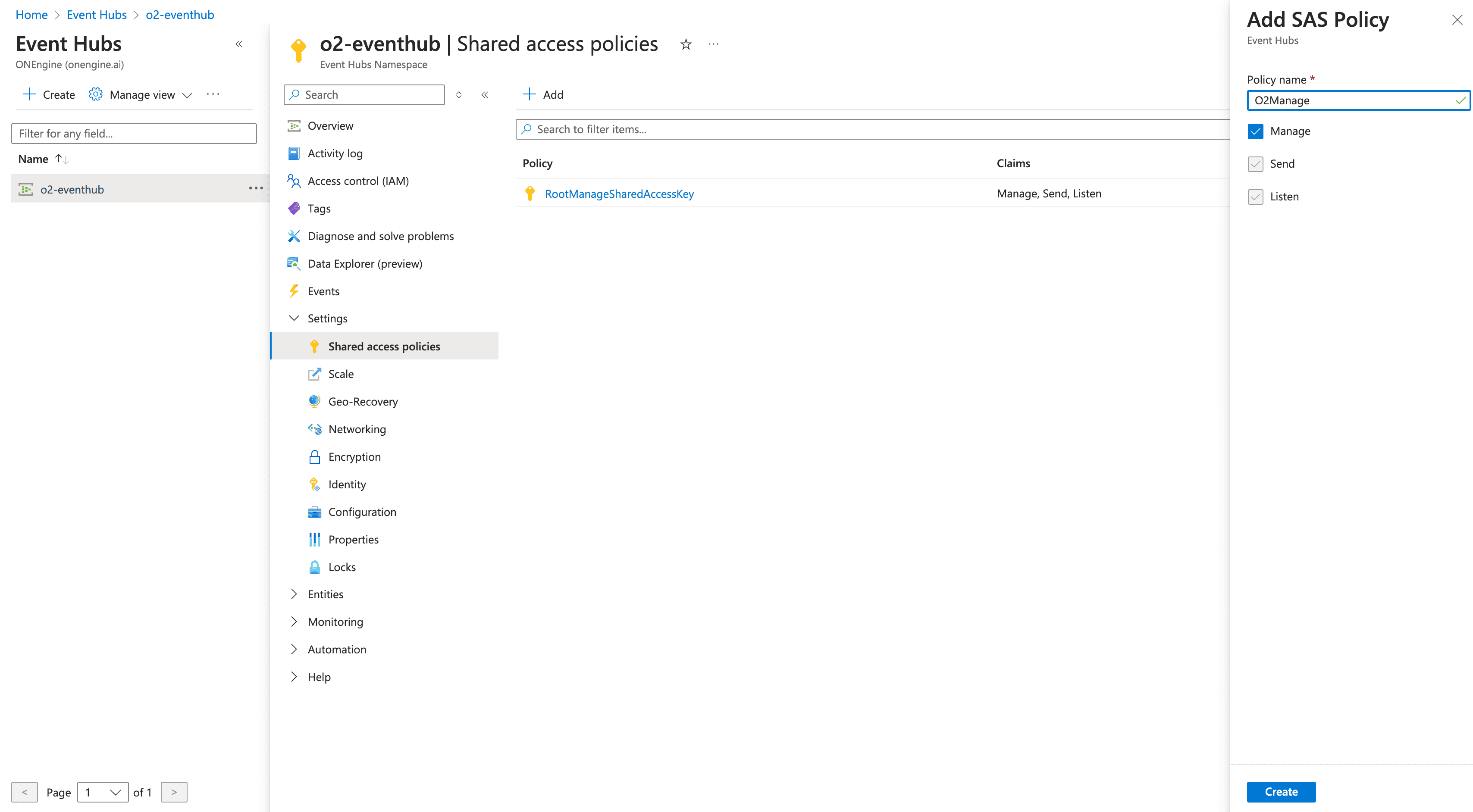
 3. Under the namespace, go to **Shared Access Policies** → create a policy with **Manage** permission.
- Save and note the **Connection String**
:::
:::accordion[Step 2: Enable Microsoft 365 Diagnostics Logging]
1. Navigate to the **Microsoft 365 Entra Admin Center**.
2. In the Azure Portal, go to **Monitoring health → Diagnostic Settings**.
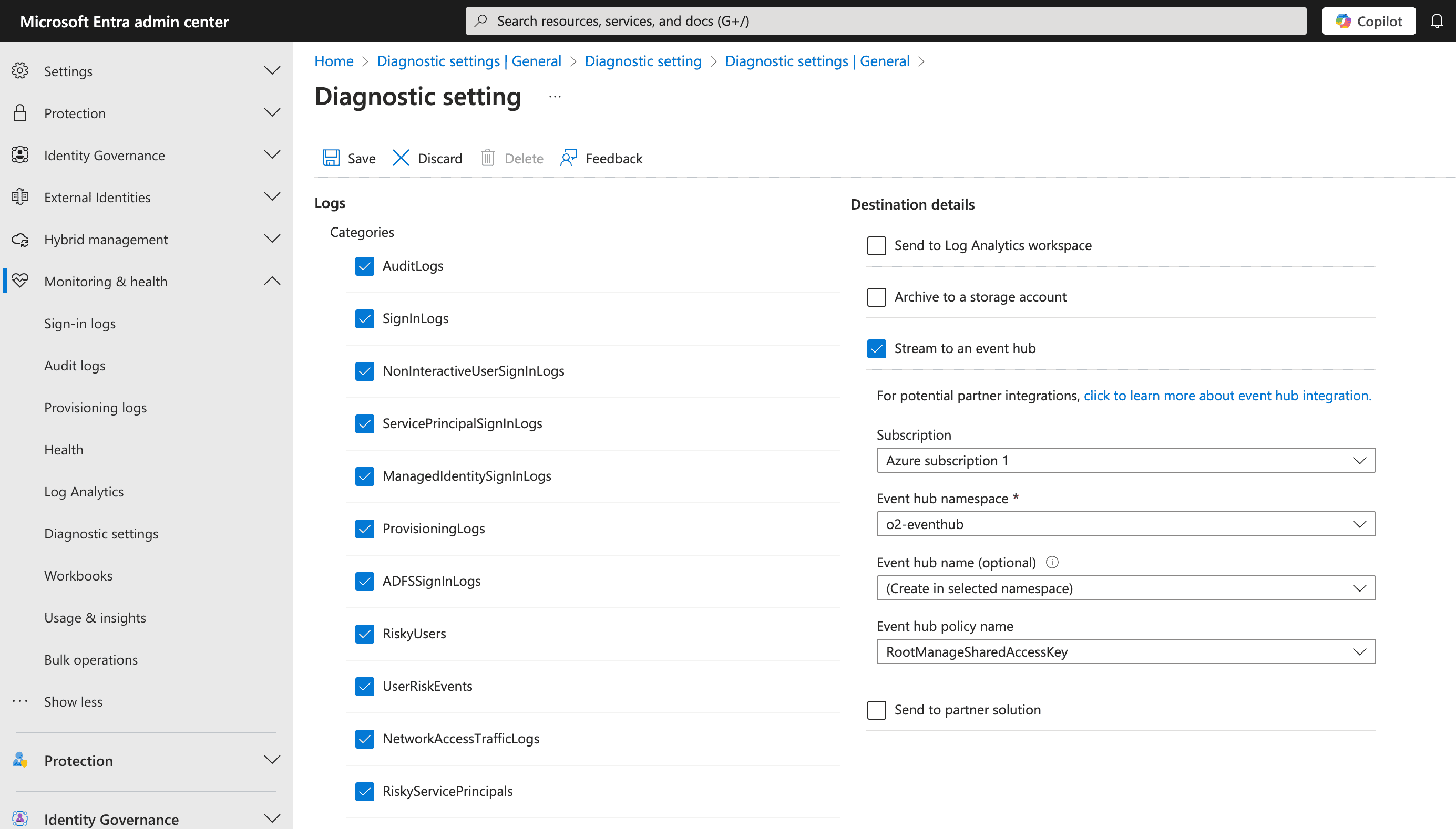
3. Create a new diagnostic setting:
- Name: `m365-diagnostics`
- Categories: **AuditLogs**, **SignInLogs**, etc.
- Destination: **Stream to an Event Hub**
- Provide the Event Hub namespace and connection string
:::
:::accordion[Step 3: Deploy Azure Functions to Process Logs]
Use Azure Functions to forward logs from Event Hub into OpenObserve.
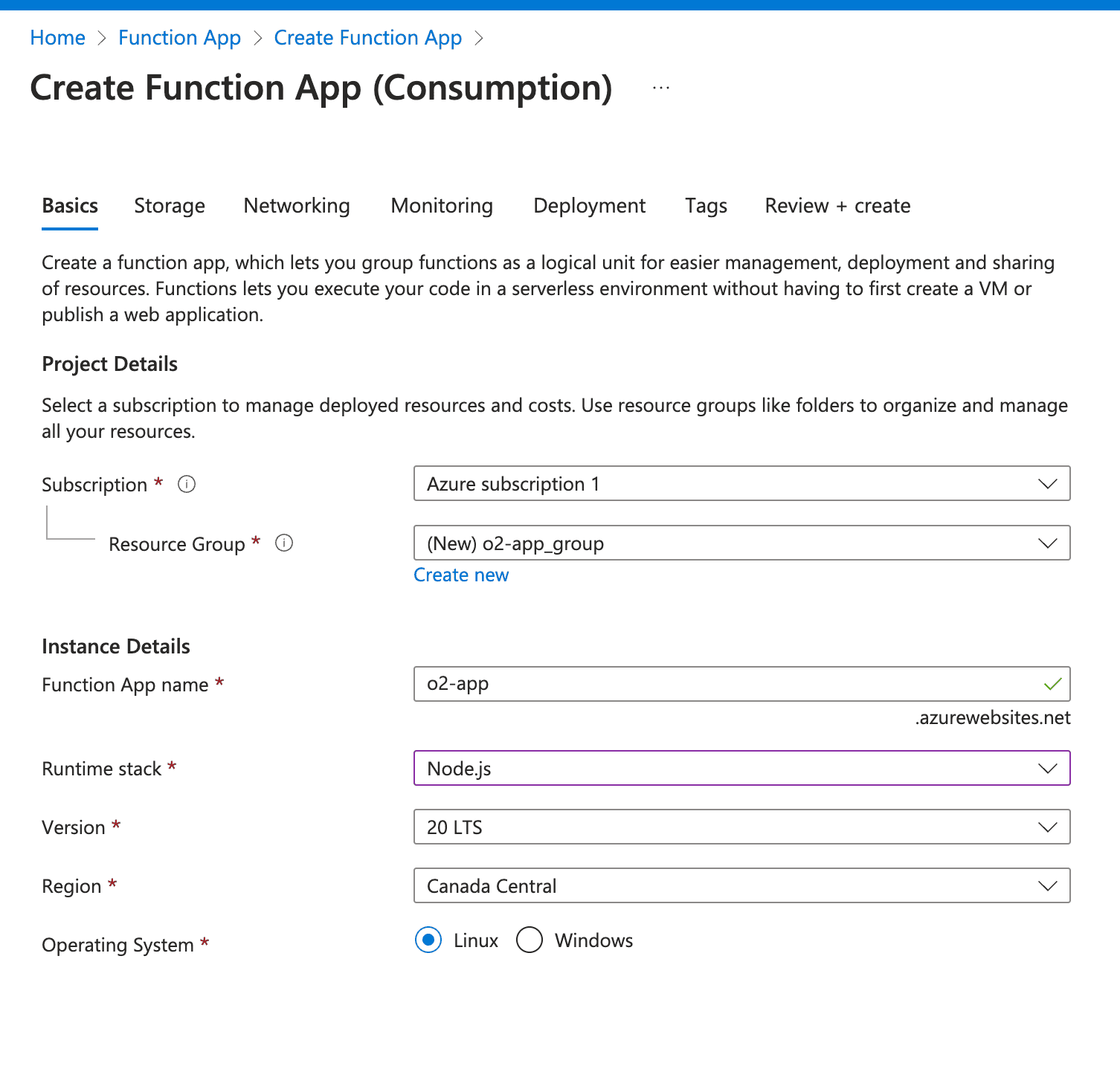
1. In the Azure Portal, create a **Function App**
- Select runtime stack and pricing tier
- Deploy to your subscription
3. Under the namespace, go to **Shared Access Policies** → create a policy with **Manage** permission.
- Save and note the **Connection String**

:::
:::accordion[Step 2: Enable Microsoft 365 Diagnostics Logging]
1. Navigate to the **Microsoft 365 Entra Admin Center**.
2. In the Azure Portal, go to **Monitoring health → Diagnostic Settings**.
3. Create a new diagnostic setting:
- Name: `m365-diagnostics`
- Categories: **AuditLogs**, **SignInLogs**, etc.
- Destination: **Stream to an Event Hub**
- Provide the Event Hub namespace and connection string

:::
:::accordion[Step 3: Deploy Azure Functions to Process Logs]
Use Azure Functions to forward logs from Event Hub into OpenObserve.
1. In the Azure Portal, create a **Function App**
- Select runtime stack and pricing tier
- Deploy to your subscription
 2. Clone the prebuilt function code from our [repository](https://github.com/openobserve/azure-function-openobserve/tree/feature/o365).
3. Open in **VS Code** and configure:
- `local.settings.json` → update with Event Hub Connection String
- In `index.js`, replace `` with your OpenObserve endpoint
- Add your OpenObserve **auth details** (`O2_USER`, `O2_PASSWORD`)
> Make sure to add your OpenObserve auth details in the App's environment.
4. Deploy the function:
- In VS Code, click **Deploy to Function App**
- Select your subscription and resource group
> Follow the [deployment guide](https://learn.microsoft.com/en-us/azure/azure-functions/functions-develop-vs-code?tabs=node-v4%2Cpython-v2%2Cisolated-process%2Cquick-create&pivots=programming-language-javascript) for detailed instructions.
:::
:::accordion[Step 4: Validate and Ingest Logs into OpenObserve]
- Ensure the Function is running and streaming logs.
- In OpenObserve, go to **Logs → Streams → m365** to query ingested logs.
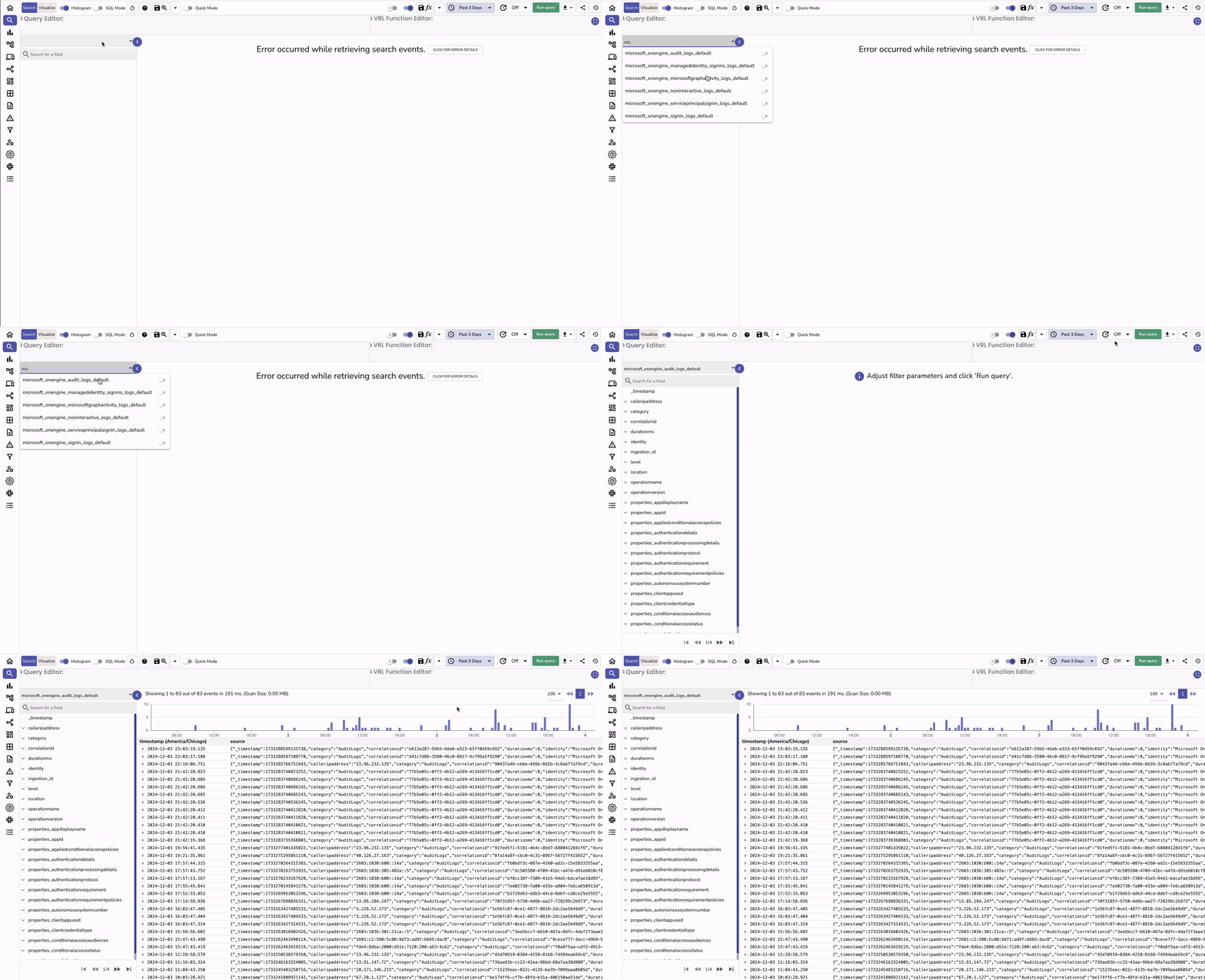
> Use tailored queries for categories like **AuditLogs** or **SignInLogs**.
:::
:::tip[Pre-built Dashboards]
You can [import dashboards from the OpenObserve community repository](https://github.com/openobserve/dashboards/tree/main/Microsoft_O365) for quick insights
:::
## Troubleshooting
**1. No logs in OpenObserve**
- Check Event Hub policy connection string
- Verify Azure Function is running
- Confirm your `` and auth details are correct
**2. Authentication issues**
- Ensure OpenObserve user has ingest permissions
**3. High latency or dropped logs**
- Scale Event Hub partitions or Function App plan
- Use batching in your function code
**4. Incorrect parsing**
- Verify logs are being forwarded in JSON format
- Update the function mapping if Microsoft 365 schema changes
2. Clone the prebuilt function code from our [repository](https://github.com/openobserve/azure-function-openobserve/tree/feature/o365).
3. Open in **VS Code** and configure:
- `local.settings.json` → update with Event Hub Connection String
- In `index.js`, replace `` with your OpenObserve endpoint
- Add your OpenObserve **auth details** (`O2_USER`, `O2_PASSWORD`)
> Make sure to add your OpenObserve auth details in the App's environment.
4. Deploy the function:
- In VS Code, click **Deploy to Function App**
- Select your subscription and resource group
> Follow the [deployment guide](https://learn.microsoft.com/en-us/azure/azure-functions/functions-develop-vs-code?tabs=node-v4%2Cpython-v2%2Cisolated-process%2Cquick-create&pivots=programming-language-javascript) for detailed instructions.
:::
:::accordion[Step 4: Validate and Ingest Logs into OpenObserve]
- Ensure the Function is running and streaming logs.
- In OpenObserve, go to **Logs → Streams → m365** to query ingested logs.

> Use tailored queries for categories like **AuditLogs** or **SignInLogs**.
:::
:::tip[Pre-built Dashboards]
You can [import dashboards from the OpenObserve community repository](https://github.com/openobserve/dashboards/tree/main/Microsoft_O365) for quick insights
:::
## Troubleshooting
**1. No logs in OpenObserve**
- Check Event Hub policy connection string
- Verify Azure Function is running
- Confirm your `` and auth details are correct
**2. Authentication issues**
- Ensure OpenObserve user has ingest permissions
**3. High latency or dropped logs**
- Scale Event Hub partitions or Function App plan
- Use batching in your function code
**4. Incorrect parsing**
- Verify logs are being forwarded in JSON format
- Update the function mapping if Microsoft 365 schema changes