---
title: Organizations
description: In OpenObserve, organizations group streams, users, and functions. Each user must select an organization to access and manage data and resources.
---
This guide explains how organizations work in OpenObserve. It covers organization types, creation methods, identifiers, access control, and limitations.
## Overview
Organizations provide logical boundaries for separating data, users, and access controls, enabling secure multi-tenant usage in a single OpenObserve deployment.
> You will encounter the concept of organization when you first log in or [ingest data into a stream](../../data-processing/streams/streams-in-openobserve.md#ingest-data-into-stream). To send data into OpenObserve, you must specify the **organization identifier** in your ingestion endpoint.
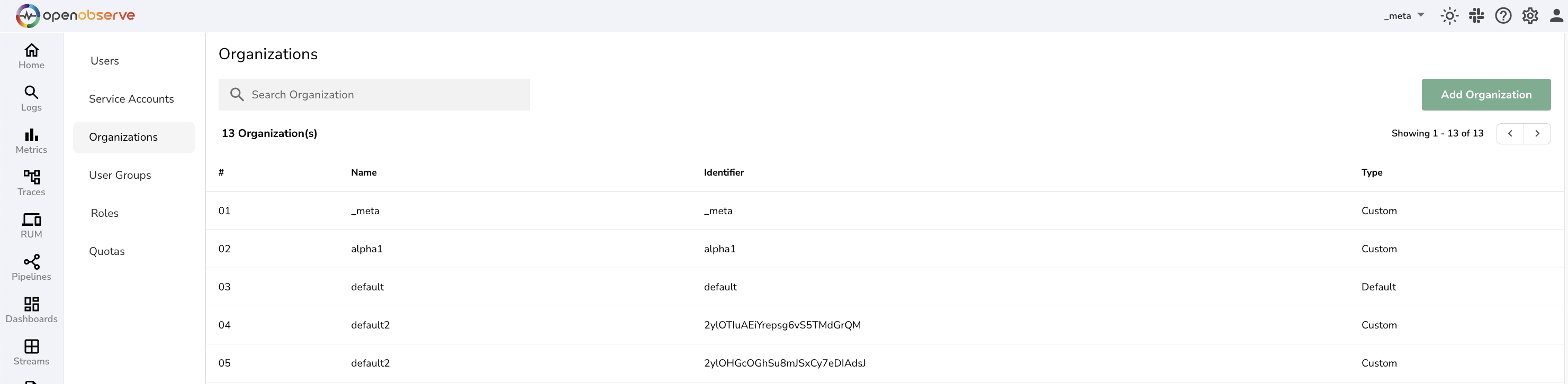
## Organization types
OpenObserve supports two types of organizations:
- **Default organization:** Automatically created for each user upon account creation. Typically named **default** and owned by the user. The UI labels it as type **default**.
- **Custom organization:** Any organization other than the **default**. These are created manually using the UI or ingestion (if enabled). Displayed in the UI as type **custom**.
### _meta organization
**_meta Organization** is considered as a **custom** organization. It is a system-level organization that exists in both single-node and multi-node (HA) deployments.
- The **_meta** organization provides visibility into the health and status of the OpenObserve instance, including node metrics, resource usage, and configuration across all organizations.
- Use the **IAM > Roles > Permission** in the **_meta** organization to manage users across all organizations and control who can list, create, update, or delete organizations.
:::note[Who can access]
## Who can access
In OpenObserve, access to organization-level operations, such as listing, creating, updating, or deleting organizations, depends on the deployment mode.
### Access in the open-source mode
Any authenticated user can create new organizations using the **Add Organization** button in the UI.
### Access in the enterprise mode with RBAC enabled
- Access to organization management is strictly controlled through RBAC, which must be configured in the _meta organization.
- The **root** user always has unrestricted access to all organizations, including **_meta**.
- Only roles defined in **_meta** can include permissions for managing organizations.
- The **organization** module is available in the role editor only within the **_meta** organization.
:::
## How to grant organization management access?
To delegate organization management to users in enterprise mode:
1. Switch to the **_meta** organization.
2. Go to **IAM > Roles**.
3. Create a new role or edit an existing one.
4. In the **Permissions** tab, locate the Organizations module.
5. Select the required operations:
- **Create**: Add new organizations
- **Update**: Modify organization details
!!! note "Note"
By default, OpenObserve displays the list of organizations a user belongs to. You do not need to explicitly grant permission to view or retrieve organization details.
6. Click **Save**.
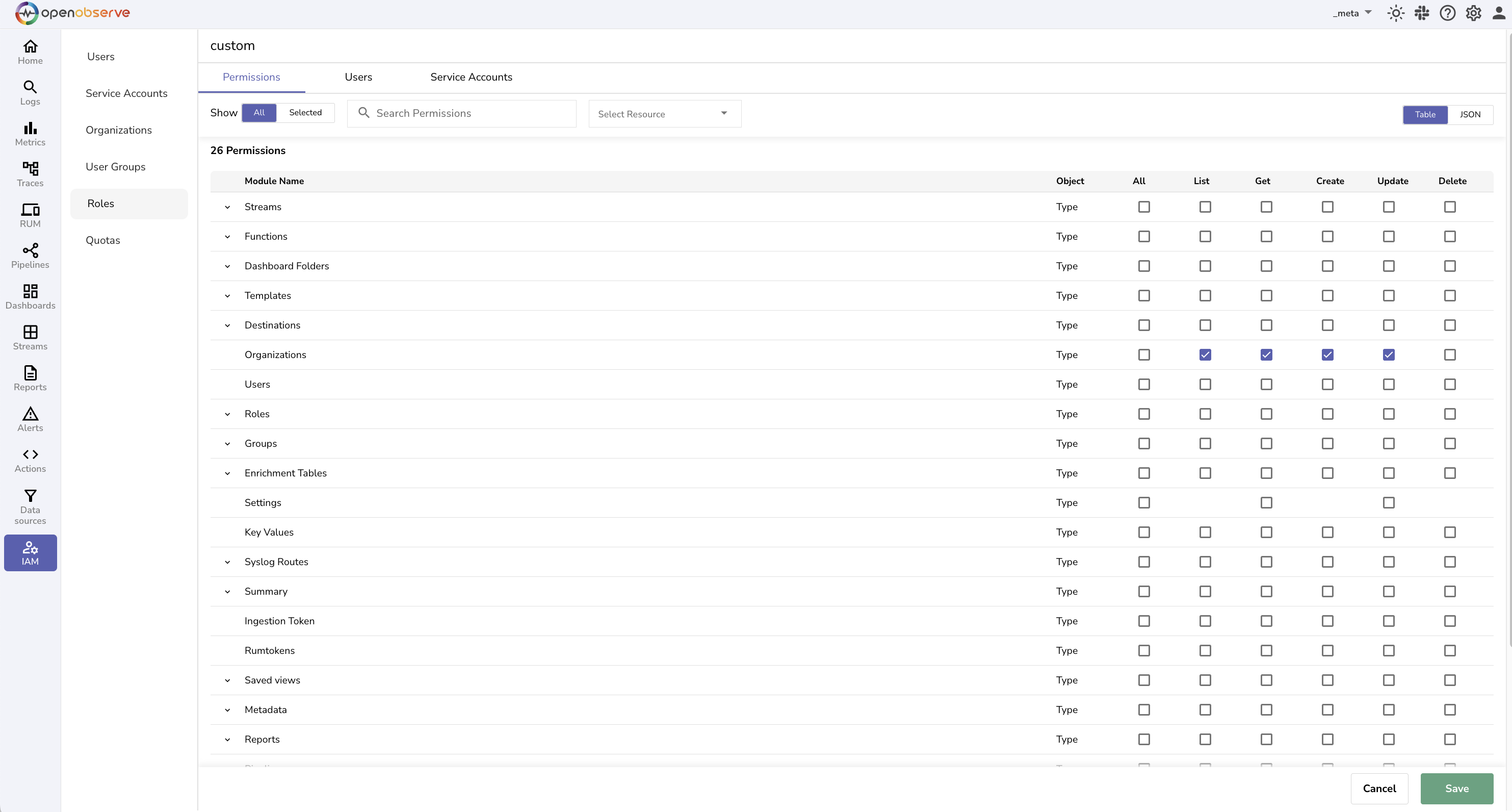
Once this role is assigned to a user within the **_meta** organization, they will have access to manage organizations across the system.
## Create an Organization
### From the User Interface
To create a new organization:
1. Navigate to **IAM > Organizations**.
2. Click **Add Organization**.
3. Enter the organization name and save.

This option is available to the **root** user by default. In enterprise deployments, additional users may create organizations if they are granted permission through the meta organization.
### During Ingestion
New organizations can also be created automatically during ingestion, depending on the environment variable setting and user role.
To enable this feature, set:
```
ZO_CREATE_ORG_THROUGH_INGESTION=true
```
> By default, this variable is now set to true.
When enabled:
- Only the **root** user can create organizations by sending data to a non-existent organization.
- If a non-root user attempts to do so, a 401 unauthorized error is returned.
## Behavior and Limitations
- **Unique Identifiers and Duplicate Names**: Each organization is assigned a unique identifier that is separate from its name. This identifier is required in API requests and ensures internal uniqueness, allowing multiple organizations to have the same name.
- **Identifier Visibility in UI**: The organization list in the UI displays both the name and the identifier, helping you distinguish between organizations with the same name.
- **Switching Organizations**: Use the dropdown in the top navigation bar to switch between organizations you have access to. All actions, such as queries and configurations, apply only to the selected organization.
- **Search by Name**: You can search for organizations by name using the search bar on the Organizations page.
- **Rename Restrictions**: Organizations cannot be renamed.
- **Organization Deletion**: In cloud deployments, organizations can be deleted with a configurable grace period. See [Organization Deletion](organization-deletion.md).