---
title: SSO Domain Restrictions
metaTitle: SSO Domain Restrictions User Guide - OpenObserve Enterprise
description: Learn how to configure SSO domain restrictions in OpenObserve Enterprise to control user access by email domains and enhance security.
---
> This feature is only available in the OpenObserve Enterprise Edition.
This user guide provides step-by-step instructions for configuring and managing **SSO Domain Restrictions** in OpenObserve.
This feature allows you to control which users can log in to OpenObserve using Single Sign-On (SSO) providers. You can allow access to specific domains or even individual users from those domains.
:::note[Where to find]
The **SSO Domain Restrictions** page is available in the `_meta` org under **Management**.
:::
:::note[Who can access]
`Root` user and any other user who has access to the `_meta` org can access the **SSO Domain Restrictions** page.
:::
## Add Domain Restrictions
:::accordion[Step 1: Add a new domain]
### Step 1: Add a new domain
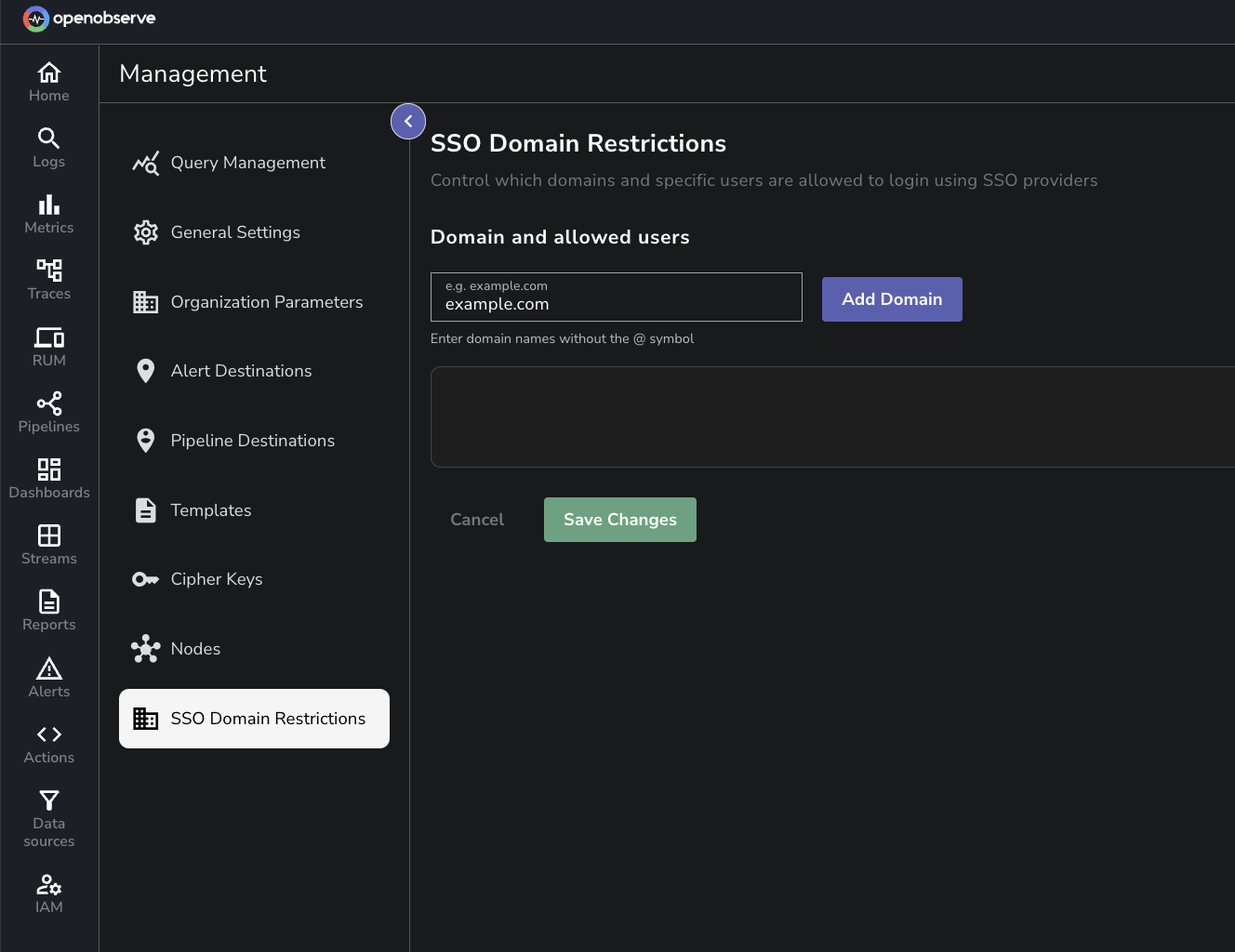
1. In the **Domain and allowed users** section, enter the domain name in the text field.
> Enter only the domain name, for example, `example.com` and do not include the `@` symbol.
2. Click the **Add Domain** button.
:::
:::accordion[Step 2: Configure Domain Access]
For each domain, you have two control options:
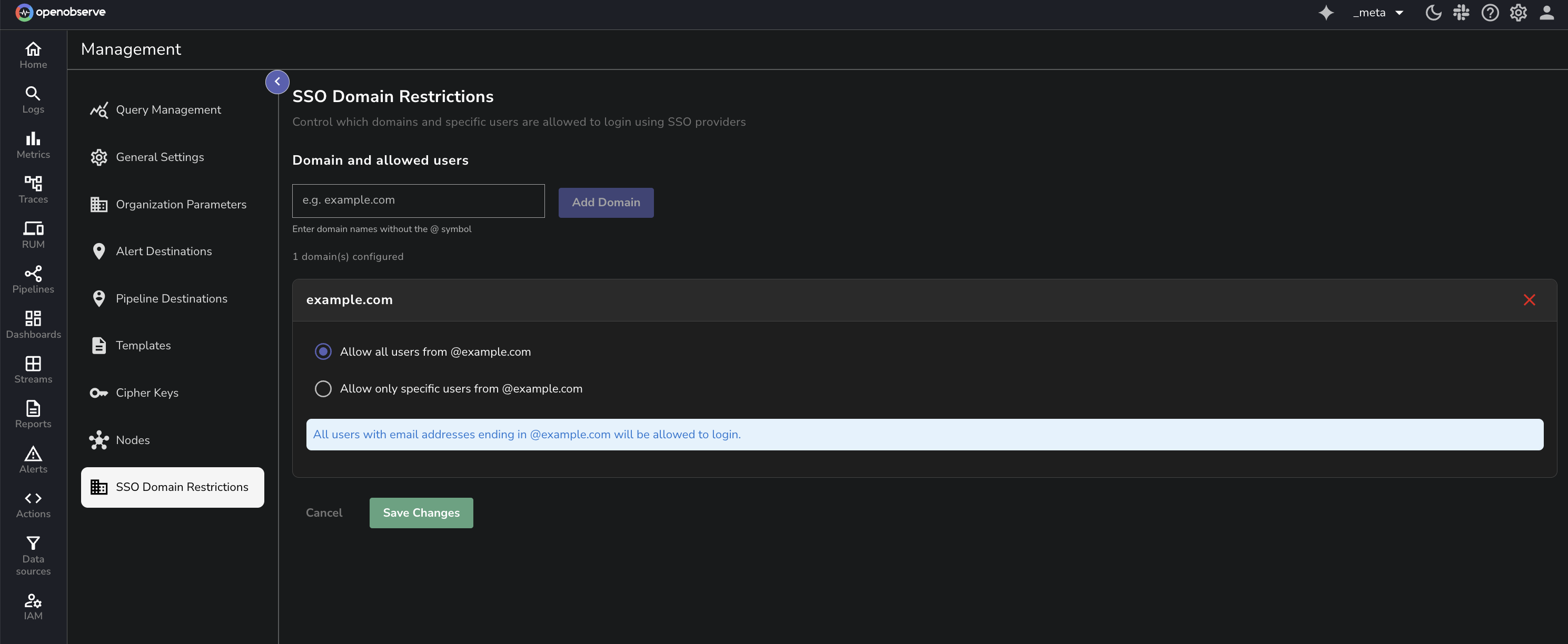
**Option 1: Allow All Users from Domain**
It permits any user with an email address from the selected domain to log in using SSO.
> **Use case:** Allow all employees from your company domain `@example.com`.
**Option 2: Allow Specific Users Only**
It allows you to add individual email addresses that should be permitted to log in using SSO.
> **Use case**: Allow only certain users from a partner organization. For example, `e1@example1.com` and `e2@example1.com`.
When **Allow only specific users** is selected:
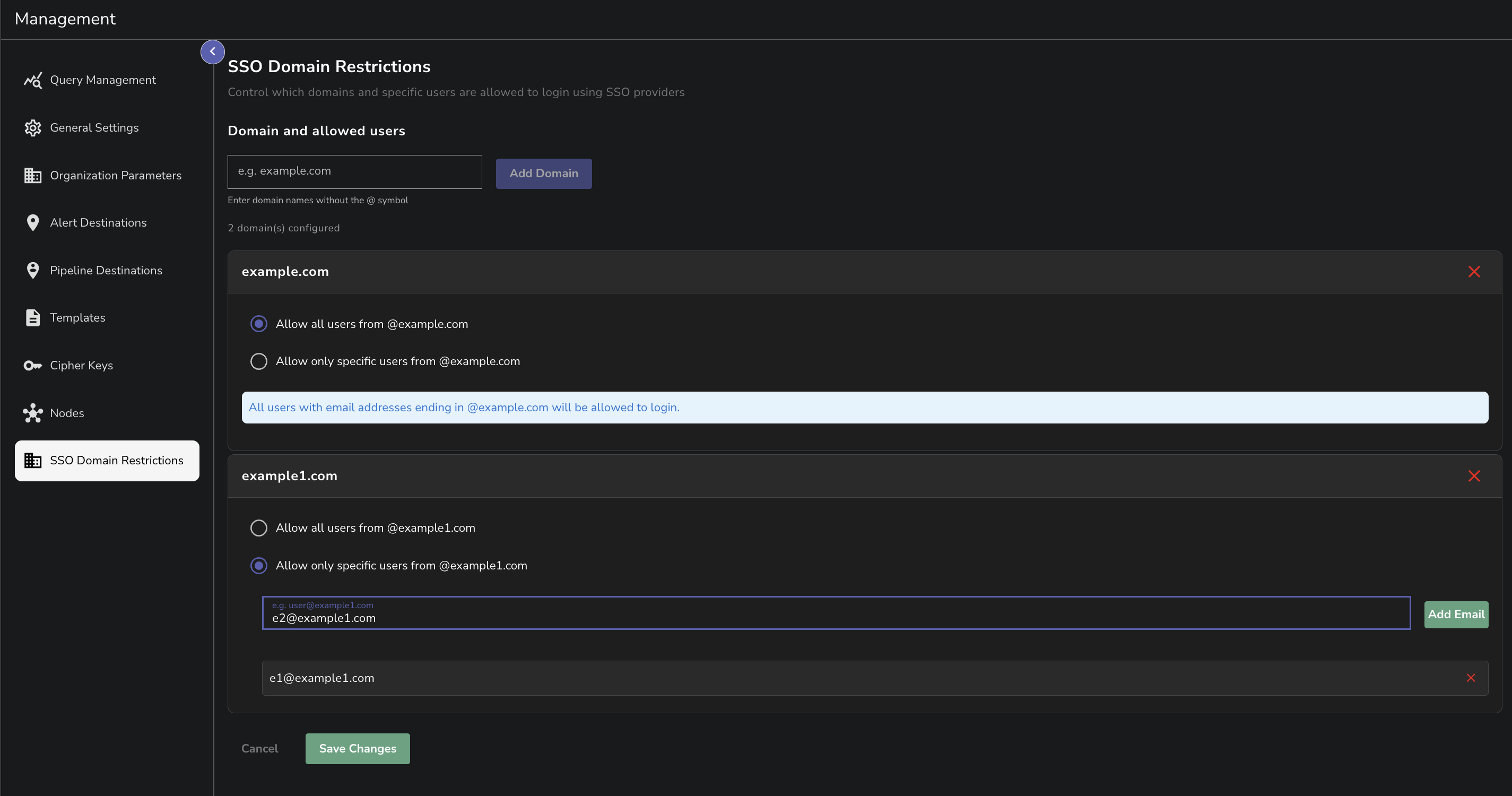
1. Enter the complete email address in the input field.
2. Click **Add Email**.
3. The email address will be added to the allowed list.
4. Repeat for additional users.
5. Use the **X** button next to any email to remove it.
:::
:::accordion[Step 3: Save configuration]
### Step 3: Save configuration
1. Review your domain restrictions.
2. Click **Save Changes** to apply the configuration.
3. Click **Cancel** to discard changes.
:::
## Domain limits
There is no limit on the number of domains you can configure. Add as many domains and specific users as needed for your organization.
## Error messages
When **SSO Domain Restrictions** are configured, any user attempting to log in from domains or email addresses that are **NOT** in the allowed list will see an `unauthorized` error during SSO login.
## Supported SSO login options
OpenObserve allows users to log in through the following Single Sign-On options, and domain restrictions apply to all of them:
- GitHub
- GitLab
- Google
- Microsoft
Domain restrictions will be enforced when users attempt to log in using any of these SSO options.
## Troubleshooting
| **Problem** | **Solution** |
| ----------------------------------------- | -------------------------------------------------------------------- |
| SSO Domain Restrictions menu not visible. | Verify that you are in the `_meta` organization. |
| Changes not taking effect. | Ensure that you clicked **Save Changes** and refresh the login page. |