---
title: Create and Use Scheduled Actions
description: Create Scheduled Actions in OpenObserve to run Python scripts on a set schedule—ideal for recurring tasks like log ingestion or automated background jobs.
---
This guide provides step-by-step instructions for creating and using Scheduled Actions in OpenObserve.
:::info[Availability]
This feature is available in Enterprise Edition and Cloud. Not available in Open Source.
:::
**Scheduled Actions** in OpenObserve allow you to execute custom Python scripts at a specific time, either **once** or on a **recurring schedule** defined using a cron expression.
Scheduled Actions run based on time, making them suitable for:
- Routine or periodic tasks. For instance, hourly, daily, weekly.
- Background jobs that interact with OpenObserve. For instance, ingest logs.
>The following example demonstrates a periodic log pusher.
>The action script:
>
>- Establishes a connection to OpenObserve using environment variables.
>- Pushes a test log event to the `default` organization and `default` stream.
>- Runs at a scheduled time defined by the cron expression.
## Create a Scheduled Action
:::accordion[Prerequisites]
Before you create a Scheduled Action, ensure the following are in place:
1. **Service Account with Necessary Permissions**
- Choose an existing service account or create a new one, depending on your needs.
- Ensure the service account is associated with a role that grants permission to perform the specific actions required by your script. The role must include:
- **Actions**: `GET` permission (mandatory)
- Other permissions based on your script's requirements. In this example, the script interacts with log streams, the role must include permission to access and manage **Streams**.
2. **Python Script Requirements**
- Must contain a `main()` function.
- **Important:** `main()` must **not** accept any arguments. **Scheduled Actions do not take input at runtime.**
- Use environment variables to fetch values such as:
- Base URL of OpenObserve
- Authentication token
- Target org and stream
Note:
`ORIGIN_CLUSTER_URL` and `ORIGIN_CLUSTER_TOKEN` are available to all actions by default. You do not need to manually define them during the Scheduled Action configuration. In the `main.py` script, user can directly call, as shown below:
```python
os.environ.get("ORIGIN_CLUSTER_URL")
os.environ.get("ORIGIN_CLUSTER_TOKEN")
```
Note that you must use the base64 encoded version of the cluster token.
> **Where to Get the Base64 Token**
>
> To find the base64-encoded version of `username:password`:
>
>1. From the left navigation menu, select **Data Sources**.
>2. Go to **Custom** > **OTEL Collector**.
>3. Locate the section for `Authorization: Basic `
>The value after `Basic` is your **base64 token**.
However, other variables (like `OPENOBSERVE_ORG`, `OPENOBSERVE_STREAM`) are not provided by default.
If the script needs them, you can define them in the script or in the **Environment Variables** section when creating or editing an Action.
The following `main.py` builds a connection to OpenObserve, then pushes a test log to the `default` organization and `default` stream.
```python lineNumbers
import os
import sys
import json
import logging
import requests
import base64
from typing import Dict, Any, Optional, Tuple
# Configure logging
logging.basicConfig(
level=logging.INFO,
format='%(asctime)s - %(name)s - %(levelname)s - %(message)s'
)
logger = logging.getLogger(__name__)
class OpenObserveClient:
def __init__(self):
# Get values from environment variables with defaults
self.base_url = os.environ.get("ORIGIN_CLUSTER_URL", "http://localhost:5080")
self.token = os.environ.get("ORIGIN_CLUSTER_TOKEN", "dXNlcm5hbWU6cGFzc3dvcmQ=") # Here, "dXNlcm5hbWU6cGFzc3dvcmQ=" is the base64-encoded version of "username:password". See the "Where to Get the Base64 Token" section above.
self.org = os.environ.get("OPENOBSERVE_ORG")
self.stream = os.environ.get("OPENOBSERVE_STREAM")
# Ensure base_url doesn't end with a slash
self.base_url = self.base_url.rstrip('/')
# Parse the token to get username and password
try:
# Decode base64 token
decoded = base64.b64decode(self.token).decode('utf-8')
self.username, self.password = decoded.split(':', 1)
self.auth = (self.username, self.password)
logger.info(f"Initialized OpenObserve client for org: {self.org}, stream: {self.stream}")
except Exception as e:
error_msg = f"Failed to parse base64 encoded token: {str(e)}"
logger.error(error_msg)
raise ValueError(error_msg)
def ingest_data(self, data: Dict[str, Any]) -> bool:
"""
Ingest data to OpenObserve stream
Args:
data: Dictionary containing the data to be ingested
Returns:
bool: True if ingestion was successful, False otherwise
"""
try:
# Endpoint for ingesting JSON data
url = f"{self.base_url}/api/{self.org}/{self.stream}/_json"
# Make POST request to ingest data
response = requests.post(
url,
json=data,
auth=self.auth,
headers={"Content-Type": "application/json"}
)
# Check if request was successful
if response.status_code in (200, 201, 204):
logger.info(f"Successfully ingested data to {self.stream}")
return True
else:
logger.error(f"Failed to ingest data: {response.status_code} - {response.text}")
return False
except Exception as e:
logger.error(f"Error while ingesting data: {str(e)}")
return False
def ingest_batch(self, data_list: list) -> bool:
"""
Ingest a batch of data to OpenObserve stream
Args:
data_list: List of dictionaries containing data to be ingested
Returns:
bool: True if ingestion was successful, False otherwise
"""
try:
# Endpoint for ingesting multiple records
url = f"{self.base_url}/api/{self.org}/{self.stream}/_json"
# Make POST request to ingest batch data
response = requests.post(
url,
json=data_list,
auth=self.auth,
headers={"Content-Type": "application/json"}
)
# Check if request was successful
if response.status_code in (200, 201, 204):
logger.info(f"Successfully ingested {len(data_list)} records to {self.stream}")
return True
else:
logger.error(f"Failed to ingest batch data: {response.status_code} - {response.text}")
return False
except Exception as e:
logger.error(f"Error while ingesting batch data: {str(e)}")
return False
def main():
try:
# Initialize OpenObserve client
client = OpenObserveClient()
# Sample data to ingest
sample_data = {
"message": "Hello, world!",
"level": "info",
"timestamp": "2023-01-01T00:00:00Z",
"service": "sample-service",
"metadata": {
"hostname": "sample-host",
"version": "1.0.0"
}
}
# Ingest single data point
success = client.ingest_data(sample_data)
if success:
# Sample batch data
batch_data = [
{"message": "Line 1", "level": "info", "service": "sample-service"},
{"message": "Line 2", "level": "info", "service": "sample-service"},
{"message": "Line 3", "level": "info", "service": "sample-service"},
{"message": "Line 4", "level": "info", "service": "sample-service"},
{"message": "Line 5", "level": "info", "service": "sample-service"},
{"message": "Line 6", "level": "info", "service": "sample-service"}
]
# Ingest batch data
client.ingest_batch(batch_data)
except Exception as e:
logger.error(f"Error in main function: {str(e)}")
if __name__ == "__main__":
main()
```
:::
:::accordion[Step 1: Go to Actions]
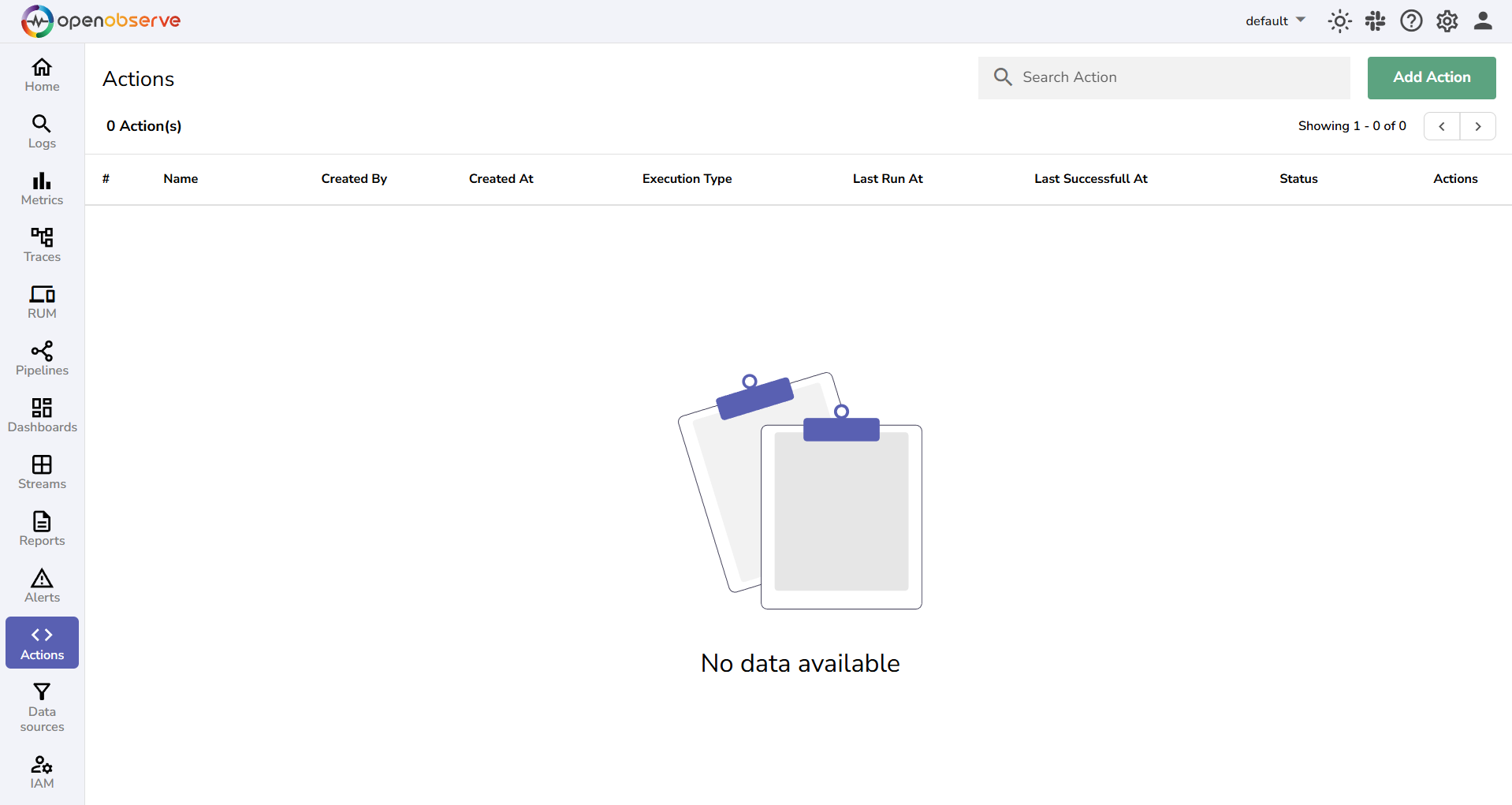
1. From the left navigation menu, select **Actions**.
2. Click **Add Action**.
:::
:::accordion[Step 2: Enter Name, Description, and Type]
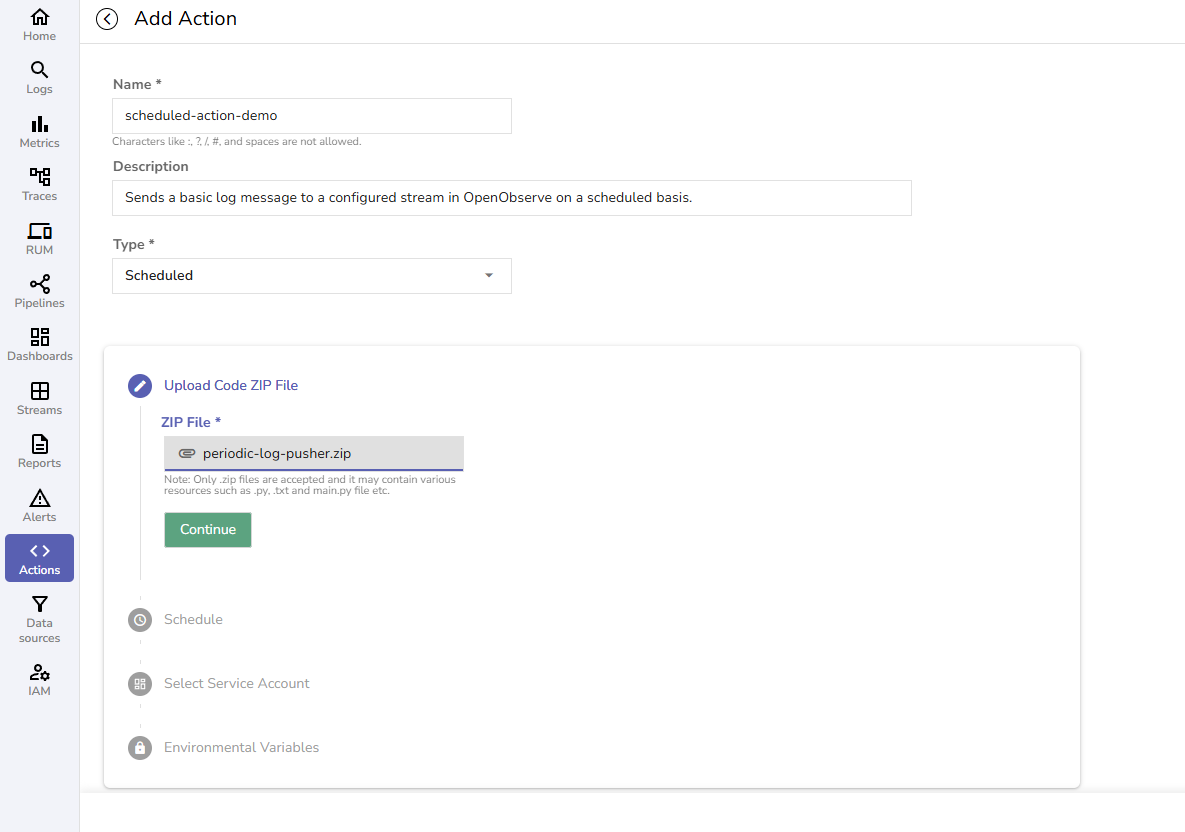
- **Name**: Enter a name for the action. Example: scheduled_log_sender.
- **Description**: Provide a description for the action. Example: Sends a test log message on a schedule.
- **Type**: Select **Scheduled**.
:::
:::accordion[Step 3: Upload the Action Script in `.zip` Format]
Ensure that the zip file has `main.py`, optional helper functions, and the `pyproject.toml` file or `dependencies` folder with necessary dependencies. [Learn more about declaring dependencies when creating Action script in Python.](./declare-python-dependencies-in-O2-actions.md)
:::
:::accordion[Step 4: Set the Schedule]
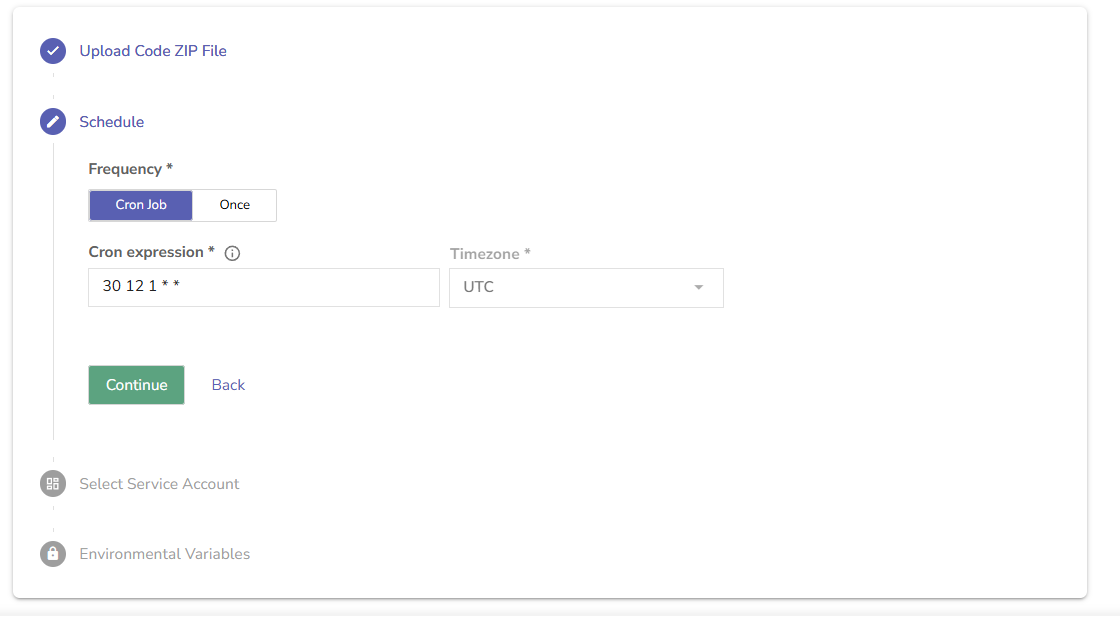
Choose either:
- **Once**: Script runs one time only
- **Cron Job**: Recurring runs based on a cron expression
Let's say, you want the action runner to execute this action at 12:30 PM on the 1st day of every month. In this case, select **Cron Job** and enter the cron expression as: `30 12 1 * *`
Other Cron Expression Examples:
- 0 * * * *: Every hour at minute 0
- 10 7 * * *: At 07:10 AM UTC every day
- 30 2 * * 1: Every Monday at 02:30 UTC
**Important:**
- All cron jobs run in UTC timezone. Be sure to convert from your local time if needed.
- Once a Scheduled Action is saved, you cannot change the schedule later. Double-check your schedule before submitting.
:::
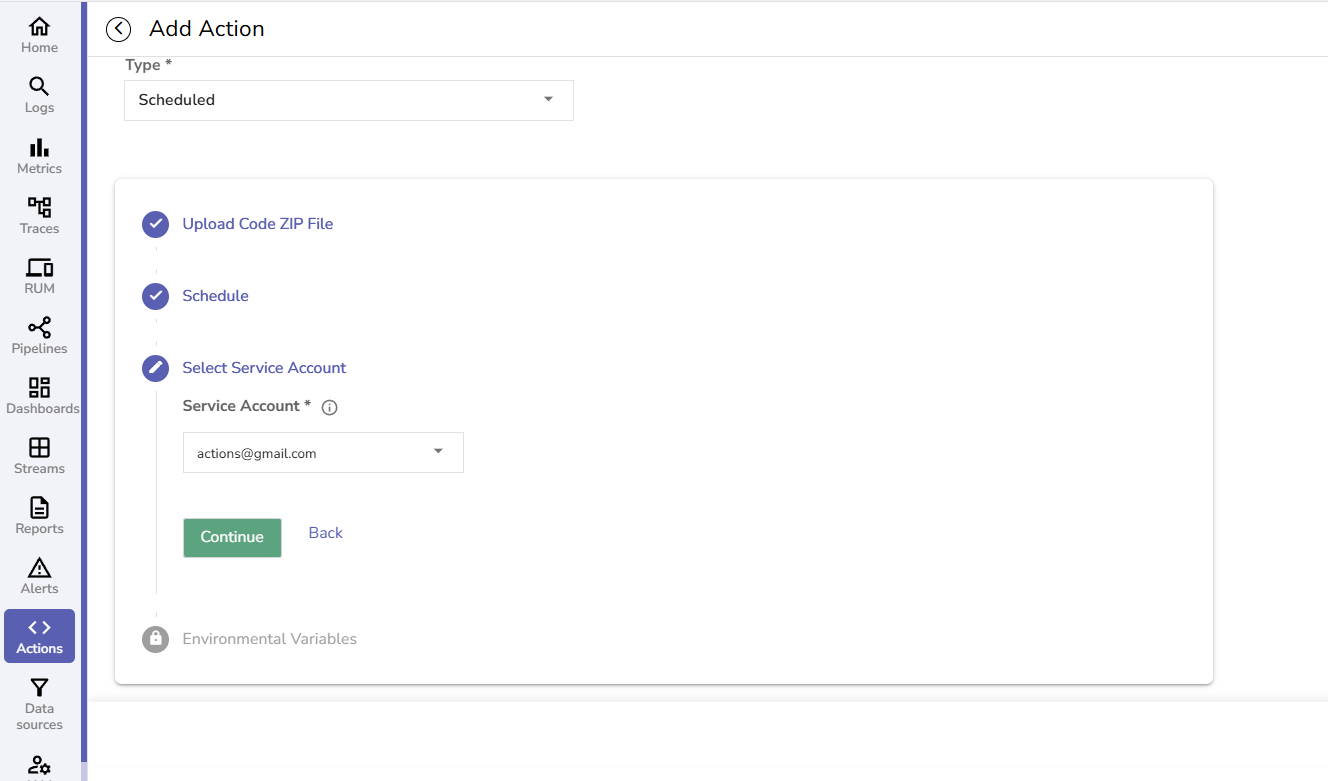
:::accordion[Step 5: Select a Service Account]
Ensure that you select the service account with appropriate permission.
:::
:::accordion[Step 6: Add Environment Variables (optional)]
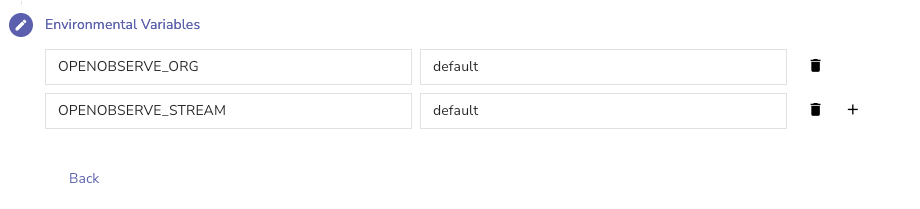
You can use environment variables to pass information into your script, without writing it directly in the Python script. [Learn how to use environment variables in Actions](./environment-variables-in-actions.md).
For the periodic log pusher action script, we can use the environment variables and values while configuring the actions.
```python lineNumbers=15
def __init__(self):
# Get values from environment variables with defaults
self.base_url = os.environ.get("ORIGIN_CLUSTER_URL")
self.token = os.environ.get("ORIGIN_CLUSTER_TOKEN”)
self.org = os.environ.get("OPENOBSERVE_ORG")
self.stream = os.environ.get("OPENOBSERVE_STREAM")
```
Since `ORIGIN_CLUSTER_URL` and `ORIGIN_CLUSTER_TOKEN` are available by default, define other variables in the **Environment Variables** section.
:::
:::accordion[Step 7: Save the Scheduled Action]
Click **Save** to complete the configuration. The Scheduled Action is now ready for execution.
After the scheduled action gets saved, it remains `Ready` until the scheduled time. After the execution is complete the status shows `Completed`. If the execution fails, the status shows `Errored`.
:::
## Result
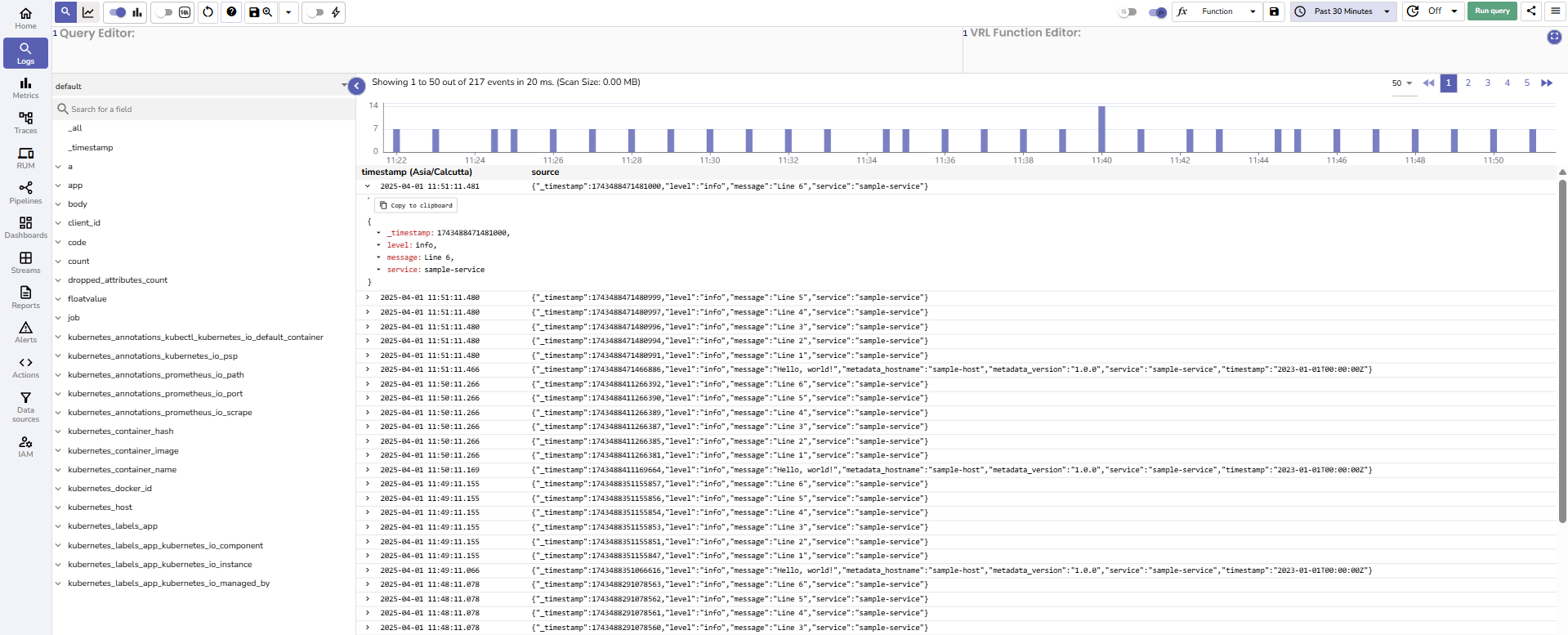
In the above example, when the schedule hits and the script executes successfully, it connects to OpenObserve using the environment variables and push a log at the scheduled time. The output looks like this:
```json
{
"message": "Scheduled log from OpenObserve action",
"level": "info",
"timestamp": "2025-01-01T00:00:00Z",
"service": "scheduled-action"
}
```