---
title: Create and Use Enrichment Tables
metaTitle: Enrichment Table – OpenObserve
description: Learn how to enrich incoming or queried log data in OpenObserve using enrichment tables.
---
This page explains how to enrich incoming or queried log data in OpenObserve using enrichment tables.
## What Is an Enrichment Table
An enrichment table in OpenObserve is a reference table used to enhance your log data with additional context. It is typically a CSV file that maps the fields from your logs to descriptive values.
You can use enrichment tables during:
- **Ingestion**: To add context as data is ingested.
- **Query time**: To enrich data dynamically while querying.
**Enrichment is performed using [Vector Remap Language or VRL functions](https://vector.dev/docs/reference/vrl/).**
:::note[Where to find]
To access the enrichment table interface:
1. Select the appropriate organization from the dropdown in the top-right corner.
2. Navigate to the left-hand menu.
3. Select **Pipelines > Enrichment Tables**.
This opens the enrichment table management interface, where you can view, create, and manage enrichment tables available to the selected organization.
:::
:::note[Who can access]
Access to enrichment tables is controlled via the **Enrichment Tables** module in the **IAM** settings, using **[role-based access control (RBAC)](../../account-administration/identity-and-access-management/role-based-access-control.md)**.
- **Root users** have full access by default.
- Other users must be assigned access through **Roles** in **IAM**.
- You can assign access to the entire **Enrichment Tables** module.
- You can also assign permissions to individual enrichment tables. This allows fine-grained control over who can use or modify specific enrichment tables.
:::
## Common Use Cases for Enrichment
Enrichment tables are often used to add human-readable context or derived values to logs. Examples include:
- **Country code to country name**: Add a new field that maps `IN` to `India`, `US` to `United States`, etc.
- **Status code to status label**: Add a new field that maps status `1` to `success`, `2` to `failure`, and `3` to `unknown`.
- **Internal vs external IP**: Add a new field that classifies the IP address as `internal` or `external` based on private IP ranges.
- **Protocol number to protocol name**: Add a new field that maps `6` to `TCP` and `17` to `UDP` using a protocol lookup table.
## How to Create and Use an Enrichment Table
### Step 1: Identify the Field to Enrich
Review your log data and identify a field that contains codes or labels with limited context.
**Example**
The `log_iostream` field in the logs has values such as:
```json
"log_iostream": "stdout"
"log_iostream": "stderr"
```
> The goal is to create a new field, for example `stream_type_description`, that provides a readable explanation like:
```json
"log_iostream": "stderr"
"stream_type_description": "Standard Error – error or diagnostic logs"
```
### Step 2: Prepare the Enrichment Table
Create a CSV file containing the original values and their corresponding descriptive meanings. Use clear and consistent column headers.
Example CSV (`enrichment_reference.csv`)
```cs
log_iostream,stream_type_description
stdout,Standard Output – application logs
stderr,Standard Error – error or diagnostic logs
```
### Step 3: Upload the Enrichment Table
1. Go to **Pipelines > Enrichment Tables** in the OpenObserve UI.
2. Click **Add Enrichment Table**.
3. Set a name such as log_stream_labels.
4. Upload your CSV file.
5. Click **Save**.
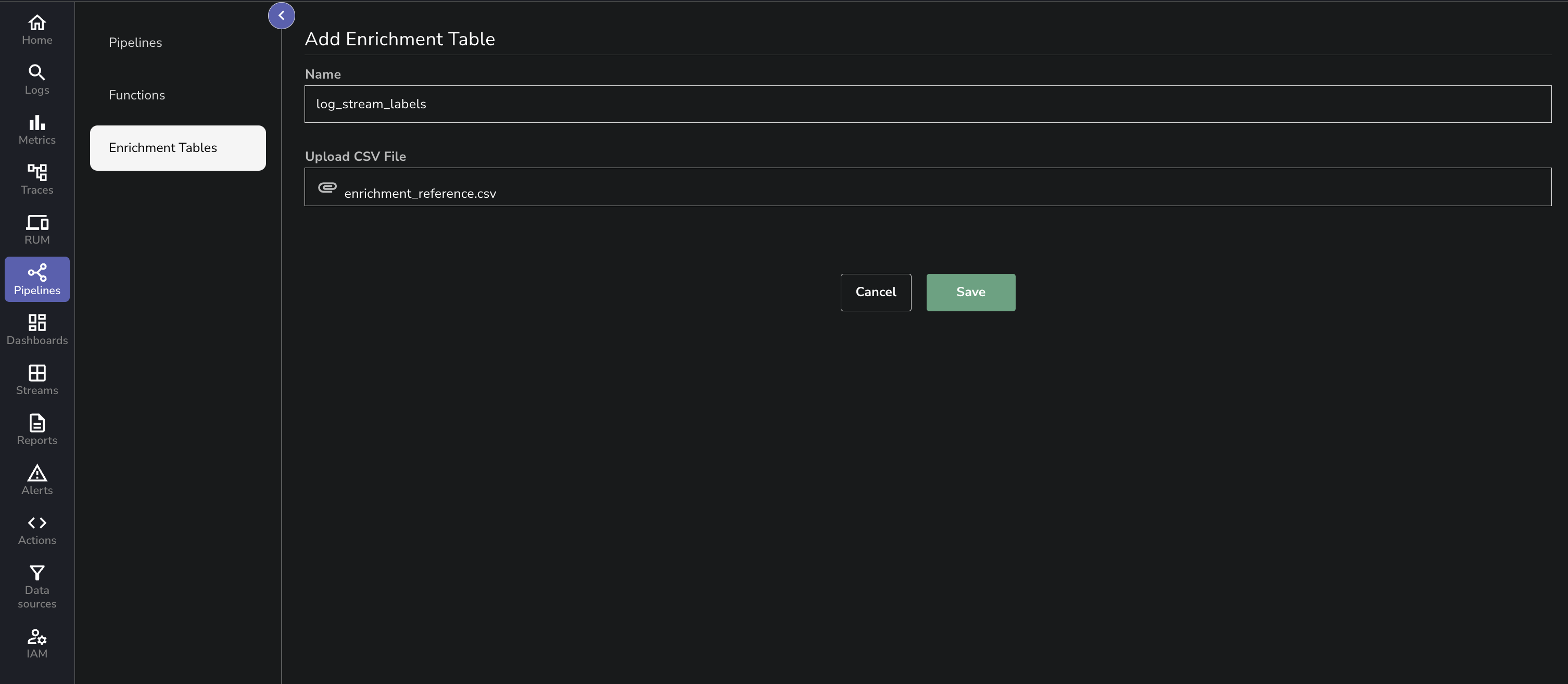
The enrichment table is now available for use in VRL.
:::note[Naming and uniqueness]
Enrichment table names must be unique within an organization, regardless of how the table is created (URL or file upload).
- Names are normalized before they are stored: they are lowercased and special characters are replaced. As a result, names such as `My_Table` and `my_table` are treated as the same name and will collide.
- Creating a table whose name matches an existing table of the other source type (for example, creating a file-upload table that matches an existing URL table, or vice versa) is rejected. Use the matching update flow for that table type instead.
:::
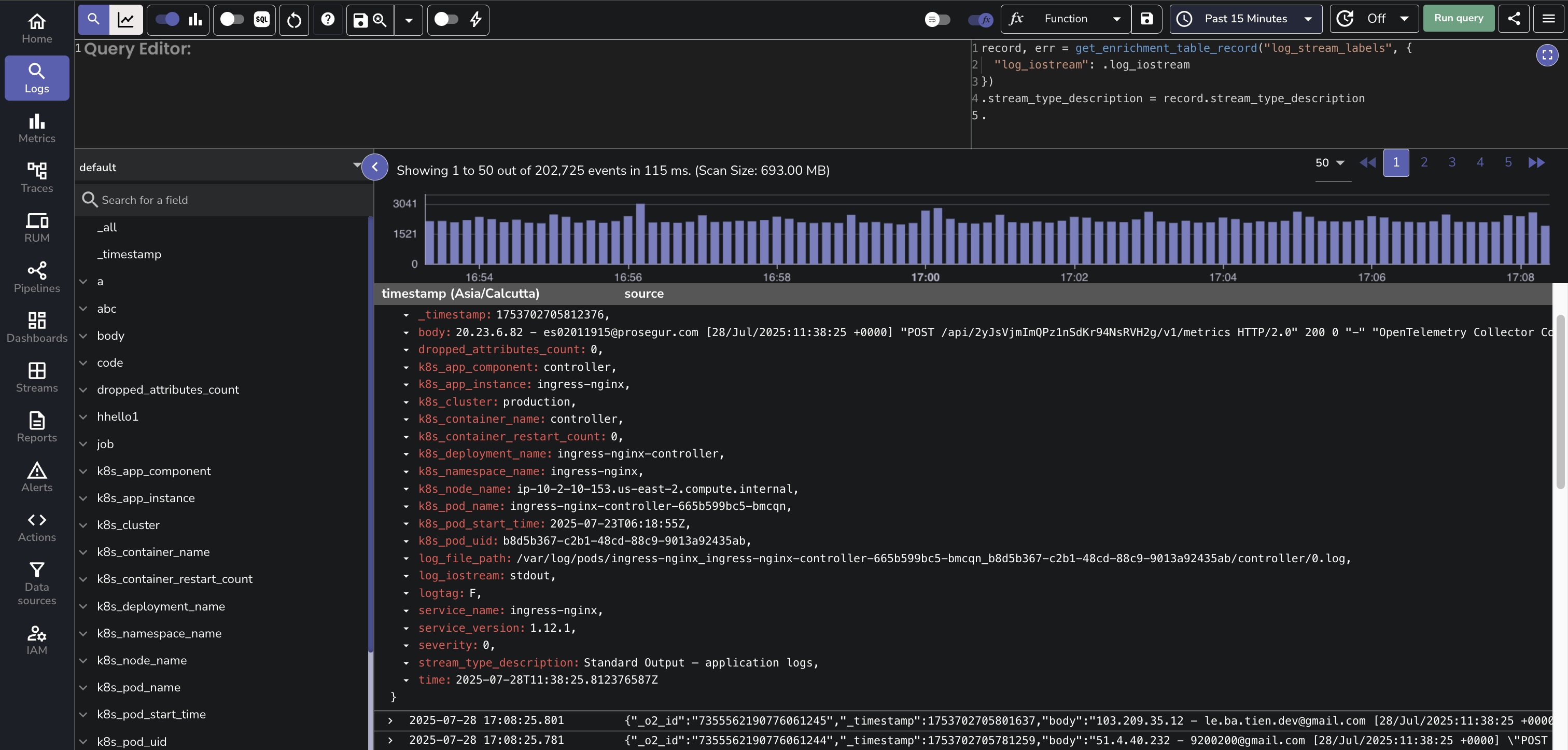
### Step 4: Use the Enrichment Table in a VRL Function
1. Go to the **Logs** page.
2. Select the relevant log stream.
3. In the **VRL Function Editor**, enter the following:
```js lineNumbers
record, err = get_enrichment_table_record("log_stream_labels", {"log_iostream": .log_iostream})
.stream_type_description = record.stream_type_description
.
```
:::note[Explanation:]
**Line 1:**
`record, err = get_enrichment_table_record("log_stream_labels", { "log_iostream": .log_iostream })`:
- This line searches the enrichment table named `log_stream_labels`.
- It matches the field `log_iostream` in your log event with the `log_iostream` column in the enrichment table.
- If a match is found, the corresponding row from the table is returned as record.
- If no match is found or an error occurs, record will be empty and err will contain the error.
**Line 2:**
`.stream_type_description = record.stream_type_description`:
- This creates a new field called `stream_type_description` in your log event.
- The value is taken from the `stream_type_description` column in the enrichment table row returned above.
- If the enrichment table did not contain a matching entry, this field may not be added.
**Line 3:**
`.`
- This tells OpenObserve to return the modified log event, including the newly added field.
:::
**Optional**
If you prefer to replace the original value instead of adding a new field, you can do:
```js lineNumbers
record, err = get_enrichment_table_record("log_stream_labels", {"log_iostream": .log_iostream})
.log_iostream = record.stream_type_description
.
```
### Step 5: Run the Query and View the Results
Click Run Query. A new field (such as stream_type_description) will appear in the results, containing the enriched meaning of the original value.
## Use Enrichment Tables in Pipelines
In addition to enriching data at query time, you can apply the same enrichment logic during ingestion using **Pipelines**. This allows you to permanently transform log records as they arrive, ensuring that enriched fields are stored along with the original data.
### How it works
- You define a pipeline with a **Transform** step that uses a VRL function.
- The VRL function reads from an enrichment table, just like in the **Logs** UI.
- The enriched field is added before the data is written to storage.
:::note[Note]
Use query-time enrichment when you want flexibility. Use ingestion-time enrichment when you want consistency and speed.
:::
## Append Data to an Existing Table
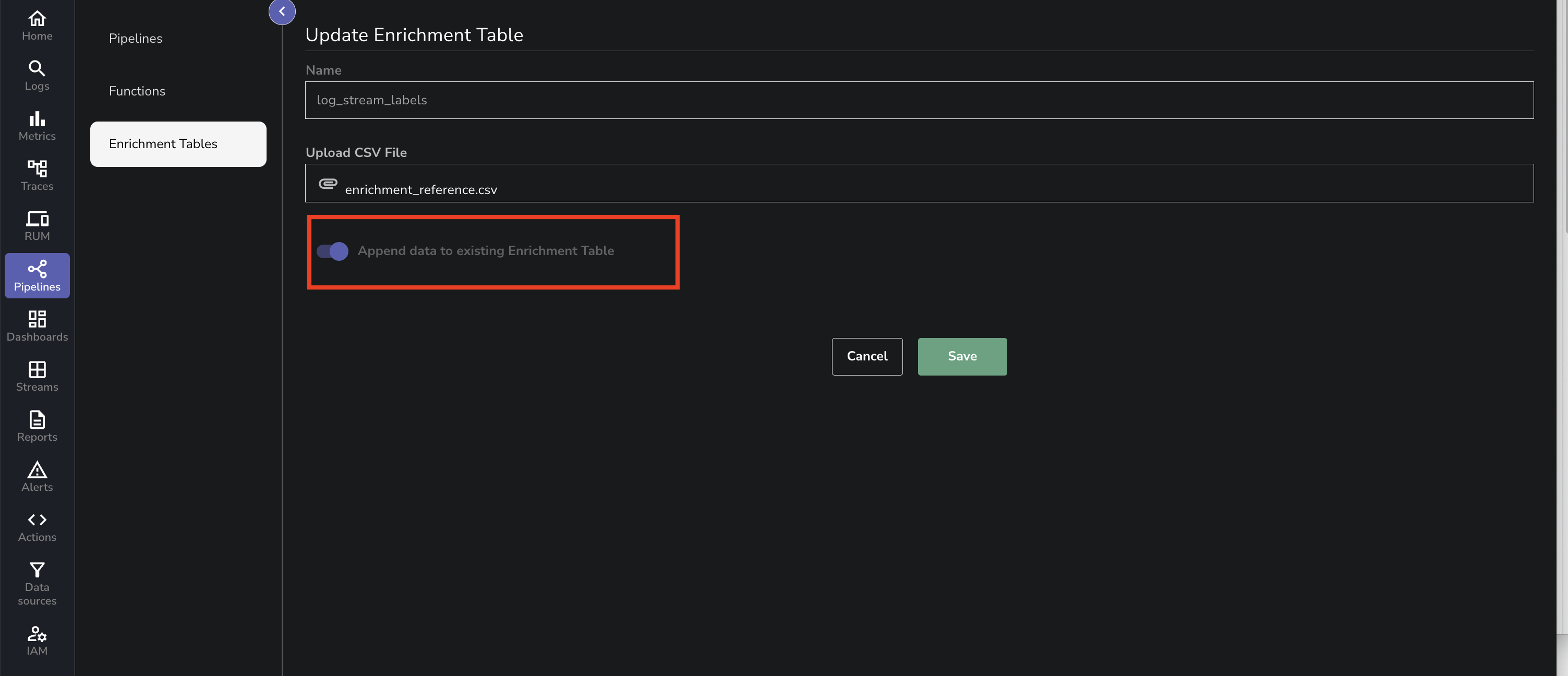
To add more data to an existing enrichment table, enable the **Append data to existing Enrichment Table** option before uploading your new CSV file:
1. In the left-hand navigation menu, select **Pipelines > Enrichment Tables**.
2. Select the table you want to update.
3. In the **Update Enrichment Table** view, select the new CSV file that contains the additional data.
4. Turn on the **Append data to existing Enrichment Table** toggle.
5. Select **Save** to upload and append the new data to the existing table.
:::note[Note]
OpenObserve does not silently overwrite existing data. Re-adding a URL that is already present in a table, or re-creating a URL-based table that already exists without using the append/reload flow, returns an error instead of overwriting the existing data.
:::
## Storage Limit
The maximum size of an enrichment table is controlled by the environment variable `ZO_ENRICHMENT_TABLE_LIMIT`.
- Default value: `256` (in MB)
- If the enrichment table exceeds this limit, you cannot append additional records. OpenObserve returns an error when the size threshold is reached.
## Upload Size Limit
The maximum size of the data payload that can be uploaded at one time is controlled by the environment variable `ZO_PAYLOAD_LIMIT`.
- Default value:`209715200`(approximately 210 MB)
- If you attempt to upload a payload larger than the configured limit, OpenObserve returns an error.
## Troubleshooting
- **Field not enriched:** Ensure the enrichment table column name matches the log field and that the data types are compatible.
- **No result added:** Check that the enrichment table was uploaded and saved correctly, and that a matching row exists.
- **Permission denied:** Ensure the user has the correct permissions in the IAM role to access the enrichment table.
## Related Links
- [Upload, Caching, and Restart Behavior](./enrichment-table-upload-recovery.md)