---
title: Users
metaTitle: Manage Users in OpenObserve - Roles and Invitations
description: Manage OpenObserve users by inviting members, creating accounts, assigning admin or member roles, and updating user details across one or many organizations.
---
# Users
Users are individuals using OpenObserve by logging in with appropriate credentials.
> Applicable to cloud version
For cloud version we support google as social account for login ,one can also sign up by providing valid email.
A user will always access all the entities & associated data in context of an organization, one user can also belong to multiple organizations. By default for every user default organization is created, additionally user can be invited to other organizations by admin & owner of the organization.
To navigate to users in OpenObserve , select preferred organization using organization selection control, then click on  menu , which will take one to users list screen. The screen lists all users for selected organization.
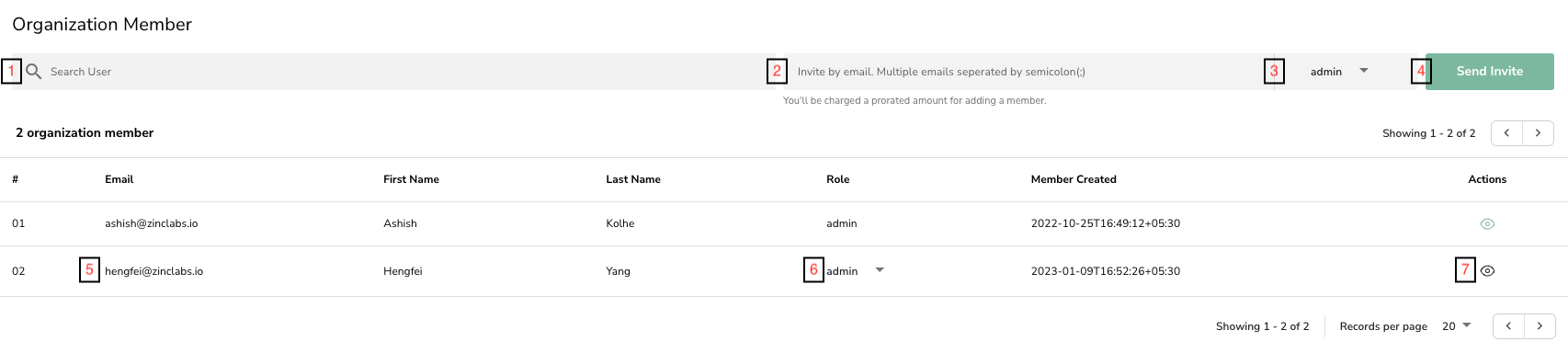
Users screen details :
1. Search in listed users
1. Invite new user by providing valid email id, invitation email will be sent to provide email id
1. Role for user being invited , possible values are admin,member
1. Send invitation button
1. Email id of the organization member
1. Role of the organization member possible values are admin,member
1. Update/view user details control , open side panel to update/view selected user , please note this control is enabled for users with role admin
> Applicable only to user with admin & owner role
## Create User
To create user click on Add user button on users page to open :
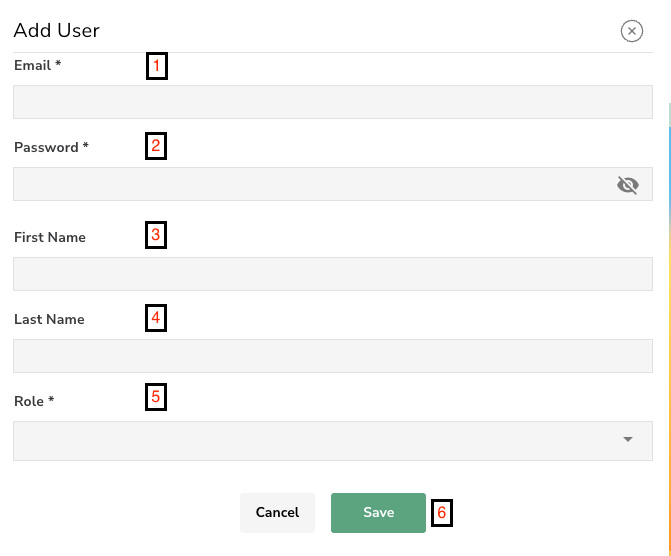
1. Email id of the user being added
1. Password for the new user being added
1. First name of new user being added (optional)
> **Note:** The password must meet the complexity policy: 8 to 128 characters with at least one lowercase letter, one uppercase letter, one digit, and one special character (non-ASCII characters count as special). See [Password requirements](account-administration/identity-and-access-management/update-password.md#password-requirements) for details. The same policy applies when changing a password through the **Change Password** flow.
1. Last name of new user being added (optional)
1. Role for the new organization member possible values are admin & member
1. Save button
## Update User
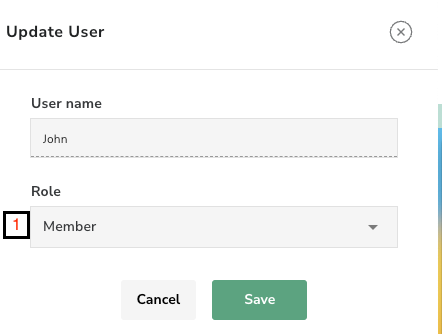
To update user click on update user control on users page , only role of the user can be changed to admin or member.
> Applicable to open source version
For open source version user with role admin or root can add new users to organization , a user will always access all the entities & associated data in context of an organization.
To navigate to users in OpenObserve , select preferred organization using organization selection control, then click on  menu , which will take one to users list screen. The screen lists all users for selected organization.
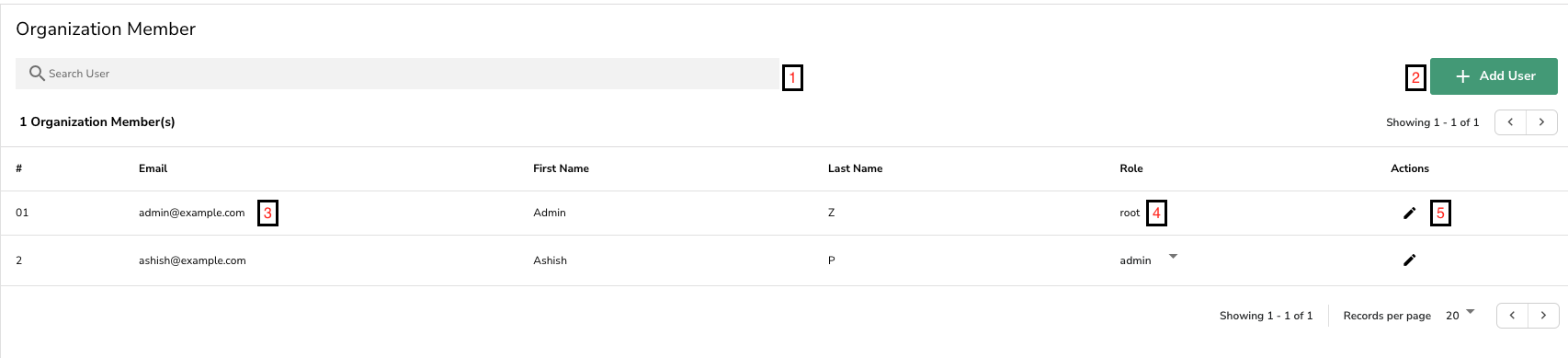
1. Search in listed users
1. Add new user by providing valid email id, password , role & other details
1. Email id of the organization member
1. Role of the organization member possible values are root,admin,member
1. Update/view user details control , open side panel to update/view selected user , please note this control is enabled for users with role admin