
Alert Templates
Templates are used when notification is sent for an alert, templates forms body of request being sent to destination, for eg. for slack one can create template like:
{
  	"text": "For stream {stream_name} alert {alert_name} of type {alert_type} is active"
}
When a notification is being sent, OpenObserve will replace placeholders like {stream_name}, {alert_name} etc with actual values of stream name, alert name.
Template kinds
Templates are managed from the Destination Templates tab on the Alerts page. When you create a template, choose one of two kinds:
- Template (a content template, the default for new templates in the UI): you write a title, a Markdown body, fields, links, and optional matching rows and chart image once, and OpenObserve renders the right payload for each destination type.
- Raw payload: a free-form JSON or text body with
{var}placeholders, sent exactly as written after the variables are substituted. Templates created before content templates existed, and templates created through the API without akind, are raw-payload templates. Open one in the editor and select Start a content version to convert it.
Content templates
A content template is stored as JSON with "kind": "content" on the template. In the editor you fill in these parts:
- Title: a one-line headline, such as the Slack headline or the email subject. Under Channel title overrides you can set a different title for specific channels, for example a shorter email subject.
- Body: Markdown with
{var}placeholders. OpenObserve converts it to each channel's format: Slack mrkdwn for Slack, HTML (with a plain-text alternative) for email, and plain text where a channel does not support formatting. - Fields: label and value pairs shown beside the message, such as the observed value and the threshold. Use Show for severity to show a field only at certain severity levels. This applies only to multi-level alerts.
- Links: action links with a label and a URL. URLs must use
http,httpsormailto, or be a relative path or a{variable}. Show for severity works the same way as for fields. A View in OpenObserve link to the alert is always appended. - Rows: turn on Show matching rows to include the rows that triggered the alert. Max rows caps how many are shown (default 5). Row format (optional) builds one line per row from that row's field names, for example
{level} {message}; leave it empty to show every field. - Chart: turn on Include chart image to attach a chart of the alert's recent values. See Chart images.
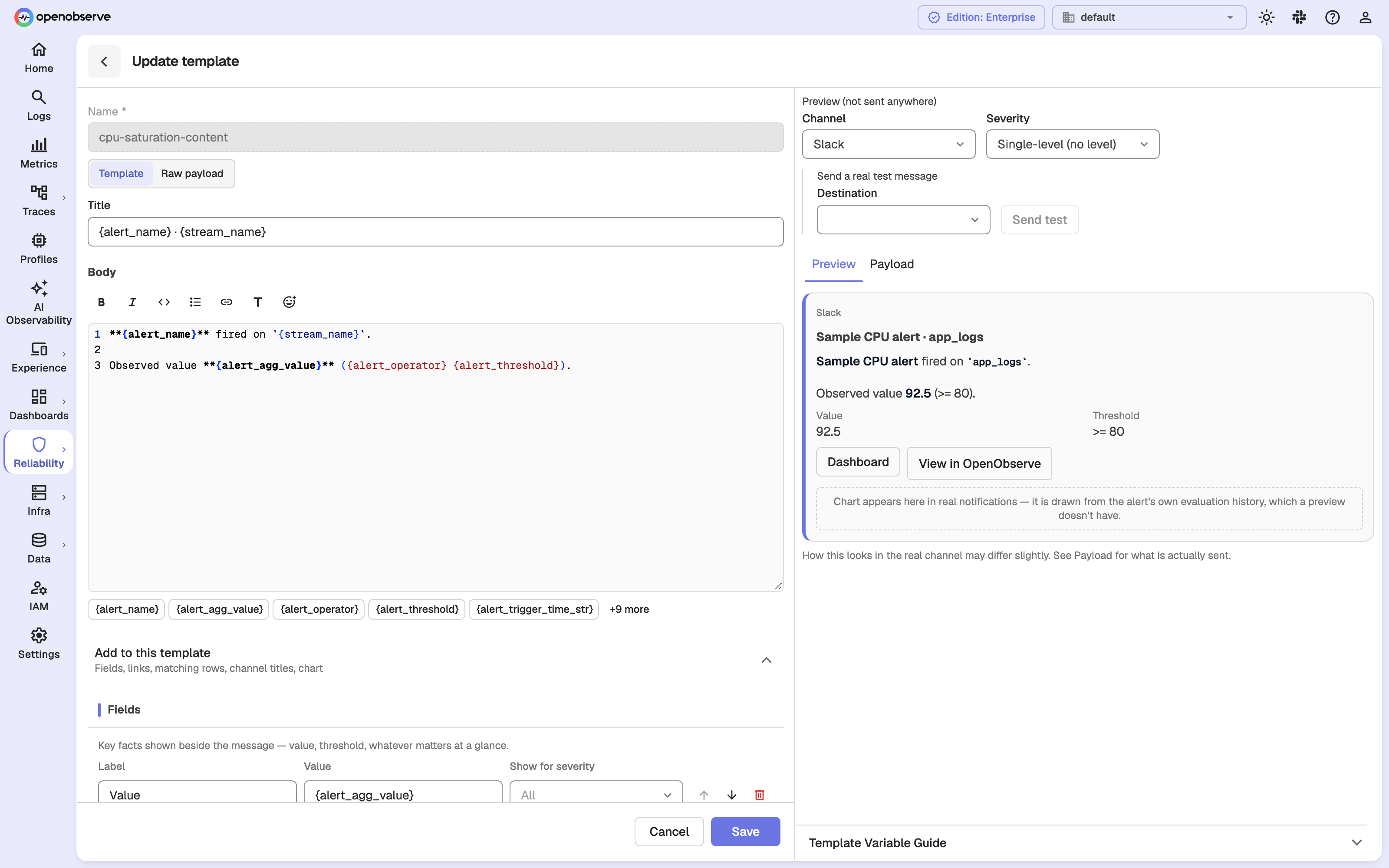
The stored body of a content template looks like this:
{
  "title": "{alert_name} fired",
  "title_overrides": { "email": "[{alert_level}] {alert_name}" },
  "body": "**{alert_name}** exceeded its threshold on `{stream_name}`.\nObserved value: {alert_agg_value}",
  "fields": [
    { "label": "Stream", "value": "{stream_name}" },
    { "label": "Runbook", "value": "https://wiki.example.com/runbooks/cpu", "show_when": { "levels": ["critical"] } }
  ],
  "links": [
    { "label": "Dashboard", "url": "https://dashboards.example.com/cpu" }
  ],
  "rows": { "enabled": true, "max": 10 },
  "chart": { "enabled": false }
}
Preview a template
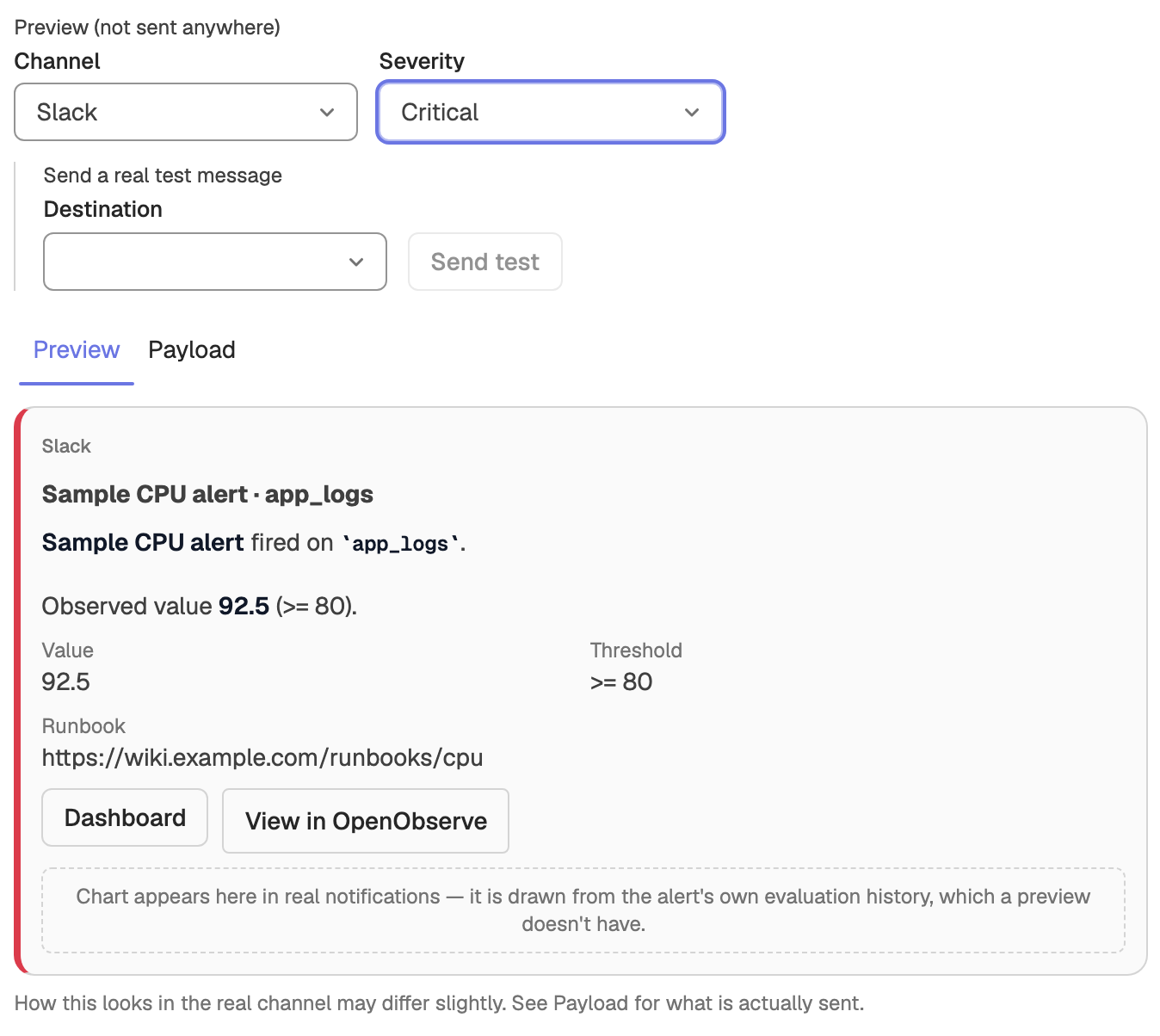
The preview panel beside the editor shows how the template renders before you save it. It uses the same rendering code as a real notification, with fixed sample data (an alert named "Sample CPU alert"), so a template always previews the same way.
- Under Preview (not sent anywhere), pick a Channel: Slack, Teams (Adaptive Card), Teams (MessageCard), Email, Webhook, Discord, PagerDuty, Opsgenie, ServiceNow or SNS.
- Pick a Severity: Single-level (no level), Critical, Warning, Ok or No data. Fields and links with Show for severity appear or disappear to match.
- Switch between the tabs:
- Preview: a card showing how the message looks.
- Payload: the exact body that is sent to the channel.
If the template uses a {variable} that OpenObserve does not recognise, the panel lists it under Unknown variables, so you can fix typos before an alert fires.
Send a test message
To check a destination end to end, use Send a real test message in the same panel: pick a Destination and select Send test. OpenObserve renders the template, including unsaved changes, with the sample data and posts it to that destination's real channel. The title or subject is prefixed with [TEST].
- Sending a test requires permission to edit the destination.
- Each user can send up to 6 test messages per minute on each node. Set
ZO_ALERT_TEST_SEND_PER_MINUTEto change the limit, or0to remove it.
Chart images
When Include chart image is on, notifications include a PNG chart of the alert's evaluated value over time, with the warning and critical thresholds drawn as lines and the firing point marked. The chart covers 20 evaluation periods, with a minimum of 6 hours and a maximum of 24 hours. Charts are supported on Slack, Teams, Email, Discord, PagerDuty and Webhook destinations.
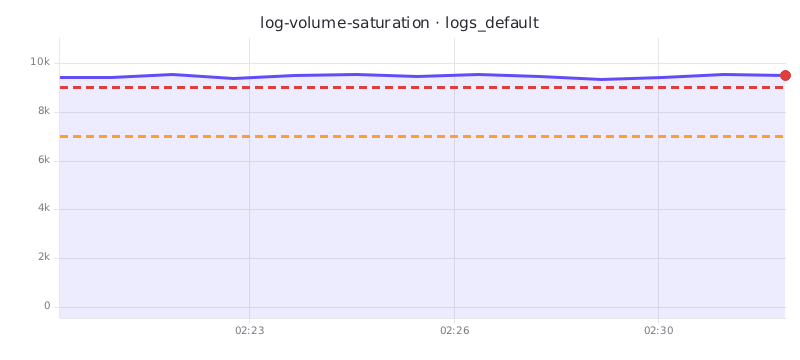
- The chart is built once per firing and shared by every destination of that alert.
- Slack, Teams, PagerDuty and webhook payloads link to the image through a signed URL,
/api/v2/{org_id}/alerts/charts/render. The chart data is carried in the URL itself, nothing is stored, and the link expires after 24 hours. The endpoint needs no login, so anyone who has the link can view the image until it expires. - Email embeds the image inline and Discord uploads it with the message.
- The preview panel does not draw the chart, because it has no evaluation history.
- If a chart cannot be produced, for example when there is not enough history yet or the node is busy, the notification is sent without one.
- Set
ZO_ALERT_CHART_ENABLED=falseto turn chart images off for the whole deployment. It defaults totrue.
Template variables
Variables which can be used in templates are:
| Variable | Value | Description |
|---|---|---|
| org_name | Organization name | Name of the organization |
| stream_type | Stream type | Type of the stream |
| stream_name | Stream name | Name of the stream for alert is created |
| alert_name | Alert name | Name of the alert |
| alert_type | Alert type | Possible values are : real time or scheduled |
| alert_period | Alert period | Limited 5 minutes, 10 minutes, set for alert |
| alert_operator | Alert trigger operator | Like >, >=, set for alert trigger |
| alert_threshold | Alert trigger threshold | Like, 5, the threshold for trigger alert, it will compare to alert_count or alert_agg_value. |
| alert_count | Alert records number | The records number when we query the alert condition. |
| alert_agg_value | Alert aggregation value | The value of the aggregation function if you enable it. and will use this value to compare with alert_threshold |
| alert_start_time | _timestamp | Alert matched the min _timestamp of the rows and formatted by %Y-%m-%dT%H:%M:%S |
| alert_end_time | _timestamp | Alert matched the max _timestamp of the rows and formatted by %Y-%m-%dT%H:%M:%S |
| alert_url | URL | A link can back to the UI and check the detail data. need configure ZO_WEB_URL |
| alert_trigger_time | _timestamp | Represents the timestamp in microseconds when the alert was evaluated |
| alert_trigger_time_str | _timestamp | Formatted alert_trigger_time. E.g. - 2024-12-02T11:27:40 |
| alert_level | Severity level | critical, warning, ok or no_data; empty for single-level alerts |
| alert_priority | Priority | P1 to P5; empty when the alert has no priority |
| alert_tags | Tags | The alert's tags, comma-separated, e.g. infra,prod |
| alert_threshold_crit | Critical threshold | Threshold for the critical level of a multi-level alert |
| alert_threshold_warn | Warning threshold | Threshold for the warning level of a multi-level alert |
| alert_description | Description | The alert's description |
| rows | mutiple lines of row template values | based on row template in alert page |
| all of the stream fields | the field value | Default we select * from stream if you custom sql then it will be only the fields that you selected. |
Variable length
You can use {rows:N} to limit only top N matched records will be in the actual value.
You also can use {log:N} to limit the length of a actual value.
Formatting modifiers
Apply a function to a placeholder with {field|function}. Modifiers work in the body and email Title of a Raw payload template, and in the row template of an alert. Content templates (see Template kinds) do not apply them. For example, {value|humanizePercentage} renders 0.9123 as 91.23%.
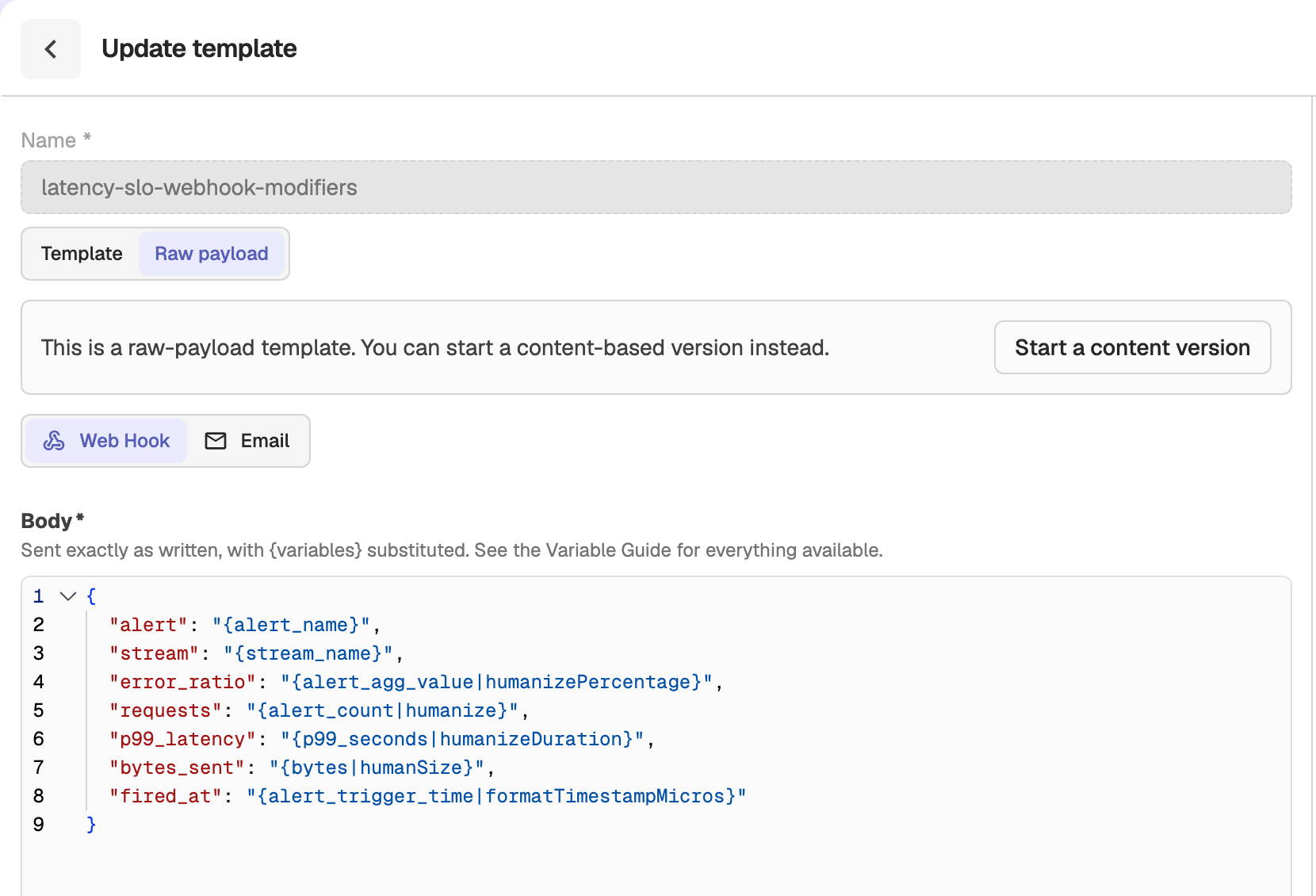
| Function | Converts | Example |
|---|---|---|
humanize | Number to SI prefixes | 1234567 → 1.235M |
humanize1024 | Number to binary prefixes | 1048576 → 1Mi |
humanizeDuration | Seconds to a duration | 3661.9 → 1h 1m 1s |
humanizePercentage | Ratio to a percentage | 0.9123 → 91.23% |
humanSize | Bytes to size units | 1536 → 1.5 KiB |
formatTimestamp | Unix seconds to a date | 0 → 1970-01-01T00:00:00Z |
formatTimestampMicros | Microseconds to a date | 1700000000123456 → 2023-11-14T22:13:20.123456Z |
Both timestamp functions take an optional strftime format followed by an optional timezone. To set a timezone, also pass a format. Without arguments, they output an ISO 8601 timestamp in UTC:
{_timestamp|formatTimestampMicros("%Y-%m-%d %H:%M:%S %:z", "Asia/Shanghai")}The timezone can be UTC, an offset such as +08:00, or an IANA name such as Asia/Kolkata. Use IANA names rather than abbreviations: CST is rejected because it is ambiguous, and most other abbreviations are not recognized. If a value or argument cannot be parsed, the placeholder is left unchanged.
Row templates
When your alert notification data have multiple objects you will want the notification has multiple line and each line is the data of one object. for example:
select k8s_pod_name, count(*) AS cnt FROM stram WHERE str_match(log, 'panic') GROUP BY k8s_pod_name ORDER BY cnt LIMIT 10This sql for Alert will trigger when we find panic in logs, and we want to known which pod generate the panic log with the error count.
without row template we can define the alert template like this:
{
  	"text": "{k8s_pod_name} got {cnt} panic logs"
}
I need to join the multiple values of k8s_pod_name with a , if there are multiple pods. then the notification message like this:
{
  	"text": "pod1,pod2,pod3 got 1,2,3 panic logs"
}
Actually we want it to show line by line like this:
pod1 got 1 panic log
pod2 got 2 panic log
pod3 got 1 panic log
That is the row template, with row template we can define the alert template like this:
{
  	"text": "alert for {alert_name}\n{rows}"
}
Just define the template with rows, it will replace by actual values of all rows.
And we define the row template in alert page:
{k8s_pod_name} got {cnt} panic logsAfter these, the notification message will be what we expect.
JSON row templates
When the row template itself is valid JSON and {rows} (or {rows:N}) appears in a JSON value position, each row is injected as an element of a JSON array instead of being joined into a single newline-separated string.
For example, with this row template:
{"pod": "{k8s_pod_name}", "count": {cnt}}and an alert template like:
{
  "rows": "{rows}"
}
the notification body becomes a JSON array, one element per row:
{
  "rows": [
    {"pod": "pod1", "count": 1},
    {"pod": "pod2", "count": 2},
    {"pod": "pod3", "count": 1}
  ]
}
If the row template is itself a JSON array, each row becomes an array element, so the result is an array of arrays.
Spread syntax
Use {...rows} (or {...rows:N}) to flatten array-typed row templates into a single one-dimensional array. Where {rows} would produce an array of arrays, {...rows} merges all the inner arrays into one flat array.
For example, with a JSON array row template like:
["{k8s_pod_name}", {cnt}]{...rows} produces:
{
  "rows": ["pod1", 1, "pod2", 2, "pod3", 1]
}
As with {rows:N}, the N in {...rows:N} limits the number of rows that are included.
Check this video to understand more
Slack
Official slack docs at: https://api.slack.com/messaging/webhooks
{
  "text": "For stream {stream_name} of organization {org_name} alert {alert_name} of type {alert_type} is active"
}
Check the video to understand more.
Prometheus Alert Manager
[
    {
        "labels": {
            "alertname": "{alert_name}",
            "stream": "{stream_name}",
            "organization": "{org_name}",
            "alerttype": "{alert_type}",
            "severity": "critical"
        },
        "annotations": {
            "timestamp": "{timestamp}"
        }
    }
]
WeCom
{
  "msgtype": "text",
  "text": {
    "content": "For stream {stream_name} of organization {org_name} alert {alert_name} of type {alert_type} is active"
  }
}
Message usage:
https://developer.work.weixin.qq.com/document/path/91770
Webhook URL, eg:
POST https://qyapi.weixin.qq.com/cgi-bin/webhook/send?key=9a39c951-1234-4382-8a6e-12345678
Feishu
{
  "msg_type": "text",
  "content": {
    "text": "For stream {stream_name} of organization {org_name} alert {alert_name} of type {alert_type} is active"
  }
}
Message usage:
https://open.feishu.cn/document/ukTMukTMukTM/ucTM5YjL3ETO24yNxkjN?lang=zh-CN#383d6e48
Webhook URL, eg:
POST https://open.feishu.cn/open-apis/bot/v2/hook/d91b7e97-1234-1234-1234-dfb0b9cc54d0
Matrix
URL: https://[your matrix domain]/_matrix/client/r0/rooms/[roomID]/send/m.room.message
Method: POST
Headers: Authorization
Value: Bearer [Your token]
{
"msgtype": "m.text",
"format": "org.matrix.custom.html",
"body": "{org_name}/{stream_name}: {alert_name}<br><a href=https://yourOpenObserveURL.example.com/web/logs?org_identifier={org_name}>Recent logs</a>",
"formatted_body": "{org_name}/{stream_name}: {alert_name}<br><a href=https://yourOpenObserveURL.example.com/web/logs?org_identifier={org_name}>Recent logs</a>"
}Opsgenie
Official docs at: https://docs.opsgenie.com/docs/alert-api#create-alert
URL: https://api.opsgenie.com/v2/alerts
Method: POST
Headers:

Authorization: GenieKey __YOUR_API_KEY__
{
"message": "{alert_name} is active",
"alias": "{alert_name}",
"description":"{stream_name}",
"priority":"P3"
}Pagerduty
OpenObserve alert will create an incident in pagerduty
Official docs at: https://developer.pagerduty.com/api-reference/a7d81b0e9200f-create-an-incident
URL: https://api.pagerduty.com/incidents
Method: POST
Headers:

Authorization: Token token=y_NbAkKc66ryYTWUXYEu
Content-Type: application/json
From: <The email address of a valid user associated with the account making the request >
{
"incident": {
"type": "incident",
"title": "The server is on fire.",
"service": {
"id": "PWIXJZS",
"type": "service_reference"
},
"priority": {
"id": "P53ZZH5",
"type": "priority_reference"
},
"urgency": "high",
"body": {
"type": "incident_body",
"details": "A disk is getting full on this machine. You should investigate what is causing the disk to fill, and ensure that there is an automated process in place for ensuring data is rotated (eg. logs should have logrotate around them). If data is expected to stay on this disk forever, you should start planning to scale up to a larger disk."
},
"escalation_policy": {
"id": "PT20YPA",
"type": "escalation_policy_reference"
}
}
}
Microsoft Teams
Official docs at: https://learn.microsoft.com/en-us/graph/api/chatmessage-post
URL: /teams/{team-id}/channels/{channel-id}/messages
Method: POST

Headers:
  Authorization: Bearer {code}
{
  "body": {
    "content": "For stream {stream_name} of organization {org_name} alert {alert_name} of type {alert_type} is active"
  }
}
e.g.
POST https://graph.microsoft.com/v1.0/teams/fbe2bf47-16c8-47cf-b4a5-4b9b187c508b/channels/19:4a95f7d8db4c4e7fae857bcebe0623e6@thread.tacv2/messages

Headers:
  Content-type: application/json
  Authorization: Bearer {code}

Body:
{
  "body": {
    "content": "For stream {stream_name} of organization {org_name} alert {alert_name} of type {alert_type} is active"
  }
}Subject
[Alert: {alert_name}] - Severity: {alert_type}Body
An alert has been triggered:

- Alert Name: {alert_name}
- Severity: {alert_type}
- Stream Name: {stream_name}
- Condition: {alert_operator} {alert_threshold}
- Triggered Count: {alert_count}
- Start Time: {alert_start_time}
- End Time: {alert_end_time}
For more details, visit: {alert_url}Alert Destinations
Set up email, webhook, and Slack destinations in OpenObserve to route alert notifications. Reuse destinations across alerts for streamlined alert management.
Audit trail
Track all non-ingestion API activity in OpenObserve Enterprise using Audit Trail, with logs sent to a stream for dashboards and alerting.