
Announcement Banners
Announcement banners let you publish a single operator-authored notice that appears at the top of the app for everyone in your OpenObserve deployment. Use them for scheduled maintenance windows, release notes, policy reminders, or promotions.
Banners are authored once from the _meta organization and are read by every organization they target. Each banner can be scoped to specific organizations, scheduled to appear during a window, and dismissed by users.
Note: This feature requires OpenObserve Enterprise.
Configure announcement banners
Announcement banners are configured from the _meta organization. Open Settings → General, then select Configure next to Announcement Banners.
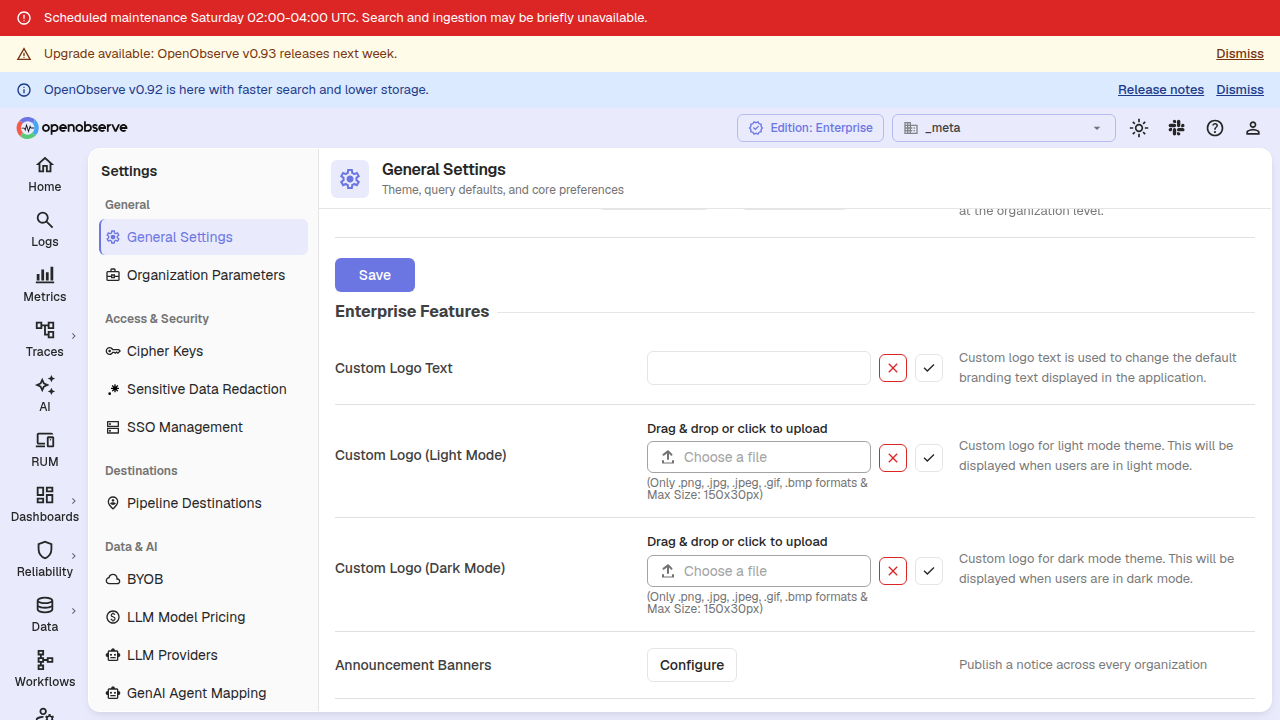
The Announcement Banners drawer opens. It shows a live Preview of how the banners will render, followed by the list of configured banners.
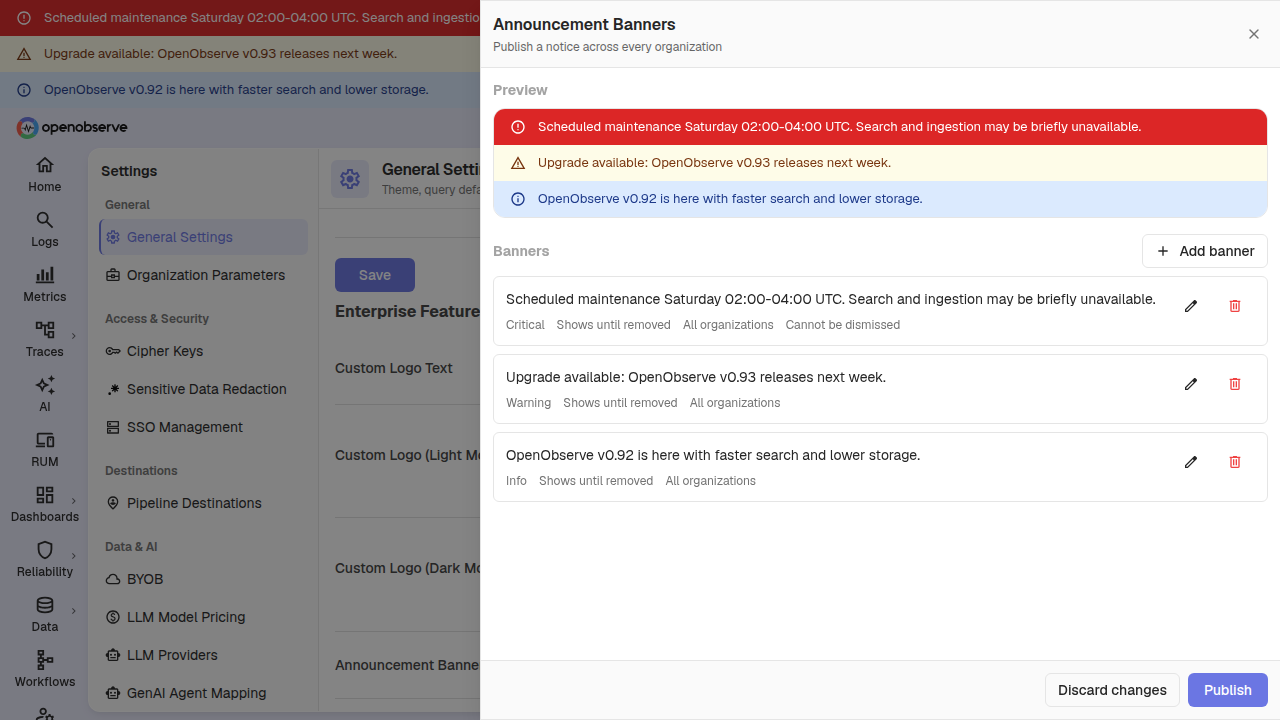
Select Add banner to create a banner, or the edit/remove icons on an existing banner to modify or delete it.
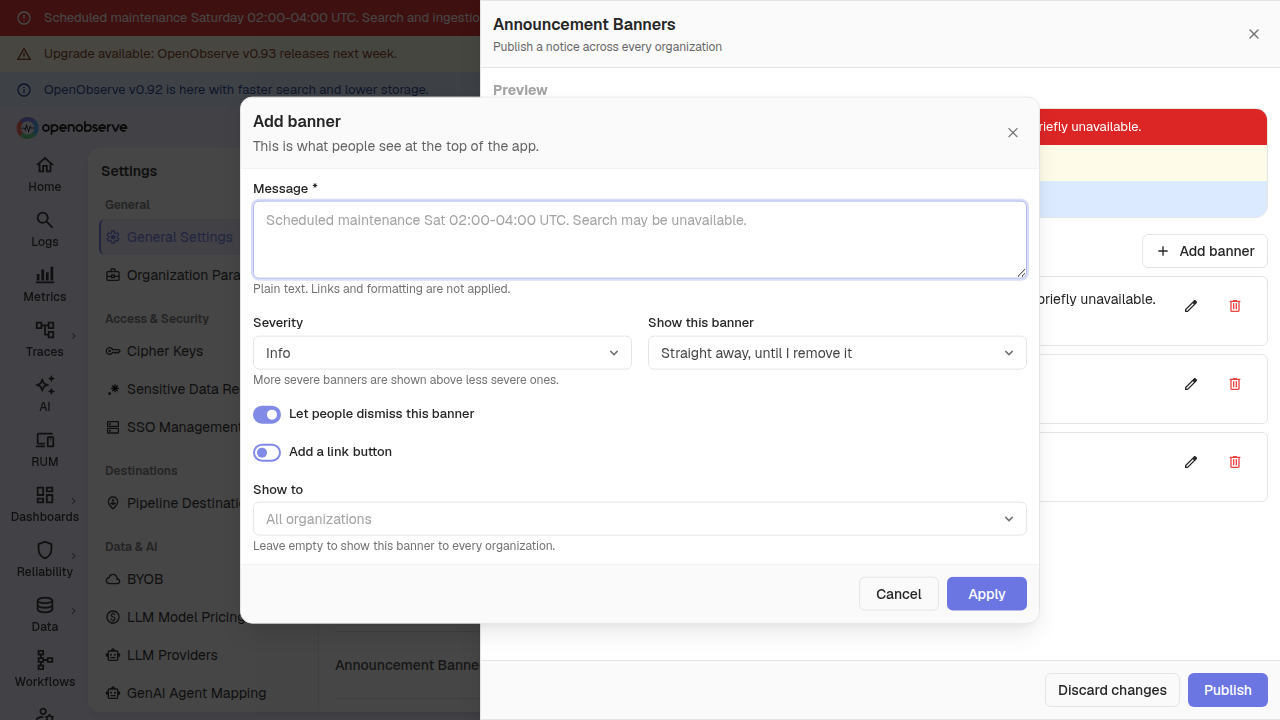
The Add banner dialog exposes the following fields:
| Field | Description |
|---|---|
| Message | The plain-text notice shown to users. This is the only required field. Links and formatting are not applied. |
| Severity | The visual treatment: Info, Warning, Critical, or Promotion. More severe banners sort above less severe ones. |
| Show this banner | When the banner appears: Straight away, until I remove it, Straight away, for a set time, or During a specific window. |
| For how long | A duration span such as 30m, 2h, 3d, or 1w. Shown when the schedule is "for a set time". |
| Starts / Ends | Start and end times for a scheduled window. Shown when the schedule is "during a specific window". Times are entered in your own timezone. |
| Let people dismiss this banner | When enabled, users can dismiss the banner with a Dismiss button. |
| Add a link button | Adds a call-to-action with Button text and a Button link. The link must start with http:// or https://. |
| Show to | Restricts the banner to specific organizations. Leave empty to show it to every organization. |
Schedule a banner
Three scheduling modes cover every window you need:
- Always — the banner shows immediately and stays until you remove it.
- For a set time — the banner shows immediately for a duration such as
2h. The window is anchored to when you save, so editing an unrelated field later does not silently extend it. - During a specific window — the banner appears at a start time and disappears at an end time. You can set a start, an end, or both.
For a scheduled window, the start instant is inclusive and the end instant is exclusive: a banner scheduled for 02:00–04:00 is visible at exactly 02:00 and gone at exactly 04:00. Times carry the timezone offset you picked, so a banner scheduled in your local time appears at the right local hour for your users.
Severity and ordering
When several banners are active, they stack in severity order — Critical first, then Warning, then Info, then Promotion. Within the same severity, banners keep their order.
A Promotion banner is automatically hidden while a Critical banner is showing, so a webinar ad never appears beside an outage notice. Promotions return once the critical banner is gone.
Preview
The Preview section in the drawer renders the banners through the same resolver the live banner bar uses, so it shows the exact order and visibility your users get — not the order the banners were authored in. When a critical banner is present, promotions are hidden in the preview just as they are in the app.
How banners appear to users
Active banners render as full-width bars directly above the toolbar on every page of the app.
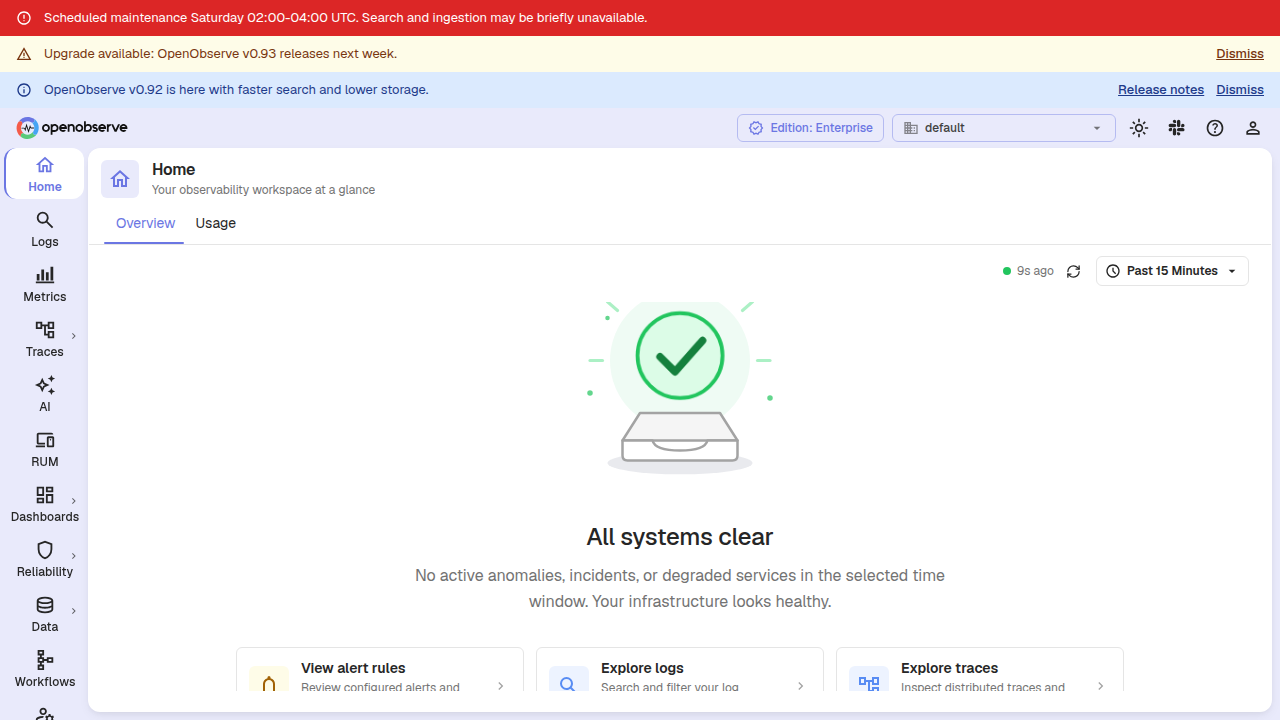
Each banner shows its message and, when configured, a call-to-action button and a Dismiss button. Users who dismiss a banner stay dismissed across sessions; if an operator edits the banner's message, it reappears for everyone.
Banners poll for updates every few minutes and also refresh exactly at a scheduled start or end boundary, so a banner set for 02:00 appears at 02:00 rather than somewhere in the following minutes. Timing follows the server clock, so users with a skewed device clock still see the banner flip at the correct instant.
Permissions and API
Authoring is restricted to the _meta organization and requires a settings permission. Reading is open to every member of every organization, so the banners render for all users regardless of role. The per-banner organization allowlist is applied server-side, so one organization never receives another organization's notice text or identifiers.
The following endpoints are available:
| Method | Path | Description |
|---|---|---|
GET | /api/{org_id}/announcements | Banners active right now for this organization, most severe first, plus the server clock and the next instant the set changes. |
GET | /api/{org_id}/announcements/config | The authored banner JSON for editing. _meta organization only. |
PUT | /api/{org_id}/announcements/config | Replace the banner configuration. _meta organization only. The body is validated and normalized before storage; an empty banner list removes every banner. |
Last updated on
Streaming Search
Learn how OpenObserve's Streaming Search delivers incremental query results using HTTP/2 partitioning for faster log analysis and real-time data processing.
Streaming Aggregation
How streaming aggregation and the aggregation cache work in OpenObserve Enterprise, and how they speed up repeated queries over large time ranges.