
Kubernetes Explorer
Infra › Kubernetes is a read-only browser for the Kubernetes telemetry you already send to OpenObserve. It reads three sources through the normal PromQL and SQL search APIs, so there is nothing extra to set up:
- kube-state-metrics for the object inventory: nodes, pods, workloads, PersistentVolumeClaims, HorizontalPodAutoscalers and namespaces.
- kubelet stats for CPU, memory, network and filesystem usage.
- The
k8s_eventsstream for events, and for the object snapshots behind labels, container details and YAML.
The OpenObserve collector for Kubernetes sends all three; see Kubernetes monitoring. If none of them is present, the page shows No Kubernetes telemetry visible to you yet with collector setup instructions.
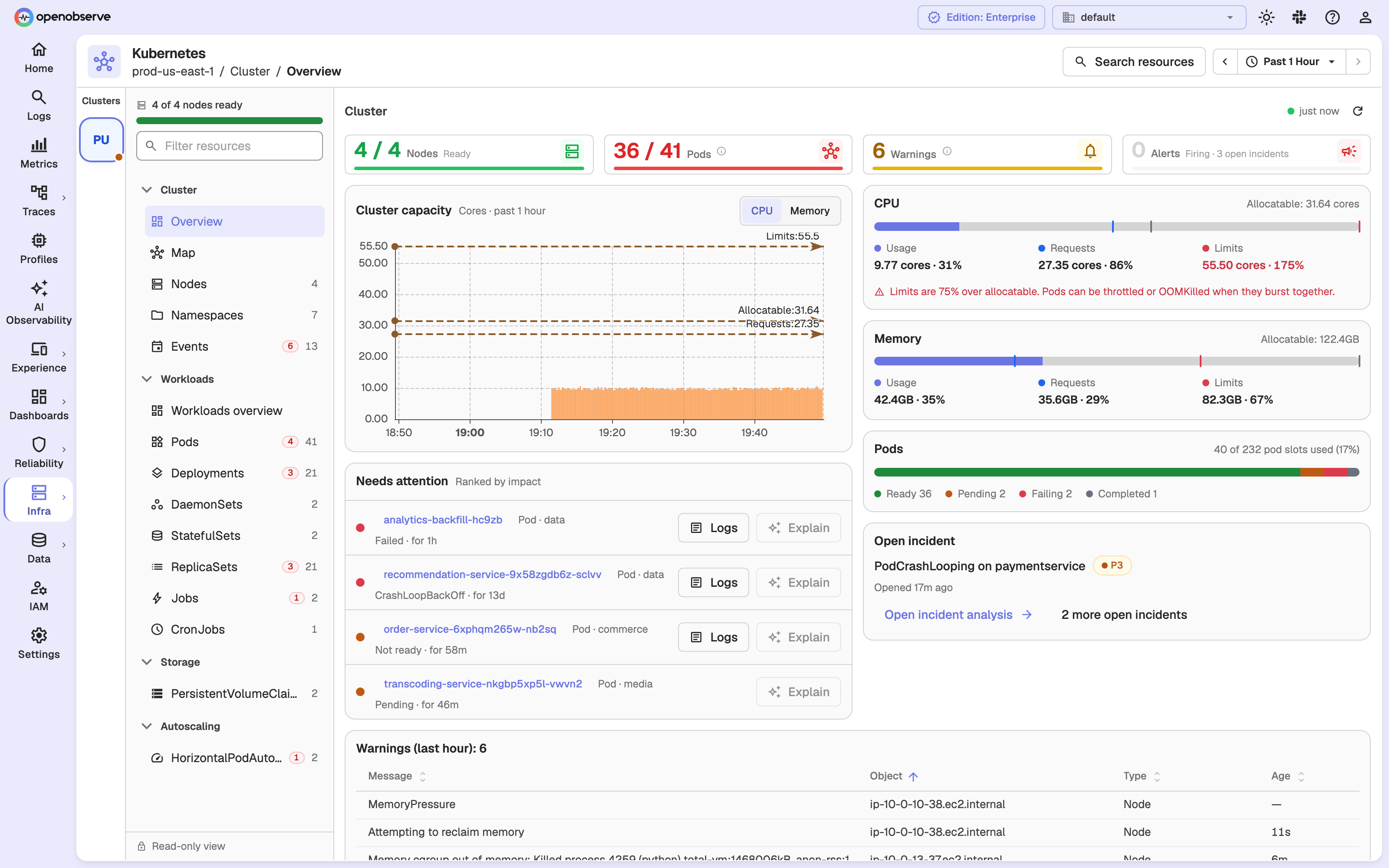
Layout
- Clusters strip (far left): one tile per cluster with a health dot (Healthy, Warning, Critical or Not reporting). Hover a tile for the cluster name and node readiness, and click it to switch cluster. With more than one cluster, the All clusters button at the bottom of the strip opens a cluster search. On narrow screens a cluster select in the header replaces the strip.
- Resource tree: every view, grouped as below, with a count on each item and a red badge when objects in it have problems. Filter resources narrows the tree.
- Cluster: Overview, Map, Nodes, Namespaces, Events
- Workloads: Workloads overview, Pods, Deployments, DaemonSets, StatefulSets, ReplicaSets, Jobs, CronJobs
- Storage: PersistentVolumeClaims
- Autoscaling: HorizontalPodAutoscalers
- Header: the cluster / group / view breadcrumb, Search resources, and the time range picker.
On narrow screens a View select in the header replaces the tree.
Search resources
Click Search resources, or press Ctrl+K (Cmd+K on macOS), to search pods, workloads, nodes, views and clusters. Results are grouped (Go to, Needs attention, Workloads, Pods, Nodes, Clusters); use the arrow keys and Enter to open one.
Overviews
Cluster › Overview summarizes the selected cluster:
- KPI tiles for Nodes, Pods, Warnings (events in the last hour) and Alerts.
- A Cluster capacity chart of usage against requests, limits and allocatable, plus CPU and memory capacity cards and pod-slot usage.
- Needs attention: failing, pending and restarting pods and unready nodes, ranked by impact, each with a Logs button.
- Open incidents and Firing alerts, where they exist. Alerts are org-wide, because alerts are not labeled by cluster.
Workloads › Workloads overview shows a card per workload kind with a status bar, a Workloads with problems list and Recent events.
Resource lists
Each resource view is a sortable, searchable table with columns for that kind, such as CPU % req, Mem % lim, Restarts and Controlled By for pods. Status chips above the table filter by state, for example Ready, Pending and Failing for pods, or Warnings and Normal for events. Use Namespaces to filter by namespace.
Click a row to open its details, or use the row's ⋮ menu for Details, YAML, Metrics, and for pods also Logs and Traces. Write actions such as Scale, Restart and Delete are shown disabled: the page never changes your cluster.
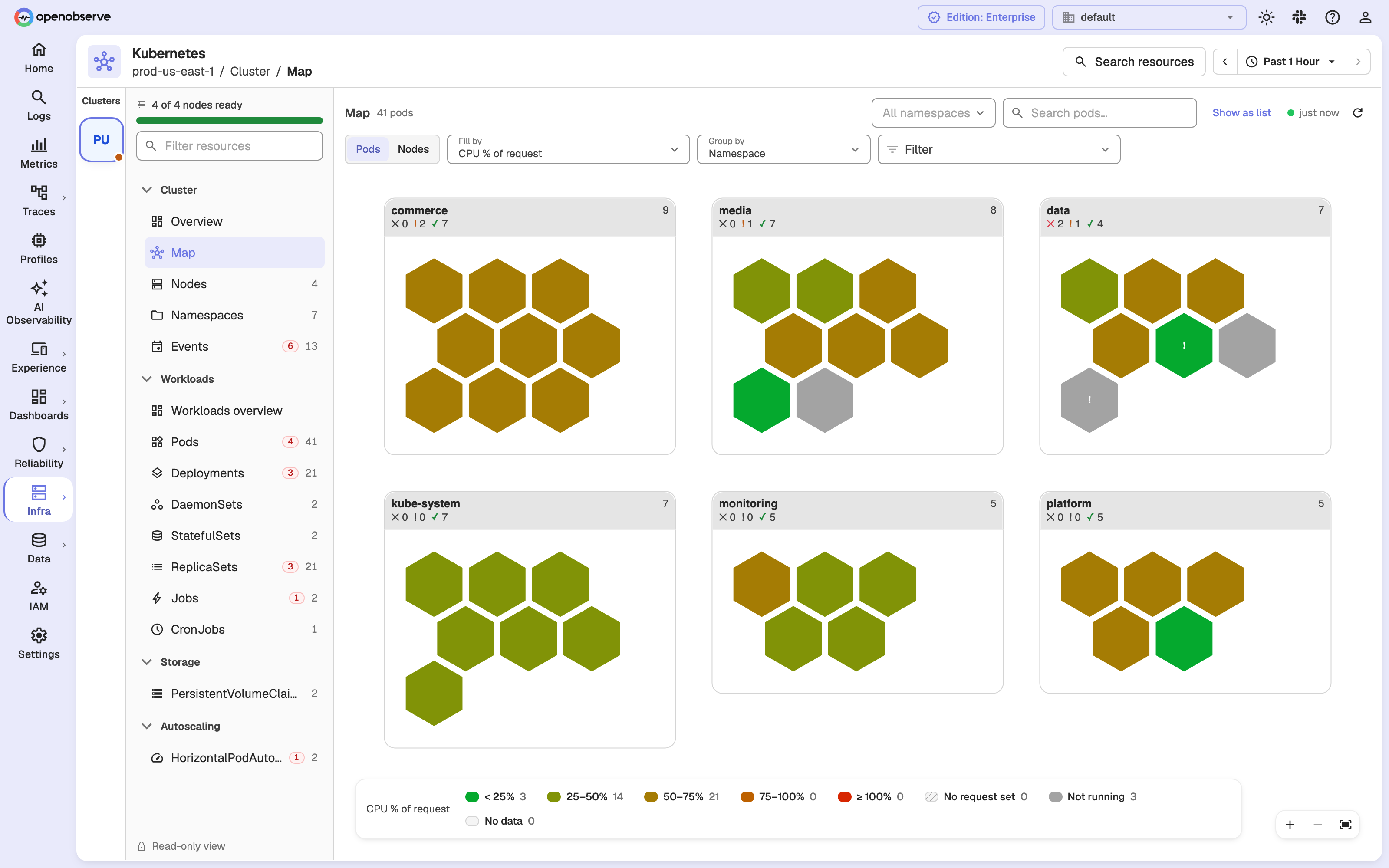
Cluster map
The Map view draws pods or nodes as hexagonal cells:
- Fill by: for pods, CPU % of request, CPU % of limit, Memory % of request, Memory % of limit, Restarts or Status; for nodes, CPU % of allocatable, Memory % of allocatable or Status.
- Group by (pods): Node, Namespace, Workload, None, or any label observed on your pods.
- Filter: narrow the map with
key: valuelabel terms.
Hover a cell for a tooltip and click it to open its details. Click Show as list to see the same pods or nodes as a list.
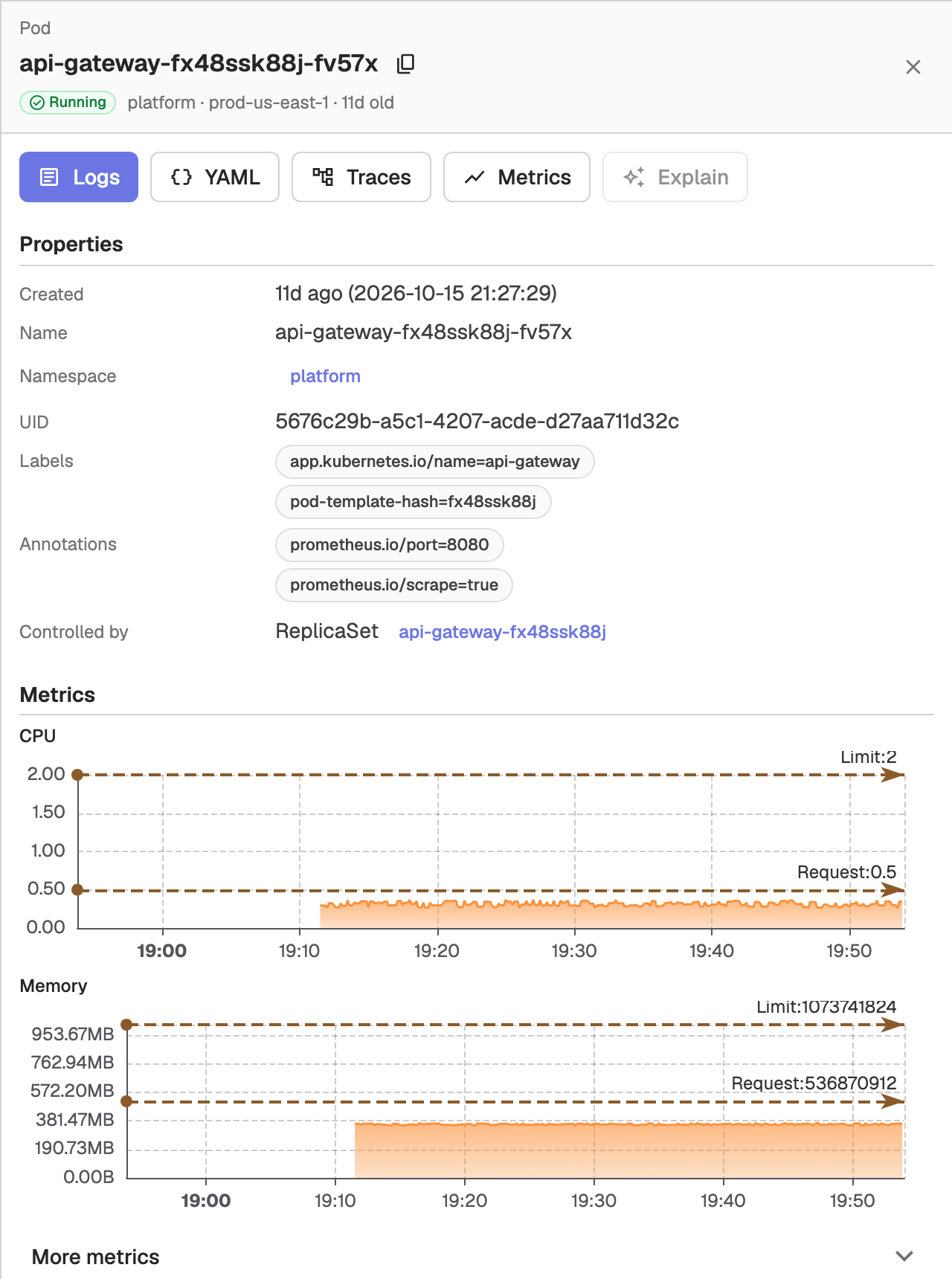
Details panel
Clicking any object opens a details panel beside the list or map, so you can keep browsing while it is open. It shows:
- Actions: Logs, YAML, Traces and Metrics (and Pods for workloads).
- Properties such as namespace, labels, annotations and the controlling object.
- Metrics charts for the selected time range, with request and limit lines where they are set.
- Sections specific to the kind, such as pod containers and conditions, or node capacity and allocatable.
- The object's Events.
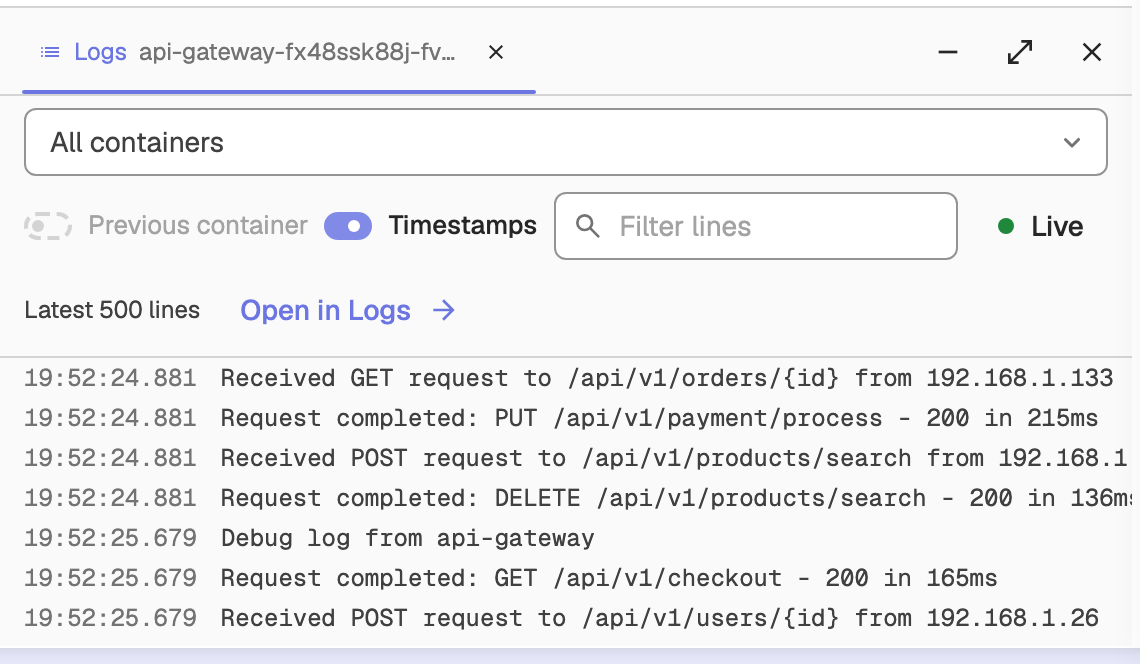
Logs and YAML
Logs and YAML open as tabs in a dock at the bottom of the page:
- Logs shows a pod's log lines, with a container picker, Previous container, Timestamps, a line filter and Live tail. Open in Logs opens the same query on the Logs page.
- YAML shows the object's manifest as the collector last observed it, read-only, with a copy button.
Traces and Metrics open the Traces and Metrics pages with the query pre-filled for the object.
Offline clusters
If the selected cluster reported no nodes or pods in the time range, the page says it hasn't reported recently. Click Show last known state to widen the range to the last 24 hours, or Collector setup guide to check your collector.
Share a view
The view, cluster, namespaces, search, sort, status chip, map settings and open details panel are kept in the URL, so you can bookmark or share exactly what you see.