
Integration with Microsoft 365
Managing and analyzing logs from Microsoft 365 services (Graph APIs, audit logs, sign-ins, managed identities) is critical for security, compliance, and performance optimization.
Overview
While Microsoft 365 provides rich telemetry, collecting and centralizing these logs for real-time observability can be challenging without a scalable pipeline.
This guide shows you how to stream Microsoft 365 logs into OpenObserve using Azure Event Hub and Azure Functions.
Steps to Integrate
Prerequisites
- Active Azure subscription
- Familiarity with Azure Functions
- Visual Studio Code with Azure Functions extension installed
- OpenObserve account (Cloud or Self-Hosted)
Step 1: Create an Azure Event Hub
-
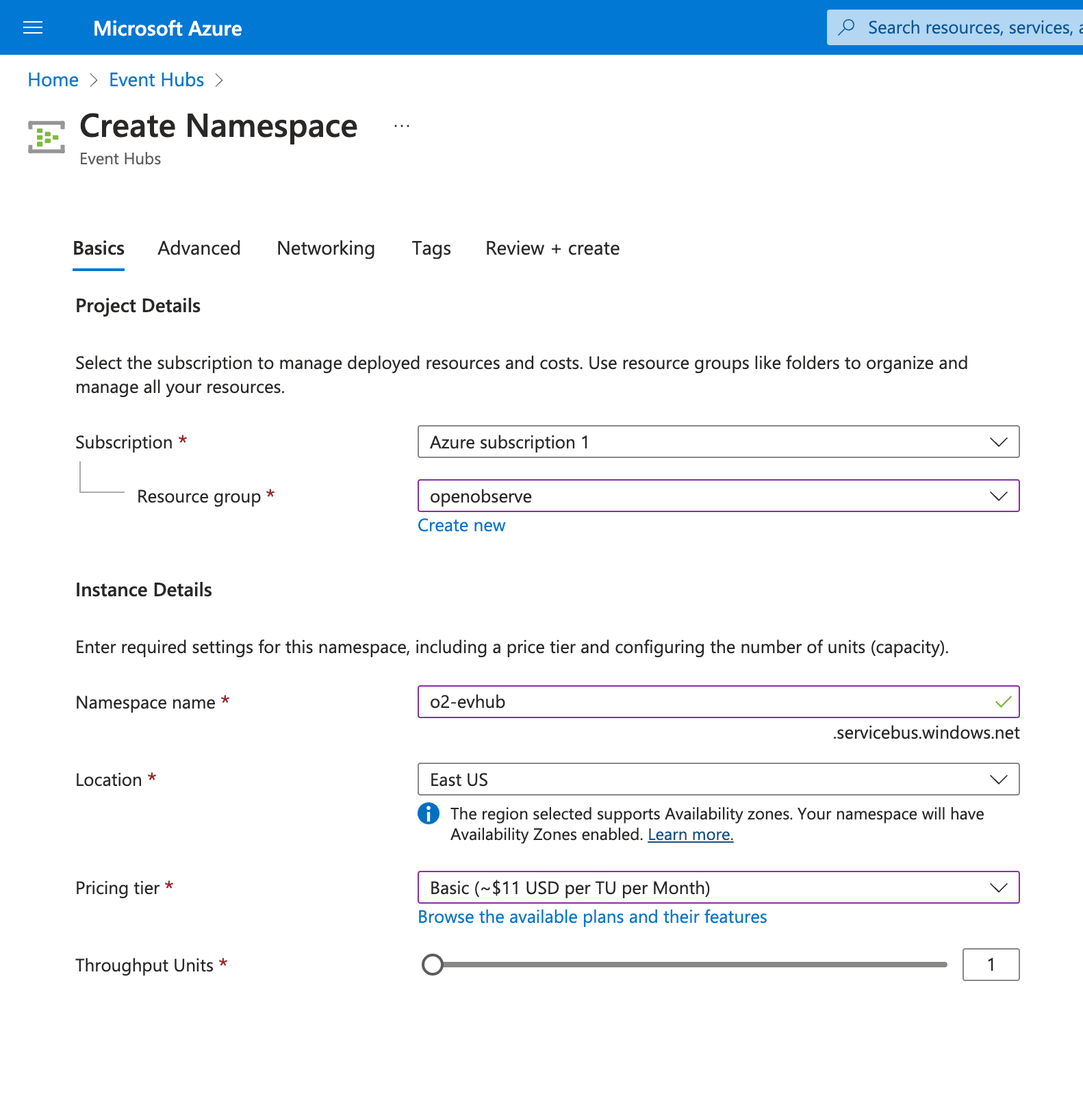
In the Azure Portal, search for Event Hubs → click + Add to create a namespace.
- Resource Group: choose existing or create new
- Namespace Name: e.g.,
m365-eventhub - Pricing Tier: select based on log volume
- Click Review + Create
-
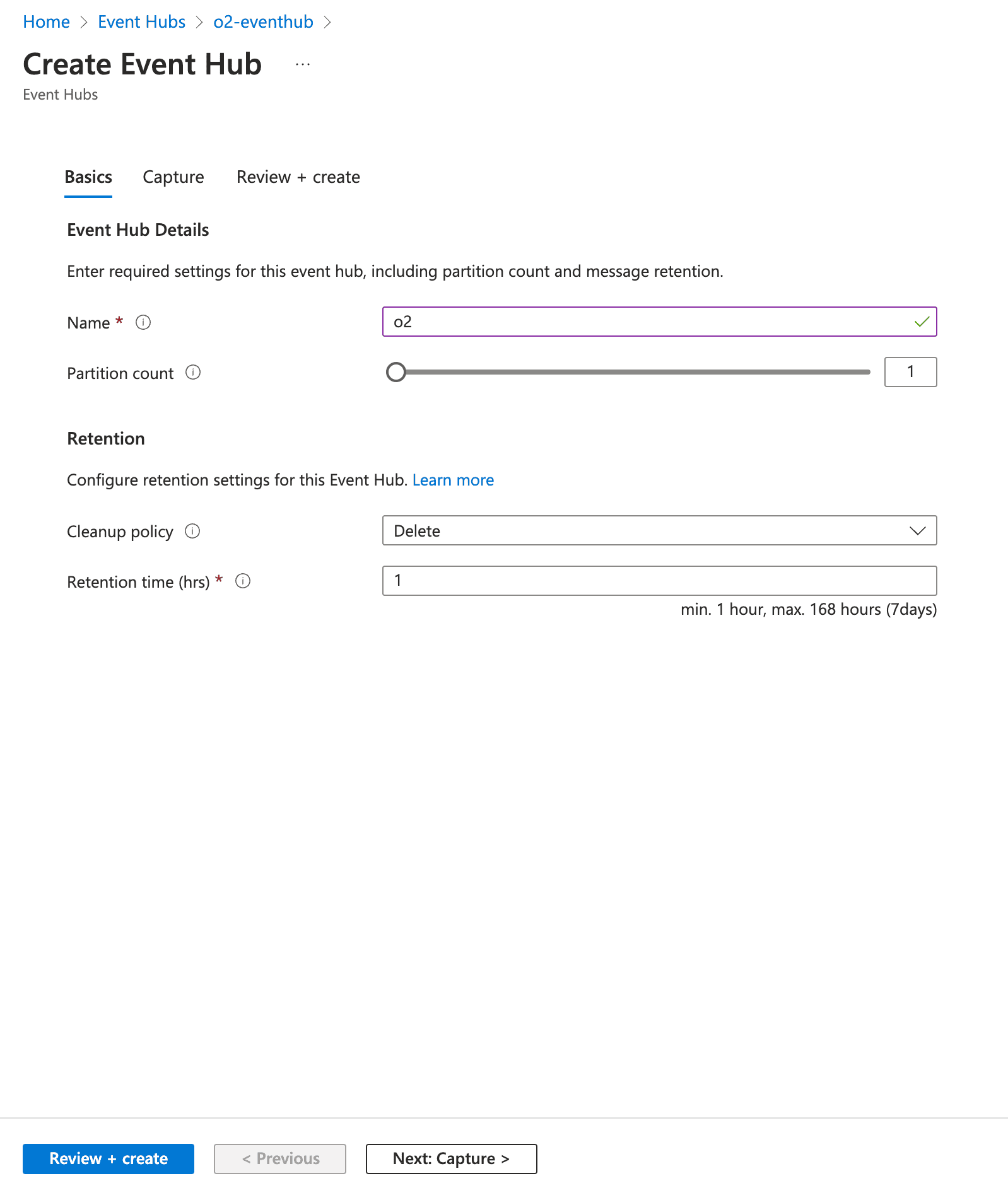
Once the namespace is created, click + Event Hub inside it.
-
Name it (e.g.,
o2) -
Leave default settings for partitions and retention and Save
-
-
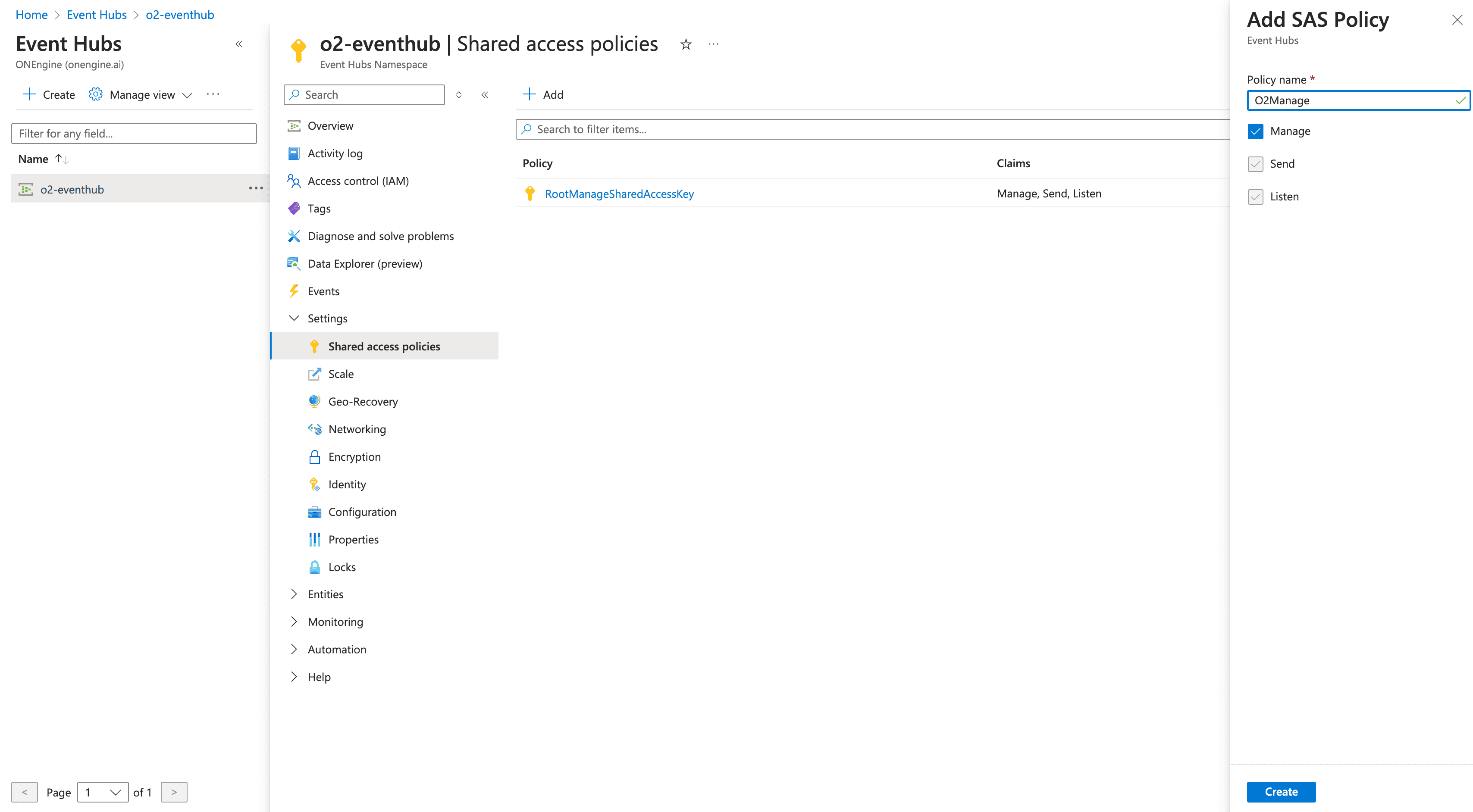
Under the namespace, go to Shared Access Policies → create a policy with Manage permission.
- Save and note the Connection String
Step 2: Enable Microsoft 365 Diagnostics Logging
-
Navigate to the Microsoft 365 Entra Admin Center.
-
In the Azure Portal, go to Monitoring health → Diagnostic Settings.
-
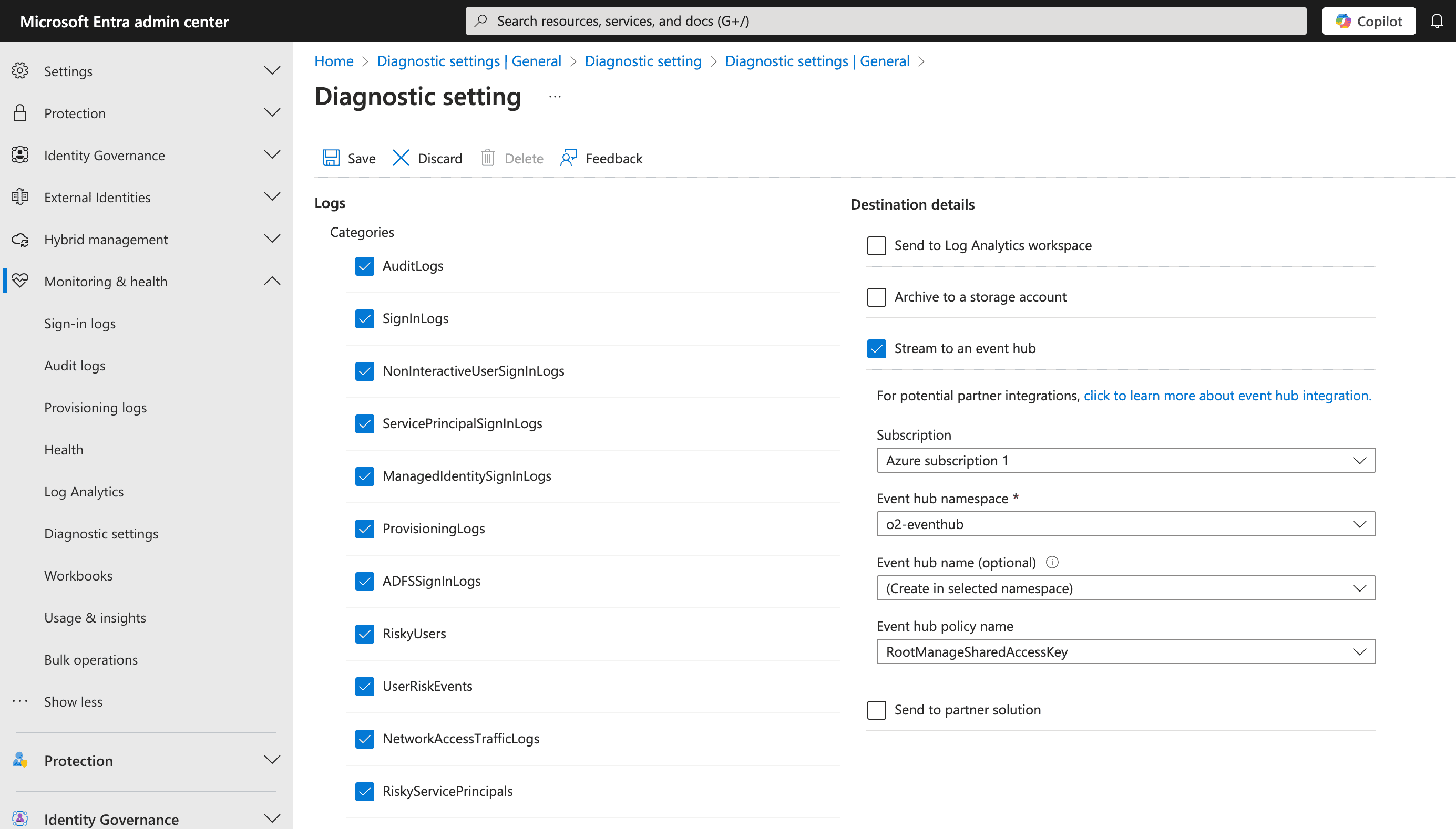
Create a new diagnostic setting:
- Name:
m365-diagnostics - Categories: AuditLogs, SignInLogs, etc.
- Destination: Stream to an Event Hub
- Provide the Event Hub namespace and connection string
- Name:
Step 3: Deploy Azure Functions to Process Logs
Use Azure Functions to forward logs from Event Hub into OpenObserve.
-
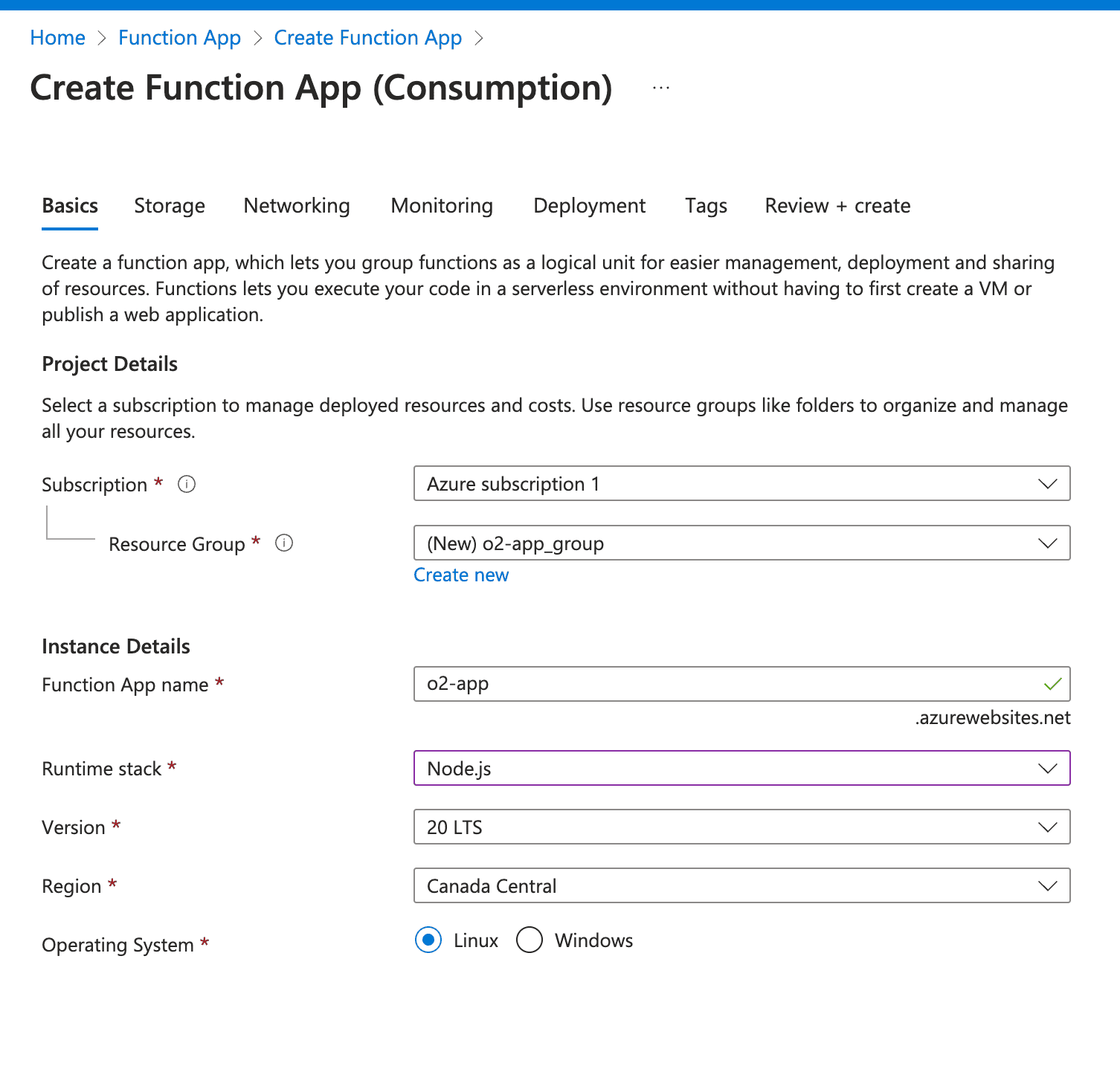
In the Azure Portal, create a Function App
- Select runtime stack and pricing tier
- Deploy to your subscription
-
Clone the prebuilt function code from our repository.
-
Open in VS Code and configure:
local.settings.json→ update with Event Hub Connection String- In
index.js, replace<O2_ENDPOINT>with your OpenObserve endpoint - Add your OpenObserve auth details (
O2_USER,O2_PASSWORD)
Make sure to add your OpenObserve auth details in the App's environment.
-
Deploy the function:
- In VS Code, click Deploy to Function App
- Select your subscription and resource group
Follow the deployment guide for detailed instructions.
Step 4: Validate and Ingest Logs into OpenObserve
- Ensure the Function is running and streaming logs.
- In OpenObserve, go to Logs → Streams → m365 to query ingested logs.
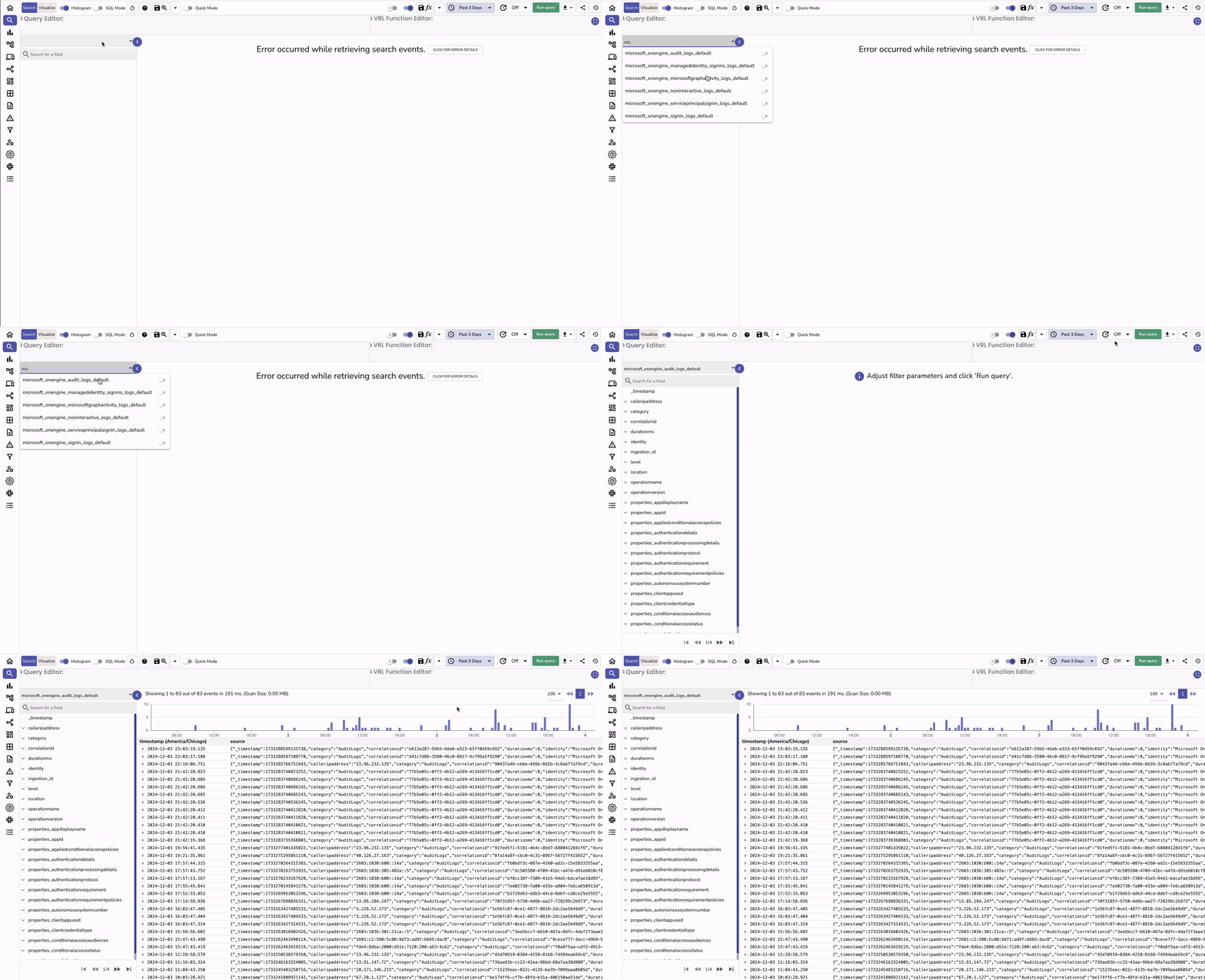
Use tailored queries for categories like AuditLogs or SignInLogs.
Pre-built Dashboards
You can import dashboards from the OpenObserve community repository for quick insights
Troubleshooting
1. No logs in OpenObserve
- Check Event Hub policy connection string
- Verify Azure Function is running
- Confirm your
<O2_ENDPOINT>and auth details are correct
2. Authentication issues
- Ensure OpenObserve user has ingest permissions
3. High latency or dropped logs
- Scale Event Hub partitions or Function App plan
- Use batching in your function code
4. Incorrect parsing
- Verify logs are being forwarded in JSON format
- Update the function mapping if Microsoft 365 schema changes
Security Integraions
Integrate security data sources with OpenObserve to centralize audit logs, identity activity, and security events for unified compliance and anomaly detection.
Servers Integrations Overview
Comprehensive web server monitoring integrations for NGINX monitoring, Apache server metrics, WebLogic performance, and web server log analysis.