
Incident-Event-Triggered Workflows
A workflow can now start from an Incident Event trigger instead of an alert. When an incident lifecycle event occurs — an incident is created, an alert is added, a status changes, a severity upgrades, a user posts a comment, or AI analysis completes — OpenObserve fires the associated workflow, handing it a payload with the incident's common metadata plus event-specific fields.
This lets you build automations such as:
- Send a Slack notification every time a P1 incident is acknowledged or resolved
- Log every severity upgrade to an audit stream
- Trigger a webhook when an incident reaches a critical alert count
- Branch on
event_typeto run different destinations for different lifecycle stages
Availability
This feature is available in Enterprise Edition.
How incident-event workflows differ from alert-fired workflows
| Aspect | Alert-Fired Workflow | Incident-Event Workflow |
|---|---|---|
| Trigger | A linked alert fires | An incident lifecycle event occurs |
| Input payload | Alert metadata (string values) + query result rows in data[] | Incident metadata (native-typed fields) + event-specific fields; data[] is always empty |
| Payload prefix | meta_<field> with stringified values | meta_<field> with native types (strings, integers, arrays) |
| Associations | Workflow linked from alert configuration | Workflow linked automatically on create; association stored in the workflow_associations table |
| Condition fields | Alert fields (stream type, alert name, threshold, count, etc.) | Incident fields (status, severity, event type, user, alert names/ids, timestamps, etc.) |
| Alert linking | Prompted after create | Not applicable; skipped automatically |
Create an incident-event workflow
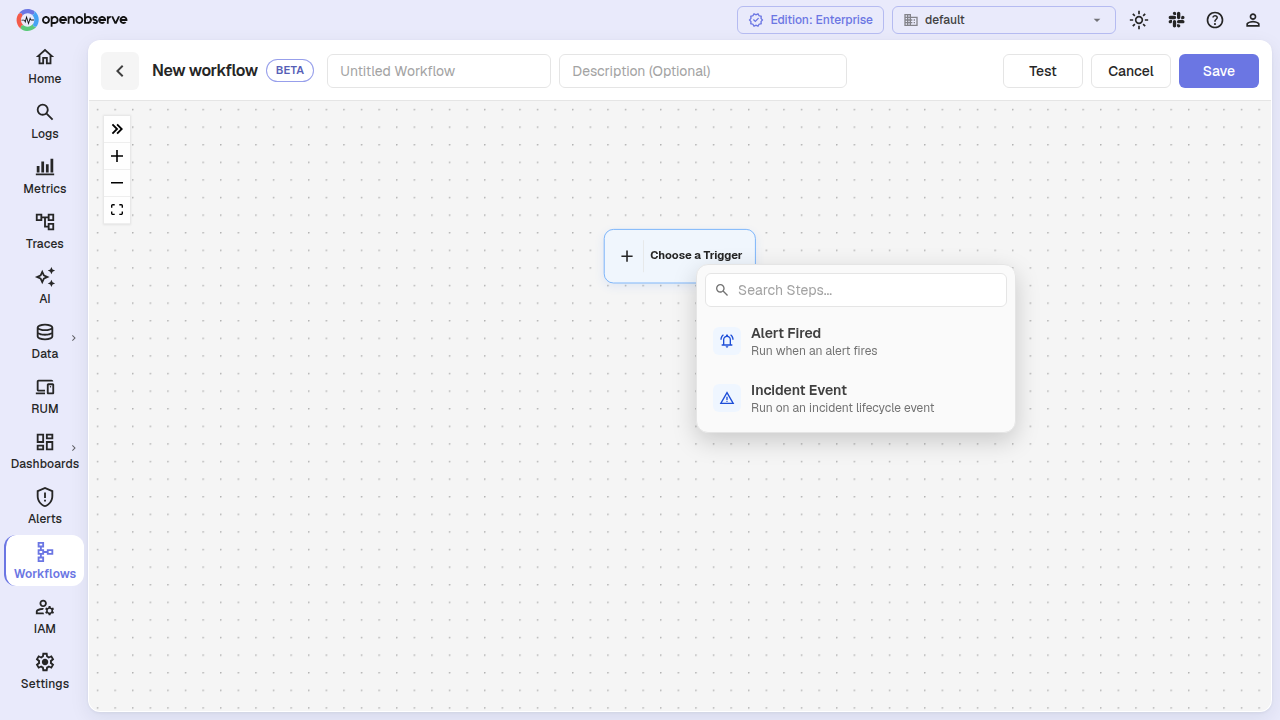
- Navigate to Pipelines > Workflows and click Add Workflow.
- When the empty canvas shows the "Choose a Trigger" start node, click it to open the trigger picker.
- Select Incident Event from the available trigger kinds.
- Build the rest of your node graph — add Condition, Function, and Destination nodes as needed.
- Click Save.
The workflow is automatically associated with the IncidentEvent trigger type. No further linking is required — unlike alert-fired workflows, incident workflows do not need manual alert association.
Incident event payload
When an incident event triggers a workflow, the trigger node emits a one-element array with a meta block and an empty data array:
[
  {
    "meta": {
      "org_id": "default",
      "incident_id": "3Gwug6FUzL6ckQwqYnYwLw6kljc",
      "event_type": "created",
      "title": "High Error Rate on checkout-service",
      "status": "open",
      "severity": "P1",
      "alert_names": ["High Error Rate", "5xx Spike"],
      "alert_ids": ["3Gwu6RwL8UVofCfTCSsDeRaLS8e", "3Gx1p2Qk9ZbWtN4mLcR7yTvD0f"],
      "first_alert_at": 1784895060000000,
      "last_alert_at": 1784895240000000,
      "created_at": 1784895060000000,
      "updated_at": 1784895260000000,
      "_timestamp": 1784895260000000
    },
    "data": []
  }
]
The backend flattens the { meta: {...} } envelope before passing data to downstream nodes, so every field is accessible as meta_<field> in conditions and row.meta.<field> in JavaScript functions.
Common fields (every event)
These fields are present on every incident lifecycle event:
| Field | Type | Description |
|---|---|---|
meta_org_id | Utf8 | Organization ID |
meta_incident_id | Utf8 | Unique incident identifier |
meta_event_type | Utf8 | The lifecycle event that occurred (see below) |
meta_title | Utf8 | Current incident title |
meta_status | Utf8 | Open, acknowledged, or resolved |
meta_severity | Utf8 | P1 (Critical) through P4 (Low) |
meta_alert_names | Array[Utf8] | Names of all alert rules correlated to the incident |
meta_alert_ids | Array[Utf8] | IDs of all alert rules correlated to the incident |
meta_first_alert_at | Int64 | Microsecond timestamp of the first alert firing |
meta_last_alert_at | Int64 | Microsecond timestamp of the most recent alert firing |
meta_created_at | Int64 | Microsecond timestamp when the incident was created |
meta_updated_at | Int64 | Microsecond timestamp of the last incident update |
meta__timestamp | Int64 | Microsecond timestamp of the event itself |
Event-specific fields
Depending on the event_type, additional fields are present. Use the Incident Trigger node drawer to preview what each event type adds — it provides a split view with the common block on top and the event-specific block below.
[The event-type picker and split view are shown above in the trigger drawer screenshot.]
| Event Type | Description | Extra Fields |
|---|---|---|
created | A new incident was created | (none) |
alert | An alert was added to the incident | meta_alert_name, meta_alert_id, meta_alert_count |
severity_upgrade | Severity changed automatically | meta_old_severity, meta_new_severity, meta_reason |
severity_override | A user manually changed severity | meta_old_severity, meta_new_severity, meta_user_id |
acknowledged | A user acknowledged the incident | meta_user_id |
resolved | Incident was resolved | meta_user_id |
reopened | Incident was reopened | meta_user_id, meta_reason |
dimension_upgraded | Correlation dimensions expanded | meta_from_key, meta_to_key |
title_changed | A user edited the title | meta_old_title, meta_new_title, meta_user_id |
assignment_changed | Incident reassigned | meta_from_user, meta_to_user |
comment | A user posted a comment | meta_user_id, meta_comment |
ai_analysis_begin | AI root cause analysis started | (none) |
ai_analysis_complete | AI analysis finished successfully | (none) |
ai_analysis_failed | AI analysis failed | meta_reason, meta_analysis_trigger_type, meta_error_details |
View the event payload
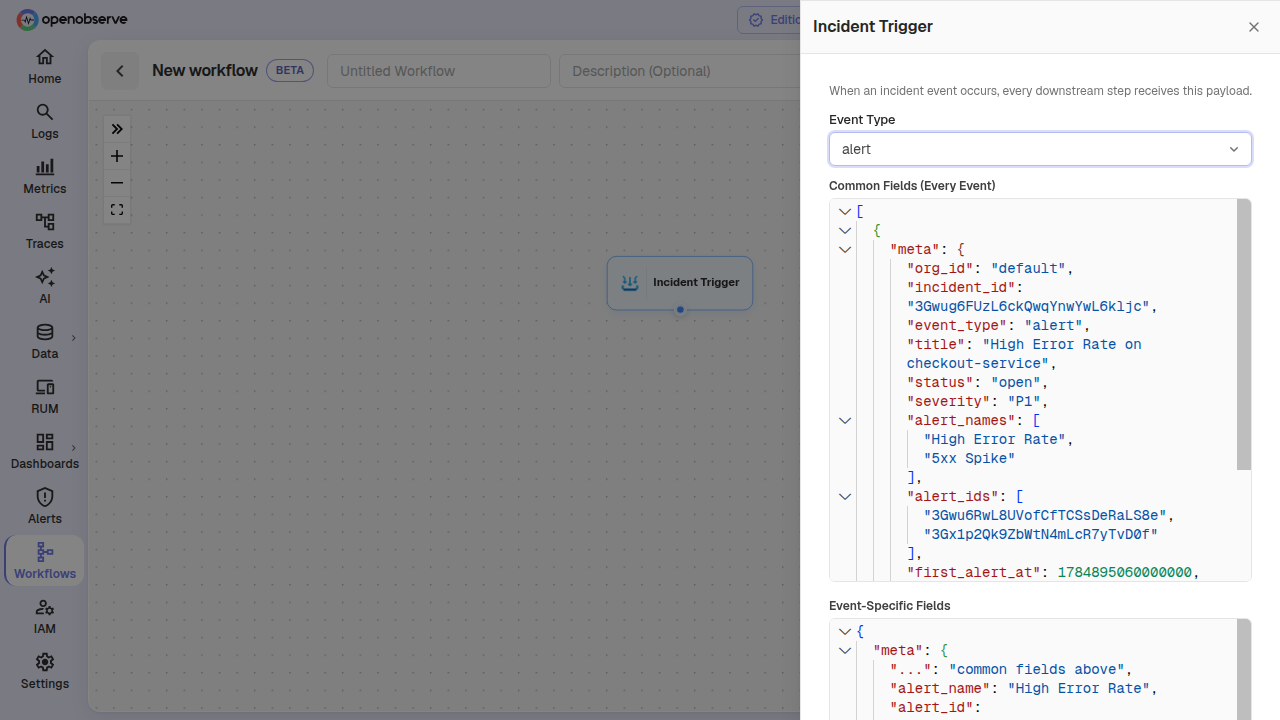
- Click the Incident Trigger node on the canvas.
- The drawer shows a read-only reference of the payload structure, split into:
- Common fields — present on every event (always visible at the top).
- Event-specific fields — select an event type from the dropdown to preview what each lifecycle event adds.
- Events with no extra fields (such as
createdorai_analysis_begin) show the note "This event adds no fields beyond the common ones."
Branch on event type with a Condition node
You can use a Condition node to route different incident events to different destinations. The Condition builder offers the flattened meta_* fields as filterable column suggestions specific to the incident trigger.
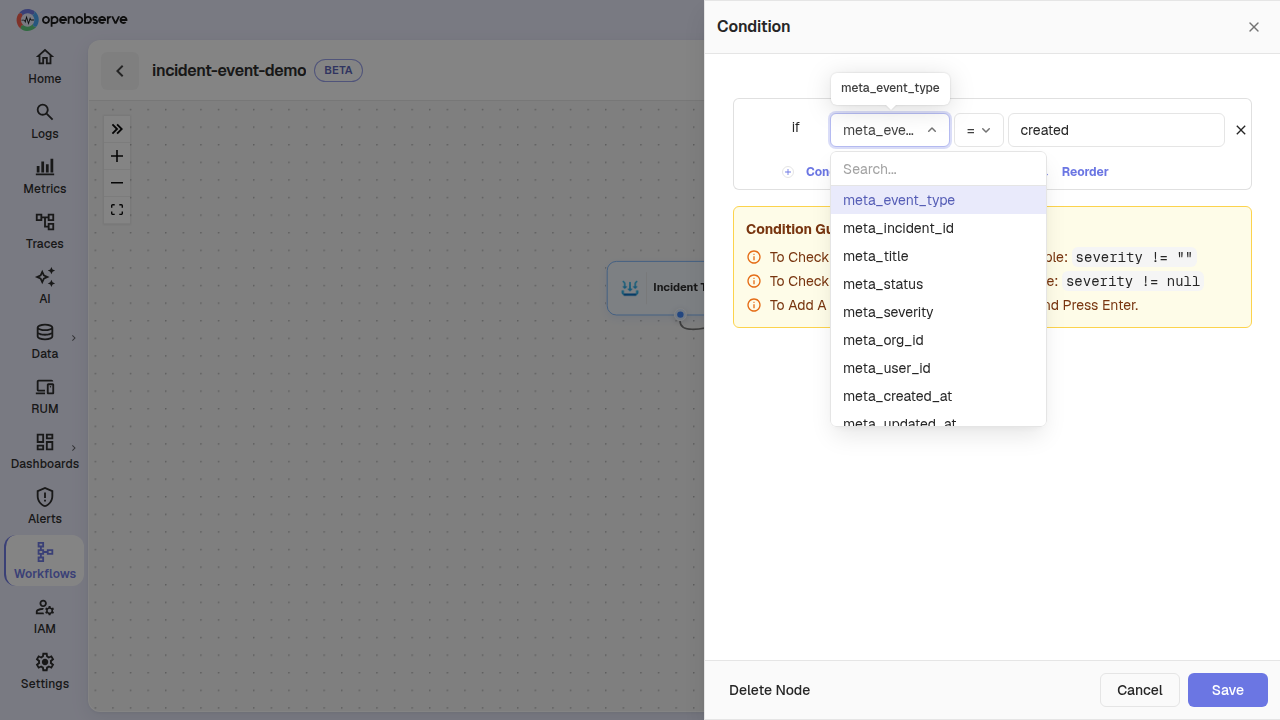
Example: route severity upgrades to Slack
Create a condition with the rule meta_event_type == "severity_upgrade". Records matching this condition flow through the true edge — connect it to a Destination node configured as your Slack webhook. Records that don't match flow through the false edge and are dropped.
Example: escalate P1 incidents older than 30 minutes
Set a condition like meta_severity == "P1" AND meta__timestamp - meta_first_alert_at > 1800000000 to catch critical incidents that have been active for over 30 minutes.
The Condition form also supports
allow-custom-columns, so you can type any field not listed in the suggestions. Array fields (meta_alert_names,meta_alert_ids) are not offered as filterable columns but remain typeable manually.
Transform the payload with a Function node
In a Function node, the entire trigger event arrives as row. Mutate row.meta in place — the payload uses native types (strings, numbers, arrays) unlike the stringified alert trigger metadata.
// row is the incident event: { meta: {...}, data: [] }
// Example: add a custom field based on severity
if (row.meta.severity === "P1" || row.meta.severity === "P2") {
  row.meta.priority = "high";
} else {
  row.meta.priority = "low";
}
The Events panel in the Function node is seeded with the incident event's sample payload so you can see the exact shape while writing your function.
Test an incident workflow
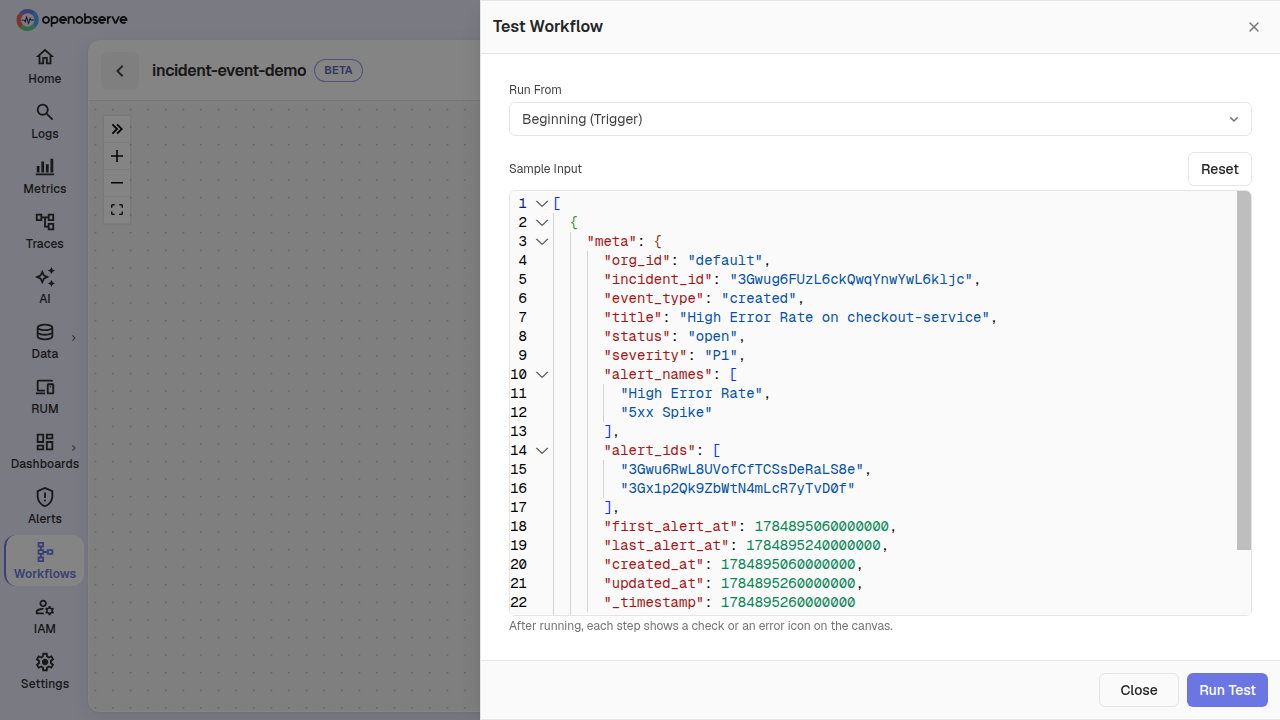
- Open the incident workflow and click Test.
- The test input is seeded with the incident-event sample payload (a
createdevent by default). - Modify the payload if needed — change
event_typeor add fields to test a specific lifecycle stage. - Click Run Test.
You can also test at the API level with POST /api/{org_id}/workflows/{id}/test.
View incident workflows in the list
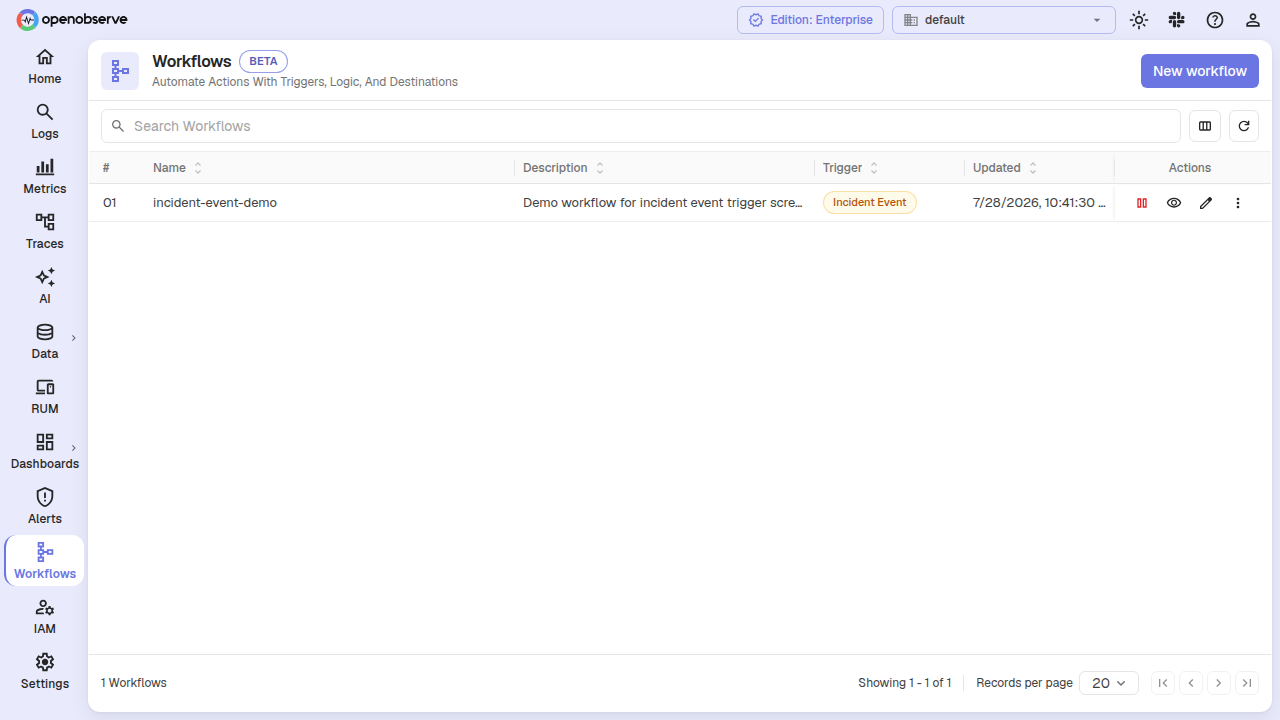
In the workflow list, the Trigger column shows Incident Event for incident-triggered workflows and Alert Fired for alert-triggered ones. You can filter, search, enable, disable, or delete incident workflows just like any other workflow.
Association lifecycle
Incident-event workflow associations are managed automatically:
- On create: Choosing "Incident Event" as the trigger creates a
workflow_associationsrecord linking the workflow to theIncidentEventtrigger type. - On delete: Deleting a workflow removes its associations. A workflow associated with non-incident entities (alerts) cannot be deleted until those connections are removed.
- On alert lifecycle: When you link or unlink workflows to an alert, the
workflow_associationstable is updated automatically. Deleting an alert removes all its workflow associations.
In super cluster deployments, association changes are replicated to all nodes automatically.
Restrictions
- An incident-event workflow's trigger node cannot have a manual alert link — associations are managed at the workflow create/delete level, not from the alert configuration side.
- The trigger node is deletable on the canvas; removing it brings back the "Choose a Trigger" start node so you can swap the trigger kind.
- The
data[]array is always empty for incident events. Incident workflows receive metadata only, not query result rows.
Last updated on
Workflows
Define automated workflows that run when alerts fire. Use the visual builder to transform data, call functions, evaluate conditions, and route results.
Alerts Overview
How alerting works in OpenObserve: scheduled, real-time, composite, and anomaly alerts with a natural language condition builder, SQL mode, and live preview.