
Annotation Sources
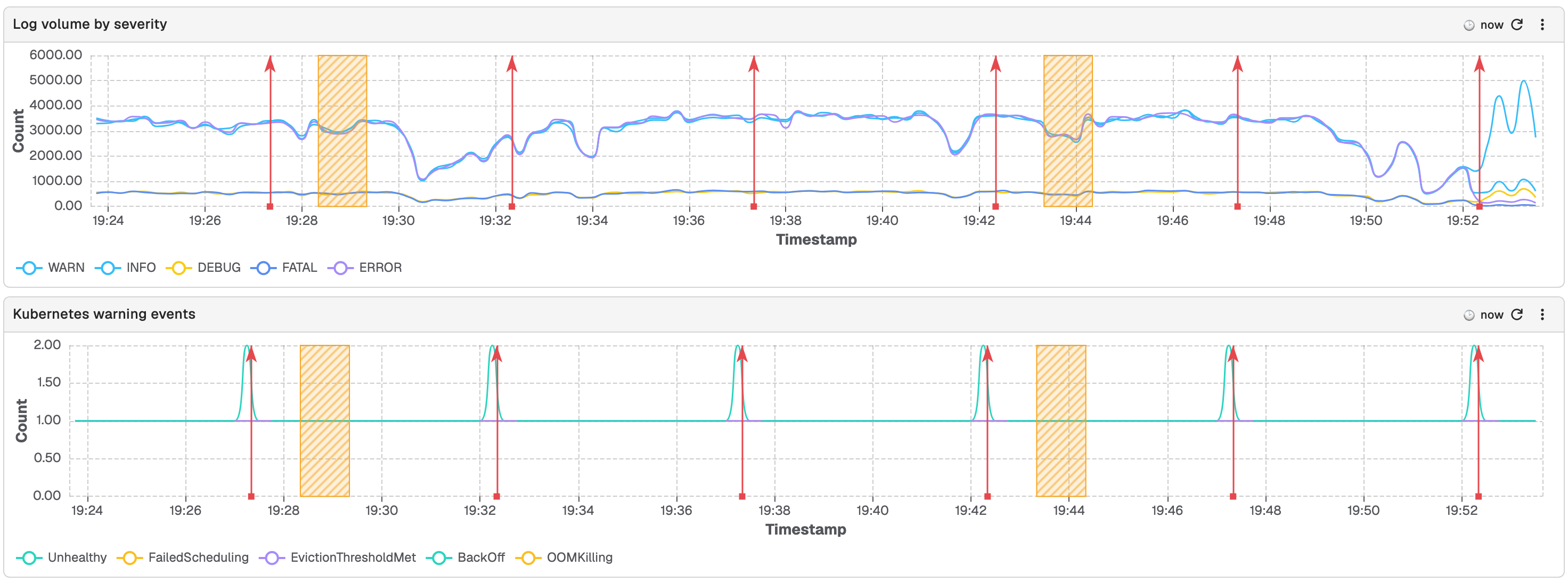
Annotation sources draw markers from a query onto your dashboard's time-series panels. Each enabled source runs one query per dashboard load, and every returned row becomes a marker: a vertical line, or a shaded band when the source defines an end-time field. This is separate from manual annotations, which you add directly on a chart.
Open the Annotations tab
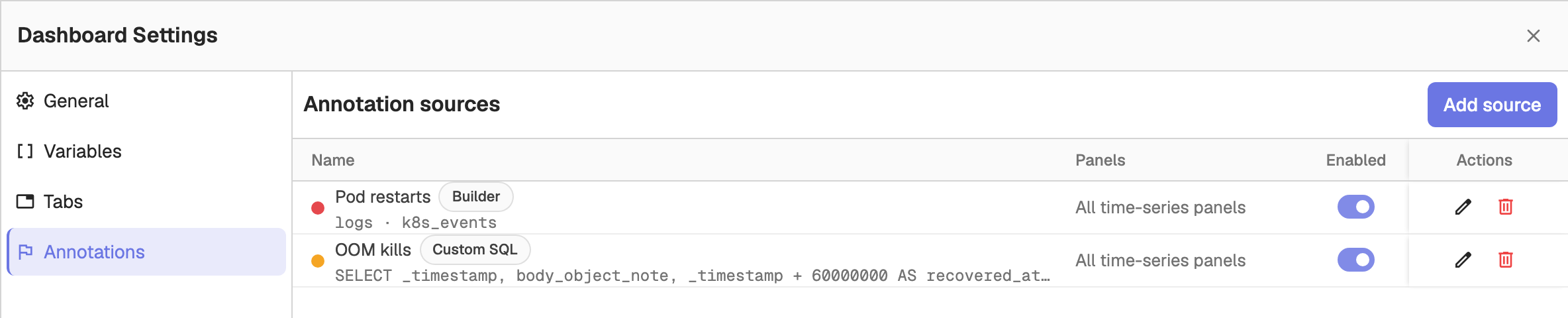
Open the dashboard, click the Settings (gear) icon in the toolbar, and select Annotations. The Annotation sources list shows every source with its colour, query mode, panel target, and an Enabled toggle. Click Add source to create one, or use the row actions to edit or delete a source.
Create a source
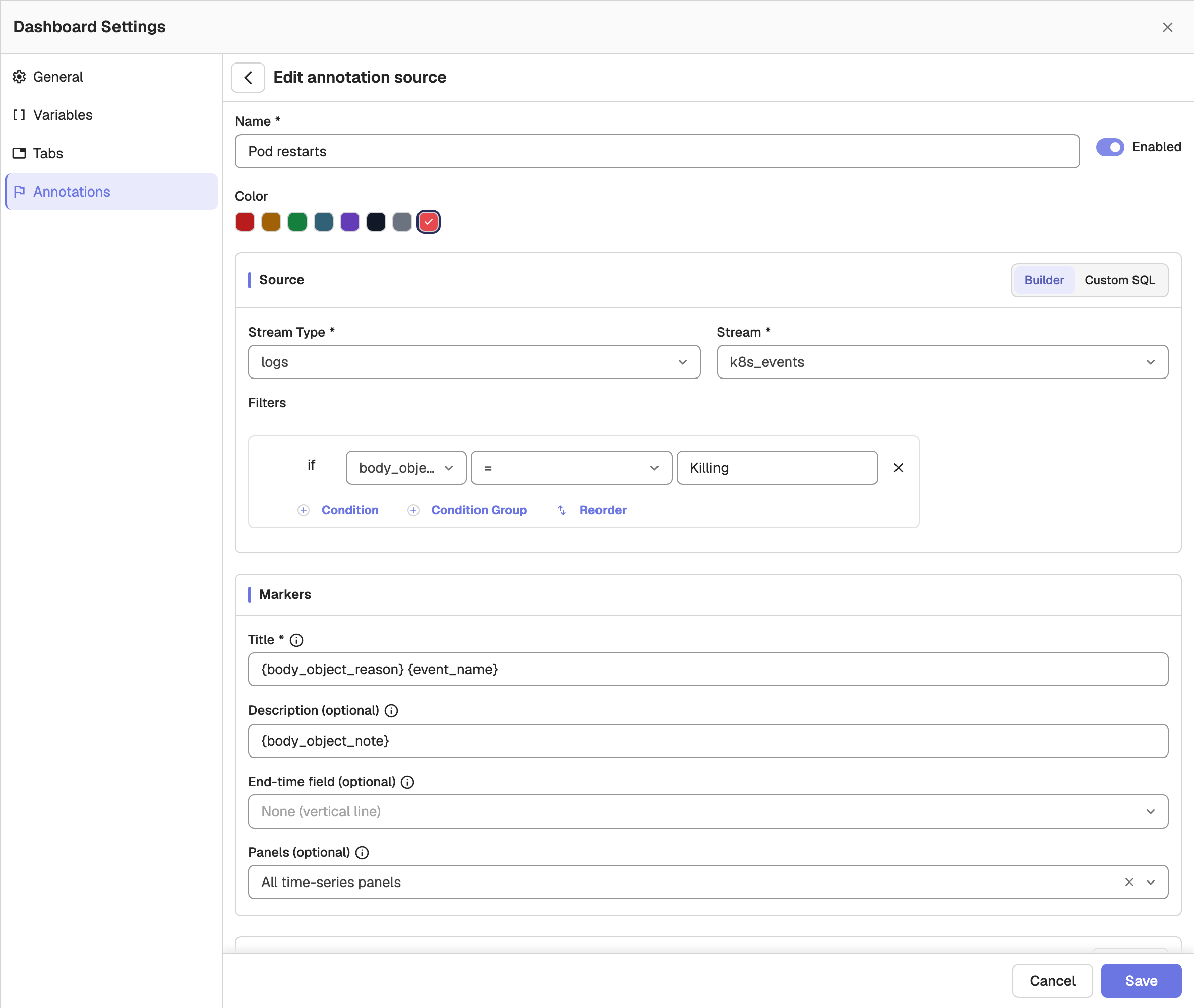
Fill in the source form:
- Name: a label for the source, shown in the list and in marker tooltips.
- Enabled: turn the source on or off without deleting it.
- Color: the marker colour, chosen from the swatches.
Builder or Custom SQL
Choose the query mode with the Builder / Custom SQL toggle.
Builder asks for a Stream Type, a Stream, and optional Filters. Filters use the same condition builder as alerts: add conditions with Condition, nest groups with Condition Group, and combine them with AND/OR. Dashboard variables are offered in the stream and field pickers.
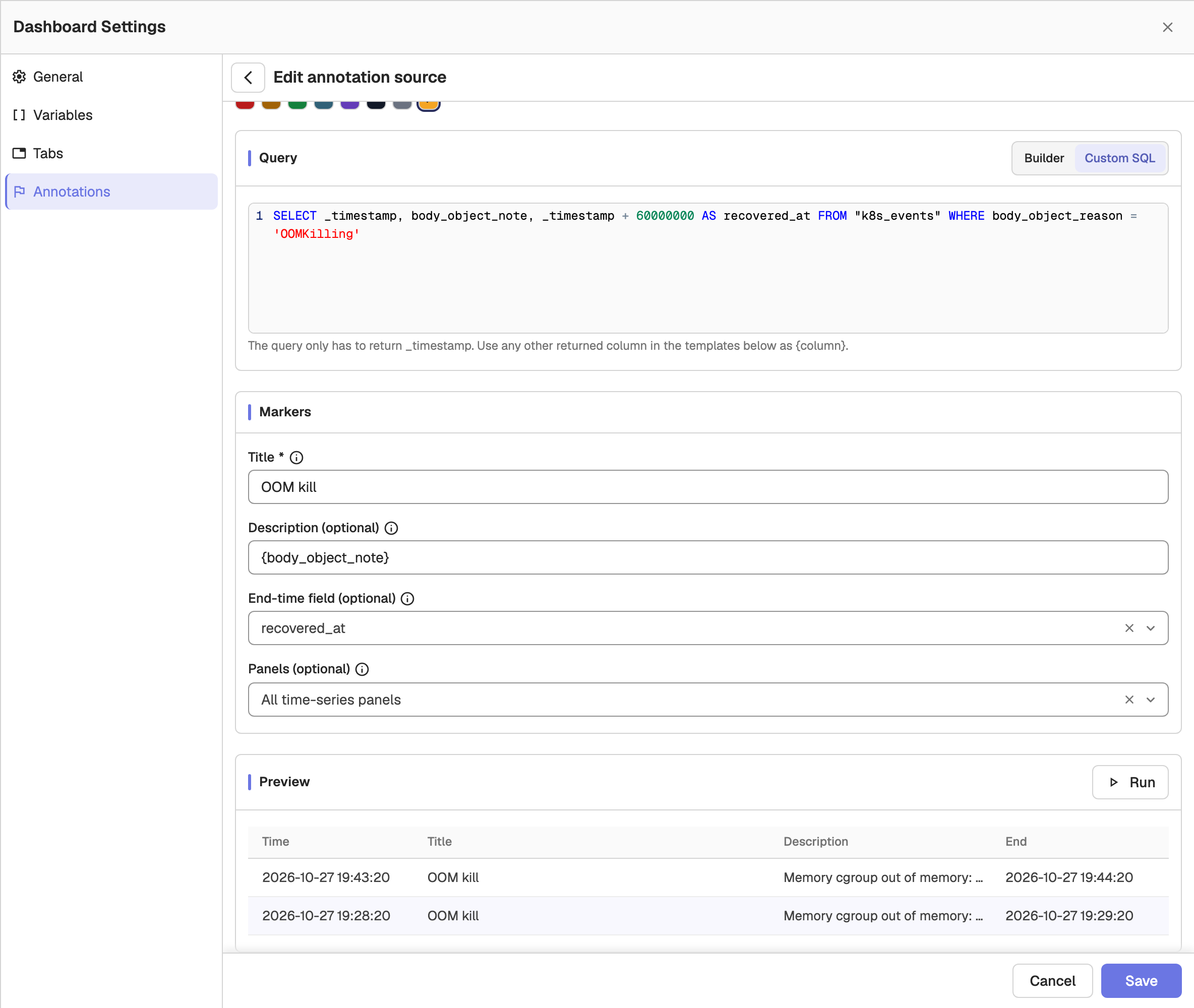
Custom SQL replaces the pickers with a query editor. The query only has to return a _timestamp column; each returned row becomes a marker, and any other returned column can be used in the marker templates. Switching from Builder to Custom SQL pre-fills the editor with the generated query. Switching back to Builder after editing the SQL asks you to confirm that the custom SQL will be discarded.
Markers
- Title and Description (optional): templates rendered for each row. Type
{to insert a field (for example,{service} deployed). A$variablerenders with the dashboard variable's current value. - End-time field (optional): a field that turns each marker into a shaded band from the row's timestamp to this value. Leave it as None (vertical line) to draw a single line.
- Panels (optional): which panels draw the markers. All time-series panels (the default) applies to every current and future time-series panel; clear it to pick specific panels. Save is blocked when no panel is selected.
Run and preview
In the Preview section, click Run to execute the source against the dashboard's current time range and variables. The preview lists the rows that become markers, with their time, title, description, and end time, and flags problems such as a missing _timestamp column or an end-time field that is not in the query result. Save runs the same check and is blocked on errors. No rows in the current time range is only a hint, not an error.
Limits
- A dashboard can define at most 10 annotation sources.
- Markers use the dashboard time range; per-panel time-range overrides are not honoured.
- PromQL horizontal-bar and stacked panels get no markers, the same as manual annotations.
Move and Export Dashboards in Bulk
Move or export multiple dashboards in bulk in OpenObserve to organize them efficiently or back them up using the dashboard list view.
TV Playlist
Rotate multiple dashboards on a TV using OpenObserve TV playlists: pick dashboards, set the rotation interval and time range, and control playback.