
Dashboard TV Mode
TV mode turns a dashboard into a wall-screen view. The app header, sidebar, and dashboard toolbar disappear, panels become view-only, and the dashboard refreshes itself on a schedule. To rotate several dashboards on one screen, use a TV playlist instead.
Open a dashboard in TV mode
Open a dashboard and click the TV mode icon in the dashboard toolbar. A setup popover opens.
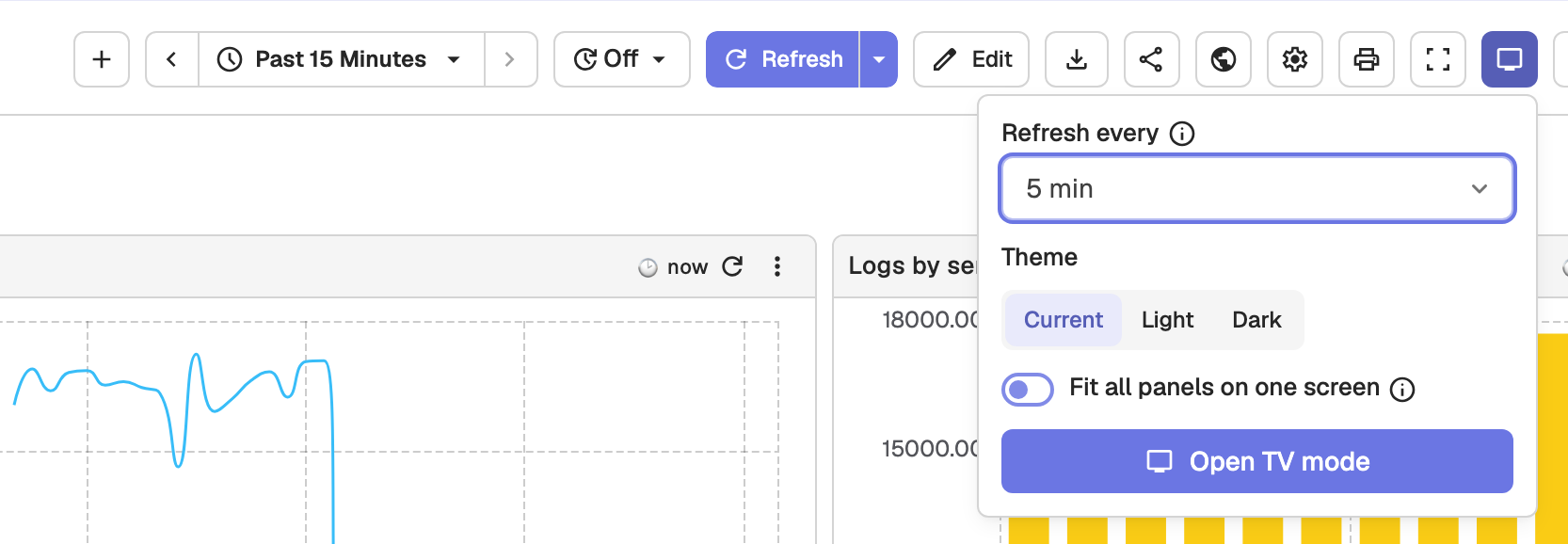
The popover offers:
- Refresh every: how often the TV reloads data (Off, 30 sec, 1 min, 5 min, 15 min, 30 min, 1 hr). It defaults to the dashboard's current refresh interval, or 5 minutes when auto-refresh is off. Intervals below the server's minimum auto-refresh interval are disabled.
- Theme: Current, Light, or Dark, applied to this screen only.
- Fit all panels on one screen: shrinks panels to the screen height so nothing scrolls. Off by default.
Click Open TV mode. The dashboard switches to TV mode in the same tab, with kiosk=true in the URL and keeps the current relative time range, tab, and variable values. A compact header replaces the app chrome.
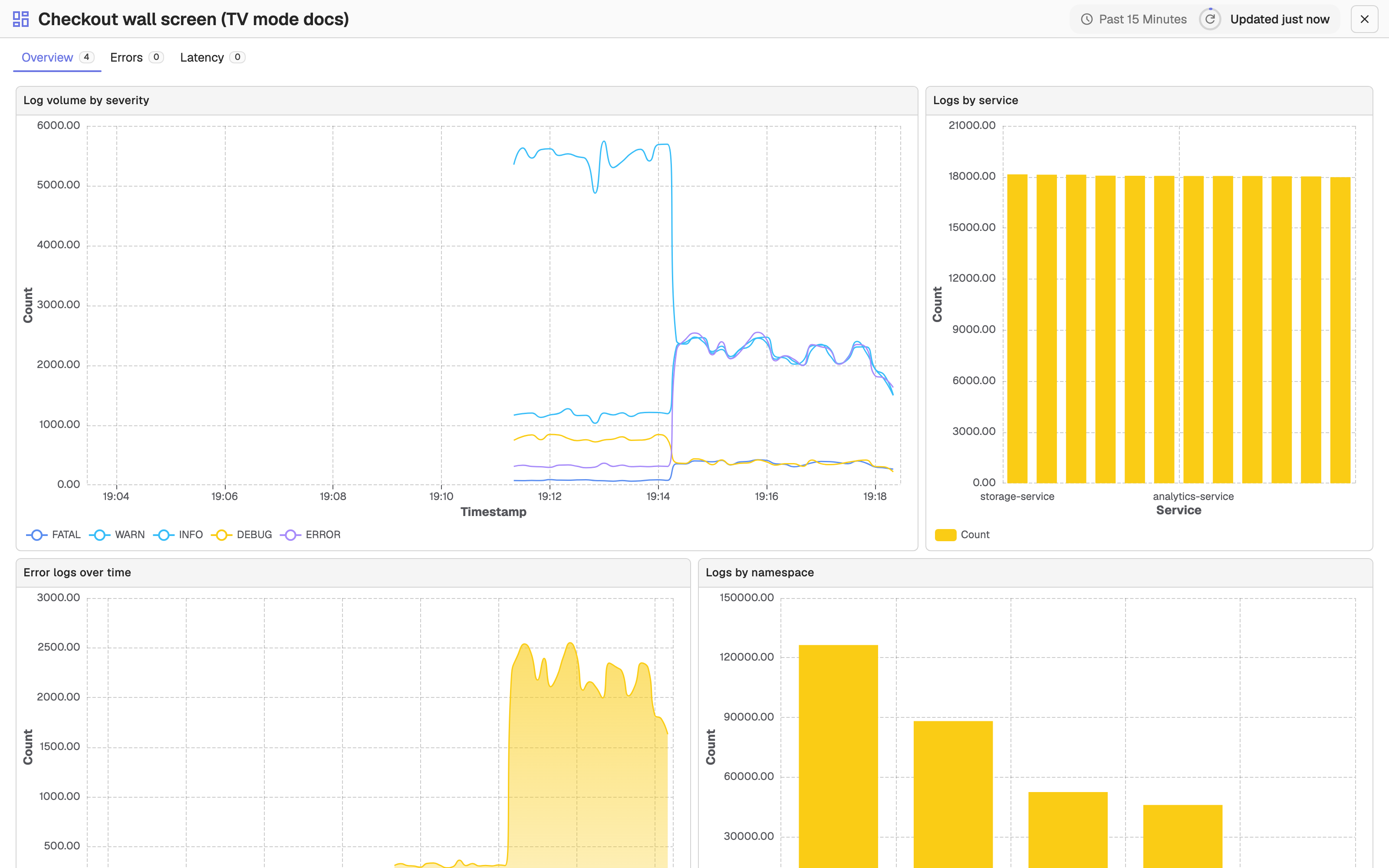
The header shows:
- The dashboard name and time range.
- A countdown ring until the next refresh, which spins while panels load. Hover over it to see the time of the next refresh.
- An Updated label such as "Updated 2m ago". Hover over it to see the exact time.
- A status chip, only when something needs attention: failing panels, a hung query, stale data, the backend being unreachable, or auto-refresh being off.
- An exit button (Exit TV mode), which is always visible. Pressing Esc or the browser's Back button also leaves TV mode.
Tabs and variables sit in one compact row under the header and stay usable. A variable change applies immediately.
TV mode URL parameters
To link straight into TV mode, for example from a TV's browser, add query parameters to a dashboard URL:
| Parameter | Values | Effect |
|---|---|---|
kiosk | true or 1 | Turns on TV mode: hides the app chrome and makes panels view-only. |
refresh | A duration such as 30s, 5m, or 1h | How often the dashboard reloads. Values below the server's minimum auto-refresh interval are raised to it. |
theme | light or dark | Forces a theme on this screen only. |
fit | true or 1 | Scales the grid so all panels fit on one screen. |
For example, append &kiosk=true&refresh=5m&theme=dark to a dashboard URL.
How TV mode keeps the screen current
While in TV mode, the dashboard recovers from problems on its own:
- A query that hangs is cancelled and the refresh is forced.
- If the backend is down, OpenObserve retries with backoff and recovers when the backend is back.
- Refresh pauses while the browser tab is hidden and resumes when it becomes visible.
- A panel that fails shows its error inside the panel.
When you leave TV mode after entering it from the toolbar, the dashboard returns to the refresh interval it had before.
Manage Dashboards
Manage and customize OpenObserve Dashboards—add panels, adjust time ranges, auto-refresh, export, share, and edit settings for better data visibility.
Public Dashboards
Publish a read-only copy of an OpenObserve dashboard behind a public link that anyone can open without signing in, and manage those links.