
Folder Icons
Assign an icon to any folder so you can find it at a glance. OpenObserve lets you pick from curated Unicode emoji or full-color logos for the services you integrate with, and it can even suggest one automatically as you type a folder name.
Folder icons work on every page that organizes items into folders, such as Dashboards, Alerts, Reports, and Synthetics. The same Icon field and the same folder rail appear on all of them.
1. Where Folder Icons Appear
A folder's icon is shown wherever the folder name appears:
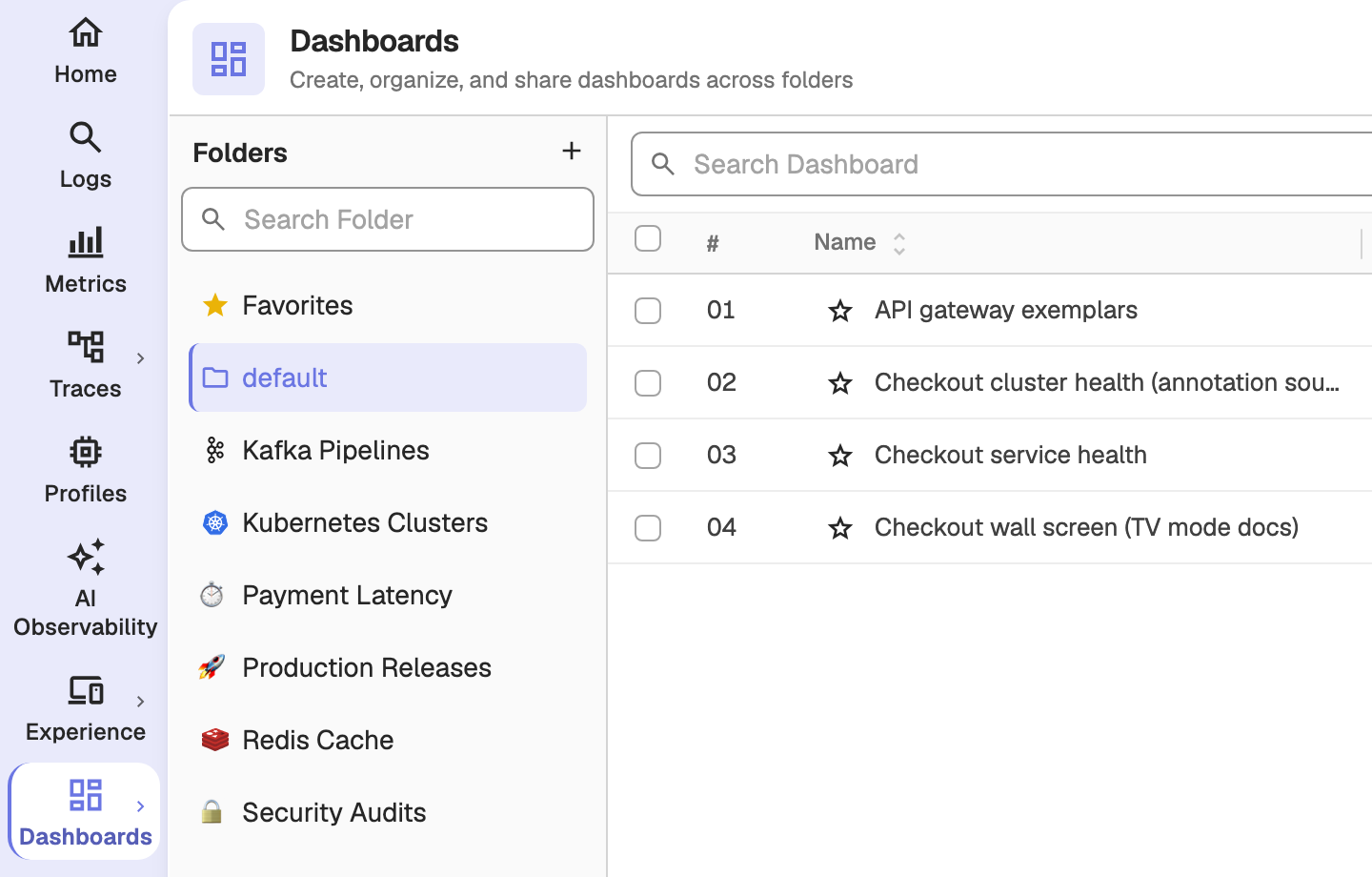
- In the Folders rail (the left-hand folder list) on pages such as Dashboards, Alerts, Reports, and Synthetics.
- In folder dropdowns used to file or move items, such as the Select Folder dropdown when moving dashboards or alerts, and the folder selector in a panel's drill-down dialog.
Folders that have no icon still render a small folder glyph (or a star for the Favorites entry), so every folder name lines up on the same column.
2. Assign an Icon to a Folder
You assign an icon when you create or edit a folder.
- On the Folders rail, click + to create a folder, or click the vertical ellipsis (⋮) next to a folder and select Edit.
- In the dialog, the Icon field sits to the left of the Name field.
- Click the Icon trigger to open the picker, choose an icon, then click Save.
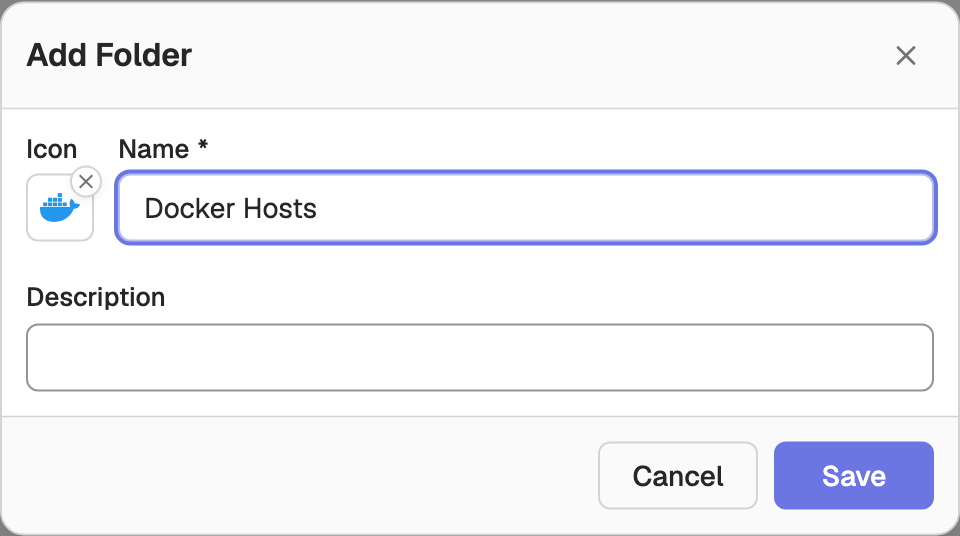
The Icon field is optional — leave it empty to keep the default folder glyph.
3. Choose an Icon from the Picker
The picker opens a searchable grid of curated icons grouped into categories:
- Status — operational states (
🚀production,🔒security,✅pass,🚨alert). - Services — full-color logos for the services OpenObserve integrates with (Redis, Kafka, Terraform, Prometheus, PostgreSQL, Kubernetes, Docker, and more). These match the logos shown on the Ingestion pages.
- AI — logos for AI integrations (OpenAI, Anthropic, LangChain, and more).
- Creatures, Infrastructure, Data, Teams, Objects, and World — generic emoji for common concepts.
Use the Search icons box to filter the grid by keyword. You can also navigate the grid with the keyboard using the arrow keys and Home/End.
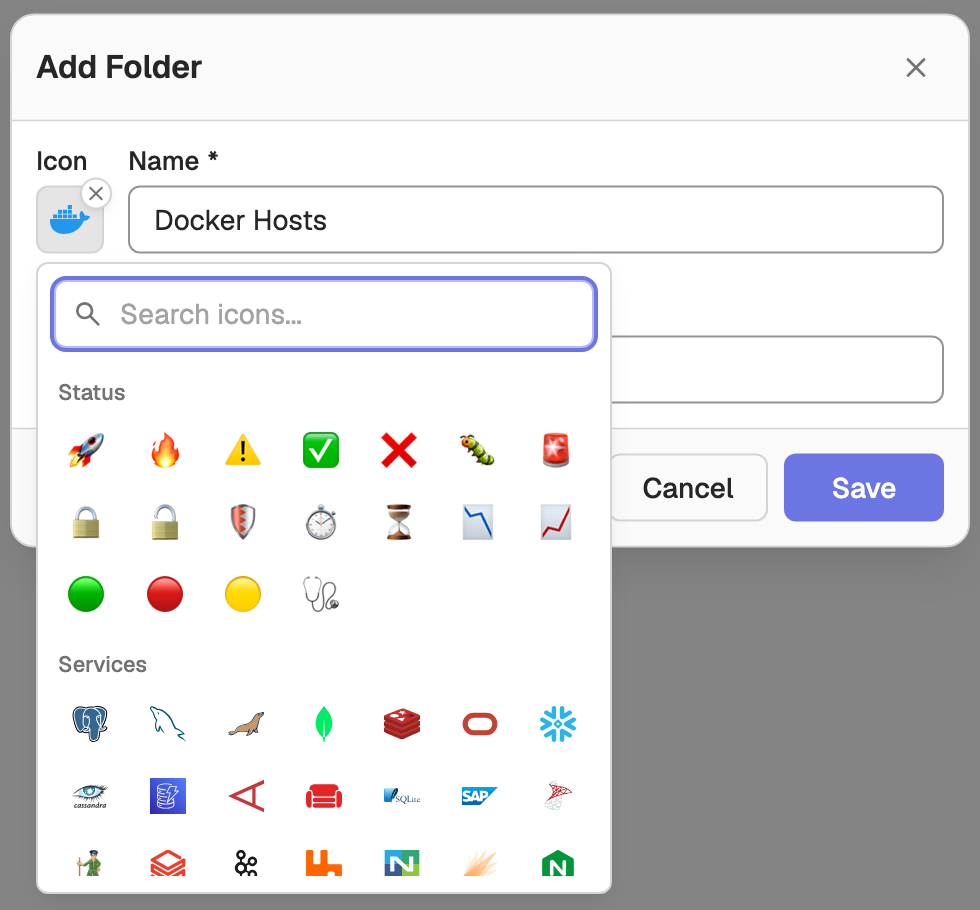
Clicking an icon selects it and closes the picker. Clicking the currently selected icon deselects it, which removes the icon.
4. Automatic Icon Suggestions
As you type a folder name, OpenObserve suggests an icon for you — before you pick one yourself, the Icon field follows whatever you type in Name.
The suggestion is deterministic and keyword-based:
- Product names resolve to the real logo, not an emoji stand-in. For example,
dockersuggests the Docker mark,kubernetes(ork8s) the Kubernetes mark, andredis,kafka,terraform,prometheus, andpostgrestheir respective logos. - Generic terms map to a fitting emoji, such as
database→🗄️orsecurity→🔒. - Names that match nothing get a neutral folder-style emoji, so a folder is never blank while you are still typing.
The first time you deliberately pick an icon (or clear it), the suggestion freezes and no longer changes as you edit the name. Renaming a folder that already has an icon never silently swaps it for a new suggestion.
5. Remove or Change an Icon
- Remove: click the small × that appears on the Icon trigger, or open the picker and click the currently selected icon again to deselect it.
- Change: open the picker and choose a different icon.
Removing the icon restores the default folder glyph.
How Icons Are Stored
An icon is stored on the folder as a short token: a Unicode emoji (for example 🚀) or a registry reference such as o2:redis. The backend stores the token opaquely in the folder's icon field and never interprets it, so the same folder shows the same icon for every user.
Dashboards in OpenObserve
Visualize and monitor data in OpenObserve Dashboards with interactive panels, real-time insights, and flexible organization using folders and tabs.
Manage Dashboards
Manage and customize OpenObserve Dashboards—add panels, adjust time ranges, auto-refresh, export, share, and edit settings for better data visibility.