
Variables in OpenObserve
This page provides a comprehensive overview of variables in OpenObserve dashboards, including instructions on how to create your first variable, apply it to panels, and configure different variable options.
What Are Variables?
Variables in OpenObserve dashboards let users filter data dynamically. You can use variables to select values from a list or input them manually.
When a value is selected, the variable updates, but the panels do not refresh automatically. To view updated panels, users must click the Refresh button manually. To apply changes automatically instead, turn on Auto Run.
Why Use Variables
Use variables to:
- Filter data without editing queries
- Pass the same selected value into multiple panel queries
- Switch between values
- Support multi-value selections when needed
Create a Variable
Use case: Create a variable that will automatically fetch values from a specific field in your log data. This allows dashboard viewers to select a value from a dropdown menu to filter the panels accordingly.
To create a variable:
-
Go to the Dashboard where you want to add the variable.
-
Click the gear icon at the upper-right corner to go to Dashboard Settings.
-
Select Variables from the left navigation.
-
Click Add Variable.
-
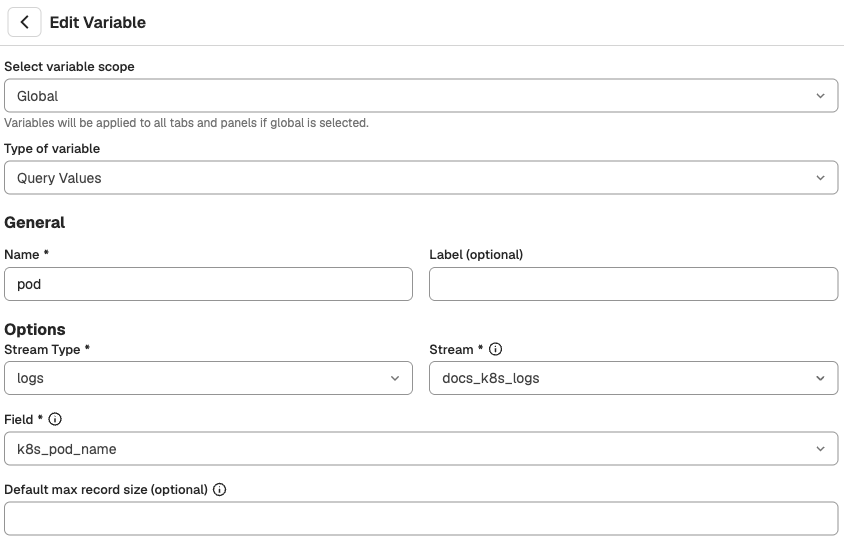
Configure the variable with the following values:
-
Type of variable: Query Values
-
Name: pod
Variable names must be unique within a dashboard. If you enter a name that already exists, OpenObserve shows
Variable with same name already exists.and does not save the variable. -
Label: Pod
-
Stream Type: logs
-
Stream:
default -
Field:
k8s_pod_name
-
-
(Optional) Modify the Default max record size.
-
(Optional) Modify the Filters settings or By Default Select options.
-
(Optional) Under Select variable scope, choose where the variable applies: Global (all tabs and panels), Selected Tabs, or Selected Panels.
-
Click Save to add the variable to the dashboard.
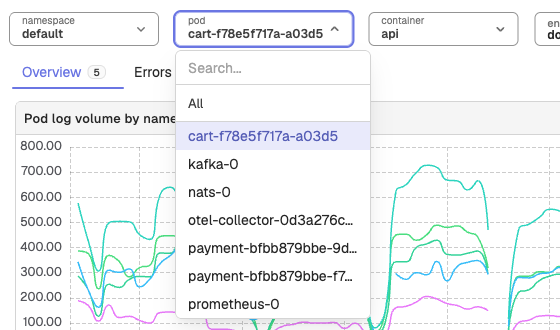
Variables appear as dropdowns at the top of the dashboard.
Apply the Variable to a Panel
To apply the variable to a panel:
-
Go to the same dashboard where you created the variable.
-
Create a new panel or open an existing panel to edit it.
-
In the Fields section of the panel editor:
-
First, select the appropriate Stream Type and Stream to ensure the correct dataset is loaded.
-
From the Fields panel inside the panel editor, hover over the field you want to use as the X-axis or Y-axis and click the corresponding button (for example, +X or +Y) to add it. You can also add Breakdown if needed.
For example:
- X-axis:
timestamp - Y-axis: count(
k8s_namespace_name)
- X-axis:
-
-
Add a filter. Hover over the field used when creating the variable. For this example, hover over
k8s_pod_nameand click +F to add it as a filter. -
Click the filter dropdown and switch from the List tab to the Condition tab.
- Set the appropriate Operator. For example,
=. - In the Value field, type the variable name using the dollar symbol. For example,
$pod.
- Set the appropriate Operator. For example,
-
Click Save to save the panel.
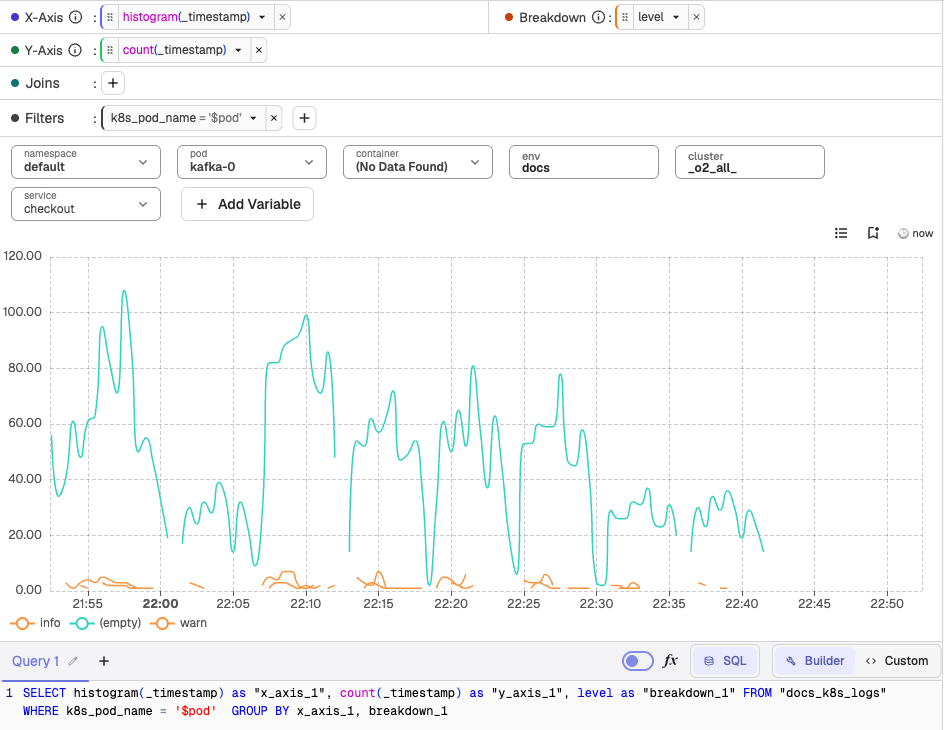
The panel is now dynamically filtered using the Pod variable. When users select a value from the Pod dropdown on the dashboard, the panel updates to display data for that pod only.
Variable Substitution Syntax
You can reference a variable in panel queries (and in HTML panels) using any of the following syntaxes, where var is the variable name:
$var${var}{{var}}(mustache)
Surrounding spaces are tolerated, so {{ var }} and ${ var } are also valid.
For multi-value variables, you can apply format modifiers to control how the selected values are joined:
{{var:csv}}or${var:csv}: joins the values with commas.{{var:pipe}}or${var:pipe}: joins the values with pipes.{{var:doublequote}}or${var:doublequote}: wraps each value in double quotes.{{var:singlequote}}or${var:singlequote}: wraps each value in single quotes.
Apply Variables on Change (Auto Run)
Auto Run is available when your deployment sets ZO_AUTO_QUERY_ENABLED=true (default false). To turn it on or off, open the dropdown next to Refresh and select Turn on Auto Run or Turn off Auto Run. This is the same setting as in Logs and Traces, so changing it in one place changes it everywhere.

With Auto Run on, you do not need to click Refresh:
- Variable changes apply after 300 ms.
- Multi-select variables apply when the dropdown closes, including by Escape or Select all.
- Panels run only after the whole variable chain has loaded, and only the panels whose query changed run, once each.
With Auto Run off, Refresh turns yellow when there are unapplied changes. Auto Run covers global, tab, and panel variables, the full-screen panel view, and RUM App Performance.
Advanced Configuration
After creating and applying a variable, you can further refine its behavior using advanced settings.
Default Max Record Size
The Default max record size limits how many records appear in the dropdown list.
- For example, if set to
100, only the first100unique values from the field will be shown. - If your required value is not among them, you can enter it manually as a custom value.
This allows users to select valid values that may not be included in the default list due to the limit.
Note
Default max record size is 10.
Filters
You can optionally configure variable dependencies using the Filters option.
Default Select
Default Select controls what values are selected automatically when the dashboard loads.
Available options:
- First value: Selects the first listed value from the dropdown.
- All values: Selects all values from the dropdown.
- Custom: Specify one or more default values.
To configure this select one of the options under By Default Select when adding or editing a variable.
Hide On Dashboard
If enabled, the variable dropdown will not be shown in the dashboard interface. This is useful for variables that are meant to work in the background or should not be modified by users.
Escape Single Quotes
If enabled, single quotes in user input will be escaped automatically.
Example:
- Input: O'Reilly
- Escaped as: O''Reilly
This prevents syntax errors in SQL queries that include user inputs with special characters.
Single-Select and Multi-Select
When creating variables, you can enable support for multiple selections.
- Single Select: Only one value can be selected from the list.
- Multi-Select: Multiple values can be selected at once.
To enable multi-select, toggle the Allow multiple selection switch when configuring the variable.
Variable Input Behavior
Custom Values
You can enter custom values manually when the desired option is not available in the variable dropdown. These values work if they exist in the underlying data.
- In single-select, you can select a custom value and refresh the panels to view related data.
- In multi-select, custom values cannot be combined with other dropdown values. If you select the custom value, you cannot select any other value.
Note
If a custom value is entered that does not exist in the data, dashboard panels will display no results.
Type-Ahead
The type-ahead input feature allows users to search and select values by typing into the variable dropdown. This feature supports both exact value selection and partial match-based filtering.
- The search is case sensitive. For example, typing
zowill not matchZOorZo. - When you type into the dropdown, the system filters values based on the input string. If matching values exist within the fetched list (as limited by Default Max Record Size), they appear as selectable options.
- You can select any of the listed values to filter dashboard panels accordingly.
For example:
If you type zo, the dropdown may return the following options:
zo1-nats
zo2-nats
zo3-nats
You can then:
- Select
zo1-natsto display panel data only for that value. - Select the input string
zoas a custom value, which applies the filter for all values that containzo. In this case, the panels will reflect data for all of the following:
zo1-nats
zo2-nats
zo3-nats
Note
If the input string is not present in the fetched list but exists in the data, you can still select it as a custom value. However, if the input does not match any values in the data, the panel will return no results.
Next Steps
- Learn about different types of variables.
Variables Overview
Learn how to create and use static and query-based variables in OpenObserve Dashboards to filter data dynamically in SQL or PromQL chart queries.
Variable Types
OpenObserve dashboard variable types include Query Values, Constant, Textbox, and Custom, each with configuration and use cases for dynamic panel filtering.