
O2 SRE Agent Setup
Overview
The O2 SRE Agent is a background service that powers AI-driven features in OpenObserve Enterprise. It handles AI request processing, tool execution, and intelligence for observability workflows.
Features Enabled by SRE Agent
AI Assistant
- Natural language querying of logs, metrics, and traces
- Automated SQL/PromQL/VRL query generation
- Resource creation (dashboards, alerts) via chat
- Multi-data source correlation and troubleshooting
- Script generation (Python/VRL)
- Query validation before execution
- Context-aware on the Traces page (picks up the current stream, time range, search mode, and selected trace) and presents summarized tool results for readability
Custom Toolsets & Skills (Enterprise)
The SRE Agent can be extended with org-scoped custom toolsets that are loaded into the agent's available tools for chat and RCA requests. Supported toolset kinds are MCP, CLI, skill, and generic. Manage them under Management > AI Toolsets.
Incident Management & RCA
- Automated incident detection and grouping
- AI-powered Root Cause Analysis
- Automated RCA reanalysis (append-only delta analysis triggered on incident lifecycle events)
- Alert correlation and event tracking
- Incident lifecycle management
Prerequisites
- OpenObserve Enterprise License (v0.60.0+)
- AI Provider API Key with available quota (Anthropic, OpenAI, or Google Gemini)
O2_AI_ENABLEDset to"true"in your OpenObserve configuration
Configuration Methods
Method 1: Helm Chart Deployment (Recommended)
If you're deploying OpenObserve using the official Helm charts, the SRE Agent is already included. You just need to enable and configure it.
Official Helm Charts:
Step 1: Add Helm Repository
helm repo add openobserve https://charts.openobserve.ai
helm repo update
Step 2: Update Values File
Update your values.yaml with the following configuration:
Minimal Configuration (Direct API - No Gateway):
enterprise:
  enabled: true

  # Required when O2_AI_ENABLED is "true"
  sreagent:
    enabled: true
    config:
      O2_SRE_HOST: "0.0.0.0"
      O2_SRE_PORT: "8000"
      O2_SRE_LOG_LEVEL: "INFO"
      ADK_ENABLE_JSON_SCHEMA_FOR_FUNC_DECL: "true"
      O2_AI_GATEWAY_ENABLED: "false"
      O2_AI_PROVIDER: "anthropic"  # Options: anthropic, openai, gemini
      O2_AI_MODEL: "claude-3-5-sonnet-20241022"
      O2_AI_GATEWAY_URL: ""  # Leave empty when not using gateway
      O2_AGENT_URL: ""  # Leave empty - auto-generated
      O2_TOOL_API_URL: ""  # Leave empty - auto-generated
      # MCP validation settings
      O2_MCP_VALIDATION_ENABLED: "true"
      O2_MCP_VALIDATION_RETRY: "true"
      O2_MCP_CONTENT_VALIDATION_ENABLED: "true"
      O2_MCP_CONTENT_VALIDATION_MODE: "hybrid"
      O2_MCP_RESPONSE_VALIDATION_ENABLED: "true"

  # IMPORTANT: Requires sreagent.enabled to be true
  parameters:
    O2_AI_ENABLED: "true"
    O2_AGENT_URL: ""  # Leave empty - auto-generated
    O2_TOOL_API_URL: ""  # Leave empty - auto-generated

# AI API Key (REQUIRED)
auth:
  O2_AI_API_KEY: "your-api-key-here"
Configuration with AI Gateway:
# Enable AI Gateway
aiGateway:
  enabled: true
  gatewayServiceName: "ai-gateway"
  port: 80

enterprise:
  enabled: true

  sreagent:
    enabled: true
    config:
      O2_SRE_HOST: "0.0.0.0"
      O2_SRE_PORT: "8000"
      O2_SRE_LOG_LEVEL: "INFO"
      ADK_ENABLE_JSON_SCHEMA_FOR_FUNC_DECL: "true"
      O2_AI_GATEWAY_ENABLED: "true"  # Auto-set when aiGateway.enabled: true
      O2_AI_PROVIDER: "anthropic"  # Can be omitted when using gateway
      O2_AI_MODEL: "claude-3-5-sonnet-20241022"
      O2_AI_GATEWAY_URL: ""  # Auto-configured when aiGateway.enabled: true
      O2_AGENT_URL: ""
      O2_TOOL_API_URL: ""
      O2_MCP_VALIDATION_ENABLED: "true"
      O2_MCP_VALIDATION_RETRY: "true"
      O2_MCP_CONTENT_VALIDATION_ENABLED: "true"
      O2_MCP_CONTENT_VALIDATION_MODE: "hybrid"
      O2_MCP_RESPONSE_VALIDATION_ENABLED: "true"

  parameters:
    O2_AI_ENABLED: "true"
    O2_AGENT_URL: ""
    O2_TOOL_API_URL: ""

auth:
  O2_AI_API_KEY: "your-api-key-here"
With Incidents & RCA:
enterprise:
  enabled: true

  sreagent:
    enabled: true
    config:
      O2_SRE_HOST: "0.0.0.0"
      O2_SRE_PORT: "8000"
      O2_SRE_LOG_LEVEL: "INFO"
      ADK_ENABLE_JSON_SCHEMA_FOR_FUNC_DECL: "true"
      O2_AI_GATEWAY_ENABLED: "false"
      O2_AI_PROVIDER: "anthropic"
      O2_AI_MODEL: "claude-3-5-sonnet-20241022"
      O2_AI_GATEWAY_URL: ""
      O2_AGENT_URL: ""
      O2_TOOL_API_URL: ""
      O2_MCP_VALIDATION_ENABLED: "true"
      O2_MCP_VALIDATION_RETRY: "true"
      O2_MCP_CONTENT_VALIDATION_ENABLED: "true"
      O2_MCP_CONTENT_VALIDATION_MODE: "hybrid"
      O2_MCP_RESPONSE_VALIDATION_ENABLED: "true"

  parameters:
    # AI Features
    O2_AI_ENABLED: "true"
    O2_AGENT_URL: ""
    O2_TOOL_API_URL: ""

    # Incidents and RCA
    O2_INCIDENTS_ENABLED: "true"
    O2_INCIDENTS_RCA_ENABLED: "true"
    O2_INCIDENTS_AUTO_RESOLVE_AFTER_MINUTES: "-1"
    O2_INCIDENTS_ALERT_GRAPH_ENABLED: "true"
    O2_INCIDENTS_REANALYSIS_COOLDOWN_MINUTES: "30"  # Minimum minutes between automatic reanalysis runs (user-triggered reanalysis bypasses it)

auth:
  O2_AI_API_KEY: "your-api-key-here"
  # Optional: MCP Authentication
  O2_MCP_USERNAME: "root@example.com"
  O2_MCP_PASSWORD: "SecurePassword123"
Step 3: Deploy
Multi-node deployment:
helm upgrade --install openobserve openobserve/openobserve \
  -f values.yaml \
  --namespace openobserve \
  --create-namespace
Standalone deployment:
helm upgrade --install openobserve openobserve/openobserve-standalone \
  -f values.yaml \
  --namespace openobserve \
  --create-namespace
Step 4: Verify Deployment
# Check SRE Agent pod
kubectl get pods -n openobserve | grep sreagent

# View logs
kubectl logs -n openobserve deployment/openobserve-sreagent --tail=50

# Check health
kubectl exec -n openobserve deployment/openobserve-router -- \
  curl -s http://openobserve-sreagent:8000/health
Method 2: Manual Deployment
For deployments not using the official Helm charts. Requires deploying two components separately.
Docker Image: public.ecr.aws/zinclabs/o2-sre-agent:latest
Step 1: Create Kubernetes Secret
apiVersion: v1
kind: Secret
metadata:
  name: o2-sre-agent-secrets
  namespace: openobserve
type: Opaque
stringData:
  ai-api-key: "your-api-key-here"
  # Optional
  mcp-username: "root@example.com"
  mcp-password: "SecurePassword123"
kubectl apply -f secret.yamlStep 2: Deploy SRE Agent
apiVersion: apps/v1
kind: Deployment
metadata:
  name: o2-sre-agent
  namespace: openobserve
spec:
  replicas: 2
  selector:
    matchLabels:
      app: o2-sre-agent
  template:
    metadata:
      labels:
        app: o2-sre-agent
    spec:
      containers:
      - name: o2-sre-agent
        image: public.ecr.aws/zinclabs/o2-sre-agent:latest
        ports:
        - containerPort: 8000
          name: http

        env:
        # Server Configuration
        - name: O2_SRE_HOST
          value: "0.0.0.0"
        - name: O2_SRE_PORT
          value: "8000"
        - name: O2_SRE_LOG_LEVEL
          value: "INFO"

        # AI Provider Configuration
        - name: O2_AI_PROVIDER
          value: "anthropic"
        - name: O2_AI_MODEL
          value: "claude-sonnet-4-5-20250929"
        - name: O2_AI_API_KEY
          valueFrom:
            secretKeyRef:
              name: o2-sre-agent-secrets
              key: ai-api-key

        # MCP Tool Server URL (points to OpenObserve)
        - name: O2_TOOL_API_URL
          value: "http://openobserve-router.openobserve.svc.cluster.local:5080/api/default/mcp"

        # MCP Validation
        - name: O2_MCP_VALIDATION_ENABLED
          value: "true"
        - name: O2_MCP_CONTENT_VALIDATION_ENABLED
          value: "true"

        # Optional: MCP Authentication
        - name: O2_MCP_USERNAME
          valueFrom:
            secretKeyRef:
              name: o2-sre-agent-secrets
              key: mcp-username
              optional: true
        - name: O2_MCP_PASSWORD
          valueFrom:
            secretKeyRef:
              name: o2-sre-agent-secrets
              key: mcp-password
              optional: true

        resources:
          requests:
            memory: "256Mi"
            cpu: "250m"
          limits:
            memory: "512Mi"
            cpu: "500m"

---
apiVersion: v1
kind: Service
metadata:
  name: o2-sre-agent
  namespace: openobserve
spec:
  type: ClusterIP
  ports:
  - port: 8000
    targetPort: http
    name: http
  selector:
    app: o2-sre-agent
kubectl apply -f deployment.yamlStep 3: Configure OpenObserve
Update your OpenObserve deployment configuration:
# OpenObserve configuration
enterprise:
  enabled: true
  parameters:
    # AI Features
    O2_AI_ENABLED: "true"
    O2_AGENT_URL: "http://o2-sre-agent.openobserve.svc.cluster.local:8000"
    O2_TOOL_API_URL: "http://openobserve-router.openobserve.svc.cluster.local:5080/api/default/mcp"

    # Optional: Incident Management
    O2_INCIDENTS_ENABLED: "true"
    O2_INCIDENTS_RCA_ENABLED: "true"
    O2_INCIDENTS_ALERT_GRAPH_ENABLED: "true"
Restart OpenObserve services to apply changes.
Environment Variables Reference
For detailed information about all available environment variables and their configurations, refer to the official documentation:
AI Provider Selection
| Provider | Model | Use Case |
|---|---|---|
| Anthropic | claude-3-5-sonnet-20241022 | Best reasoning, complex analysis (Recommended) |
| OpenAI | gpt-4-turbo, gpt-4o | Wide compatibility, strong performance |
| Google Gemini | gemini-1.5-pro | Cost-effective option |
Configuration:
O2_AI_PROVIDER: "anthropic"  # or "openai", "gemini"
O2_AI_MODEL: "claude-3-5-sonnet-20241022"
O2_AI_API_KEY: "your-api-key"
AI Gateway Configuration
An AI Gateway provides rate limiting, response caching, load balancing, and usage tracking. Use it for production deployments, high query volumes (>100/day), or cost-sensitive environments. Development/testing can skip the gateway for simplicity.
Configuration Flows
Flow 1: OpenObserve Built-in Gateway (Recommended)
Uses the O2 Envoy Gateway for AI request management.
aiGateway:
  enabled: true
  gatewayServiceName: "ai-gateway"
  port: 80

enterprise:
  sreagent:
    enabled: true
    # O2_AI_PROVIDER not needed
    # Gateway settings auto-configured
Flow 2: External/Self-hosted Gateway
enterprise:
  sreagent:
    enabled: true
    config:
      O2_AI_GATEWAY_ENABLED: "true"
      O2_AI_GATEWAY_URL: "http://my-gateway.custom.svc.cluster.local:80"
      # O2_AI_PROVIDER not needed
Flow 3: Direct API (No Gateway)
enterprise:
  sreagent:
    enabled: true
    config:
      O2_AI_PROVIDER: "anthropic"
      O2_AI_MODEL: "claude-sonnet-4-5-20250929"
      # No gateway configuration
MCP Validation & Security
Model Context Protocol (MCP) handles communication between the SRE Agent and OpenObserve. Validation ensures secure and reliable AI tool execution.
Recommended for Production:
-
Enable all validation settings (
O2_MCP_VALIDATION_ENABLED: "true") -
Use
hybridvalidation mode for balanced security and flexibility -
Configure MCP authentication for multi-tenant environments
Development: Can disable validation (O2_MCP_VALIDATION_ENABLED: "false") for faster iteration.
MCP Authentication (optional):
O2_MCP_USERNAME: "root@example.com"
O2_MCP_PASSWORD: "SecurePassword123"
Using the AI Assistant
Access
-
Log into OpenObserve
-
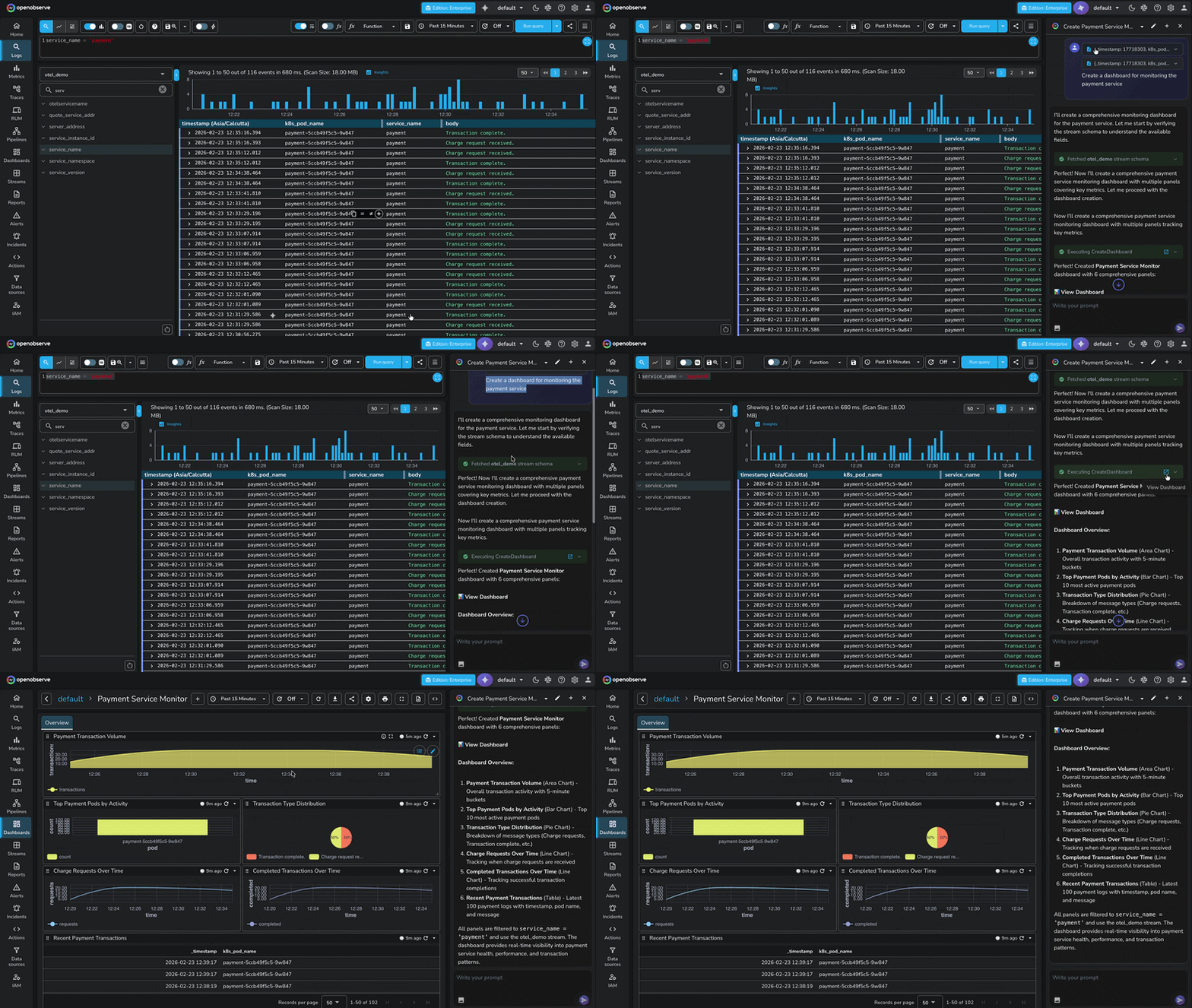
Click the AI Assistant icon in the sidebar
-
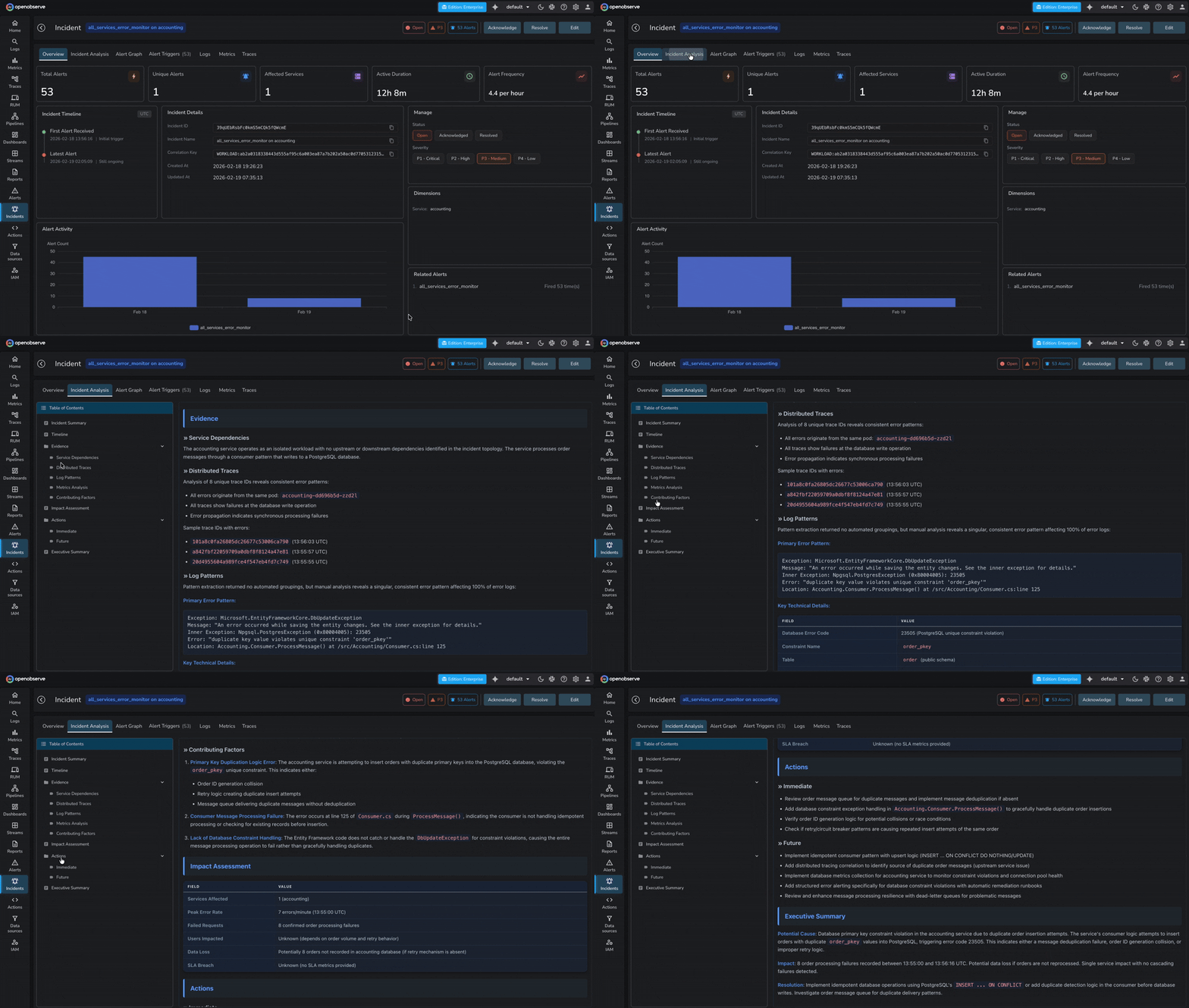
Navigate to Incidents page in OpenObserve side-menu
Example Queries
Log Analysis:
Show me all error logs from the payment service in the last hour
Find authentication failures grouped by IP address
Metrics:
What's causing high CPU usage on the API pods?
Show me latency trends for the checkout endpoint
Resource Creation:
Create a dashboard for monitoring the payment service
Set up an alert for when error rate exceeds 5%
Troubleshooting:
Analyze the root cause of the recent outage
Why is the database connection pool exhausted?
Persistent chat history and sharing
With chat persistence enabled, OpenObserve stores AI Assistant conversations on the server. A chat survives a browser refresh, can be reopened from any device, and keeps running on the server if you close the tab mid-answer. Persisted chats can also be shared with teammates or, optionally, through public links.
Enable chat persistence
Chat persistence is off by default. To turn it on, set these variables on OpenObserve:
| Environment Variable | Required value | Description |
|---|---|---|
| O2_AI_CHAT_PERSISTENCE_ENABLED | true | Turns on server-side chat persistence. Takes effect only when the AI Assistant is enabled and an SRE Agent URL is configured. |
| O2_AI_INTERNAL_SECRET | a shared secret | Sent to the SRE Agent on persisted chat turns and restores. It must equal the agent's O2_INTERNAL_API_SECRET; without it, persisted turns fail with internal_secret_required. |
Conversation events are stored in the _o2_ai_chat_events stream of each organization.
Browse and reopen chats
- In the AI Assistant panel, open the chat history dropdown to search your previous chats, reopen one, share it, or delete it.
- On the home page, the Chats panel lists the same history.
When you reopen a chat, its transcript is restored from storage. If a turn was still running when you left, it continues on the server and the reply is there when you come back.
Share a chat
- Open the chat and click Share in the AI Assistant header, or click Share next to the chat in the history list.
- In the Share chat dialog, choose:
- Mode: Snapshot freezes the chat at the latest finished message (use Refresh snapshot to update it later). Live always shows the latest finished messages.
- Who can view: Organization limits the link to signed-in members of the organization who have access to shared chats. Public link lets anyone with the link read the chat without signing in; it appears only when public links are enabled (see Public links).
- Expires: from In 1 hour to In 1 year, or Never.
- Hide tool inputs and outputs: viewers see the answers and which tools ran, but not the tool data. This is on by default for public links.
- Click Create link, then Copy link.
The dialog also lists the chat's Active links, where you can switch a link between snapshot and live, show or hide tool data, or Revoke it. Deleting a chat revokes all of its links. To see every link you have created, click Shared by me in the Chats panel on the home page; organization admins can switch to All in organization to see every shared chat.
Warning
Unless you hide them, shared chats include every tool input and output from the conversation, and anyone who can open the link can read them.
A recipient opens the link to see a read-only copy of the chat, and can click Fork into my chats to continue the conversation in their own history.
Permissions
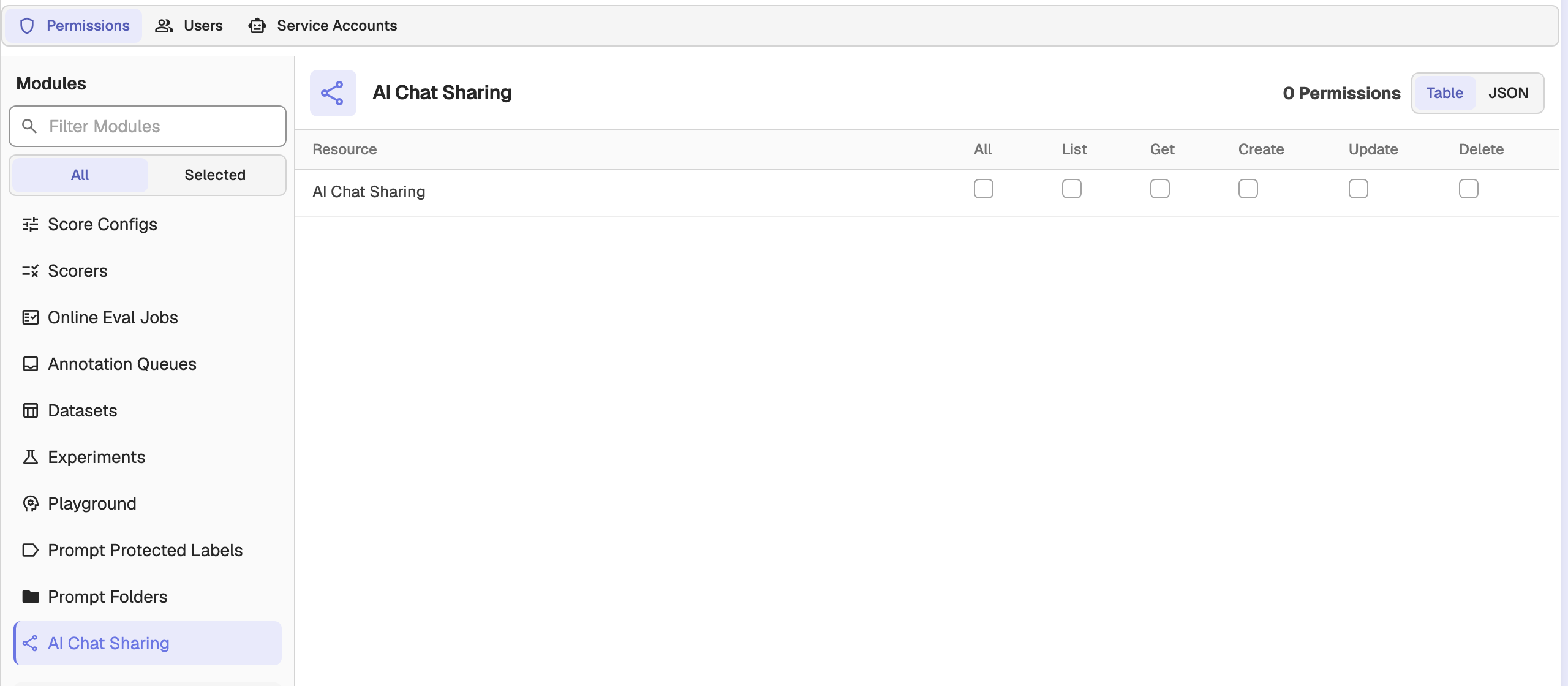
Sharing is controlled by the AI Chat Sharing permission (ai_chat_share in OpenFGA). By default only organization admins can create, list, manage, and open shared chats. To let other users share chats or open organization links, grant AI Chat Sharing to a custom role:
- Go to IAM > Roles and edit the role.
- On the Permissions tab, select the AI Chat Sharing module.
- Select the operations to allow, then click Save:
- Create: create share links.
- List: see a chat's links and the Shared by me list.
- Get: open organization links and fork shared chats.
- Update and Delete: change and revoke links.
Public links
Public links are disabled by default; the Public link option and the public route exist only when they are turned on:
| Environment Variable | Default | Description |
|---|---|---|
| ZO_PUBLIC_AI_CHAT_ENABLED | false | Allows AI chats to be shared through public, unauthenticated links. Requires chat persistence. |
| ZO_PUBLIC_AI_CHAT_RPM | 60 | Per-IP requests-per-minute limit on the public shared-chat route (0 disables the limit). |
| ZO_PUBLIC_AI_CHAT_MAX_EXPIRY_DAYS | 90 | Longest expiry a public link may have. Public links must expire; 0 means 90, and the maximum is 365. |
High availability
With O2_AI_HA_ENABLED=true, OpenObserve routes AI requests to SRE Agent replicas registered in NATS instead of O2_AGENT_URL. Each persisted chat session is owned by one replica. If that replica goes down, the next turn waits up to O2_AI_CHAT_OWNER_WAIT_SECS for another replica to take over, then restores the session's stored history into it so the conversation continues.
Turn outcomes and limits
Every persisted turn ends as completed, cancelled, failed, interrupted (no response from the SRE Agent for 45 seconds), or deleted. Active persisted turns are capped on each node: by default 3 per user, 50 per organization, and 200 in total. A request over a limit is rejected with HTTP 429 and the code turn_limit.
Chat persistence tuning
These optional variables tune persistence. The defaults suit most deployments.
| Environment Variable | Default | Description |
|---|---|---|
| O2_AI_CHAT_PERSIST_BATCH_SIZE | 16 | Events per write batch; batches are also cut on the flush interval. |
| O2_AI_CHAT_PERSIST_FLUSH_INTERVAL_MS | 500 | Maximum time (ms) a buffered event waits before it is written. |
| O2_AI_CHAT_PERSIST_FINAL_TIMEOUT_SECS | 30 | How long (s) the final flush may take before the turn is reported as not persisted. |
| O2_AI_CHAT_UI_CHANNEL_CAPACITY | 4096 | Frames the browser may fall behind before it is disconnected from the turn. The turn keeps running on the server. |
| O2_AI_CHAT_MAX_EVENT_BYTES | 1048576 | Largest stored row payload (bytes); a bigger event is split across rows. |
| O2_AI_CHAT_MAX_EVENT_TOTAL_BYTES | 67108864 | Largest event (bytes) a turn persists; a bigger one fails the turn with event_too_large. |
| O2_AI_CHAT_MAX_PENDING_EVENTS | 5000 | Cap on events buffered for one turn while writes are failing. |
| O2_AI_CHAT_RETENTION_DAYS | 0 | Retention (days) of the _o2_ai_chat_events stream; 0 keeps the organization default. |
| O2_AI_CHAT_TURN_LEASE_WAIT_SECS | 1 | How long (s) a new turn waits for the session's previous turn to release it before answering 409. |
| O2_AI_CHAT_MAX_TURN_SECS | 3600 | Hard ceiling (s) on one persisted turn, whether or not a browser is connected. |
| O2_AI_CHAT_OWNER_WAIT_SECS | 45 | How long (s) a turn waits for another replica to take over a failed owner's session. Keep it above O2_AI_REPLICA_HEARTBEAT_TTL. |
| O2_AI_CHAT_MAX_ACTIVE_TURNS_PER_USER | 3 | Active persisted turns one user may run on a node (0 = unlimited). |
| O2_AI_CHAT_MAX_ACTIVE_TURNS_PER_ORG | 50 | Active persisted turns one organization may run on a node (0 = unlimited). |
| O2_AI_CHAT_MAX_ACTIVE_TURNS_PER_NODE | 200 | Active persisted turns one node may run (0 = unlimited). |
Troubleshooting
Common issues and fixes
-
SRE Agent Pod Not Starting
Check pod status:
kubectl get pods -n openobserve | grep sreagent
kubectl logs -n openobserve deployment/openobserve-sreagent --tail=100
Common causes:
- Invalid API key
- Incorrect AI provider name
- Network connectivity issues
Verify configuration:
# Check API key exists kubectl get secret -n openobserve openobserve-auth -o jsonpath='{.data.O2_AI_API_KEY}' | base64 -d # Check environment variables kubectl exec -n openobserve deployment/openobserve-sreagent -- env | grep O2_ -
AI Assistant Not Responding
Check connectivity:
# Health check
kubectl exec -n openobserve deployment/openobserve-router -- \
  curl -s http://openobserve-sreagent:8000/health

# Check logs
kubectl logs -n openobserve deployment/openobserve-sreagent --tail=50
Common causes:
O2_AI_ENABLEDnot set to"true"- Network policy blocking communication
- AI provider API rate limiting
- Service misconfiguration
-
MCP Tool Execution Failures
Verify MCP endpoint:
# Check O2_TOOL_API_URL
kubectl exec -n openobserve deployment/openobserve-sreagent -- env | grep O2_TOOL_API_URL

# Test connectivity
kubectl exec -n openobserve deployment/openobserve-sreagent -- \
  curl -s http://openobserve-router:5080/api/default/mcp
Common causes:
- Incorrect
O2_TOOL_API_URLformat - Wrong organization name in URL
- Missing MCP credentials
- Service not reachable
Correct URL format:
http://<service-name>.<namespace>.svc.cluster.local:<port>/api/<org-name>/mcp - Incorrect
-
AI Gateway Issues
Check gateway:
# Verify gateway service
kubectl get svc -n <gateway-namespace> | grep ai-gateway

# Test connectivity
kubectl exec -n openobserve deployment/openobserve-sreagent -- \
  curl -s http://ai-gateway:80
Common causes:
- Gateway not deployed
- Conflicting configuration (both
O2_AI_PROVIDERandO2_AI_GATEWAY_ENABLEDset) - Wrong gateway URL or port
Fix:
- With gateway: Remove
O2_AI_PROVIDER, setO2_AI_GATEWAY_ENABLED="true" - Without gateway: Remove all
O2_AI_GATEWAY_*variables, setO2_AI_PROVIDER
-
Incident Management Not Working
Check configuration:
kubectl get configmap -n openobserve openobserve-config -o yaml | grep O2_INCIDENTSRequired settings (in OpenObserve, not SRE Agent):
O2_AI_ENABLED: "true"
O2_INCIDENTS_ENABLED: "true"
O2_INCIDENTS_RCA_ENABLED: "true"
Best Practices
- API Key Security: Store in Kubernetes Secrets; use secret managers (Vault, AWS Secrets Manager) for production; rotate every 90 days
- MCP Validation: Enable in production (
O2_MCP_VALIDATION_ENABLED: "true"); use MCP authentication for multi-tenant setups - Network Security: Apply network policies to restrict traffic; enable TLS for service communication
- High Availability: Deploy with 2+ replicas; enable HPA for auto-scaling in production
- Logging: Use
INFOlevel for production,DEBUGonly when troubleshooting - Cost Optimization: Use AI Gateway with caching to reduce API calls; choose cost-effective models for simple queries
- Updates: Keep SRE Agent image updated; test in non-production environments first
Support diagnostics
# Check pod and logs
kubectl get pods -n openobserve | grep sreagent
kubectl logs -n openobserve deployment/openobserve-sreagent --tail=100

# Verify configuration (redact sensitive data)
kubectl get configmap -n openobserve openobserve-config -o yaml | grep O2_
Next steps
- Model Context Protocol (MCP): connect IDEs and agents to OpenObserve through the SRE Agent.
- AI Integration env vars: full reference for AI-related settings.
- Incidents and RCA env vars: tune incident detection and root cause analysis.
Need some help?
- Join our Community Slack
- Or Contact support
Terraform
Manage OpenObserve alerts, SLOs, streams, dashboards, users as code with the official Terraform provider, and deploy the platform with the Kubernetes module.
Enterprise Features
Overview of OpenObserve Enterprise Edition features — Security & Access Control, Performance & Scalability, AI & Intelligence, Data Processing & Integration.