
Install OpenObserve Enterprise on Google Kubernetes Engine (GKE)
Install OpenObserve Enterprise on GKE using GCS for object storage and CloudNativePG for the metadata database.
For support, reach out in the Slack channel.
Architecture overview
OpenObserve Enterprise Edition depends on these components:
- Object Storage (Google Cloud Storage via the S3-compatible interoperability API): Holds all telemetry data in Parquet format.
- PostgreSQL (CloudNativePG): Tracks metadata such as dashboards, stream configurations, users, and the filelist table.
- NATS: Coordinates communication between ingestion and query nodes.
- OpenFGA (enabled by default): Powers Role-Based Access Control (RBAC).
- Dex (optional, disabled by default): Powers Single Sign-On (SSO).
This page covers the Google GKE install. For other Kubernetes platforms, see Amazon EKS or Azure AKS.
Time required: 30-45 minutes on a fresh GCP project.
Prerequisites
Complete every item in this section before starting Step 1.
Required CLI tools
All commands in this guide assume these are on your PATH:
| Tool | macOS | Linux | Verify |
|---|---|---|---|
| gcloud CLI | brew install --cask google-cloud-sdk | install guide | gcloud version |
| kubectl | gcloud components install kubectl | gcloud components install kubectl | kubectl version --client |
| Helm v3 | brew install helm | install guide | helm version |
| gke-gcloud-auth-plugin | gcloud components install gke-gcloud-auth-plugin | gcloud components install gke-gcloud-auth-plugin | gke-gcloud-auth-plugin --version |
GCP project and authentication
Create a GCP project with billing enabled and these APIs enabled (Cloud Console → APIs and Services):
- Kubernetes Engine API
- Compute Engine API
- Cloud Storage API
Then authenticate and select the project:
gcloud auth login
gcloud config set project <PROJECT_ID>
gcloud config set compute/region us-central1
Compute Engine SSD quota
Ensure you have a quota of at least 1000 GB of SSD_TOTAL_GB in your target region. New projects start with 500 GB, which causes silent failures in this setup (two pods stay Pending after install with no obvious error).
Check your current quota:
gcloud compute regions describe us-central1 \
  --format="value(quotas)" | tr ';' '\n' | grep SSD_TOTAL_GB
If the limit is below 1000, raise it: Cloud Console → IAM & Admin → Quotas & System Limits → filter SSD_TOTAL_GB, your region → Edit Quotas → request 2000 GB. Small or new accounts may not get auto-approval.
Environment variables
export CLUSTER_NAME=oo-cluster
export REGION=us-central1
export NAMESPACE=openobserve
Step 1. Create the GKE cluster
Choose Standard mode (not Autopilot). On a regional cluster, --num-nodes 1 provisions 1 node × 3 zones = 3 nodes total. Takes 5-8 minutes.
Three e2-standard-4 nodes running 24/7 cost approximately $290/month in us-central1 (on-demand, list price, May 2025). Disks and egress are extra. Run the Teardown when finished.
gcloud container clusters create oo-cluster \
  --region us-central1 \
  --num-nodes 1 \
  --machine-type e2-standard-4 \
  --release-channel regular \
--enable-ip-alias-
Open Kubernetes Engine → Clusters → Create.
-
Configure cluster:
- Mode: Standard
- Name:
oo-cluster - Location: Region =
us-central1(regional, NOT zonal) - Default pool: at least 3 nodes of
e2-standard-4 - Release channel: Regular
-
Leave the rest at defaults → Create.
Verify
Verification step
gcloud container clusters list --filter="name=oo-cluster"Expected output
After 5-8 minutes:
NAME        LOCATION     MASTER_VERSION   ...   STATUS
oo-cluster  us-central1  1.x.x-gke.xxxx   ...   RUNNING
Step 2. Connect kubectl to the cluster
Use --region for regional clusters and --zone for zonal. Mixing them up gives a confusing 404 Not found even when the cluster exists.
Command
gcloud container clusters get-credentials oo-cluster --region us-central1Verify
Verification step
kubectl get nodesExpected output
Fetching cluster endpoint and auth data.
kubeconfig entry generated for oo-cluster.

NAME                                       STATUS   ROLES    AGE   VERSION
gke-oo-cluster-default-pool-xxxxxxxx-aaaa  Ready    <none>   6m    v1.x.x-gke.xxxx
gke-oo-cluster-default-pool-yyyyyyyy-bbbb  Ready    <none>   6m    v1.x.x-gke.xxxx
gke-oo-cluster-default-pool-zzzzzzzz-cccc  Ready    <none>   6m    v1.x.x-gke.xxxx
Step 3. Create the GCS bucket and HMAC credentials
OpenObserve talks to GCS over the S3-compatible interoperability API using HMAC keys, not native GCP service-account JSON. Step 6 depends on this. Remember it.
Create the bucket:
BUCKET=oo-$(date +%s)
gcloud storage buckets create gs://$BUCKET --location=us-central1
echo "Save this bucket name: $BUCKET"
Create HMAC keys via service account. (CLI HMAC creation only works for service accounts. For user-account keys, use the Console.)
PROJECT=$(gcloud config get-value project)

gcloud iam service-accounts create openobserve-gcs \
  --display-name="OpenObserve GCS access"

SA_EMAIL=openobserve-gcs@${PROJECT}.iam.gserviceaccount.com

gcloud storage buckets add-iam-policy-binding gs://$BUCKET \
  --member="serviceAccount:$SA_EMAIL" \
  --role="roles/storage.objectAdmin"

gcloud storage hmac create $SA_EMAIL
Create the bucket:
- Open Cloud Storage → Buckets → Create.
- Name: unique, e.g.
oo-<your-suffix>. - Location type: Region. Region:
us-central1(match your cluster). - Leave the rest at defaults → Create.
Generate HMAC interoperability keys:
- Cloud Storage → Settings → Interoperability tab.
- Enable interoperability if not already enabled.
- Create a new HMAC key for either your user account or a dedicated service account (recommended: service account).
- Note the Access key, Secret, and the Server URL. You'll paste these into
values.yamlin Step 6.
Save your HMAC secret immediately
The HMAC secret is shown exactly once. Copy it into a password manager now. It cannot be retrieved later. The accessId is recoverable via gcloud storage hmac list; the secret is not.
Verify
Verification step
gcloud storage buckets list --filter="name=$BUCKET"
gcloud storage hmac list --service-account=$SA_EMAIL
Expected output
accessId: GOOGXXXXXXXXXXXXXXXXXXXX
secret:   YYYYYYYYYYYYYYYYYYYYYYYYYYYYYYYYYYYYYYYY
state: ACTIVE- The S3-compatible server URL for GCS is always
https://storage.googleapis.com.
Step 4. Install the CloudNativePG operator
OpenObserve uses Postgres for metadata. The chart provisions it via CNPG, which must be installed cluster-wide first.
Command
kubectl apply --server-side -f \
  https://raw.githubusercontent.com/cloudnative-pg/cloudnative-pg/release-1.22/releases/cnpg-1.22.1.yaml
Verify
Verification step
Wait ~30 seconds, then:
kubectl get pods -n cnpg-systemExpected output
NAME                                       READY   STATUS    RESTARTS   AGE
cnpg-controller-manager-xxxxxxxxxx-yyyyy   1/1     Running   0          30s
Step 5. Add the Helm repo and fetch values.yaml
Command
helm repo add openobserve https://charts.openobserve.ai
helm repo update
curl -O https://raw.githubusercontent.com/openobserve/openobserve-helm-chart/main/charts/openobserve/values.yaml
Verify
Verification step
helm repo list | grep openobserve
ls -lh values.yaml
Expected output
"openobserve" has been added to your repositories
...Successfully got an update from the "openobserve" chart repository
Update Complete. ⎈Happy Helming!⎈openobserverepo listedvalues.yamlpresent in the current directory
Step 6. Configure values.yaml
Open values.yaml. Line numbers below match chart version 1.7.x; if yours differs, search by key name.
6a. Root user credentials (~line 178)
auth:
  ZO_ROOT_USER_EMAIL: "your-email@example.com"
  ZO_ROOT_USER_PASSWORD: "supercomplexpass12"     # change me
6b. GCS HMAC credentials (~lines 183-184)
  ZO_S3_ACCESS_KEY: "GOOG...accessId from Step 3..."
  ZO_S3_SECRET_KEY: "secret from Step 3"
6c. GCS storage configuration (~lines 378-381)
config:
  ZO_S3_PROVIDER:    "s3"
  ZO_S3_SERVER_URL:  "https://storage.googleapis.com"
  ZO_S3_REGION_NAME: "auto"
  ZO_S3_BUCKET_NAME: "<your-bucket-name-from-step-3>"
ZO_S3_PROVIDER must stay "s3" even though we're using GCS. See the troubleshooting entry below if you're tempted to change it.
6d. (Optional) Enable RBAC and SSO (~lines 870-882)
enterprise:
  openfga:
    enabled: true      # default. Leave on for RBAC
  dex:
    enabled: true      # default is false; set to true for SSO
If you enable Dex, you'll later need to set enterprise.dex.parameters.O2_CALLBACK_URL to your real ingress hostname. For the initial port-forward test, root user login works regardless.
Verify
Verification step
grep -E "ZO_ROOT_USER_EMAIL|ZO_S3_PROVIDER|ZO_S3_BUCKET_NAME|ZO_S3_SERVER_URL" values.yamlExpected output
  ZO_ROOT_USER_EMAIL: "your-email@example.com"
  ZO_S3_PROVIDER:    "s3"
  ZO_S3_SERVER_URL:  "https://storage.googleapis.com"
  ZO_S3_BUCKET_NAME: "<your-bucket-name>"
Step 7. Install OpenObserve
Command
kubectl create namespace openobserve

helm install oo openobserve/openobserve \
  --namespace openobserve \
  -f values.yaml
Verify
Verification step
Confirm the release deployed, then wait ~2 minutes for pods to come up:
helm list -n openobserve
kubectl get pods -n openobserve -w   # Ctrl+C once everything is Running
Expected output
helm list shows release oo with STATUS: deployed. After ~2 minutes, kubectl get pods should look like:
NAME                                       READY   STATUS    RESTARTS   AGE
oo-nats-0                                  2/2     Running   0          2m
oo-nats-1                                  2/2     Running   0          2m
oo-nats-2                                  2/2     Running   0          2m
oo-nats-box-...                            1/1     Running   0          2m
oo-openobserve-scheduler-0              1/1     Running   0          2m
oo-openobserve-compactor-...               1/1     Running   0          2m
oo-openobserve-dex-...                     1/1     Running   0          2m
oo-openobserve-ingester-0                  1/1     Running   0          2m
oo-openobserve-openfga-...                 1/1     Running   0          2m
oo-openobserve-postgres-1                  1/1     Running   0          2m
oo-openobserve-postgres-2                  1/1     Running   0          1m
oo-openobserve-querier-0                   1/1     Running   0          2m
oo-openobserve-router-...                  1/1     Running   1          2m
The router shows 1 restart. Its readiness probe runs before its dependencies are ready. That's expected and resolves itself.
Step 8. Open the OpenObserve UI
Command
The router service is named oo-openobserve-router (release prefix + chart's router name).
kubectl -n openobserve port-forward svc/oo-openobserve-router 5080:5080Verify
Verification step
kubectl get svc -n openobserve | grep router
# In a second terminal:
curl -sI http://localhost:5080 | head -1
Expected output
Forwarding from 127.0.0.1:5080 -> 5080
Forwarding from [::1]:5080 -> 5080
kubectl get svcshowsoo-openobserve-routercurlreturnsHTTP/1.1 200 OK(or302 Found)
Open http://localhost:5080 and log in with the email + password from Step 6a.
Load Sample Data
Step 1: Download Sample Data
# Download and extract sample Kubernetes logs
curl -L https://zinc-public-data.s3.us-west-2.amazonaws.com/zinc-enl/sample-k8s-logs/k8slog_json.json.zip -o k8slog_json.json.zip
unzip k8slog_json.json.zip
What's in the sample data: This file contains real Kubernetes application logs with various log levels (info, warning, error) and structured JSON fields.
Step 2: Load Data into OpenObserve
For OpenObserve Cloud:
# Use the cURL command from your Ingestion page
curl -u your-email@domain.com:your-password \
-H "Content-Type: application/json" \
https://api.openobserve.ai/api/YOUR_ORG/default/_json \
-d "@k8slog_json.json"
For Self-Hosted Installation:
# Replace credentials with the values you set in Step 6a.
curl -u "your-email@example.com:supercomplexpass12" \
-H "Content-Type: application/json" \
http://localhost:5080/api/default/default/_json \
-d "@k8slog_json.json"
Step 3: Verify Data Upload
You should see output similar to:
{"code":200,"status":[{"name":"default","successful":1000,"failed":0}]}If you see errors, check:
- Your credentials are correct
- The JSON file was downloaded completely
- OpenObserve is running and accessible
Search Your Data
Step 1: Access the Logs Interface
- Navigate to your OpenObserve instance
- Click on Logs in the left sidebar
- Select default from the stream dropdown (top-left)
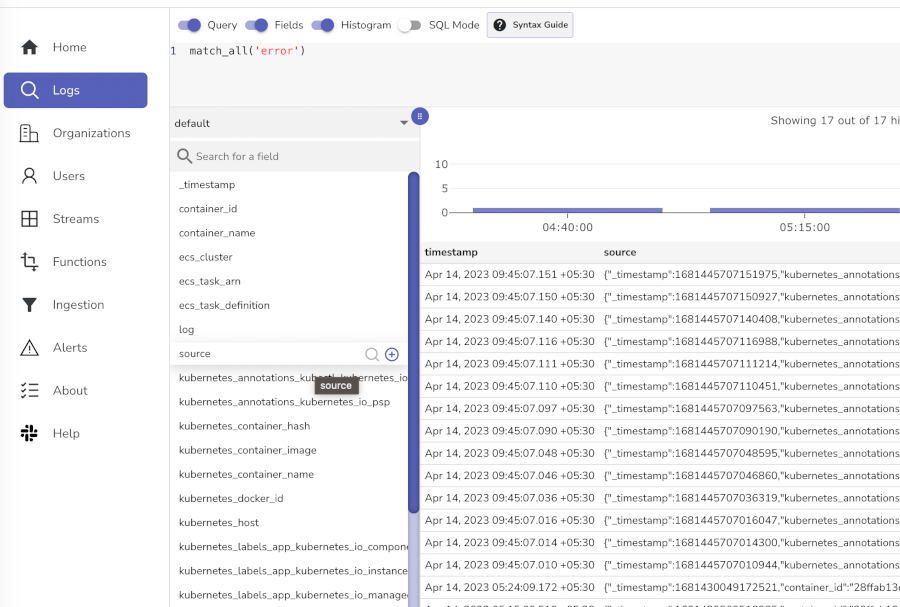
Step 2: Try These Sample Searches
Basic searches (click the Run Query button after each):
- View all logs: Leave search box empty and click search
- Find errors:
level='error'ormatch_all('error')
Next Steps - Send Your Own Data
- Application logs: Use our logging libraries for your applications
- Metrics: Set up Prometheus integration
- Traces: Configure OpenTelemetry for distributed tracing
Teardown
Run these commands in order. Order matters. Skipping helm uninstall before deleting the cluster leaves orphaned persistent disks that quietly accumulate cost.
# 1. Release Kubernetes resources (frees PVCs → releases GCE persistent disks)
helm uninstall oo -n $NAMESPACE
kubectl delete pvc -n $NAMESPACE --all
kubectl delete namespace $NAMESPACE

# 2. Delete the GKE cluster (~5 min)
gcloud container clusters delete $CLUSTER_NAME --region $REGION --quiet

# 3. Empty and delete the GCS bucket
gcloud storage rm --recursive gs://$BUCKET
gcloud storage buckets delete gs://$BUCKET

# 4. Delete the HMAC key and service account used for GCS access
ACCESS_ID=$(gcloud storage hmac list --service-account=$SA_EMAIL --format='value(accessId)')
gcloud storage hmac update --deactivate $ACCESS_ID
gcloud storage hmac delete $ACCESS_ID
gcloud iam service-accounts delete $SA_EMAIL --quiet

# 5. Confirm no leftover compute resources
gcloud container clusters list --filter="name=$CLUSTER_NAME"        # cluster gone
gcloud compute disks list --filter="zone~$REGION"

# If any pvc-* disks remain:
gcloud compute disks list --filter="name~^pvc-" --format="value(name,zone)" | \
  while read name zone; do
    gcloud compute disks delete "$name" --zone="${zone##*/}" --quiet
  done
pvc-* orphans appear when helm uninstall or kubectl delete pvc failed earlier. Typically because kubectl was pointing at the wrong cluster. The block above sweeps them up.
Troubleshooting reference
Issues are grouped by theme. Each entry notes the step where it tends to surface.
Tooling and prerequisites
-
gcloud: command not found. Google Cloud SDK not installed. See the Required CLI tools table in Prerequisites. -
gcloud: command not foundafter Homebrew install. Homebrew drops gcloud into its share directory but doesn't add it toPATH. Fix: add to~/.zshrcor~/.bashrc, then reload the shell:source "$(brew --prefix)/share/google-cloud-sdk/path.zsh.inc" source "$(brew --prefix)/share/google-cloud-sdk/completion.zsh.inc" -
kubectl get nodesfails withexecutable gke-gcloud-auth-plugin not found(Step 2). Plugin missing or not onPATH. Fix:gcloud components install gke-gcloud-auth-plugin. On Homebrew installs the binary may not be onPATH; symlink it:ln -s /opt/homebrew/share/google-cloud-sdk/bin/gke-gcloud-auth-plugin \ /opt/homebrew/bin/gke-gcloud-auth-plugin -
wget: command not foundon macOS (Step 5).wgetis not preinstalled. Fix: usecurl -O <url>instead, orbrew install wget.
Cluster creation
-
Cluster was created in Autopilot mode (Step 1). Symptoms include
kubectl get nodesreturningNo resources found, andgcloud container node-pools listrejecting commands withAutopilot node pools cannot be accessed or modified. Autopilot blocks several things this stack needs (node pool control, certain volumes, privileged init containers). Fix:gcloud container clusters delete oo-cluster --region us-central1Then recreate as Standard per Step 1.
-
gcloud container clusters get-credentialsreturns404 Not found(Step 2). Used--zoneon a regional cluster, or vice versa. Fix: match the flag to your cluster type.--region us-central1for regional,--zone us-central1-cfor zonal. -
Cluster stuck in
PROVISIONINGfor more than 15 minutes (Step 1). Quota or region capacity issue. Fix:gcloud compute project-info describe --project=<id>to spot quota errors.
Storage and credentials
-
gcloud storage hmac createfails withService Account '<user>@gmail.com' not found(Step 3). CLI HMAC creation only works for service accounts. Fix: use the service-account flow in Step 3, or create the key in the Console (Cloud Storage → Settings → Interoperability). -
403 Permission deniedcreating bucket (Step 3). Missingroles/storage.adminon your user. Fix: grant via IAM, or use a different account. -
Ingester or compactor pods crash with
Unable to open service account file from GOOG...(Steps 6 and 8).ZO_S3_PROVIDERis set to"gcs", which makes OpenObserve treatZO_S3_ACCESS_KEYas a filesystem path to a GCP service-account JSON file. With HMAC keys the correct mode is"s3". GCS speaks the S3 protocol on its interoperability endpoint. Fix: setZO_S3_PROVIDER: "s3", then:helm upgrade oo openobserve/openobserve -n openobserve -f values.yaml
Postgres and CNPG
-
ImagePullBackOffon the CNPG operator pod (Step 4). Network or registry issue. Fix:kubectl describe pod -n cnpg-system <pod>for details; retry or check egress. -
CNPG operator in
CrashLoopBackOff(Step 4). CRD conflict from an earlier install. Fix:kubectl delete -f https://raw.githubusercontent.com/cloudnative-pg/cloudnative-pg/release-1.22/releases/cnpg-1.22.1.yamlThen reapply.
Quota and PVCs
-
Querier and scheduler pods
Pending, PVCs stuckPending, events showQUOTA_EXCEEDED ... SSD_TOTAL_GB(Step 7). YourSSD_TOTAL_GBquota is exceeded by node boot disks plus the default 100 GiB cache PVCs.Fix: Pick one path.
Path A. Raise the quota. See Prerequisites → Compute Engine SSD quota. If pods are already up, reinstall after the increase:
helm uninstall oo -n openobserve
kubectl delete pvc -n openobserve --all
helm install oo openobserve/openobserve -n openobserve -f values.yaml
Path B. Stay on 500 GB and shrink cache PVCs. PVC sizes are immutable, so this requires a clean reinstall.
In
values.yaml, change foursize: 100Gientries tosize: 20Gi:scheduler: persistence: size: 20Gi ingester: persistence: size: 20Gi querier: persistence: size: 20Gi alertquerier: persistence: size: 20Gi20 GiB caches are fine for evaluation. Restore to ≥100 GiB before production traffic. Then:
helm uninstall oo -n openobserve
kubectl delete pvc -n openobserve --all
helm install oo openobserve/openobserve -n openobserve -f values.yaml
Helm and values.yaml
-
helm repo addreports the repo already exists (Step 5). Fix: runhelm repo updateand continue. -
Line numbers in Step 6 don't match your
values.yaml(Step 6). Chart version drift. Fix: search by key name, e.g.grep -n ZO_S3_PROVIDER values.yaml. -
Error: namespaces "openobserve" already exists(Step 7). Re-running after a failed attempt. Fix: continue withhelm install. An existing namespace is fine. -
Error: cannot re-use a name that is still in use(Step 7). Previous release wasn't cleaned up. Fix:helm uninstall oo -n openobserveThen retry.
-
helm uninstallleaves PVCs behind. Helm doesn't manage PVCs created by StatefulSets. Fix:kubectl delete pvc -n openobserve --allbefore reinstall.
Pod runtime
-
Pod stuck
Init:0/1for more than 2 minutes (Step 7). Init container is waiting on NATS or Postgres. Fix:kubectl describe pod <name> -n openobserveCheck the
natsandpostgrespods first. -
Pod in
CrashLoopBackOff(Step 7). Bad config. Common culprits: storage misconfig, bad Postgres DSN, wrong credentials.kubectl logs <pod> -n openobserve --tail=80 -
Router pod restarts once or twice during initial install. Router readiness probe runs before NATS and Postgres are fully ready. Self-resolves within 1-2 minutes; no action needed.
UI and access
-
Error from server (NotFound): services "openobserve-router" not found(Step 8). Used the chart's service name without the release prefix. Fix: useoo-openobserve-router(release nameoo+ chart'sopenobserve-router). Confirm withkubectl get svc -n openobserve. -
Login page rejects credentials (Step 8). Mismatch with
values.yaml. Fix: decode the actual secret to see what's installed:kubectl get secret oo-openobserve -n openobserve \ -o jsonpath='{.data.ZO_ROOT_USER_EMAIL}' | base64 -d kubectl get secret oo-openobserve -n openobserve \ -o jsonpath='{.data.ZO_ROOT_USER_PASSWORD}' | base64 -dIf those don't match what you expect, edit
values.yamlandhelm upgrade. -
Page won't load at all (Step 8). Local port already in use. Fix: pick another local port:
kubectl -n openobserve port-forward svc/oo-openobserve-router 8080:5080Browse to http://localhost:8080.
General diagnostic commands
# Pod status across the namespace
kubectl get pods -n openobserve

# Recent events sorted by time
kubectl get events -n openobserve --sort-by='.lastTimestamp' | tail -30

# Logs from a specific pod
kubectl logs -n openobserve <pod-name> --tail=80

# Logs from a previous instance after a crash
kubectl logs -n openobserve <pod-name> --previous --tail=80

# PVC binding state
kubectl get pvc -n openobserve

# Describe a stuck pod (events at the bottom)
kubectl describe pod -n openobserve <pod-name>

# Current SSD quota and usage
gcloud compute regions describe us-central1 \
  --format="value(quotas)" | tr ';' '\n' | grep SSD_TOTAL_GB
Need help:
Last updated on
Azure AKS
Install OpenObserve Enterprise on Azure AKS with Azure Blob Storage and CloudNativePG. Step-by-step CLI and Portal paths, with verification and troubleshooting.
Terraform
Manage OpenObserve alerts, SLOs, streams, dashboards, users as code with the official Terraform provider, and deploy the platform with the Kubernetes module.