
Install OpenObserve Enterprise on Amazon EKS
This guide deploys OpenObserve Enterprise Edition in a highly available configuration on Amazon EKS using Helm.
For support, reach out in the Slack channel.
Architecture overview
OpenObserve Enterprise Edition depends on these components:
- Object Storage (S3): Holds all telemetry data in Parquet format.
- PostgreSQL (CloudNativePG): Tracks metadata such as dashboards, stream configurations, users, and the filelist table.
- NATS: Coordinates communication between ingestion and query nodes.
- Dex and OpenFGA: Power Single Sign-On (SSO) and Role-Based Access Control (RBAC).
This page covers the Amazon EKS install. For other Kubernetes platforms, see Azure AKS or Google GKE.
Estimated time: ~30 minutes (most of it waiting for EKS to provision the cluster).
Estimated cost: ~$15/day while running. See Teardown to stop billing.
Pre-requisites
Required CLI tools
All commands in this guide assume these are on your PATH:
| Tool | macOS | Linux | Verify |
|---|---|---|---|
| AWS CLI v2 | brew install awscli | install guide | aws --version |
| eksctl ≥ 0.220 | brew install eksctl | install guide | eksctl version |
| kubectl | brew install kubectl | install guide | kubectl version --client |
| Helm v3 | brew install helm | install guide | helm version |
| yq v4 | brew install yq | install guide | yq --version |
| curl | preinstalled | preinstalled | curl --version |
macOS users
wget is not preinstalled on macOS. This guide uses curl -O instead. If you prefer wget, install with brew install wget.
AWS account and authentication
You need an AWS account with permissions to create EKS clusters, S3 buckets, IAM roles, OIDC providers, and managed policies.
Authenticate using one of:
aws configure. Access key + secret keyaws login. Uses your active Console session for ~1h temporary credentials (no key management)aws configure sso. For IAM Identity Center / SSO orgs
Set your default region to where the cluster will live. Otherwise resources land in us-east-1 by default:
aws configure set region <region>Verify before continuing
aws sts get-caller-identity      # returns your account + ARN
aws configure get region         # set this to the region you want the cluster in
eksctl version                   # ≥ 0.220
kubectl version --client
helm version
yq --version                     # must be v4.x
If any fail, install the missing tool and re-run.
Step 1. Create the EKS cluster
This provisions a managed EKS control plane and a 3-node managed nodegroup with OIDC enabled (required for IRSA. IAM Roles for Service Accounts). Takes 15-20 minutes.
# Set these to your preferred values before running anything else
export CLUSTER_NAME=<your-cluster-name>
export AWS_REGION=<your-aws-region>
export NAMESPACE=<your-namespace>

curl -O https://raw.githubusercontent.com/openobserve/eks-openobserve/main/o2-eks.yaml
sed -i.bak \
  -e "s/name: test-docs/name: $CLUSTER_NAME/" \
  -e "s/region: us-east-2/region: $AWS_REGION/" \
  o2-eks.yaml

# Create the cluster (long-running. Eksctl streams CloudFormation events)
eksctl create cluster -f o2-eks.yaml-
Open the EKS console.
-
Click Add cluster → Create.
-
Configure cluster:
- Name: e.g.
openobserve-prod - Kubernetes version: 1.30 (or latest available)
- Cluster service role: create a new role if you don't have one (the Console offers a "Create role" link that opens IAM with a preconfigured policy)
- Name: e.g.
-
Configure networking. Accept defaults (uses your default VPC).
-
Configure logging. Optional; you can skip for now.
-
Review and create. Wait for
STATUS: ACTIVE(10-15 min). -
Once the control plane is
ACTIVE, go to the cluster's Compute tab → Add node group:- Name: e.g.
o2-nodes - Node IAM role: create or select an existing role with
AmazonEKSWorkerNodePolicy,AmazonEC2ContainerRegistryReadOnly,AmazonEKS_CNI_Policy - Instance type:
m7i.xlarge - Desired size: 3, Min: 3, Max: 6
- Name: e.g.
-
Critical for IRSA: The EKS control plane has an OIDC issuer URL, but you still need to register it as an IAM identity provider before pods can assume IAM roles. Run this one-liner from your terminal:
eksctl utils associate-iam-oidc-provider \ --cluster $CLUSTER_NAME --region $AWS_REGION --approve -
Configure kubectl to talk to the new cluster:
aws eks update-kubeconfig --name $CLUSTER_NAME --region $AWS_REGION -
Critical for storage: Install the EBS CSI driver addon. Without this, the
gp3storage class from Step 3 cannot provision volumes and pods will stayPending.eksctl create addon --name aws-ebs-csi-driver \ --cluster $CLUSTER_NAME --region $AWS_REGION --forceAlternatively, in the Console: open your cluster → Add-ons tab → Get more add-ons → install Amazon EBS CSI Driver.
Verify
Verification step
aws eks wait cluster-active --name $CLUSTER_NAME --region $AWS_REGION
kubectl get nodes
aws eks describe-cluster --name $CLUSTER_NAME \
--query 'cluster.identity.oidc.issuer' --output textExpected output
✔ EKS cluster "<name>" in "<region>" region is ready- 3 nodes, all
STATUS=Ready - OIDC issuer is a non-empty URL like
https://oidc.eks.<region>.amazonaws.com/id/ABC123...
Step 2. Create the S3 bucket and IAM role
OpenObserve persists logs, metrics, and traces as Parquet files in S3. This step creates the bucket and an IAM role pods assume via IRSA. No static credentials needed.
-
Download the bucket-creation script:
wget https://raw.githubusercontent.com/openobserve/eks-openobserve/main/bucket.sh chmod +x bucket.sh -
Open
bucket.shand update theCLUSTER_NAMEvariable to match your cluster. -
Run the script and capture its outputs:
./bucket.sh | tee /tmp/bucket-output.txt export BUCKET_NAME=$(grep "S3 bucket created" /tmp/bucket-output.txt | awk '{print $NF}') export ROLE_ARN=$(grep "Role ARN" /tmp/bucket-output.txt | awk '{print $NF}')
The script creates:
- An S3 bucket named
openobserve-<5-digit-suffix>in your CLI default region. - An IAM policy
OpenObservePolicygrantings3:PutObject,GetObject,ListBucket,DeleteObjecton that bucket. - An IAM role
OpenObserveRolewith the policy attached and a trust policy for your cluster's OIDC provider. The script's trust policy only enforces the:audcondition, so any service account in the cluster can assume this role. For production, tighten this to a specific service account via a:subcondition. See the AWS Console tab for an example, or the Troubleshooting section for an in-placeupdate-assume-role-policysnippet.
Create the S3 bucket:
- Open the S3 console.
- Click Create bucket.
- Name:
openobserve-<your-suffix>(must be globally unique). - Region: must match your EKS cluster region.
- Block all public access. Keep enabled.
- Create.
Create the IAM policy:
- Open the IAM console → Policies.
- Create policy → JSON tab, paste:
{ "Version": "2012-10-17", "Statement": [{ "Effect": "Allow", "Action": ["s3:PutObject", "s3:GetObject", "s3:ListBucket", "s3:DeleteObject"], "Resource": [ "arn:aws:s3:::<your-bucket-name>", "arn:aws:s3:::<your-bucket-name>/*" ] }] } - Name:
OpenObservePolicy. Create.
Create the IAM role with IRSA trust:
- Open IAM console → Roles.
- Create role → Web identity.
- Identity provider: select the OIDC provider associated with your cluster (
oidc.eks.<region>.amazonaws.com/id/<id>). - Audience:
sts.amazonaws.com. - Next → attach
OpenObservePolicy. - Name:
OpenObserveRole. Create. - After creation, edit the role's Trust relationships and add a
subcondition restricting it to the service account:{ "Version": "2012-10-17", "Statement": [{ "Effect": "Allow", "Principal": { "Federated": "arn:aws:iam::<account>:oidc-provider/oidc.eks.<region>.amazonaws.com/id/<id>" }, "Action": "sts:AssumeRoleWithWebIdentity", "Condition": { "StringEquals": { "oidc.eks.<region>.amazonaws.com/id/<id>:aud": "sts.amazonaws.com", "oidc.eks.<region>.amazonaws.com/id/<id>:sub": "system:serviceaccount:openobserve:o2-openobserve" } } }] } - Note the Role ARN. You'll paste it into
values.yamlin Step 4.
Verify
Verification step
# Trust policy must point to a real OIDC issuer (not empty fields)
aws iam get-role --role-name OpenObserveRole \
--query 'Role.AssumeRolePolicyDocument.Statement[0].Principal.Federated' \
--output text
# Bucket region must match the cluster region
aws s3api get-bucket-location --bucket $BUCKET_NAMEExpected output
S3 bucket created: openobserve-12345
Role ARN: arn:aws:iam::123456789012:role/OpenObserveRole- Trust policy:
arn:aws:iam::<account>:oidc-provider/oidc.eks.<region>.amazonaws.com/id/<id>(must NOT be empty fields) - Bucket location: matches
$AWS_REGION(anullresponse meansus-east-1)
Step 3. Install cluster dependencies
The OpenObserve chart expects two prerequisites already installed in the cluster:
- CloudNativePG operator. Manages the PostgreSQL replicas OpenObserve uses for metadata.
- gp3 storage class. Every PVC the chart creates references this; without it, pods stay
Pendingforever.
Command
# CloudNativePG operator
kubectl apply --server-side -f \
https://raw.githubusercontent.com/cloudnative-pg/cloudnative-pg/main/releases/cnpg-1.24.0.yaml
# gp3 storage class (Amazon EBS)
kubectl apply -f \
https://raw.githubusercontent.com/openobserve/eks-openobserve/main/gp3_storage_class.yaml
# OpenObserve Helm repo
helm repo add openobserve https://charts.openobserve.ai
helm repo updateVerify
Verification step
kubectl -n cnpg-system get pods
kubectl get sc gp3
helm repo list | grep openobserveExpected output
namespace/cnpg-system created
customresourcedefinition.apiextensions.k8s.io/backups.postgresql.cnpg.io created
... (many CRDs)
deployment.apps/cnpg-controller-manager created
storageclass.storage.k8s.io/gp3 created
"openobserve" has been added to your repositories
Update Complete. ⎈Happy Helming!⎈cnpg-controller-managershows1/1 Runninggp3storage class existsopenobserverepo is listed
Step 4. Configure values.yaml
Download the chart's default values.yaml and modify four required values. The file already contains every key you need. You are modifying existing values, not adding new sections.
Download
curl -O https://raw.githubusercontent.com/openobserve/openobserve-helm-chart/main/charts/openobserve/values.yaml
# Keep an unedited copy so you can diff later
cp values.yaml values.yaml.origModify the four required values
# 1. IAM role for IRSA. Lets pods talk to S3 without static keys
yq -i ".serviceAccount.annotations.\"eks.amazonaws.com/role-arn\" = \"$ROLE_ARN\"" values.yaml
# 2. S3 bucket + region (must match where the bucket actually lives)
yq -i ".config.ZO_S3_PROVIDER = \"s3\"" values.yaml
yq -i ".config.ZO_S3_BUCKET_NAME = \"$BUCKET_NAME\"" values.yaml
yq -i ".config.ZO_S3_REGION_NAME = \"$AWS_REGION\"" values.yaml
# 3. Root user. CHANGE BOTH before running in any non-throwaway environment
yq -i '.auth.ZO_ROOT_USER_EMAIL = "you@yourcompany.com"' values.yaml
yq -i '.auth.ZO_ROOT_USER_PASSWORD = "ChangeMe#123"' values.yaml
# 4. (Optional) Enable RBAC and SSO. Set under the enterprise: section
yq -i '.enterprise.openfga.enabled = true' values.yaml
yq -i '.enterprise.dex.enabled = true' values.yamlOpen values.yaml in your editor. Find each section by searching for the key, and modify the existing value.
1. IAM role for IRSA. Search for serviceAccount: (~ line 32):
serviceAccount:
create: true
annotations: {}serviceAccount:
create: true
annotations:
eks.amazonaws.com/role-arn: arn:aws:iam::<account-id>:role/OpenObserveRoleeks.amazonaws.com/role-arn must be indented 4 spaces under annotations:.
2. S3 configuration. Search for config: (~ line 200):
config:
ZO_S3_PROVIDER: "s3"
ZO_S3_BUCKET_NAME: "<your bucket from Step 2>"
ZO_S3_REGION_NAME: "<region from `aws s3api get-bucket-location`>"Valid values for ZO_S3_PROVIDER include s3, azure, minio, rustfs, and gcs. ZO_S3_REGION_NAME must match the bucket's region (not the cluster's region, if they differ).
3. Root user credentials. Search for auth: (~ line 175):
auth:
ZO_ROOT_USER_EMAIL: "you@yourcompany.com"
ZO_ROOT_USER_PASSWORD: "<strong password>"4. (Optional) Enable RBAC and SSO. Search for enterprise: and update the nested openfga and dex keys:
enterprise:
openfga:
enabled: true
dex:
enabled: trueFor SSO, enabling Dex alone is not enough. You must also configure an upstream identity provider. See the RBAC and SSO guides.
Verify
Verification step
helm lint -f values.yaml openobserve/openobserve
diff values.yaml.orig values.yaml | head -40Expected output
==> Linting openobserve/openobserve
[INFO] Chart.yaml: icon is recommended
1 chart(s) linted, 0 chart(s) failed0 chart(s) failed is the only acceptable result. If lint errors, fix the reported line before continuing.
Step 5. Install OpenObserve with Helm
This step creates the namespace and installs the chart. Pods take ~5 minutes to all reach Running.
Command
kubectl create namespace $NAMESPACE
helm --namespace $NAMESPACE -f values.yaml install o2 openobserve/openobserveVerify
Verification step
# Watch pods come up (Ctrl+C once everything is Running)
kubectl -n $NAMESPACE get pods -w
# Final pod state. Confirm every pod is 1/1 (or 2/2 for NATS) and Running
kubectl -n $NAMESPACE get pods
# Confirm IRSA is wired up
kubectl -n $NAMESPACE get sa o2-openobserve \
-o jsonpath='{.metadata.annotations.eks\.amazonaws\.com/role-arn}'
Expected output
NAME: o2
LAST DEPLOYED: <timestamp>
NAMESPACE: openobserve
STATUS: deployed
REVISION: 1- ~12 pods, every one
READY 1/1(or2/2for NATS) andSTATUS Running. Components: NATS x3, postgres x2, openfga, scheduler, router, ingester, querier, compactor, openfga-init. - Service account annotation: your
ROLE_ARNfrom Step 2. - Image:
o2cr.ai/openobserve/openobserve-enterprise:<tag>.
Step 6. Open the OpenObserve UI
Command
kubectl --namespace $NAMESPACE port-forward svc/o2-openobserve-router 5080:5080Leave the terminal running, then open http://localhost:5080. Log in with the email and password you set in Step 4.
Verify
Verification step
From a second terminal, send a synthetic record:
curl -u 'you@yourcompany.com:ChangeMe#123' \
-X POST 'http://localhost:5080/api/default/default/_json' \
-H 'Content-Type: application/json' \
-d '[{"level":"info","message":"hello from eks"}]'Expected output
{"code":200,"status":[{"name":"default","successful":1,"failed":0}]}In the UI: Logs → org default → stream default. The record appears.
Load Sample Data
Step 1: Download Sample Data
# Download and extract sample Kubernetes logs
curl -L https://zinc-public-data.s3.us-west-2.amazonaws.com/zinc-enl/sample-k8s-logs/k8slog_json.json.zip -o k8slog_json.json.zip
unzip k8slog_json.json.zipWhat's in the sample data: This file contains real Kubernetes application logs with various log levels (info, warning, error) and structured JSON fields.
Step 2: Load Data into OpenObserve
For OpenObserve Cloud:
# Use the cURL command from your Ingestion page
curl -u your-email@domain.com:your-password \
-H "Content-Type: application/json" \
https://api.openobserve.ai/api/YOUR_ORG/default/_json \
-d "@k8slog_json.json"For Self-Hosted Installation:
curl -u "you@yourcompany.com:ChangeMe#123" \
-H "Content-Type: application/json" \
http://localhost:5080/api/default/default/_json \
-d "@k8slog_json.json"Step 3: Verify Data Upload
You should see output similar to:
{"code":200,"status":[{"name":"default","successful":3846,"failed":0}]}The exact successful count depends on how many records were in your sample file.
If you see errors, check:
- Your credentials are correct
- The JSON file was downloaded completely
- OpenObserve is running and accessible
Search Your Data
Step 1: Access the Logs Interface
- Navigate to your OpenObserve instance
- Click on Logs in the left sidebar
- Select default from the stream dropdown (top-left)
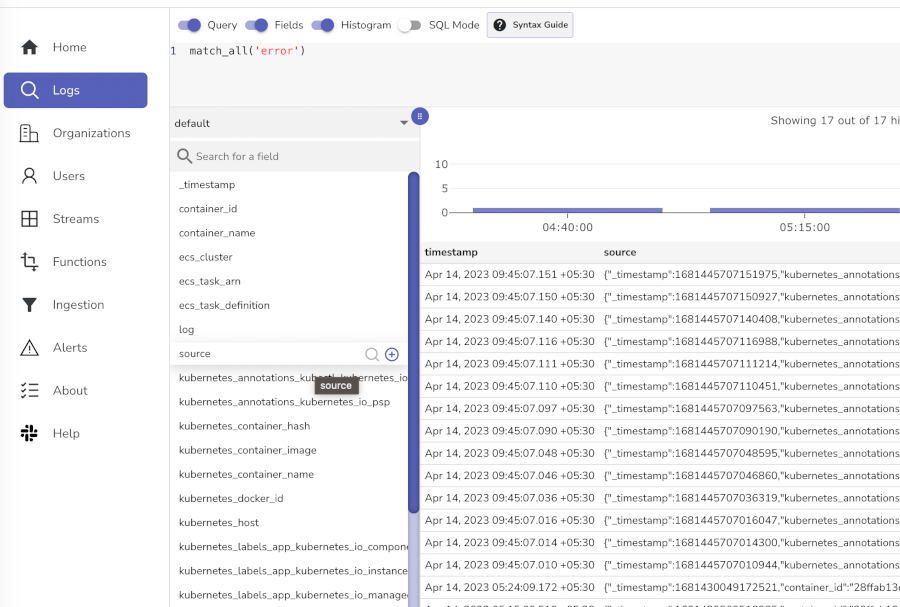
Step 2: Try These Sample Searches
Basic searches (click the Run Query button after each):
- View all logs: Leave search box empty and click search
- Find errors:
level='error'ormatch_all('error')
Next Steps - Send Your Own Data
- Application logs: Use our logging libraries for your applications
- Metrics: Set up Prometheus integration
- Traces: Configure OpenTelemetry for distributed tracing
Teardown
Run these commands in order. Order matters. Skipping helm uninstall before deleting the cluster leaves orphaned EBS volumes that quietly accumulate cost.
# 1. Release Kubernetes resources (frees PVCs → releases EBS volumes)
helm --namespace $NAMESPACE uninstall o2
kubectl -n $NAMESPACE delete pvc --all
kubectl delete namespace $NAMESPACE
# 2. Delete the EKS cluster (~10-15 min)
eksctl delete cluster --name $CLUSTER_NAME --region $AWS_REGION
# 3. Empty and delete the S3 bucket
aws s3 rm s3://$BUCKET_NAME --recursive
aws s3 rb s3://$BUCKET_NAME
# 4. Delete the IAM role and policy
ACCOUNT_ID=$(aws sts get-caller-identity --query Account --output text)
aws iam detach-role-policy --role-name OpenObserveRole \
--policy-arn arn:aws:iam::${ACCOUNT_ID}:policy/OpenObservePolicy
aws iam delete-role --role-name OpenObserveRole
aws iam delete-policy --policy-arn arn:aws:iam::${ACCOUNT_ID}:policy/OpenObservePolicy
# 5. Confirm zero leftover cost
eksctl get cluster --region $AWS_REGION # cluster gone
aws ec2 describe-volumes \
--filters "Name=tag:kubernetes.io/cluster/$CLUSTER_NAME,Values=owned" \
--query 'Volumes[*].VolumeId' --output text # no orphaned EBS volumes
aws cloudformation list-stacks --region $AWS_REGION \
--stack-status-filter CREATE_COMPLETE \
| grep eksctl-$CLUSTER_NAME # no leftover stacksIf step 5 returns any volume IDs, delete them with aws ec2 delete-volume --volume-id <id>.
eksctl delete cluster removes the OIDC provider associated with the cluster. If you see a leftover OIDC entry in aws iam list-open-id-connect-providers, delete it with:
bash aws iam delete-open-id-connect-provider \ --open-id-connect-provider-arn arn:aws:iam::${ACCOUNT_ID}:oidc-provider/oidc.eks.<region>.amazonaws.com/id/<id>
Troubleshooting reference
Issues are grouped by theme. Each entry notes the step where it tends to surface.
IAM and IRSA
-
eksctl create clusterfails with insufficient IAM permissions (Step 1).eksctlneeds broad permissions across EKS, EC2, IAM, and CloudFormation. There's no single AWS-managed policy that covers everything. Fix: use the minimum IAM policies documented by eksctl. These are scoped JSON policies you (or an admin) attach to your user or role. -
OIDC issuer is empty after cluster creation (Step 1). Some clusters created via the Console don't auto-associate an OIDC provider. Fix:
eksctl utils associate-iam-oidc-provider \ --cluster $CLUSTER_NAME --region $AWS_REGION --approve -
IRSA trust policy is empty or wrong; pods get
Not authorized to perform sts:AssumeRoleWithWebIdentity(Steps 2 and 5). Most often caused by runningbucket.shbefore the cluster was ACTIVE. The IAM role's trust policy ends up with empty region and ID fields, or points at the wrong OIDC issuer.Diagnose:
kubectl -n $NAMESPACE logs o2-openobserve-ingester-0 --tail=30 aws iam get-role --role-name OpenObserveRole \ --query 'Role.AssumeRolePolicyDocument.Statement[0].Principal.Federated' \ --output textFix (update the trust policy in place):
ACCOUNT_ID=$(aws sts get-caller-identity --query Account --output text) OIDC_ISSUER=$(aws eks describe-cluster --name $CLUSTER_NAME --region $AWS_REGION \ --query 'cluster.identity.oidc.issuer' --output text | sed 's|^https://||') cat > /tmp/trust-policy.json <<EOF { "Version": "2012-10-17", "Statement": [{ "Effect": "Allow", "Principal": { "Federated": "arn:aws:iam::${ACCOUNT_ID}:oidc-provider/${OIDC_ISSUER}" }, "Action": "sts:AssumeRoleWithWebIdentity", "Condition": { "StringEquals": { "${OIDC_ISSUER}:aud": "sts.amazonaws.com", "${OIDC_ISSUER}:sub": "system:serviceaccount:openobserve:o2-openobserve" } } }] } EOF aws iam update-assume-role-policy --role-name OpenObserveRole \ --policy-document file:///tmp/trust-policy.json kubectl -n $NAMESPACE delete pod -l app.kubernetes.io/name=openobserveRun
aws eks wait cluster-active --name $CLUSTER_NAME --region $AWS_REGIONbefore Step 2 to avoid this in the first place. -
bucket.sherrors withEntityAlreadyExistswhen re-run (Step 2). The script isn't idempotent.OpenObservePolicyandOpenObserveRoleexist from a previous run. Fix:ACCOUNT_ID=$(aws sts get-caller-identity --query Account --output text) aws iam detach-role-policy --role-name OpenObserveRole \ --policy-arn arn:aws:iam::${ACCOUNT_ID}:policy/OpenObservePolicy aws iam delete-role --role-name OpenObserveRole aws iam delete-policy --policy-arn arn:aws:iam::${ACCOUNT_ID}:policy/OpenObservePolicy ./bucket.sh
Cluster and operator setup
-
eksctl create clusterappears to hang (Step 1).eksctlstreams CloudFormation events while it works. The full provision can take 20 minutes. Watch progress under CloudFormation → Stacks in the AWS Console. -
CNPG controller pod stuck in
ContainerCreating(Step 3). Usually a transient image pull.Diagnose:
kubectl -n cnpg-system get pods kubectl -n cnpg-system describe pod -l app.kubernetes.io/name=cloudnative-pgIf still stuck after 2 minutes, check events for
ImagePullBackOffand verify outbound internet from the cluster.
Storage and region
-
S3 bucket in the wrong region, or pods crash with
Received redirect without LOCATION(Steps 2, 4, 5).bucket.shuses the AWS CLI default region. If that differs from$AWS_REGION, or ifZO_S3_REGION_NAMEinvalues.yamldoesn't match the bucket's region, pods crash with this error.Diagnose:
aws s3api get-bucket-location --bucket $BUCKET_NAME # null means us-east-1Fix A. Bucket is in the wrong region (recreate):
aws s3 rb s3://$BUCKET_NAME aws configure set region $AWS_REGION # clean up IAM first (see EntityAlreadyExists entry above), then: ./bucket.shFix B. Bucket is fine,
values.yamlis wrong:yq -i ".config.ZO_S3_REGION_NAME = \"<actual-bucket-region>\"" values.yaml helm --namespace $NAMESPACE -f values.yaml upgrade o2 openobserve/openobserve kubectl -n $NAMESPACE delete pod -l app.kubernetes.io/name=openobserve -
gp3storage class missing, or PVCs stuckPending(Steps 3 and 5). The EBS CSI driver isn't installed, orgp3_storage_class.yamlwasn't applied in Step 3.Diagnose:
kubectl get sc # is gp3 listed? kubectl get pods -n kube-system | grep ebs-csi # CSI driver running? kubectl -n $NAMESPACE describe pvc | head -40 # check EventsFix:
eksctl create addon --name aws-ebs-csi-driver \ --cluster $CLUSTER_NAME --region $AWS_REGION --force kubectl apply -f https://raw.githubusercontent.com/openobserve/eks-openobserve/main/gp3_storage_class.yaml kubectl -n $NAMESPACE delete pod -l app.kubernetes.io/instance=o2
values.yaml and Helm
-
YAML indent errors, or
helm lintreportscould not find expected ':'(Step 4). The most common cause is the IAM role ARN at the wrong indent level underserviceAccount.annotations. It must be 4 spaces deep, not 2. Mixing tabs and spaces also breaks parsing. Quick syntax check:python3 -c "import yaml; yaml.safe_load(open('values.yaml'))" && echo "YAML OK" -
yqedits don't take effect (Step 4).yqv3 and v4 have different syntax. This guide uses v4. Fix:yq --versionmust report4.x. If you have v3, runbrew install yqon macOS or follow the v4 install guide. -
helm installrolls back withrelease o2 failed(Step 5). Usually avalues.yamlschema error thathelm lintdidn't catch (for example, wrong type for a numeric field). Diagnose and fix:helm --namespace $NAMESPACE history o2 helm --namespace $NAMESPACE uninstall o2 helm lint -f values.yaml openobserve/openobserve helm --namespace $NAMESPACE -f values.yaml install o2 openobserve/openobserve -
NATS does not need separate configuration. The chart deploys NATS automatically.
Runtime and UI
-
All pods Running but ingestion returns
401 Unauthorized. Wrong root user credentials.Diagnose:
kubectl -n $NAMESPACE get secret o2-openobserve-auth -o yaml | grep ZO_ROOTFix: update
values.yamlwith the correct credentials andhelm upgradeto apply. -
UI org dropdown shows
function Number() { [native code...] }and views are empty. Backend pods (ingester or querier) can't reach S3 yet. The frontend hydrated before the org list loaded. Runkubectl -n $NAMESPACE get pods; if any pod isCrashLoopBackOff, match it to one of the entries above. Once all pods are1/1 Running, hard-refresh the browser (Cmd+Shift+R / Ctrl+Shift+R). -
UI shows a blank page. Browser cached an old asset. Hard-refresh (Cmd+Shift+R / Ctrl+Shift+R) and check DevTools → Network to confirm the router is responding
200to all requests. -
Pods restart in a loop after running fine for hours. Usually
OOMKilled(memory limit hit) or an IRSA token expiry.Diagnose:
kubectl -n $NAMESPACE describe pod <pod-name> | grep -A 10 "Last State"Fix: if
OOMKilled, raise memory limits invalues.yamlfor the affected role. IfErrorwith STS messages in logs, re-apply the IRSA trust policy fix from the IAM and IRSA section above.
Need help:
Last updated on
Overview
Install OpenObserve Enterprise Edition. Choose HA on EKS / AKS / GKE, review licensing tiers, and explore enterprise features.
Azure AKS
Install OpenObserve Enterprise on Azure AKS with Azure Blob Storage and CloudNativePG. Step-by-step CLI and Portal paths, with verification and troubleshooting.