
Install OpenObserve Enterprise on Azure AKS
Install OpenObserve Enterprise on a 3-node AKS cluster with Azure Blob Storage, CloudNativePG for Postgres, and HA NATS.
For support, reach out in the Slack channel.
Architecture overview
OpenObserve Enterprise Edition depends on these components:
- Object Storage (Azure Blob): Holds all telemetry data in Parquet format.
- PostgreSQL (CloudNativePG): Tracks metadata such as dashboards, stream configurations, users, and the filelist table.
- NATS: Coordinates communication between ingestion and query nodes.
- Dex and OpenFGA: Power Single Sign-On (SSO) and Role-Based Access Control (RBAC).
This page covers the Azure AKS install. For other Kubernetes platforms, see Amazon EKS or Google GKE.
Time required: ~30 minutes (most of it waiting for AKS to provision).
Prerequisites
Complete every item in this section before starting Step 1.
Required CLI tools
All commands in this guide assume these are on your PATH:
| Tool | macOS | Linux | Verify |
|---|---|---|---|
| Azure CLI | brew install azure-cli | install guide | az version |
| kubectl | brew install kubectl | install guide | kubectl version --client |
| Helm v3 | brew install helm | install guide | helm version |
Azure subscription
You need a Pay-As-You-Go subscription. Free Trial, Student, and MSDN subscriptions can't self-serve a vCPU quota increase from the Quotas page; they can only request one via a support ticket.
vCPU quota
A 3-node Standard_B4s_v2 cluster needs 12 vCPUs each of Total Regional vCPUs and Standard Bsv2 Family vCPUs, in your target region. Request both at Quotas → Compute (filter by Compute and your region), then confirm:
az vm list-usage --location <region> \
  --query "[?contains(name.value, 'cores') || contains(name.value, 'Bsv2')]" -o table
Login and resource provider
az login
az account show --query state -o tsv                 # expect: Enabled
az provider register --namespace Microsoft.Storage   # required for Step 5; one-time per subscription
If you have multiple subscriptions: az account set --subscription "<id-or-name>".
Environment variables
export RESOURCE_GROUP=openobserve-rg
export CLUSTER_NAME=openobserve-aks
export LOCATION=centralindia
export NAMESPACE=openobserve
Step 1. Create the Resource Group
az group create --name $RESOURCE_GROUP --location $LOCATION- Open Resource groups → + Create.
- Name:
openobserve-rg. Region: your choice. - Review + Create → Create.
Verify
Verification step
az group show --name $RESOURCE_GROUPExpected output
JSON for the resource group. Look for "provisioningState": "Succeeded".
Step 2. Create the AKS cluster
This provisions a managed AKS control plane and 3 nodes. Takes about 5 to 10 minutes.
az aks create \
  --resource-group $RESOURCE_GROUP \
  --name $CLUSTER_NAME \
  --location $LOCATION \
  --node-count 3 \
  --node-vm-size Standard_B4s_v2 \
  --enable-managed-identity \
  --generate-ssh-keys \
--tier free-
Open Kubernetes services → + Create → Kubernetes cluster.
-
Configure cluster:
- Resource group:
openobserve-rg - Cluster name:
openobserve-aks - Region: your region
- Preset configuration: Dev/Test (Standard)
- Node size:
Standard_B4s_v2 - Node count: 3
- Pricing tier: Free
- Resource group:
-
Review + Create → wait for
Succeeded.
Verify
Verification step
az aks show --resource-group $RESOURCE_GROUP --name $CLUSTER_NAMEExpected output
JSON for the AKS cluster. Look for "provisioningState": "Succeeded" and a non-empty "fqdn".
Step 3. Connect kubectl to the cluster
Command
az aks get-credentials \
  --resource-group $RESOURCE_GROUP \
  --name $CLUSTER_NAME \
  --overwrite-existing
Verify
Verification step
kubectl get nodesExpected output
NAME                          STATUS   ROLES    AGE   VERSION
aks-nodepool1-...-vmss000000  Ready    <none>   3m    v1.34.X
aks-nodepool1-...-vmss000001  Ready    <none>   3m    v1.34.X
aks-nodepool1-...-vmss000002  Ready    <none>   3m    v1.34.X
Step 4. Install CloudNativePG
The chart provisions Postgres via CNPG, which must be installed cluster-wide first.
Command
kubectl apply --server-side -f \
  https://raw.githubusercontent.com/cloudnative-pg/cloudnative-pg/release-1.22/releases/cnpg-1.22.1.yaml
Verify
Verification step
Wait about 30 seconds, then:
kubectl get pods -n cnpg-systemExpected output
NAME                                       READY   STATUS    RESTARTS   AGE
cnpg-controller-manager-XXXXXXXXXX-XXXXX   1/1     Running   0          1m
Step 5. Create the storage account and container
OpenObserve writes telemetry data to Azure Blob via the S3-compatible API.
Command
Pick a globally unique storage account name (3 to 24 chars, lowercase letters and digits only, no hyphens):
export STORAGE_ACCOUNT_NAME=ooblob$(date +%s | tail -c 5)
echo "Storage account: $STORAGE_ACCOUNT_NAME"
Create the storage account, container, and capture the access key:
az storage account create \
  --name $STORAGE_ACCOUNT_NAME \
  --resource-group $RESOURCE_GROUP \
  --location $LOCATION \
  --sku Standard_LRS

az storage container create \
  --account-name $STORAGE_ACCOUNT_NAME \
  --name openobserve-data \
  --auth-mode login

SA_KEY=$(az storage account keys list \
  --resource-group $RESOURCE_GROUP \
  --account-name $STORAGE_ACCOUNT_NAME \
  --query '[0].value' -o tsv)
Verify
Verification step
az storage account show --name $STORAGE_ACCOUNT_NAME
az storage container show --name openobserve-data \
  --account-name $STORAGE_ACCOUNT_NAME --auth-mode login
echo "Key length: ${#SA_KEY}"
Expected output
- Storage account JSON with your name and region.
- Container JSON for
openobserve-data. Key length: 88(non-zero).
Step 6. Add the Helm repo and fetch values.yaml
Command
helm repo add openobserve https://charts.openobserve.ai
helm repo update
curl -o values.yaml \
  https://raw.githubusercontent.com/openobserve/openobserve-helm-chart/main/charts/openobserve/values.yaml
Verify
Verification step
helm repo list | grep openobserve
ls -lh values.yaml
Expected output
openobserverepo is listed.values.yamlis present (around 43 KB).
Step 7. Configure values.yaml
Open values.yaml in your editor. The fields to set are in the active (uncommented) sections. Be careful not to edit the commented # AZURE_STORAGE_* example block at the top of the file (around lines 163 to 167).
7a. Auth section (~line 186 to 187)
auth:
  AZURE_STORAGE_ACCOUNT_KEY: "<your storage key from Step 5>"
  AZURE_STORAGE_ACCOUNT_NAME: "<your storage account name>"
Keep the default email/password for testing (root@example.com / Complexpass#123), or change them.
7b. Config section (~line 378 to 381)
config:
  ZO_S3_PROVIDER: "azure"
  ZO_S3_BUCKET_NAME: "openobserve-data"
7c. Multi-node defaults (verify they remain set)
nats:
  config:
    cluster:
      enabled: true
      replicas: 3

postgres:
  spec:
    instances: 2

config:
  ZO_NATS_REPLICAS: "3"
7d. (Optional) Enable RBAC and SSO
enterprise:
  openfga:
    enabled: true
  dex:
    enabled: true
Verify
Verification step
grep -nE "AZURE_STORAGE_ACCOUNT_(NAME|KEY):|ZO_S3_PROVIDER:|ZO_S3_BUCKET_NAME:|ZO_NATS_REPLICAS:|instances: 2|enabled: true" values.yamlExpected output
Your storage account name is set, ZO_S3_PROVIDER: "azure", ZO_S3_BUCKET_NAME: "openobserve-data", ZO_NATS_REPLICAS: "3", instances: 2, and cluster.enabled: true.
Step 8. Install OpenObserve
Command
kubectl create namespace $NAMESPACE
helm install openobserve openobserve/openobserve -n $NAMESPACE -f values.yaml
Verify
Verification step
helm status openobserve -n $NAMESPACE
kubectl get pods -n $NAMESPACE
Re-run kubectl get pods every minute or so for about 5 minutes. Progression:
- Pods start in
Init:0/1orPending. - NATS, OpenFGA, and Postgres come up first.
- Ingester, querier, scheduler, compactor, and router follow once Postgres is ready.
- Final state: every pod
1/1 Running(or2/2for NATS) with stableRESTARTS.
Expected output
NAME                                     READY   STATUS    RESTARTS   AGE
openobserve-scheduler-0               1/1     Running   0          5m
openobserve-compactor-XXXXXXXXX-XXXXX    1/1     Running   0          5m
openobserve-ingester-0                   1/1     Running   0          5m
openobserve-nats-0                       2/2     Running   0          5m
openobserve-nats-1                       2/2     Running   0          5m
openobserve-nats-2                       2/2     Running   0          5m
openobserve-nats-box-XXXXXXXXX-XXXXX     1/1     Running   0          5m
openobserve-openfga-XXXXXXXXX-XXXXX      1/1     Running   0          5m
openobserve-postgres-1                   1/1     Running   0          5m
openobserve-postgres-2                   1/1     Running   0          4m
openobserve-querier-0                    1/1     Running   0          5m
openobserve-router-XXXXXXXXX-XXXXX       1/1     Running   0          5m
Step 9. Open the OpenObserve UI
Command
kubectl --namespace $NAMESPACE port-forward svc/openobserve-router 5080:5080Leave the terminal running, then open http://localhost:5080. Log in with the credentials from Step 7a (default: root@example.com / Complexpass#123).
Verify
Verification step
From a second terminal, send a synthetic record:
curl -u 'root@example.com:Complexpass#123' \
  -X POST 'http://localhost:5080/api/default/default/_json' \
  -H 'Content-Type: application/json' \
  -d '[{"level":"info","message":"hello from azure","timestamp":"2026-01-01T00:00:00Z"}]'
Expected output
{"code":200,"status":[{"name":"default","successful":1,"failed":0}]}In the UI: Logs → org default → stream default. The record appears.
Load Sample Data
Step 1: Download Sample Data
# Download and extract sample Kubernetes logs
curl -L https://zinc-public-data.s3.us-west-2.amazonaws.com/zinc-enl/sample-k8s-logs/k8slog_json.json.zip -o k8slog_json.json.zip
unzip k8slog_json.json.zip
What's in the sample data: This file contains real Kubernetes application logs with various log levels (info, warning, error) and structured JSON fields.
Step 2: Load Data into OpenObserve
For OpenObserve Cloud:
# Use the cURL command from your Ingestion page
curl -u your-email@domain.com:your-password \
-H "Content-Type: application/json" \
https://api.openobserve.ai/api/YOUR_ORG/default/_json \
-d "@k8slog_json.json"
For Self-Hosted Installation:
curl -u "root@example.com:Complexpass#123" \
-H "Content-Type: application/json" \
http://localhost:5080/api/default/default/_json \
-d "@k8slog_json.json"
Step 3: Verify Data Upload
You should see output similar to:
{"code":200,"status":[{"name":"default","successful":1000,"failed":0}]}If you see errors, check:
- Your credentials are correct
- The JSON file was downloaded completely
- OpenObserve is running and accessible
Search Your Data
Step 1: Access the Logs Interface
- Navigate to your OpenObserve instance
- Click on Logs in the left sidebar
- Select default from the stream dropdown (top-left)
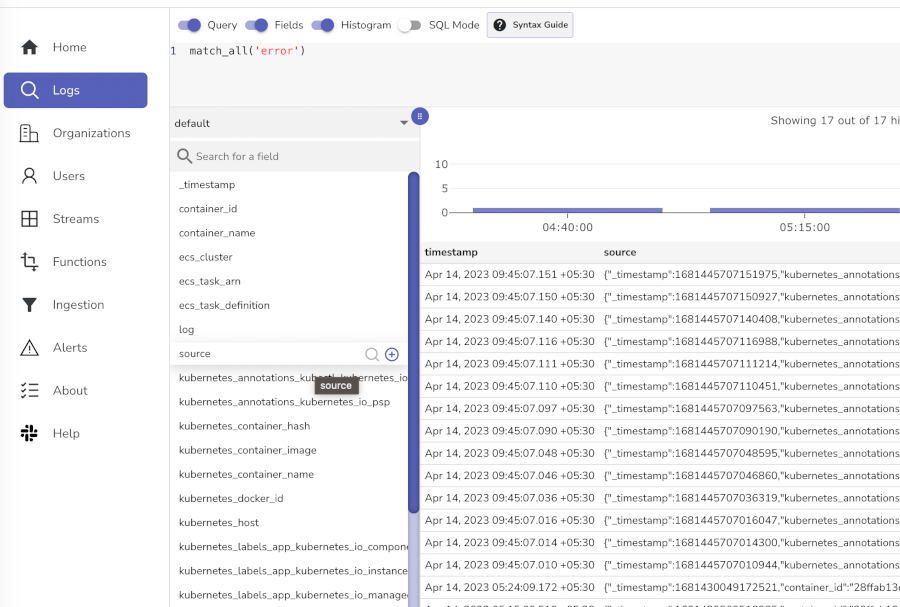
Step 2: Try These Sample Searches
Basic searches (click the Run Query button after each):
- View all logs: Leave search box empty and click search
- Find errors:
level='error'ormatch_all('error')
Next Steps - Send Your Own Data
- Application logs: Use our logging libraries for your applications
- Metrics: Set up Prometheus integration
- Traces: Configure OpenTelemetry for distributed tracing
Teardown
Run these commands in order. Order matters. Skipping helm uninstall before deleting the cluster leaves orphaned disks that quietly accumulate cost.
# 1. Release Kubernetes resources (frees PVCs → releases Azure disks)
helm uninstall openobserve -n $NAMESPACE
kubectl delete pvc -n $NAMESPACE --all
kubectl delete namespace $NAMESPACE

# 2. Delete the AKS cluster (~5-10 min)
az aks delete --resource-group $RESOURCE_GROUP --name $CLUSTER_NAME --yes --no-wait

# 3. Delete the storage account (and its blob container)
az storage account delete --name $STORAGE_ACCOUNT_NAME --resource-group $RESOURCE_GROUP --yes

# 4. Delete the resource group (full wipe. Removes everything above plus any other resources in it)
az group delete --name $RESOURCE_GROUP --yes
If you only want to remove OpenObserve and keep the cluster, run step 1 only. If you want to keep the resource group (for example, other workloads share it), stop after step 3.
Troubleshooting reference
Issues are grouped by theme. Each entry notes the step where it tends to surface.
Subscription and IAM
-
AuthorizationFailedcreating the resource group (Step 1). Your account lacksMicrosoft.Resources/subscriptions/resourceGroups/writeon the subscription. Fix: have a subscription owner grant youContributorat the subscription scope, or use a different subscription. -
Quota request says
Ineligible for adjustment(Prerequisites). Subscription is not Pay-As-You-Go. Fix: upgrade the subscription per the Azure subscription prerequisite.
Quotas and SKUs
-
N vCPUs needed, only M remainwhen creating the cluster (Step 2). Quota too low. Fix: revisit the vCPU quota prerequisite and request bothTotal Regional vCPUsandStandard Bsv2 Family vCPUsto at least 12 each. -
The VM size X is not allowed in your subscription in location(Step 2). That SKU is gated for your subscription in the chosen region. Fix: the error message includes anavailable VM sizeslist. Pick one ofB4s_v2,D4s_v5, orD4as_v5from that list. -
The zone(s) 'N' for resource 'agentpool' is not supported(Step 2). The region or SKU does not support that availability zone. Fix: omit the zone setting, or pick zones that are supported (try 2 and 3 if 1 fails).
Cluster connectivity
-
no such host: <fqdn>from kubectl on macOS (Step 3). Local DNS cache or kubeconfig is stale. Fix:nslookup <fqdn> 8.8.8.8 sudo dscacheutil -flushcache sudo killall -HUP mDNSResponder az aks get-credentials \ --resource-group $RESOURCE_GROUP \ --name $CLUSTER_NAME \ --overwrite-existingIf
nslookupvia 8.8.8.8 resolves but local doesn't, the problem is your DNS resolver, not Azure. If the FQDN in the error is from a previous cluster (recreated with the same name),--overwrite-existingfixes the stale kubeconfig entry. -
Authentication errors from kubectl (Step 3). Fix: re-run
az login, thenaz aks get-credentials --overwrite-existing. -
API hangs or is very slow. Cluster is still provisioning. Fix:
az aks show --resource-group $RESOURCE_GROUP --name $CLUSTER_NAME --query provisioningState -o tsv. Wait forSucceeded.
Storage account
-
is not a valid storage account name(Step 5). Names cannot have hyphens, uppercase letters, or special characters. Fix: use 3 to 24 lowercase letters and digits only. -
is already taken(Step 5). Storage account names are globally unique across Azure. Fix: append more digits to your name and retry. -
SubscriptionNotFoundon a working subscription (Step 5).Microsoft.Storageresource provider is not registered. Fix:az provider register --namespace Microsoft.Storage, then poll untilregistrationStateisRegistered. -
Shell complains about
$SA_KEY = ...syntax (Step 5). That$VAR = ...form is PowerShell. Fix: useSA_KEY=$(...)on bash or zsh as shown in Step 5.
Postgres and CNPG
-
ImagePullBackOffon the CNPG operator pod (Step 4). Egress or registry issue. Fix:kubectl describe pod -n cnpg-system <pod>for details; check outbound internet from the cluster. -
Manifest deploys to
cnpg-system, notcnpg. The 1.22 manifest uses thecnpg-systemnamespace. If older docs referencecnpg, check both.
Helm and values.yaml
-
wget: command not foundon macOS (Step 6). Fix: usecurl -O <url>instead, orbrew install wget. -
helm repo addreports the repo already exists (Step 6). Fix: runhelm repo updateand continue. -
Storage key set in the commented
# AZURE_STORAGE_*block but pods can't find it (Step 7). The file has the same field names in both the commented example and the activeauth:section. Only the active one is applied at install time. Fix: edit the activeauth:block (around line 186 to 187), not the comment example (around line 163 to 164). -
Changes to
config:values don't appear in pod env (Step 7). Some keys are skipped from the rendered ConfigMap. Fix: set them via<component>.extraEnv:instead. That path is always passed through. -
helm upgradesucceeds but pods don't restart. StatefulSet pods take time to roll. Fix: force withkubectl rollout restart statefulset -n openobserve. -
helm uninstallleaves PVCs behind. Helm doesn't manage PVCs created by StatefulSets. Fix:kubectl delete pvc -n openobserve --allbefore reinstall.
Pod runtime
-
replicas > 1 not supported in non-clustered modein pod logs (Step 8).nats.config.cluster.enabledandZO_NATS_REPLICASdisagree. Fix: setcluster.enabled: true,replicas: 3, andZO_NATS_REPLICAS: "3", thenhelm upgrade. -
Pods crash with
pool timed out while waiting for an open connection(Step 8). Postgres connection pool starved. Rare on a 3-node cluster. Fix: check Postgres health withkubectl logs -n $NAMESPACE openobserve-postgres-1. If storage is slow, switch to Premium SSD (see Resource pressure below). -
Router pod stuck
0/1for more than 5 minutes (Step 8). Startup probe is failing before app deps are ready. Fix: bumpprobes.router.config.startupProbe.failureThresholdinvalues.yamlfrom3to30, thenhelm upgrade. -
Pod stuck
Pendingwithvolume node affinity conflict(Step 8). The PVC's storage class is locked to a zone with no schedulable node. Fix: use aWaitForFirstConsumerstorage class. The defaultmanaged-csialready is.
UI and access
-
Port-forward says
connection refused(Step 9). The router pod is not Ready. Fix: confirm withkubectl get pod -n $NAMESPACE -l app=openobserve-router, then retry. -
Browser shows a spinner forever (Step 9). The router was killed and restarted. Fix: inspect
kubectl logs -n $NAMESPACE <router-pod>and address the underlying error. -
curlreturns401 Unauthorized(Step 9). Credentials don't match the activeauth.ZO_ROOT_USER_EMAIL/ZO_ROOT_USER_PASSWORDinvalues.yaml. Fix: updatevalues.yaml,helm upgrade, and retry.
Resource pressure
-
Pods stuck in
Pending. Node out of CPU or RAM. Fix:kubectl describe node. If under pressure, scale up VM size or add nodes. -
exceed max volume count. Too many PVCs on a single node. Fix: spread across nodes (multi-node helps), or shrink volume sizes / disable persistence on non-critical components (compactor.persistence.enabled: false). -
Postgres is slow on small disks. Standard HDD with throttled IOPS. Fix: set
postgres.spec.storage.storageClass: managed-csi-premiumandsize: 32Gi.
Need help:
Last updated on
Amazon EKS
Install OpenObserve Enterprise on Amazon EKS using Helm. CLI and AWS Console paths, per-step troubleshooting, verification, and teardown.
Google GKE
Install OpenObserve Enterprise on Google GKE with GCS object storage and CloudNativePG. CLI and Console paths, verification, and troubleshooting.