
Ingestion Tokens
This guide explains how to create, manage, and use organization-level ingestion tokens. These tokens decouple ingestion credentials from individual user accounts, ensuring your data pipelines keep working even when users leave the organization.
Overview
Organization-level ingestion tokens provide a stable, org-scoped credential for sending data into OpenObserve. Unlike user-bound tokens, org-level tokens:
- Are not tied to a specific user — they survive user removal or role changes.
- Can only be used on ingestion endpoints — they are rejected on any other API path.
- Are prefixed with
o2oi_for fast identification. - Support multiple named tokens per organization, each independently enabled or disabled.
A default token is created automatically when a new organization is provisioned.
Managing ingestion tokens
Navigate to IAM > Ingestion Tokens to view and manage org-level tokens.
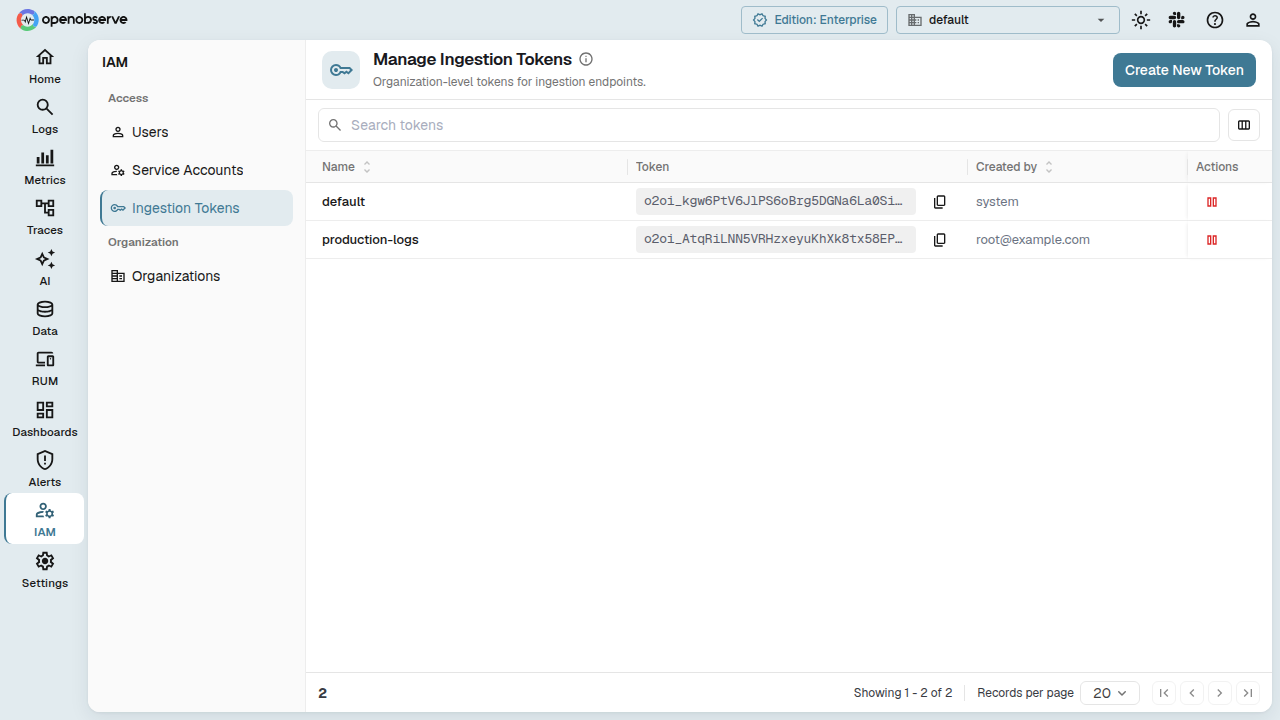
The page lists all tokens for the current organization with these columns:
- Name — the token name you assign at creation.
- Token — a masked view of the token value, with a Copy button.
- Created by — the user who created the token.
- Actions — an enable/disable toggle. Disabled tokens cannot be used for ingestion.
Create a token
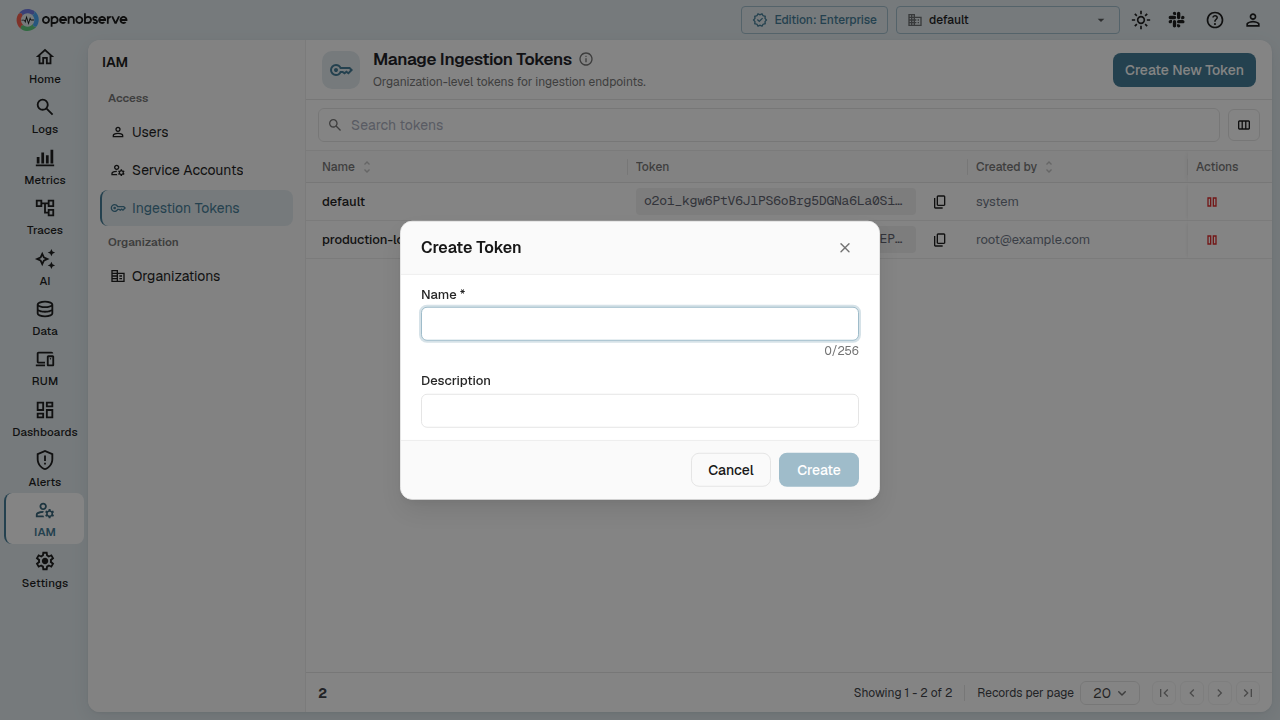
- On the Ingestion Tokens page, click Create New Token.
- In the dialog, enter:
- Name (required) — alphanumeric characters, hyphens (
-), and underscores (_) only. Maximum 256 characters. - Description (optional) — free-text notes about the token's purpose.
- Name (required) — alphanumeric characters, hyphens (
- Click Create.
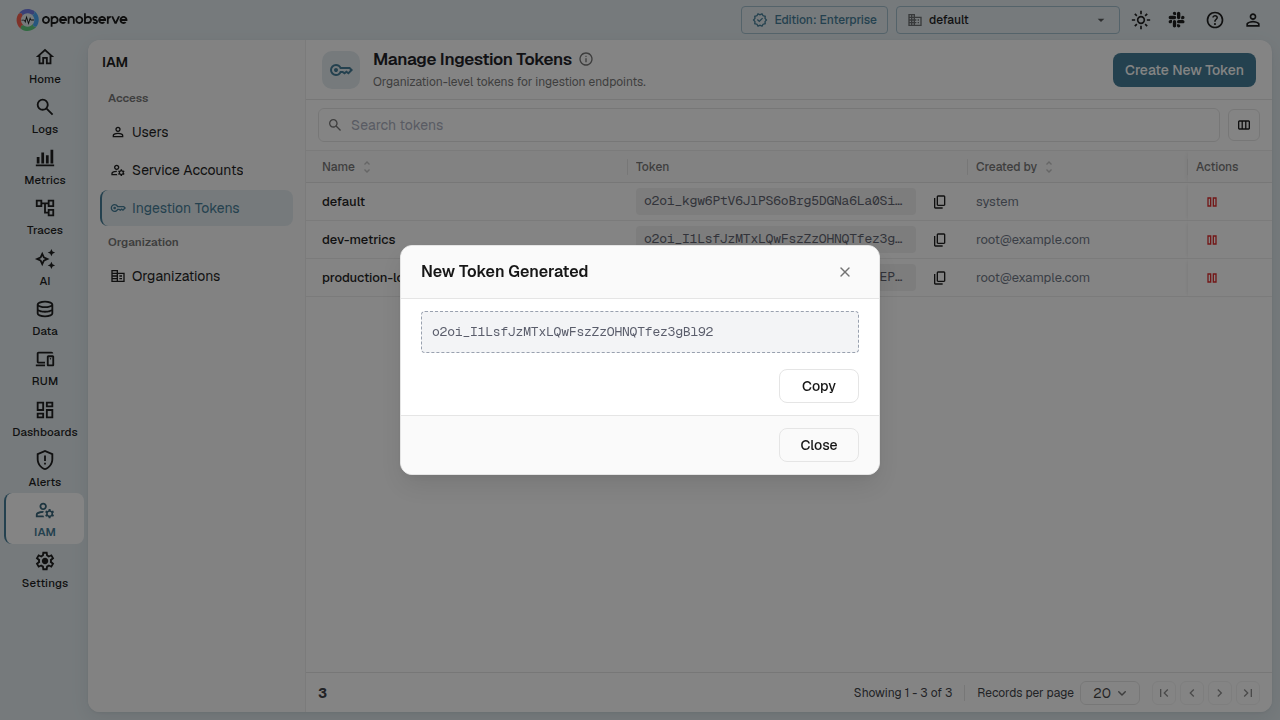
The full token value is displayed once immediately after creation. Copy it now — it will not be shown again.
Enable or disable a token
Click the pause/play toggle in the Actions column to disable or enable a token. Disabled tokens are immediately rejected on ingestion endpoints. Enabling a token restores its functionality.
Using tokens on the Ingestion page
When you visit the Ingestion page, a token selector dropdown appears above the curl examples. The dropdown lists all enabled org-level ingestion tokens for the current organization. Select a token to populate the curl commands with that credential.
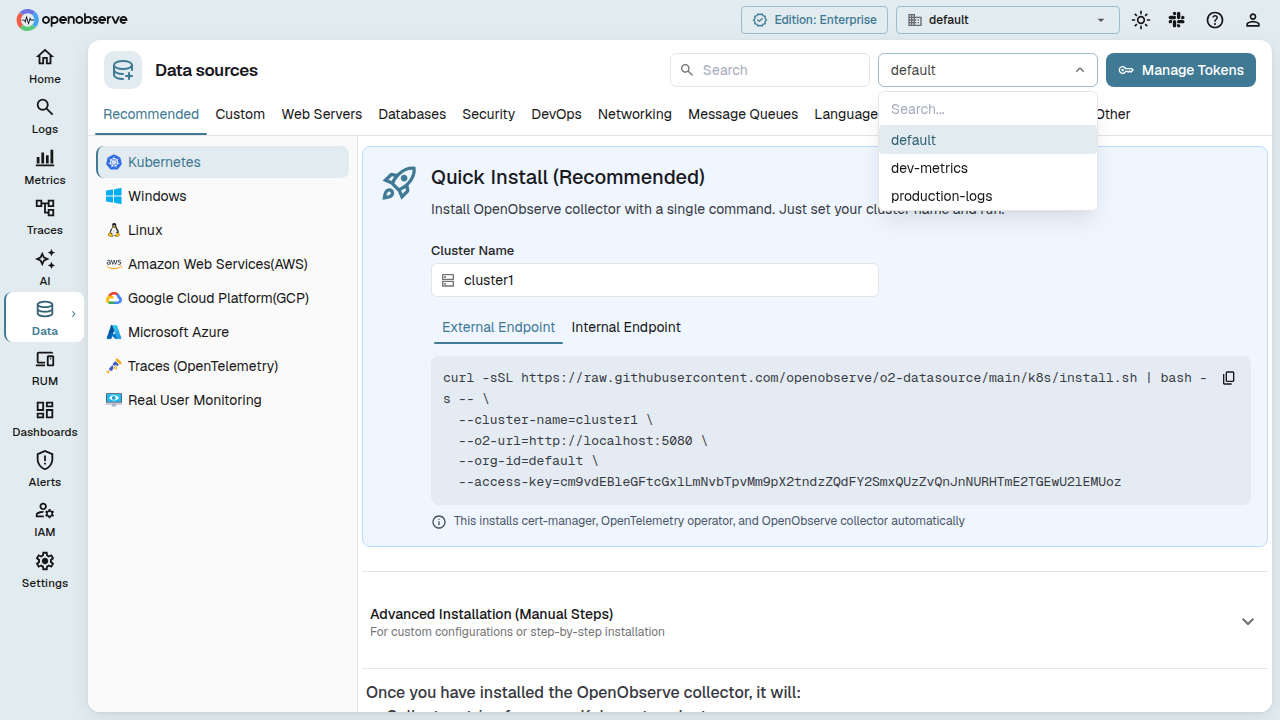
Click Manage Tokens next to the selector to jump directly to the IAM > Ingestion Tokens page.
Sending data with an org token
Use the token as the password in your ingestion requests. For example, with curl:
curl -i https://your-instance/api/default/_json \
  -u "org_identifier:o2oi_xxxx" \
  -d '[{"timestamp": "2026-06-24T12:00:00Z", "level": "info", "message": "hello"}]'
The username should be your organization identifier, and the password is the token value (prefixed with o2oi_).
The default token
Every organization gets a default ingestion token named default, created automatically when the organization is provisioned. The default token:
- Appears at the top of the token list.
- Works like any other token — you can enable, disable, or rotate it.
- Is returned by the passcode API endpoint (
GET /{org_id}/passcode), replacing the old user-bound token.
Permissions
- List tokens: Any authenticated user in the organization can view the token list.
- Create, enable, disable: Requires Admin or Root role.
- Token values are masked in the list — only the creator sees the full value once at creation time.
Last updated on
Organization Deletion
Schedule an organization for deletion with a configurable grace period, monitor cleanup progress, and resurrect it before permanent removal.
Quotas Overview
Quotas set per-second rate limits on OpenObserve API requests like List, Get, Create, Update, and Delete, applied at the organization level or per role.