
Quick Mode and Interesting Fields
This guide explains how to use Quick Mode with Interesting Fields in OpenObserve to optimize log searches and improve query performance.
Overview
Quick Mode is a performance optimization in OpenObserve that speeds up log searches by limiting the query to a small set of fields called Interesting Fields. Instead of scanning all fields in a stream, Quick Mode selects only the fields you mark as interesting, reducing query time, especially in streams with a large number of fields.
Enable Quick Mode and select Interesting Fields
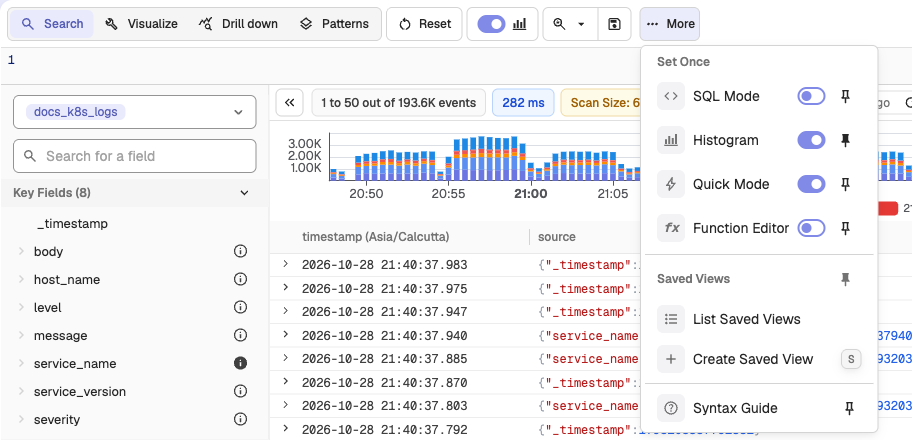
- Go to the Logs page.
- Select the desired stream from the left panel.
- Open the More menu and turn on Quick Mode under Set Once. Select Pin to toolbar next to it to keep the switch on the toolbar.
- The field list shows an Interesting Fields option next to All Fields. If the selected stream has User-Defined Schema (UDS) fields, a UDS option also appears. By default, the Interesting Fields list holds
_timestampplus any default quick mode fields that the stream has (see Environment variables). - Use the All Fields or UDS fields toggles to navigate to the field you want to add to the Interesting Fields list.
- Click the i icon beside a field name to mark it as an Interesting Field. The icon fills to indicate the field is now in the Interesting Fields list.
- Click Run query to view logs for all current Interesting Fields.
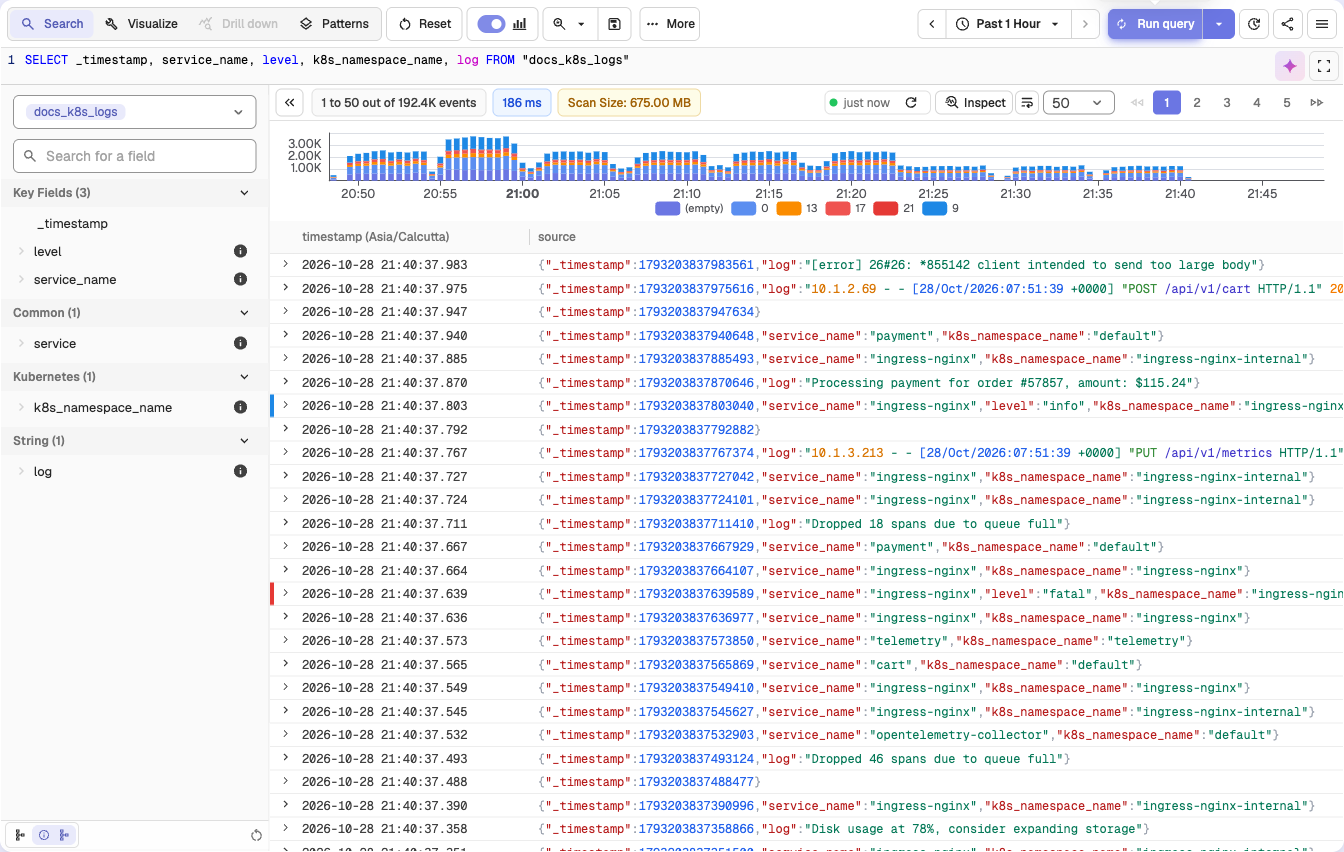
- Optional. Turn on SQL Mode to view and edit the prebuilt query that lists only your Interesting Fields. If you add a new field to the SQL query while Quick Mode is on, that field is automatically added to the Interesting Fields list.
How Quick Mode and Interesting Fields work together
- Quick Mode uses the Interesting Fields list to limit the query to those columns only.
- Changing the Interesting Fields list changes which columns are returned in Quick Mode.
- If you turn Quick Mode off, results follow schema rules: with UDS on you see only UDS fields and with UDS off you see all fields.
- When UDS fields are defined, adding
_allas an Interesting Field returns a combined text field containing values from all non-UDS fields, which you can parse as needed.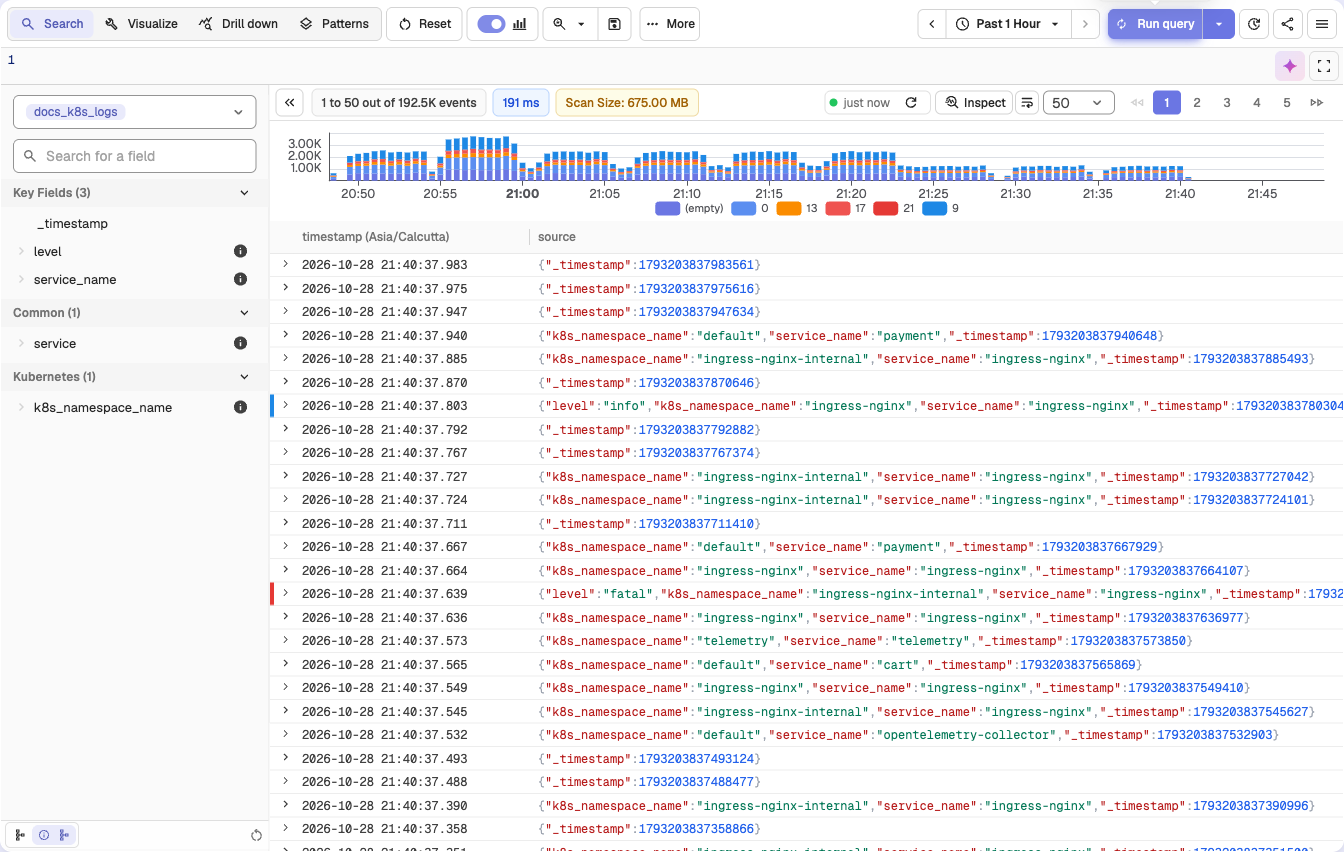
Environment variables controlling Quick Mode defaults
ZO_QUICK_MODE_ENABLED=true: Enables Quick Mode by default. The default isfalse.ZO_FEATURE_QUICK_MODE_FIELDS="kubernetes_namespace_name,kubernetes_container_name": Adds fields to the built-in default quick mode fields (service,version,session_id,view_url,service_name,operation_name,trace_id,span_id,duration). The fields in this combined list that a stream has are marked as Interesting Fields by default. The default is empty.
Auto-add behavior in Quick Mode
When Quick Mode is enabled, running a query that references a field which is not already marked as an Interesting Field causes that field to be added to the Interesting Fields list automatically.
When to Use Quick Mode
- When working with streams that have hundreds or thousands of fields.
- When you need to quickly search for patterns or values in a small subset of fields.
- When troubleshooting or validating logs using specific key fields.
Best practices
Keep the number of Interesting Fields small to maximize performance gains, because scanning fewer fields reduces query execution time.
Troubleshooting
Issue: Some fields are missing when Quick Mode is turned on.
Cause: If you notice that some fields are missing when Quick Mode is enabled, this is expected behavior. Quick Mode limits results to the fields marked as Interesting Fields.
Solution: To view all available fields, select All Fields in the field list.
- By default, the Interesting Fields list holds
_timestampplus any default quick mode fields that the stream has. - Any other fields must be added manually by marking them as Interesting Fields.
- You can also turn on SQL mode to edit the query. Adding a field to the SQL query while Quick Mode is on automatically adds that field to the Interesting Fields list.
Timechart View
Chart the current Logs query over time with the Timechart view in OpenObserve, and enable it on your server with ZO_TIMECHART_ENABLED.
Log Patterns
How the Patterns tab groups logs into recurring templates, shows wildcard value distributions, and lets you filter logs by individual values.