
Alert Library
The Alert Library is a catalog of ready-made alerts, such as Kubernetes pod restarts, Kafka consumer lag, or Postgres replication delay. Instead of writing the query and threshold yourself, you pick an alert, check that it fits your data, and add it. The added alert is a normal alert that you can edit like any other.
To open it, go to Reliability > Alert Library, or open the Alert Library tab on the Alerts page.
Where the alerts come from
The alerts are maintained in the public o2-alerts-library repository. Your browser loads the catalog from a public OpenObserve S3 bucket (openobserve-datasources-bucket.s3.amazonaws.com), not from your OpenObserve server. In an air-gapped network, the page shows The alert library could not be loaded unless the browser can reach that bucket. Click Contribute on GitHub to suggest a new alert.
Browse the catalog
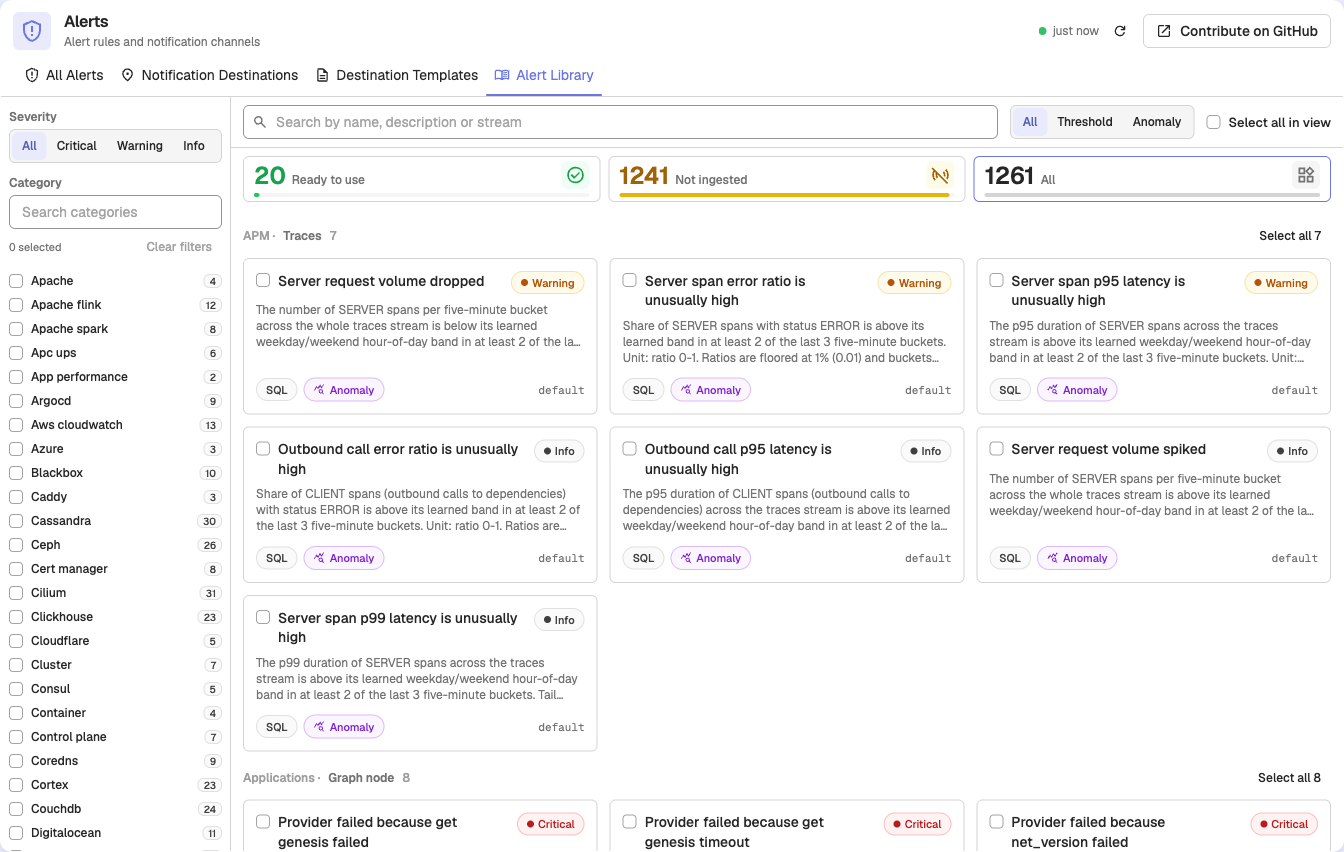
Each card shows an alert's title, severity, category, and the stream it queries. Narrow the list with:
- Search: matches the name, description, or stream.
- Category: the left rail lists categories with their alert counts. Use Search categories to find one.
- Severity: All, Critical, Warning, or Info.
- Alert type: All, Threshold, or Anomaly.
- The counters above the cards: Ready to use, Not ingested, or All.
Ready to use or not ingested
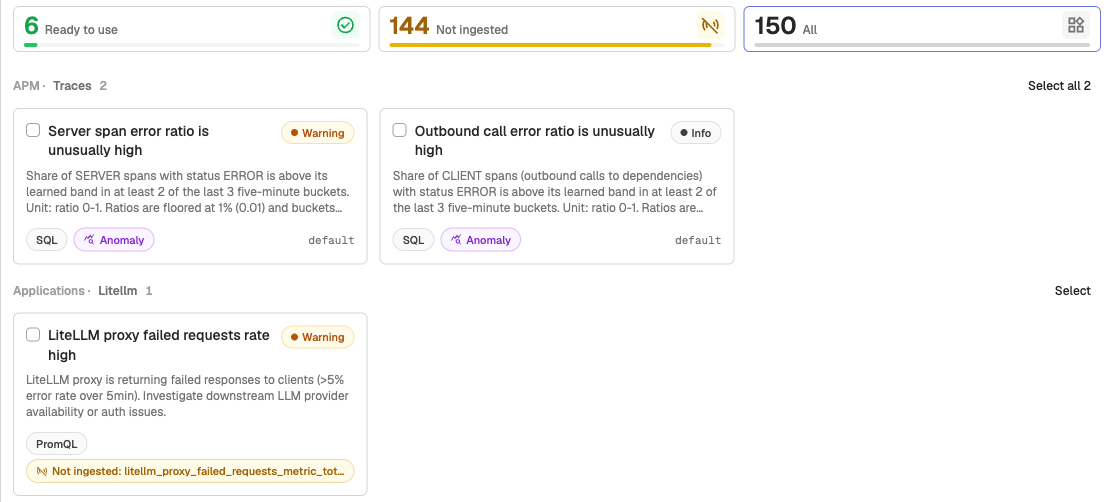
OpenObserve checks every alert against the streams in your organization. The counters split the catalog in two:
- Ready to use: every stream the alert needs exists in this organization, with the right stream type.
- Not ingested: a stream the alert needs does not exist, so the alert would never fire. The card shows Not ingested: and the stream name.
The details panel goes one step further and checks whether the stream receives data:
| Label | What it means |
|---|---|
| Data available | The stream received data in the last 24 hours. |
| No data yet | The stream exists but has never received data. |
| Last data time ago | The stream received data before, but nothing in the last 24 hours. The alert stays quiet until ingestion resumes. |
| Stream not found | The stream does not exist in this organization. |
You can still add an alert that is not ready. It starts working once the data arrives. If no alert in a category matches your data, the page says Nothing here matches your data yet and links to the Ingestion guide.
Preview an alert
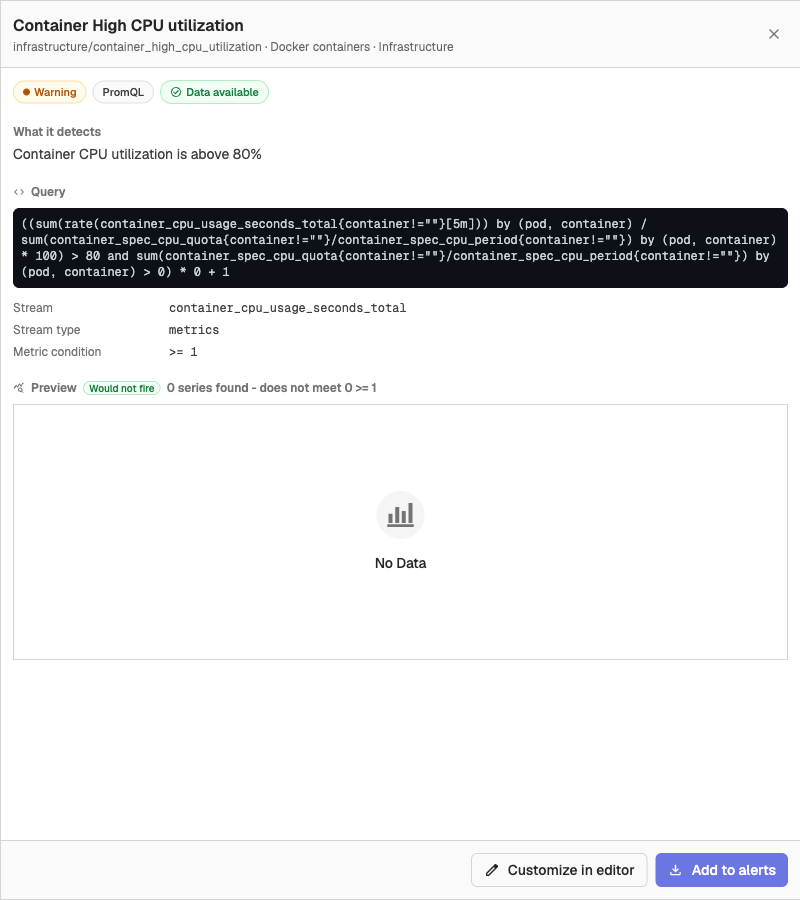
Click a card to open its details:
- What it detects: a description of the alert.
- Query, Stream, and Stream type, plus the Metric condition for PromQL alerts or Matching rows required for SQL alerts.
- Preview: OpenObserve runs the alert once against your data and shows Would fire or Would not fire. If the stream does not exist, there is nothing to evaluate and no preview runs.
From the details panel:
- Click Add to alerts to add this one alert. The add wizard opens with it selected.
- Click Customize in editor to open the standard alert editor, prefilled with the alert. Use this to change the query or the threshold before you save it.
Add alerts
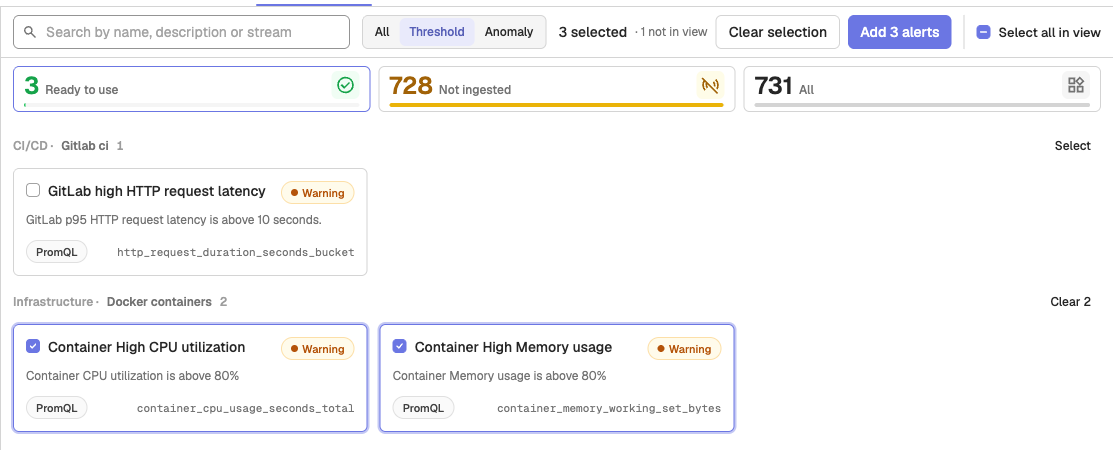
To add several alerts at once, tick the box on each card, or use Select all in view or a category's Select all. Your selection is kept when you change filters, and the selection bar shows how many picks are not in view. Click Add N alerts.
The Add alerts from the library wizard has five steps:
- Destination (optional): the notification destination for every alert in the batch. The library files name destinations from the organization they were exported from, which do not exist in yours, so OpenObserve replaces them with the one you choose. Leave it empty to add the alerts without a destination and attach one later.
- Alerts: check or clear alerts in the batch.
- Folder: the folder the alerts are saved in. Click + to create a folder for this batch.
- Tune (optional): turn on Set these for every alert in this batch to override Run every and Silence for (minutes). The library defaults are kept otherwise. Thresholds stay as they are in each alert; to change one, add that alert on its own through Customize in editor.
- Add: click Add N alerts. The alerts are created one by one, each with its own result. A failure does not stop the rest, and Retry N failures retries only the ones that failed.
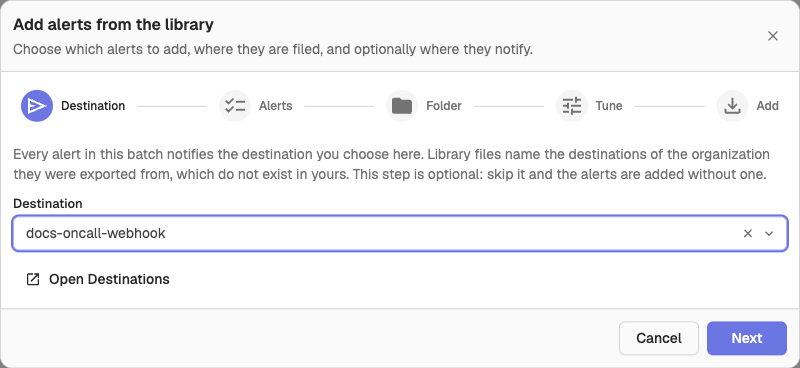
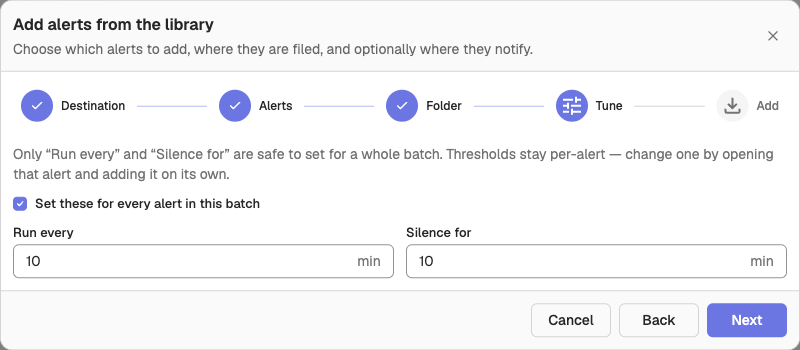
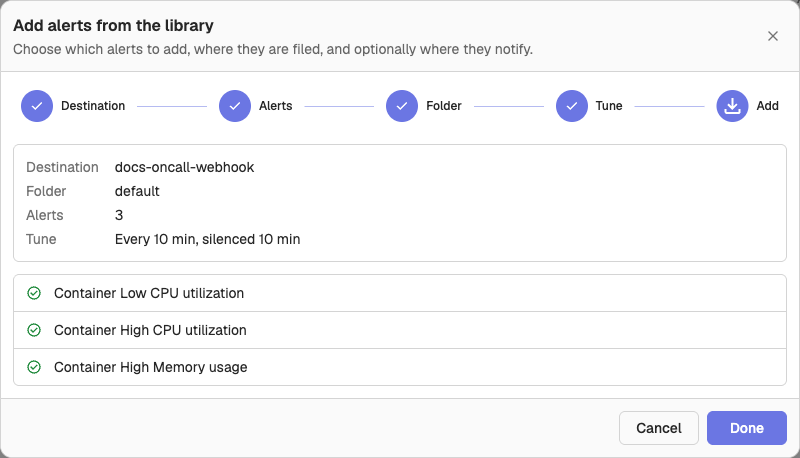
When a batch holds more than 50 alerts, you must tick a confirmation, for example I understand this creates 60 alerts in default, each notifying slack-oncall, before Add is enabled. The tick resets when you change the selection, folder, or destination.
What OpenObserve sets on an added alert
- Priority from the library severity: Critical → P1, Warning → P3, Info → P4.
- A
pack:<pack name>tag, and the library id and version of the alert in its context attributes, so you can tell where it came from. - You as the owner, and the folder and destination you picked.
The query runs exactly as written in the library. If an alert's filter conditions use a format this version cannot read, it is skipped with an error instead of being added without a filter.
Anomaly alerts
Anomaly alerts in the library need OpenObserve Enterprise with anomaly detection turned on. In other editions their cards show an Enterprise badge and cannot be added. If an operator turned anomaly detection off, they are hidden.
An added anomaly alert learns from the stream's own history and stays quiet until it has enough to train: several hours to about a day, depending on its interval. The Tune step does not apply to anomaly alerts.
Availability
- The Alert Library is available in all editions. Anomaly alerts need Enterprise, as described above.
- Users need permission to list alerts to open it.
- In Enterprise, an operator can hide it by adding
alertLibrarytoO2_CUSTOM_HIDE_MENUS. HidingalertListhides the Alert Library too.
Next steps
- Alerts overview: how alerts work and how to edit an added alert.
- Alert Calibration: check how your alerts behave once they run.
- Alert Destinations: create a destination before you add alerts.
Need some help?
- Join our Community Slack
- Or Contact support
Import and Export Alerts
Import and export alert rules in OpenObserve as JSON to streamline configuration across environments. Easily reuse, share, and manage alerts at scale.
Alert Calibration
Alert Calibration reviews your alerts' own run history in OpenObserve and flags noisy, silent, failing, and undeliverable alerts with suggested fixes.