
Downtimes
A downtime is a scheduled maintenance window that keeps your monitoring running but stops the notifications while you work. During a downtime, the alerts, anomaly detections, synthetics checks and SLOs it covers keep evaluating and keep their history. They just don't notify anyone, page anyone or start workflows.
Note
Downtimes are available in OpenObserve Enterprise and Cloud editions. The feature is in beta.
To open downtimes, go to Reliability > Downtimes.
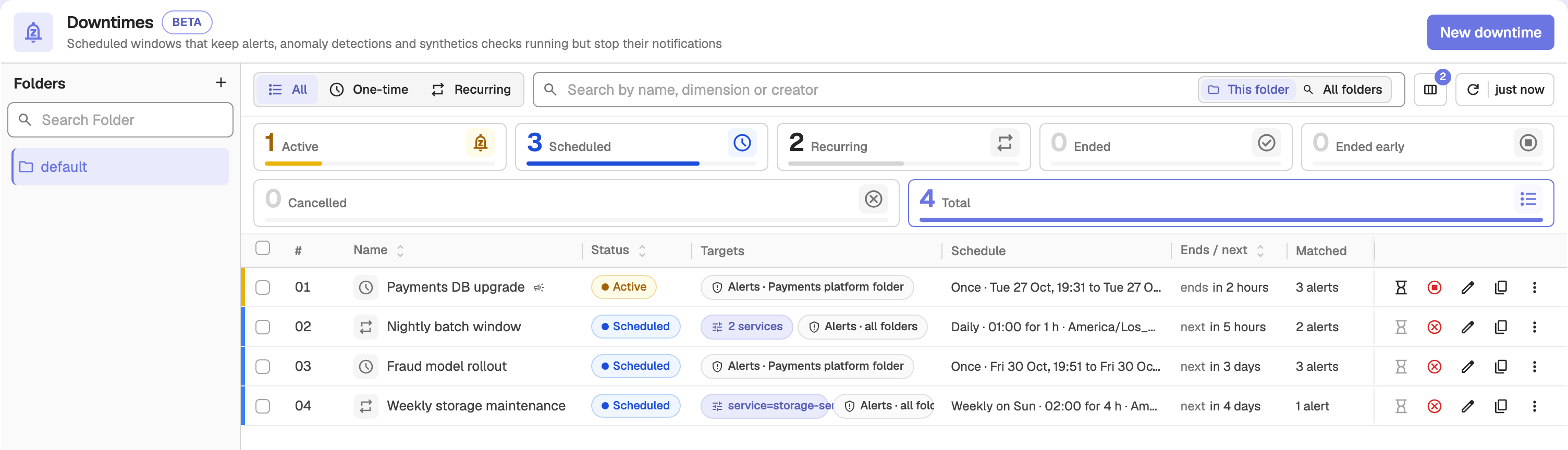
The list shows counts by status, then each downtime's status, targets, schedule, the time it ends or next starts, and how many items it currently matches. Filter it by One-time or Recurring, or search by name, dimension or creator.
What a downtime covers
A downtime applies to one or more of these modules:
| Module | What it mutes |
|---|---|
| Alerts | Scheduled and real-time alert notifications |
| Anomaly detections | Anomaly alert notifications |
| Synthetics checks | Synthetics failure notifications |
| SLOs | SLO breach and burn-rate alerts, with an optional score correction |
Each module can be narrowed further, so a single downtime can silence exactly the resources it should. A downtime applies to every item that matches its targets and condition during its schedule.
Create a downtime
- Go to Reliability > Downtimes and click New downtime.
- Click the name at the top to rename the downtime. The name is optional: if you leave it blank, OpenObserve generates one from the first narrowing and the schedule, for example
service=payments · weekly. - Under Applies to, choose the modules to silence.
- Fill in the Targets, Schedule and Advanced tabs, described below.
- Click Save.
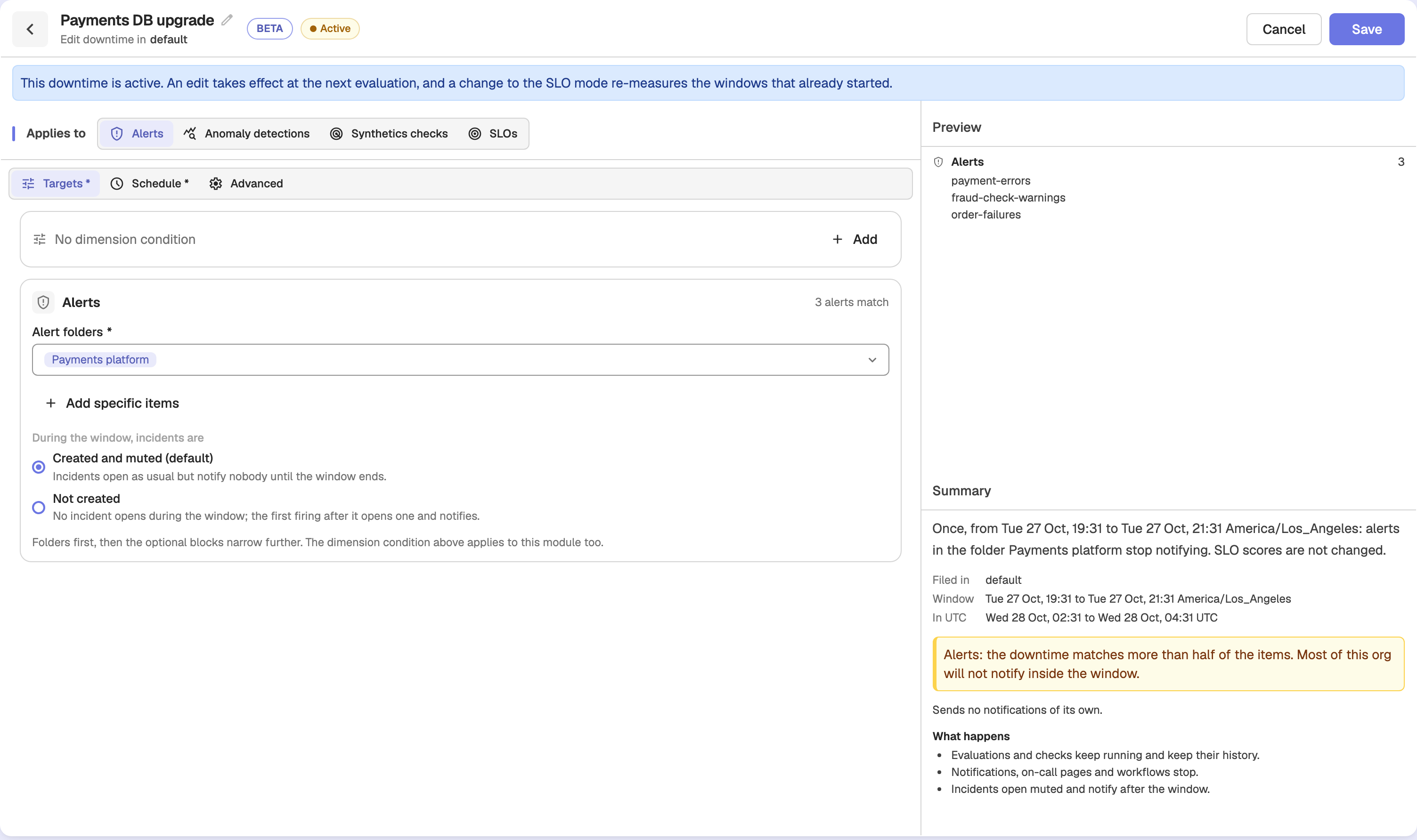
While you edit, the Summary pane describes in plain words what the downtime will do, and the Preview pane lists the items that match right now.
If no folder, item, tag or condition narrows a module, OpenObserve asks you to confirm before saving, because the downtime would mute every item of that module in the organization.
Targets
Each chosen module gets a target card. Start with the folders, then add optional blocks to narrow further:
- Folders: all folders, or up to 50 specific folders.
- Specific items: up to 200 items, chosen from the selected folders.
- Tags (synthetics checks only): up to 16
key:valuetags. A check must carry every tag to match.
For example, an Alerts target with a single folder silences only the alerts in that folder. The same target with All folders and no other narrowing silences every alert in the organization.
The Alerts target also sets what happens to incidents during the window:
- Created and muted (default): incidents open as usual but notify nobody until the window ends.
- Not created: no incident opens during the window. The first firing after the window opens one and notifies.
Dimension condition
For modules that carry a dimension identity (alerts, anomaly detections and SLOs), you can add one optional Dimension condition on the Targets tab. It matches on the organization's semantic field groups, such as service, env or host. The condition combines key = value and key != value pairs. All pairs must match; use an OR group for alternatives:
service = payments AND (host = db-1 OR host = db-2)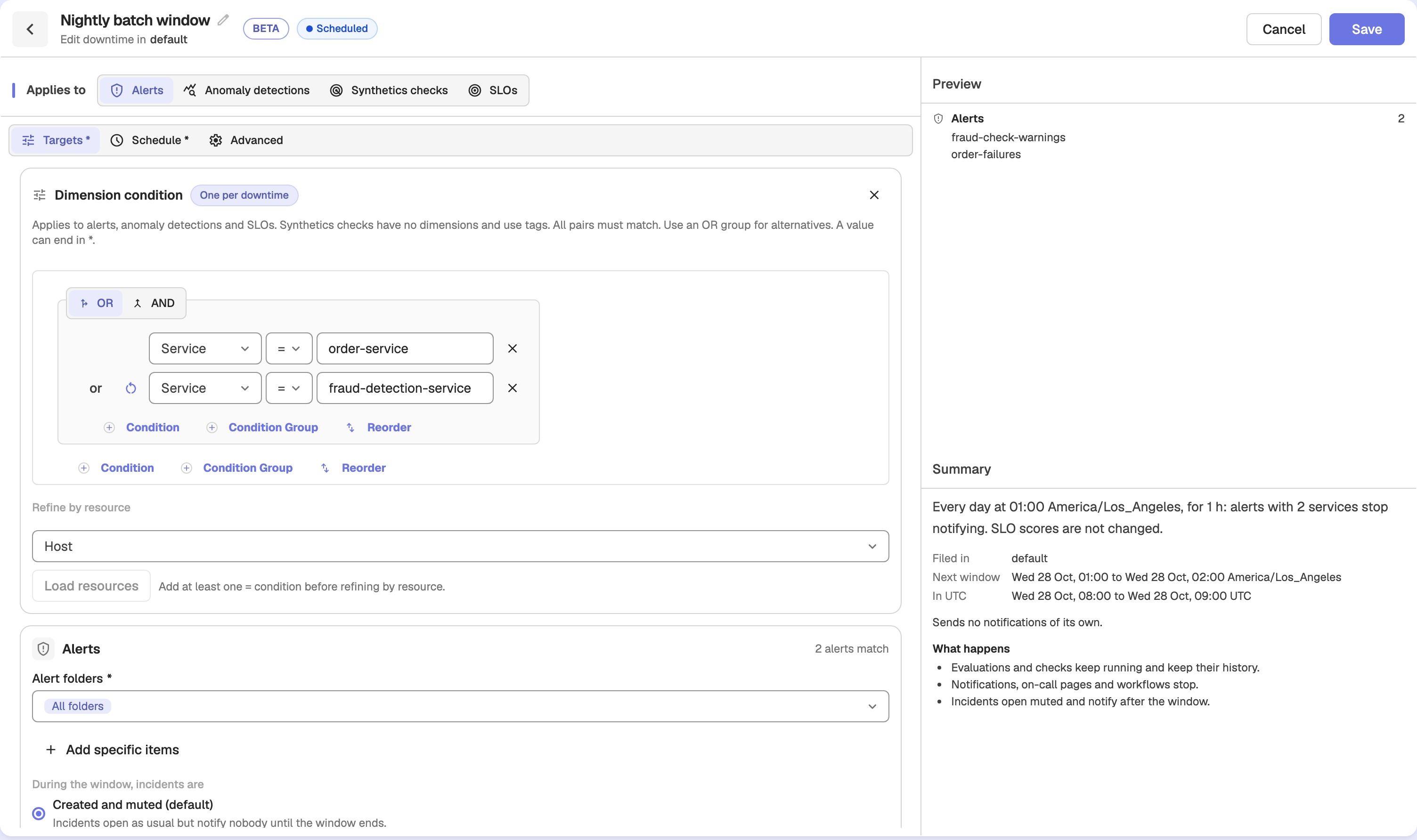
The condition follows these rules:
- At most 32 pairs, with groups nested at most 3 levels deep.
- Every way to satisfy the condition must include at least one
=pair, so!=pairs alone cannot silence everything. - A value may end in
*to match a prefix, such asdb-*. A lone*, or a*anywhere else in the value, is not allowed.
Synthetics checks have no dimensions, so the condition does not apply to them. Narrow checks with tags, folders or specific items instead.
SLO correction mode
For SLOs, choose how the window affects the SLO score:
- Exclude the window (default): time inside the window counts neither as good nor as bad, and burn-rate alerts on these SLOs do not fire for it.
- Count the window as good: time inside the window counts as fully good. Use this only when your SLO contract treats planned maintenance as uptime.
Schedule
The Schedule tab defines when the downtime is in force. Choose one of three repeat modes:
- Once: a single window with a start date and time and an end date and time.
- Daily: repeats every day at a local start time, for a set duration.
- Weekly: repeats on the days you select, at a local start time, for a set duration.
Recurring schedules take a Starts at time in HH:MM form, a Duration such as 90m or 1h 30m, and an optional Repeat until date. Every schedule has a Timezone, so a window follows local clock time in that IANA timezone rather than UTC. A window can cross midnight.
A window must last between 1 minute and 7 days, and cannot be longer than the time between repeats. For example, a weekly schedule on Monday and Wednesday repeats every 2 days at the shortest, so its window is capped at 2 days.
Daylight-saving transitions are handled automatically. On a spring-forward day a full-day window is 23 hours long; on a fall-back day it is 25. Windows never overlap or leave a gap across a time change.
Notifications
The Notify section on the Schedule tab lets the downtime tell your team about itself. Select up to 10 alert destinations and choose which events send a message:
- When it starts: one message as each window begins.
- Before it ends: a reminder ahead of the end. Set Remind before the end to between 1 minute and the window length; the default is 10 minutes.
- When it ends: one message as each window closes.
- When it is cancelled: sent at once when someone ends or calls off the downtime.
- When it is extended: sent at once with the new end.
Use Send test to check that the destinations receive messages.
Reason and banner
On the Advanced tab:
- Reason is optional and limited to 1,000 characters. It is shown in the list, on the detail page and in the Muted tooltip, so use it to tell your team why the maintenance is happening.
- Show a banner to everyone in the org while this downtime is active displays an organization-wide banner. The banner shows the downtime name, how many items of each module are muted and the time left, for example "Payments DB upgrade is active. 3 alerts are muted." It never names an individual alert. Click View downtime to open it, or Dismiss to hide the banner. A banner is available only for windows of at most 7 days.

Mute items from a list
To mute items quickly without opening the downtime form, select them in the alert list or the synthetics checks list and click Mute, or choose Mute notifications from a row's menu. Pick a duration (30 min, 1 h, 2 h, 4 h or Custom) and the folder to file the downtime in. OpenObserve creates a one-time downtime for the selected items. A muted item shows a Muted chip with the time left.
Manage downtimes
Click a downtime to open its detail page, which shows its windows, the items it affects, the notifications it has suppressed and, if configured, the log of its own notifications. From the list or the detail page you can:
- Extend an active downtime. For a recurring downtime, the schedule stays as it is and OpenObserve creates a one-time downtime that continues from the end of the current window.
- End now to stop an active window early. Notifications resume at once.
- Cancel downtime to call off a scheduled or recurring downtime. It stays in the list for history.
- Edit, Duplicate, Move to folder or Delete it. Deleting also removes its history.
Status lifecycle
A downtime moves through the following states:
| Status | Meaning |
|---|---|
| Scheduled | The window has not started yet. |
| Active | The current window is in force and notifications are suppressed. |
| Ended | Every window has run its course. |
| Cancelled | Cancelled before the window started, or between recurring windows. |
| Ended early | Ended in the middle of a window, which was cut short. |
Incidents during a downtime
With the default Created and muted incident mode, an alert that fires during a downtime opens a muted incident and pages nobody. The incident shows which downtime muted it. The first firing after the window ends sends the delayed opened notification, and normal incident handling resumes.
Anomaly detection behavior
A muted anomaly detection run spends no cooldown and no alert budget. The model keeps training and scoring; only the notification is suppressed, and the run is recorded as suppressed by the downtime.
Downtime folders
Downtimes are organized into folders, with a default folder in each organization. Folders let you group maintenance windows and control who can manage them, the same way you organize alerts and dashboards.
Permissions
Downtimes are governed by role-based access control through two resources:
- Downtimes: individual downtime entries.
- Downtime Folders: the folders that contain them.
Grants on a downtime folder flow down to the downtimes inside it. A downtime folder limits who manages a downtime, not what it silences.
To silence something, a user also needs access to what the downtime targets:
- To target specific folders, the user must be able to list each of those folders.
- To target All folders of a module, the user needs the organization-wide list permission on that module's folders, for example Alert Folders for alerts.
- To target specific items, the user must be able to read each item.
Configuration
Downtimes are enabled by default and tuned with these environment variables:
| Variable | Default | Description |
|---|---|---|
O2_DOWNTIMES_ENABLED | true | Enables alert downtimes. |
O2_DOWNTIMES_BANNER_ENABLED | true | Shows the org-wide banner for downtimes that turn it on. |
O2_DOWNTIMES_MAX_PER_ORG | 500 | Maximum number of downtimes an organization can hold. |
O2_DOWNTIMES_RETENTION_DAYS | 90 | Days an ended or cancelled downtime is kept. Values below 90 are raised to 90. |
O2_DOWNTIMES_REPLICATION_ENABLED | false | Replicates downtimes and incident un-mutes across a super cluster. |
Super cluster replication
Downtimes are region-local by default. Turn on O2_DOWNTIMES_REPLICATION_ENABLED only after every region in the super cluster runs a build that supports downtimes, because older regions cannot read the replicated messages. In a super cluster, the region where a downtime was created sends that downtime's own notifications.
Anomaly Detection
Anomaly Detection uses Random Cut Forest machine learning to flag unusual patterns in logs, metrics, and traces automatically, with no manual threshold tuning.
Import and Export Alerts
Import and export alert rules in OpenObserve as JSON to streamline configuration across environments. Easily reuse, share, and manage alerts at scale.