
Metric Chart
A metric chart shows one aggregated value, which suits KPIs and status indicators. You can add a sparkline that shows the trend, and map values to custom text and colors.
Value mappings
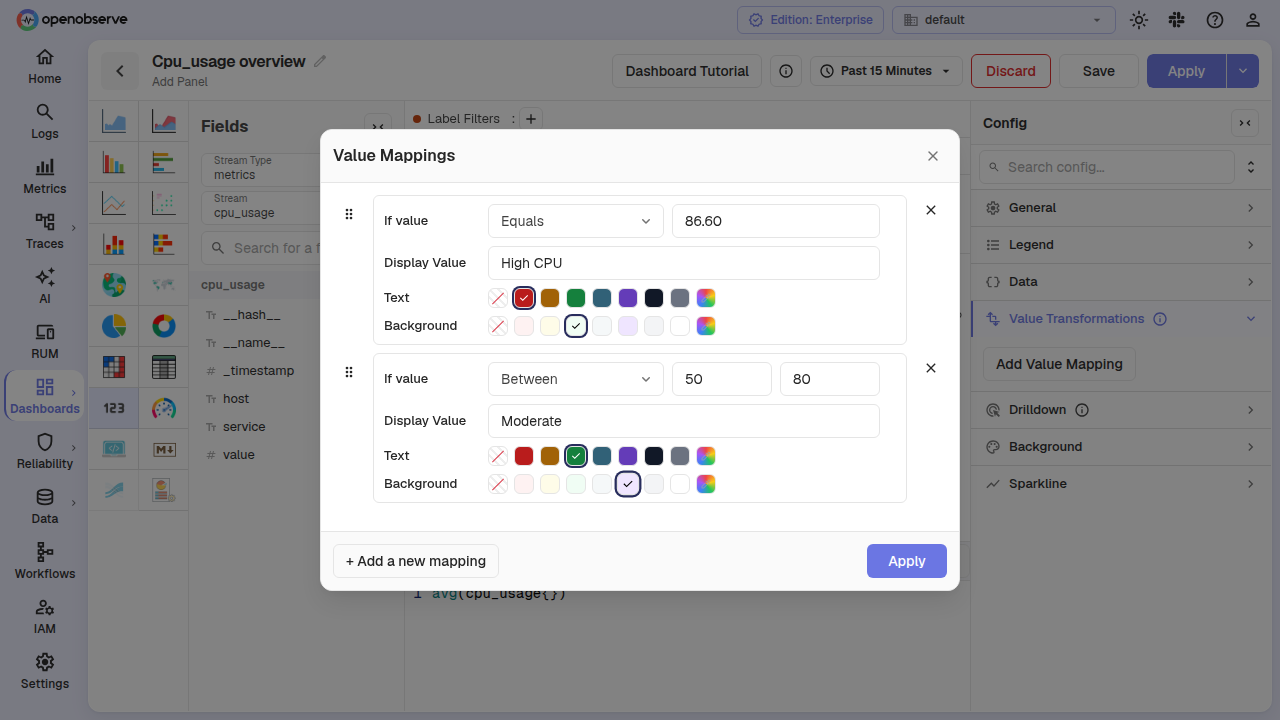
In the panel Config sidebar, expand Value Transformations and click Add Value Mapping. In the Value Mappings dialog, click + Add a new mapping for each extra rule, then click Apply.
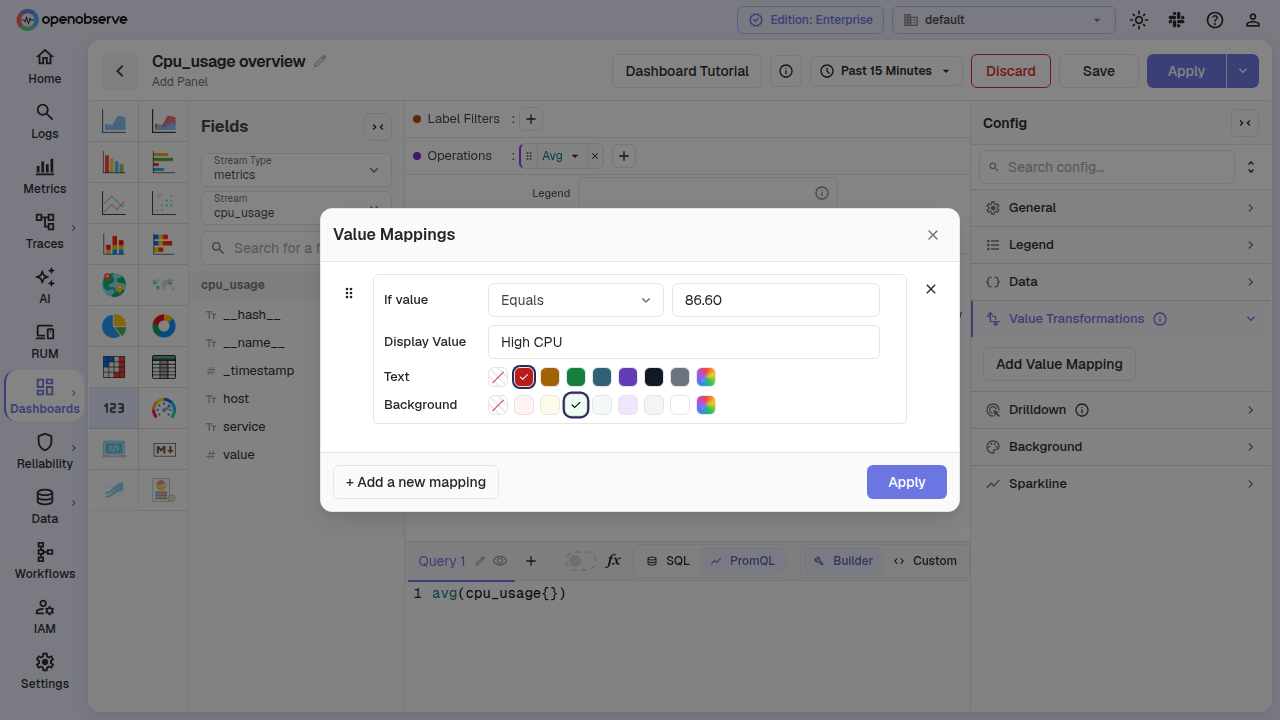
Each mapping has a condition: Equals, Between, Matches regex, Greater than, Less than, Greater than or equal, or Less than or equal. When it matches, the panel shows the mapping's display text, text color, and background color. Leave the display text blank to keep the value. If you set only a background color, a readable text color is picked for you.
Sparkline
In the panel Config sidebar, expand Sparkline and turn on Show sparkline. Then set:
- Chart type: Auto (Area), Line, Area, or Bar.
- Layout: Auto or Bottom draws the trend along the bottom of the panel; Background draws it behind the value.
- Color: the sparkline color.
- Line width: shown for line and area sparklines.
- Area fill opacity: shown for area sparklines, including Auto (Area).
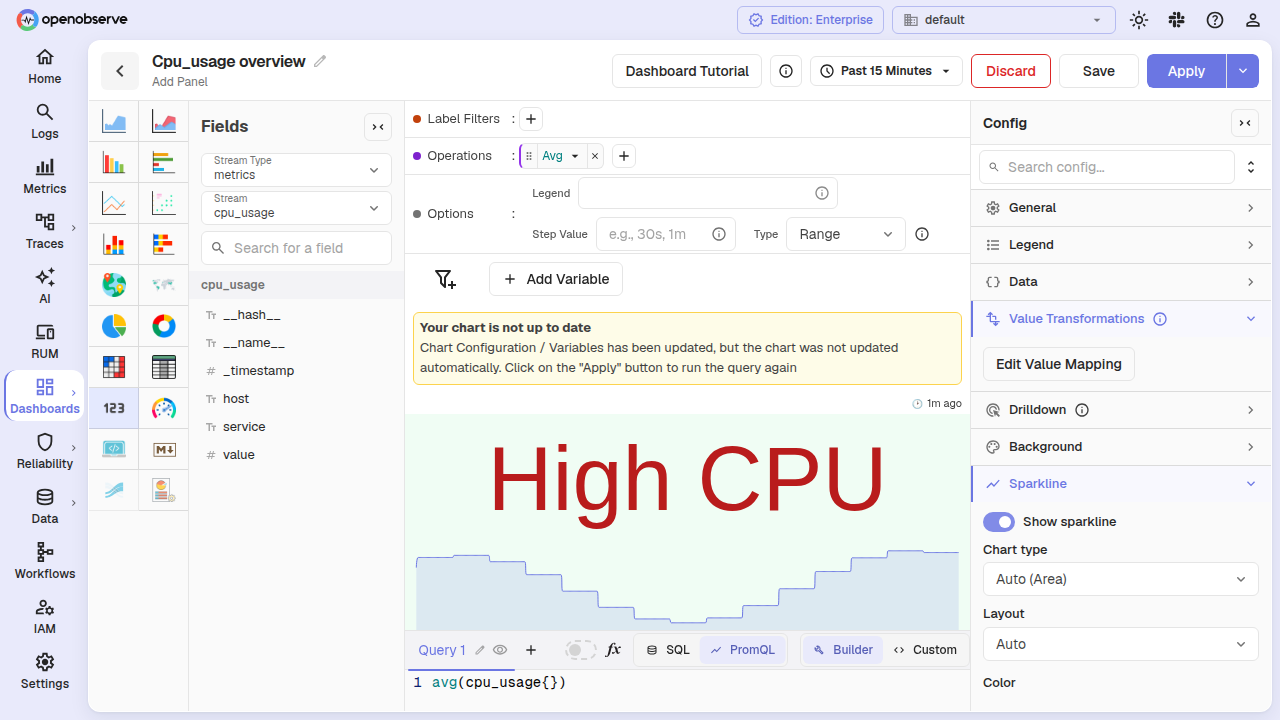
For PromQL, the trend uses the values the query already returns. For SQL, the trend comes from an extra histogram query. Queries that cannot be turned into a histogram, such as those with JOIN, UNION, DISTINCT, or LIMIT, show a warning icon in the panel header, and the value still displays. In a panel with several queries, each value draws its own sparkline.
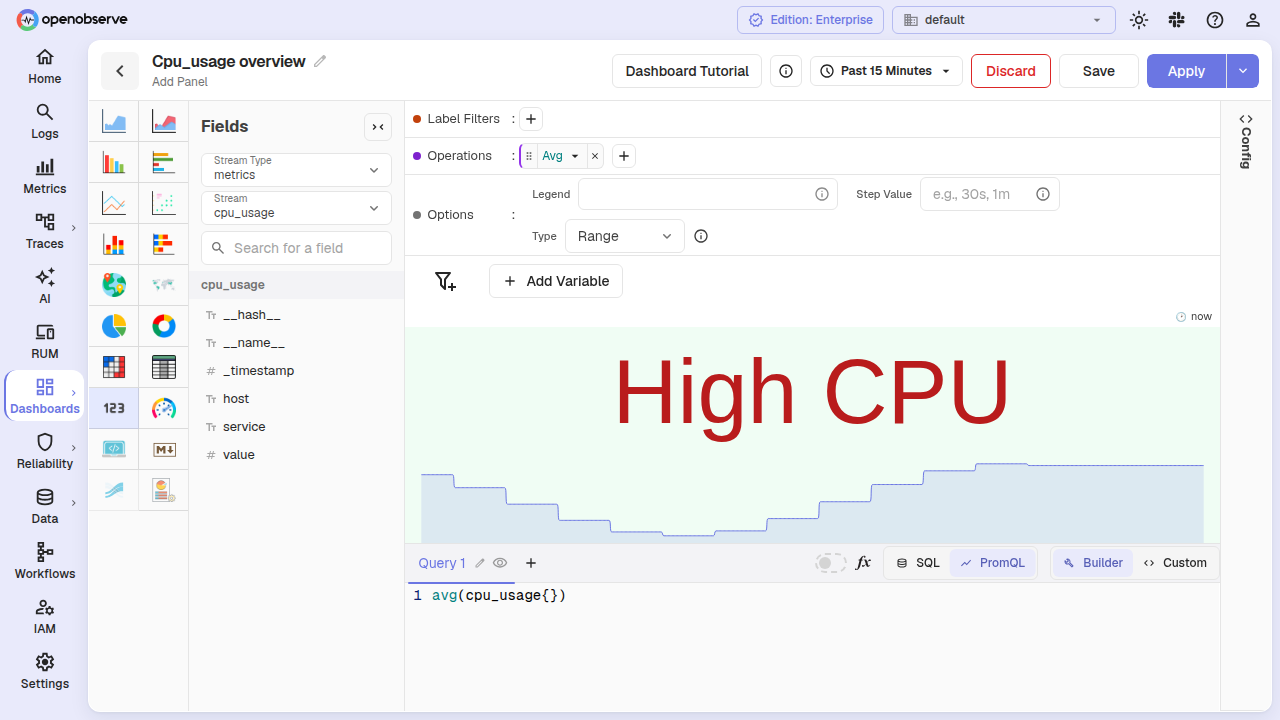
Table Chart
Configure dashboard table chart panels with per-column formatting, conditional styling, Excel-style column filters, and pagination.
Manage Panels
Manage dashboard panels with toolbar controls for full screen, refresh, edit layout, resize, duplicate, move, query inspector, CSV/JSON export, and annotations.