
LLM Prompts
Prompts is a registry for the prompts your AI features use. Every save creates a new version that never changes, and labels such as production point at the version your app should use. To release or roll back a prompt, you move a label. Your app picks up the change without a code deploy.
Overview
| Concept | What it is |
|---|---|
| Prompt | A named template, either Text or Chat (a list of role and content messages). The name and type can't change after creation. |
| Version | An immutable snapshot of the prompt body and its model configuration, numbered v1, v2, and so on. Each version records a commit message. |
| Label | A movable pointer to one version, such as production or staging. Your app asks for a label, not a version number. |
| Folder | Groups prompts and controls who can access them. |
Prompts are available in the Enterprise edition and OpenObserve Cloud.
Create a prompt
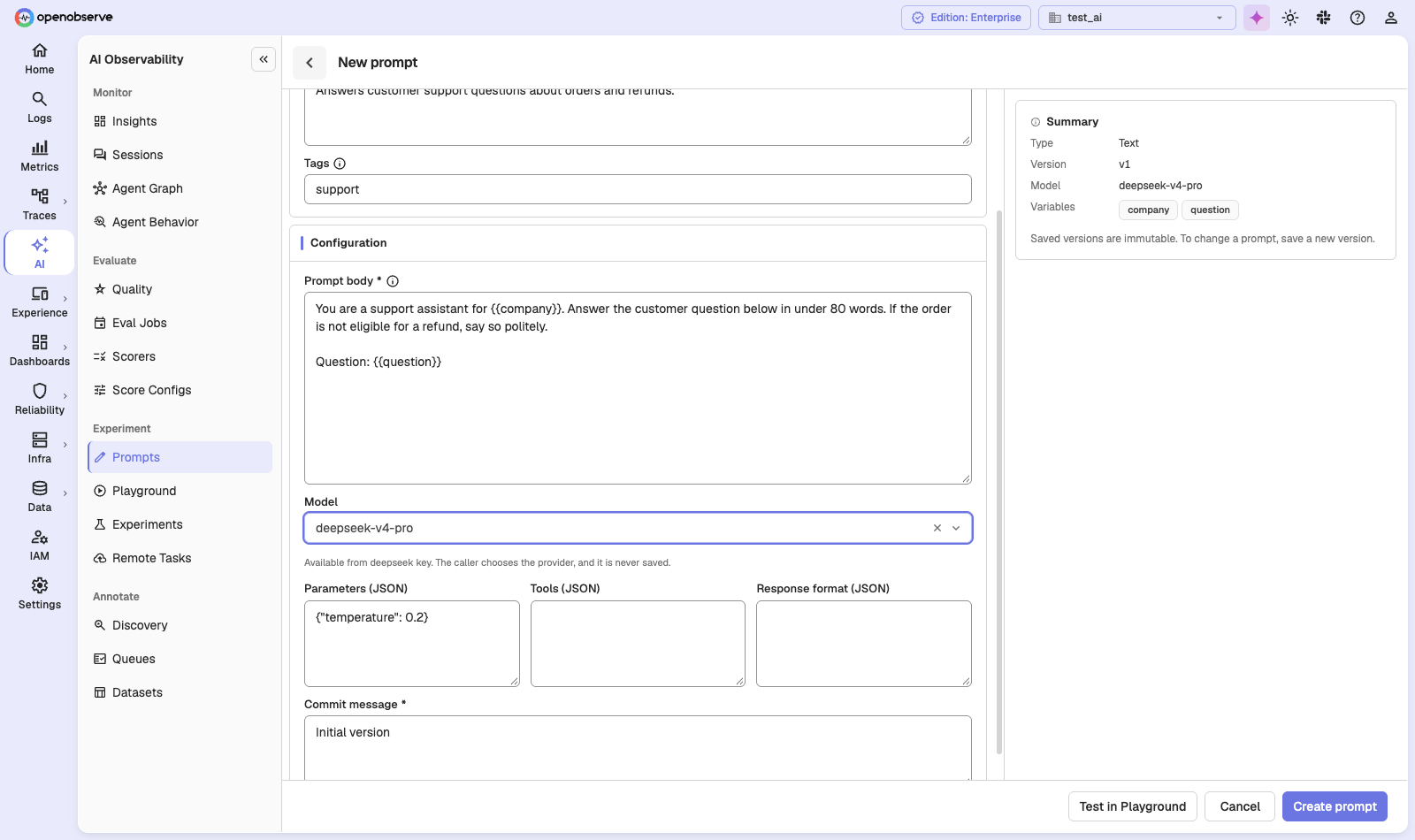
- Navigate to AI > Experiment > Prompts and click New prompt.
- Enter a Name. Use lowercase letters, digits,
_, and-, for examplesupport-answer. - Pick a Type: Text or Chat.
- Optionally add a Description and Tags.
- Write the Prompt body. Put variables in double braces, such as
{{question}}. The Summary panel lists the variables it finds. - Optionally set the Model, Parameters (JSON) (for example
{"temperature": 0.2}), Tools (JSON), and Response format (JSON). The provider is never stored with the prompt; whoever calls the prompt chooses it. - Enter a Commit message and click Create prompt.
Click Test in Playground to try the prompt before you save it. If the same content already exists in another version, OpenObserve warns you and lets you save anyway.
Save a new version
Saved versions can't be edited. To change a prompt, open it and click New version. The form starts from the version you were viewing and saves as the next number. Change the body or configuration, enter a Commit message, and click Save version.
The latest label always points at the newest version and moves automatically. You can't move or delete it.
Review and compare versions
Click a prompt in the list to open its drawer. It has four tabs:
- Configuration: the selected version's status, model, prompt text, and parameters.
- Labels: which version each label points at.
- Versions: every version with its commit message, labels, source (
ui,sdk,playground,ci, oragent), author, and time. Search commit messages or filter by source. - Traffic: calls, errors, latency, and cost for this prompt, from your traces (see Link prompts to traces).
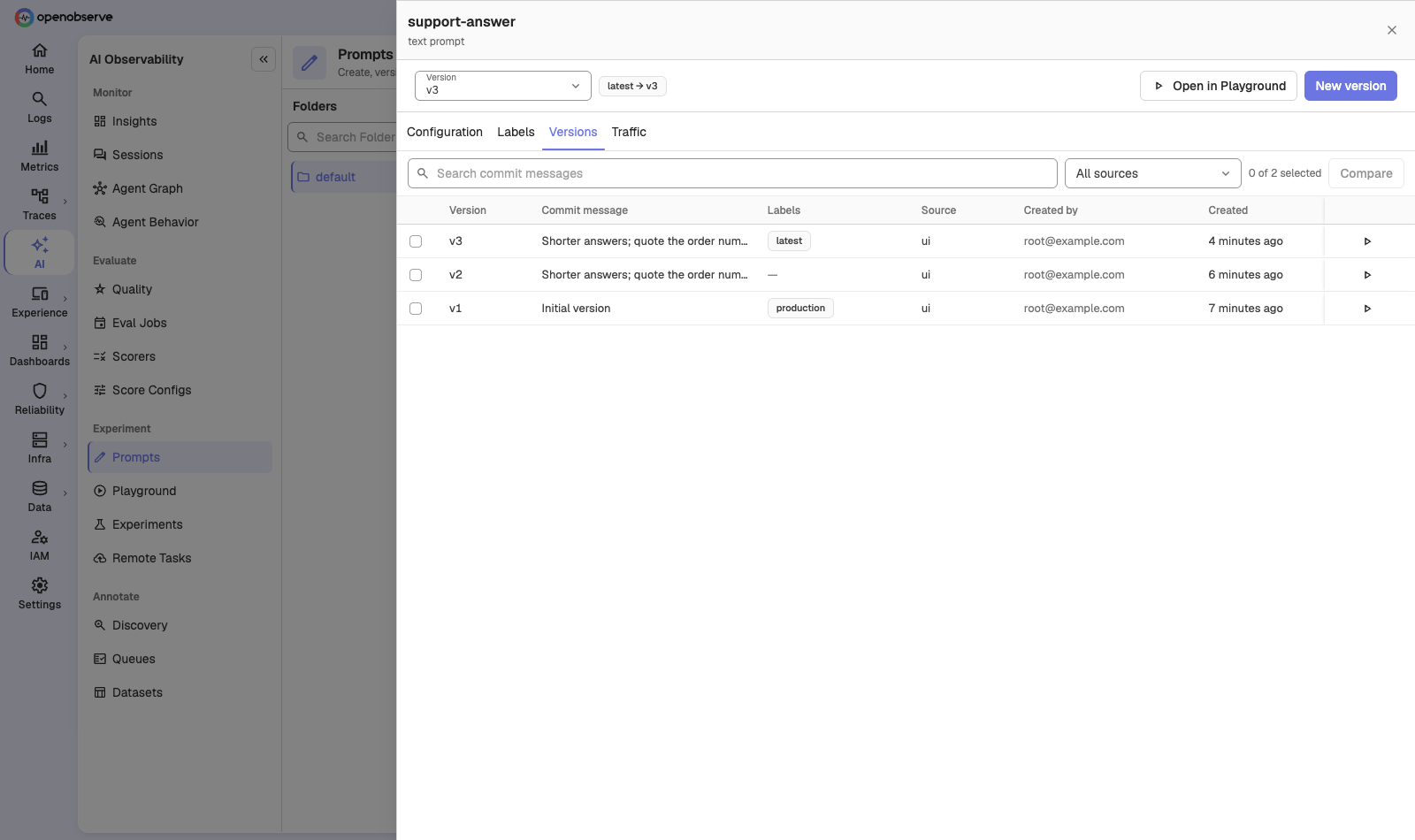
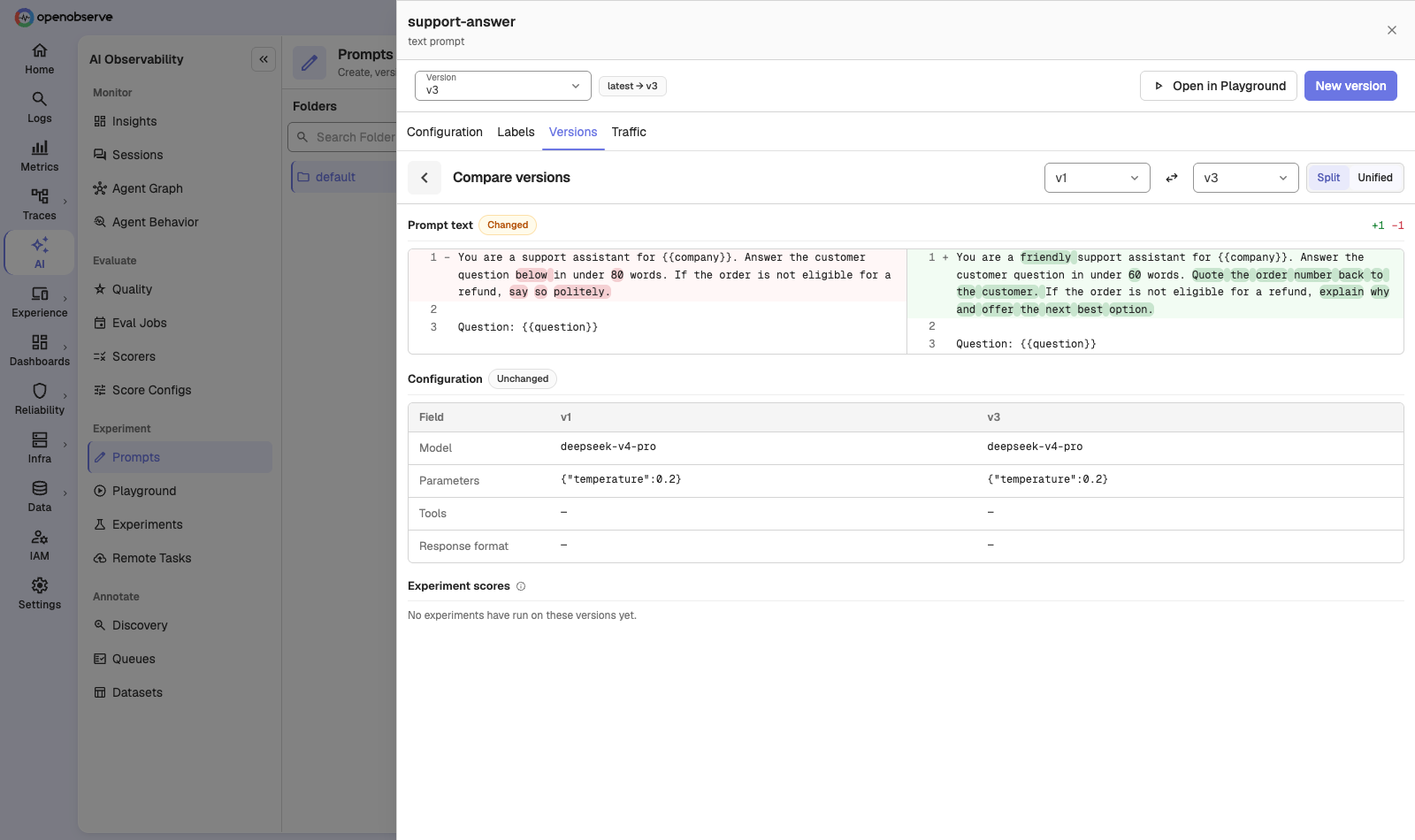
To compare two versions, select them on the Versions tab and click Compare. The diff shows the prompt text in Split or Unified view, a table of configuration changes, and Experiment scores for each version when experiments have run on them.
Release with labels
Labels decide which version your app gets. To release v3 to production, point the production label at v3. To roll back, point it at the previous version.
- Open the prompt and select the Labels tab.
- Click Add label, enter a Label name, pick the Target version, and click Assign. To move an existing label, use the move action on its row.
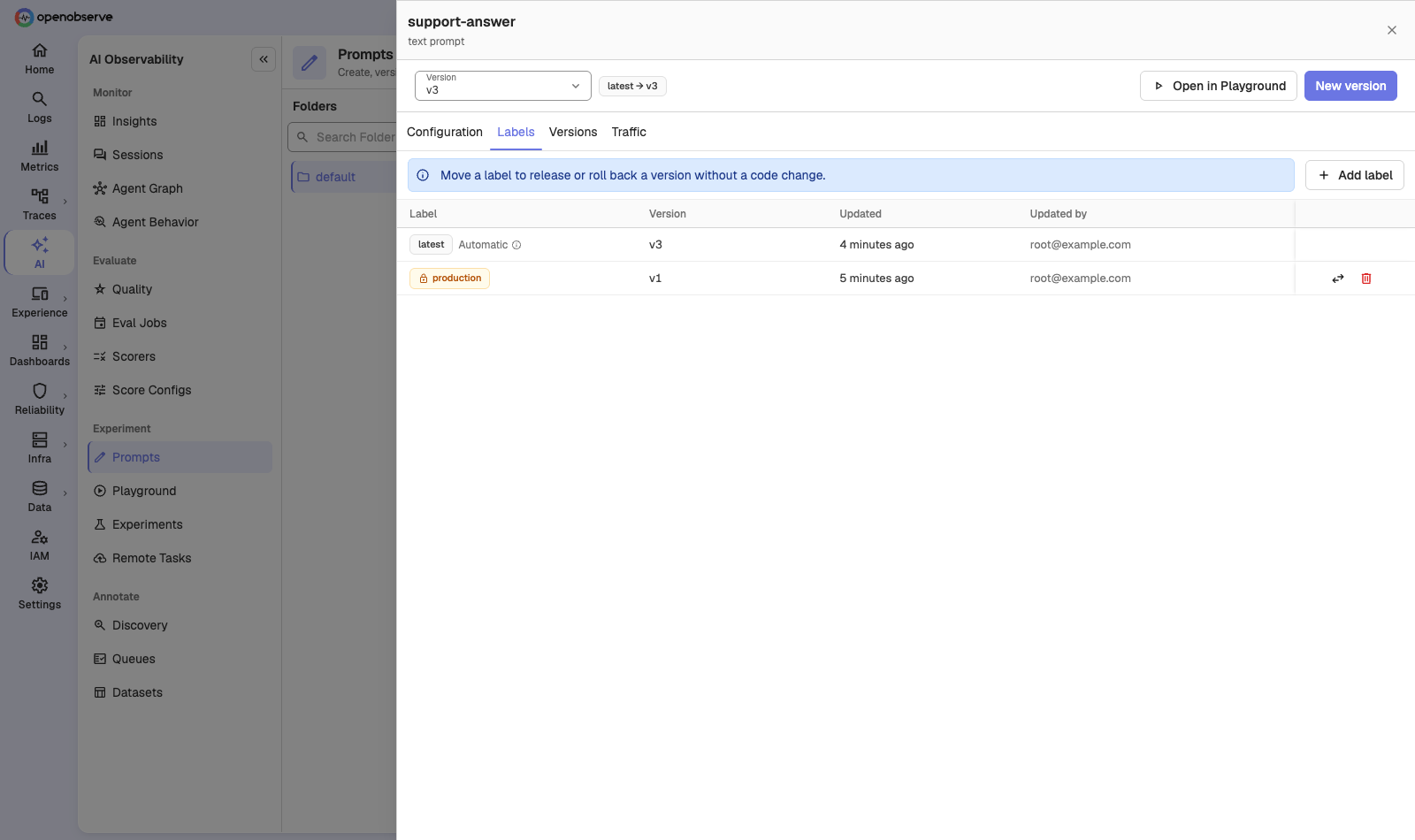
Apps that resolve by label pick up the change within about 60 seconds.
Protected labels
Some labels are too important to move by accident. A protected label asks for confirmation before it is moved or removed, and only users with the Prompt Protected Labels permission can change it. production is protected by default.
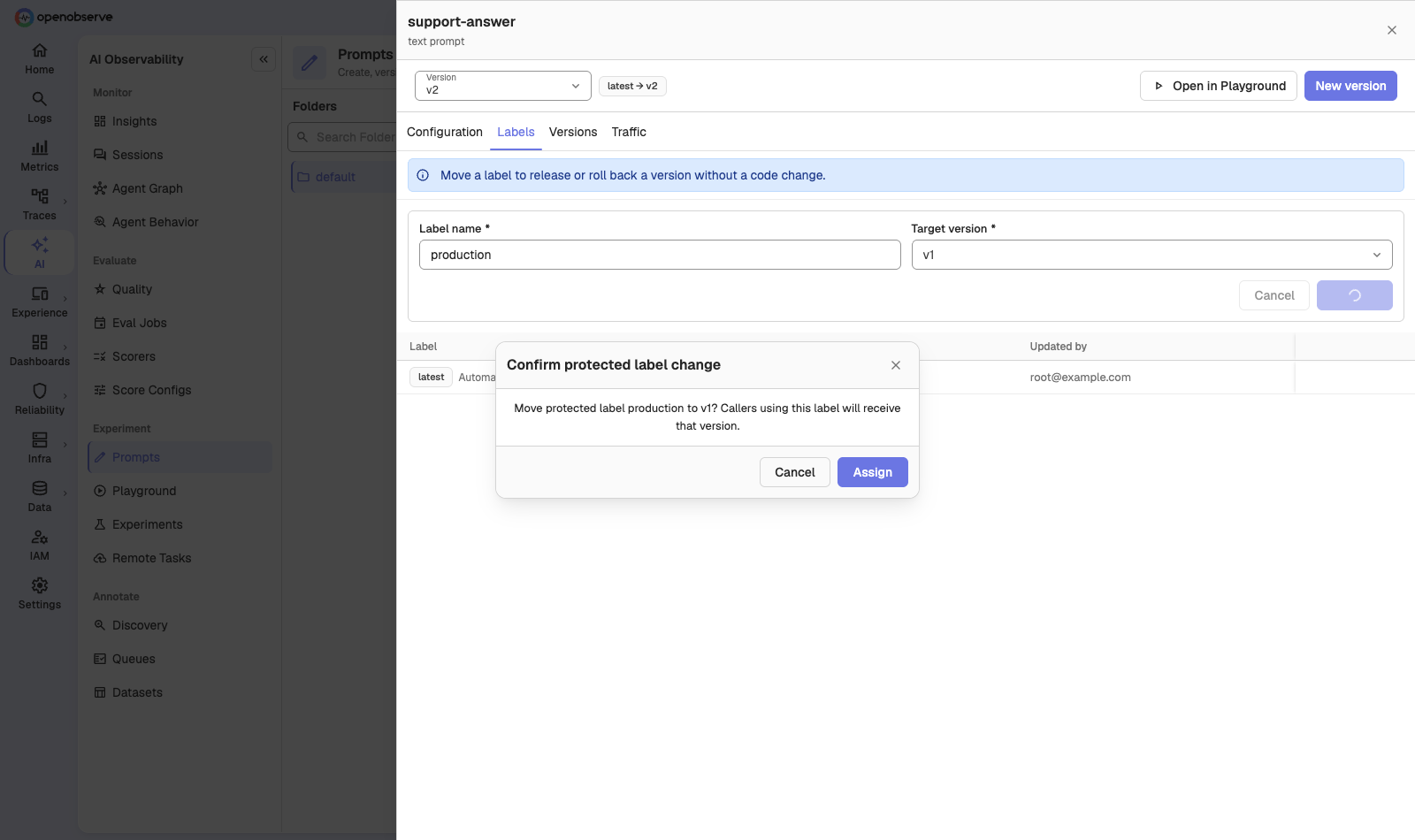
To change which labels are protected, click the settings icon on the Prompts page and edit Protected labels.
Use a prompt in your app
Fetch a prompt at runtime with the resolve API. By default it returns the version labeled production:
curl -u "user@example.com:password" \
"https://<your-openobserve-host>/api/<org_id>/prompts/resolve?name=support-answer&label=production"| Parameter | Description |
|---|---|
name | The prompt name. Required. |
label | The label to resolve. Defaults to production. |
version | A specific version number. Use either label or version, not both. |
folder | Optional folder ID. If the prompt lives in a different folder, the response includes a Warning header. |
The response contains the prompt (name, promptType, labels, latestVersion, and more) and the resolved version (version, payload, config, commitMessage, contentHash). It also returns an ETag; send it back in If-None-Match to get a 304 Not Modified when nothing changed.
Archived prompts still resolve, so archiving a prompt never breaks a running app.
Link prompts to traces
To see a prompt's real-world traffic, add these attributes to the LLM spans that use it:
| Attribute | Example |
|---|---|
gen_ai.prompt.name | support-answer |
gen_ai.prompt.version | 3 |
gen_ai.prompt.label | production |
The Langfuse equivalents (langfuse.observation.prompt.name, .version, and .label) also work. The Traffic tab then shows calls, errors, error rate, P50 and P95 latency, and cost for the prompt, broken down by label and model, with recent calls and experiment results. Pick the Trace stream to read from.
Test and evaluate prompts
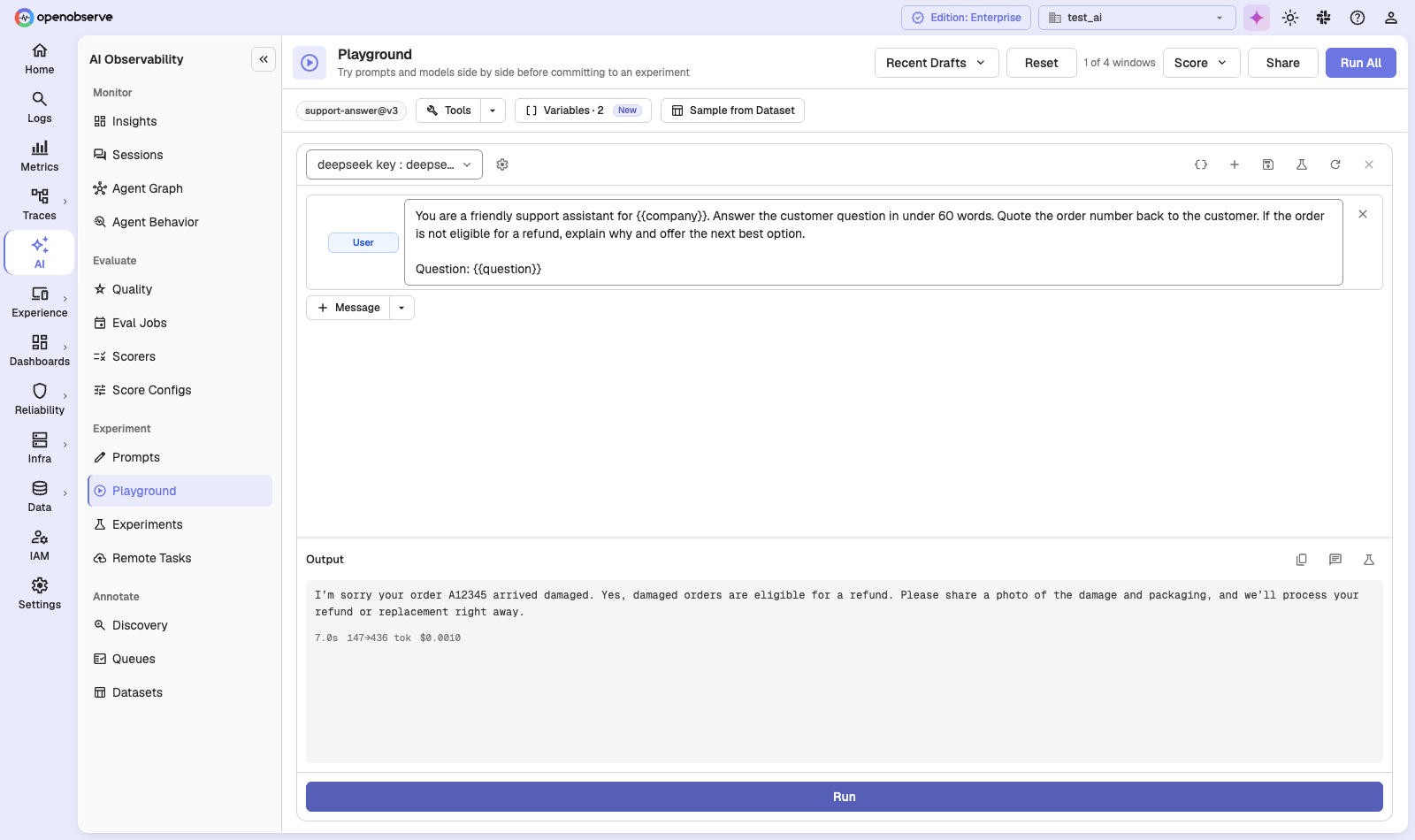
- Click Open in Playground on a prompt to load it into the Playground, fill in its variables, and run it against different models.
- In the Playground, click Save as Prompt to save a column as a new prompt, or as the next version of an existing one.
- In an Experiment, pick the Managed Prompt task type, then resolve the prompt by label or version. The experiment pins the exact version it resolved to, so later label moves never change its results.
Organize prompts
- Folders: the folder panel on the left groups prompts. Click + to add a folder. To move a prompt, use Move to folder on its row; all of its versions move with it.
- Search: search names, descriptions, tags, and labels in This folder or All folders.
- Status: filter by Active, Archived, or All statuses. Archive makes a prompt read-only: you can't add versions or move labels on it. Archiving can't be undone.
Webhooks
OpenObserve can notify your systems when prompts change, for example to refresh a cache or trigger a CI run.
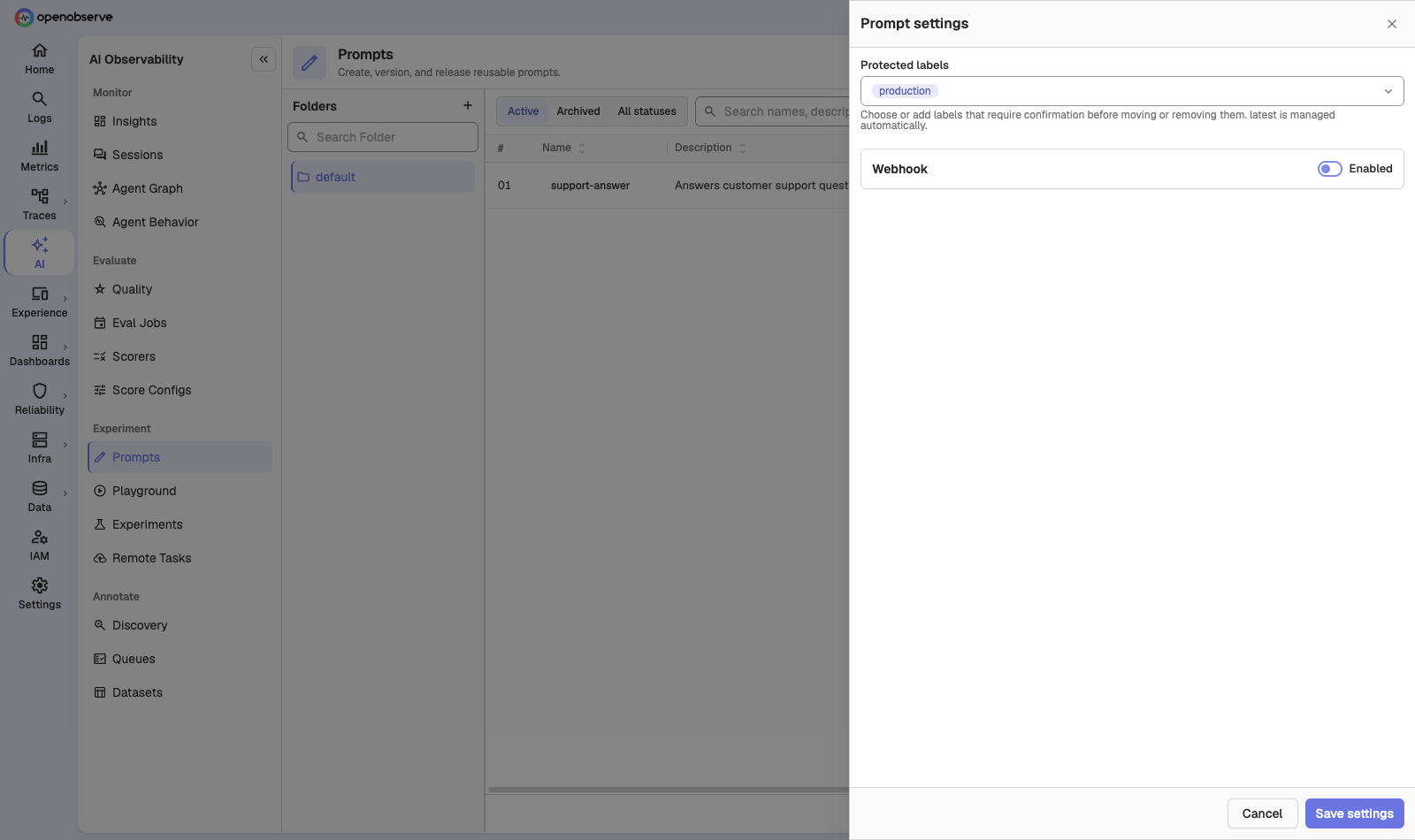
- On the Prompts page, click the settings icon to open Prompt settings.
- Turn on Webhook, enter the Endpoint, and choose the Subscriptions: Version created, Label moved, Label deleted, and Prompt archived.
- Click Save settings, then set a Signing secret. The secret is write-only: it is never shown again.
Each delivery is a JSON body with the event type (prompt.version.created, prompt.label.moved, prompt.label.deleted, or prompt.archived), the actor, the prompt, and the version or label change. These headers come with it:
| Header | Description |
|---|---|
X-OpenObserve-Event | The event type. |
X-OpenObserve-Delivery | A unique delivery ID. |
X-OpenObserve-Timestamp | When the delivery was sent. |
X-OpenObserve-Signature | v1=<hex>: an HMAC-SHA256 of the timestamp and body, keyed with your signing secret. |
Failed deliveries are retried up to 8 times with growing backoff (capped at one hour), and a Retry-After header from your endpoint is respected.
RBAC
Prompts use three permission resources, assigned in IAM > Roles:
| Resource | Controls |
|---|---|
| Prompts | Reading, creating, and editing individual prompts. |
| Prompt Folders | Access to a folder. Prompts inherit access from their folder, and moving a prompt moves its access with it. Listing prompts across all folders needs list access on Prompt Folders. |
| Prompt Protected Labels | Moving or removing a protected label, and changing which labels are protected. Admins always have it; editors need it granted. |
A user who can't read a prompt gets 404 from the resolve API.
API Reference
All endpoints are prefixed with /api/{org_id}.
| Method | Path | Description |
|---|---|---|
GET | /prompts | List prompts. Add includeArchived or folder to filter. |
POST | /prompts | Create a prompt with its first version. |
GET | /prompts/resolve | Resolve a prompt by name and label or version. |
GET / PATCH | /prompts/{id} | Get a prompt, or update its description, tags, or folder. |
POST | /prompts/{id}/archive | Archive a prompt. |
GET / POST | /prompts/{id}/versions | List versions, or save a new one. |
GET | /prompts/{id}/versions/{version} | Get one version. |
GET | /prompts/{id}/activity | Label history. |
PUT / DELETE | /prompts/{id}/labels/{label} | Move or remove a label. |
POST | /prompts/match | Find existing versions with the same content. |
GET / PUT | /prompts/settings | Read or update protected labels and webhook settings. |
PUT | /prompts/settings/secret | Set the webhook signing secret. |
Write requests accept an Idempotency-Key header, so retries are safe.