
Private locations
A private location runs checks from inside your own network, so they can reach systems that are not exposed to the internet, such as an internal API, a staging environment behind a VPN, or a database host on a private subnet.
A location is a pool of interchangeable agents, not a single machine. Deploy several agents with the same location name and they all serve that location, sharing its work and surviving the loss of any one host.
How private locations work
Private locations are not created in the UI. You deploy an agent with a location name, and the location registers itself the first time that agent connects.
- You run the install command on a host in your network, naming the location.
- The agent connects, authenticates with an
o2syn_token, and registers. - The location row appears automatically and turns Online.
- You select the location when creating or editing a check.
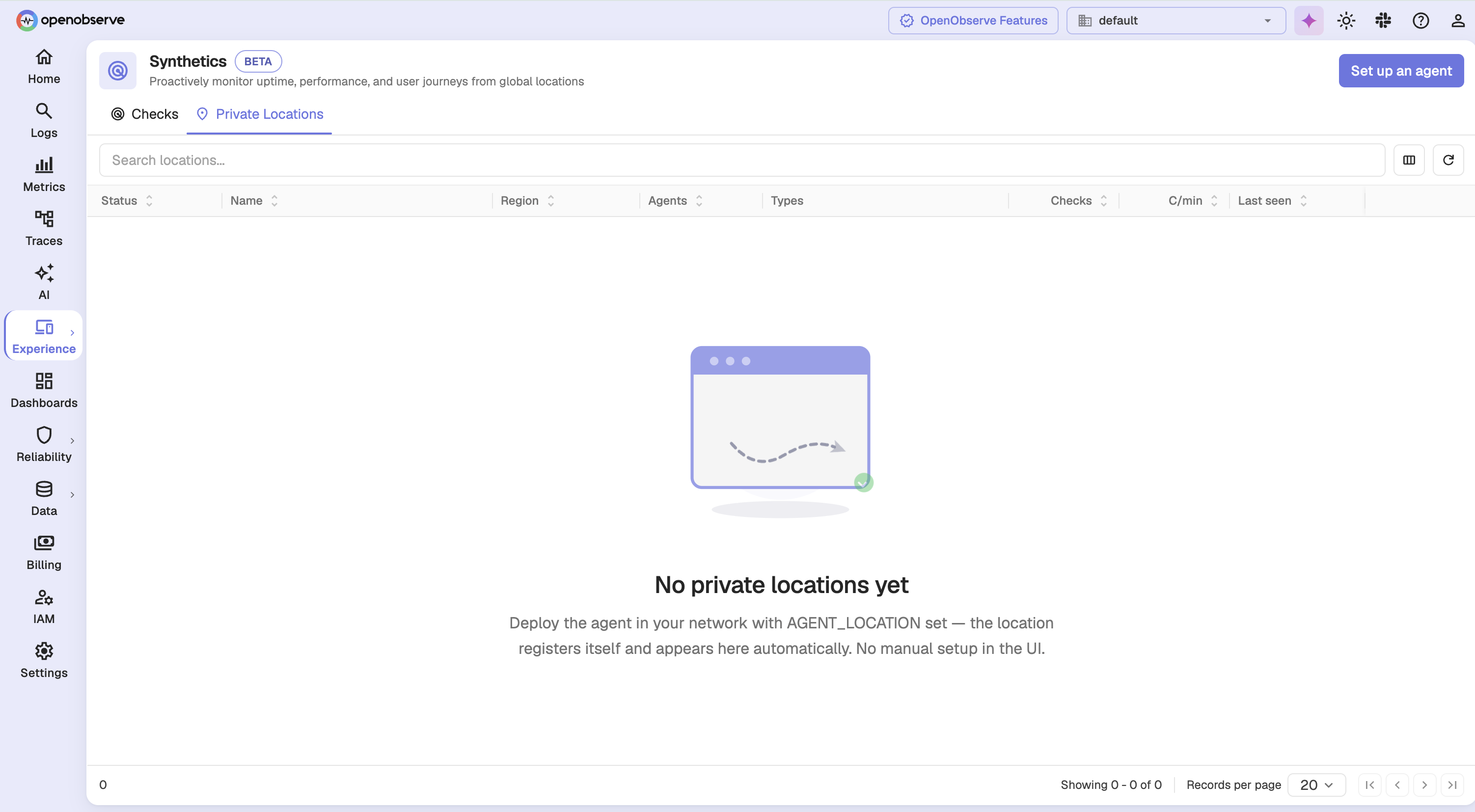
How to set up a private agent
Step 1: Open the setup drawer
Go to the Private Locations tab and click Set up an agent.
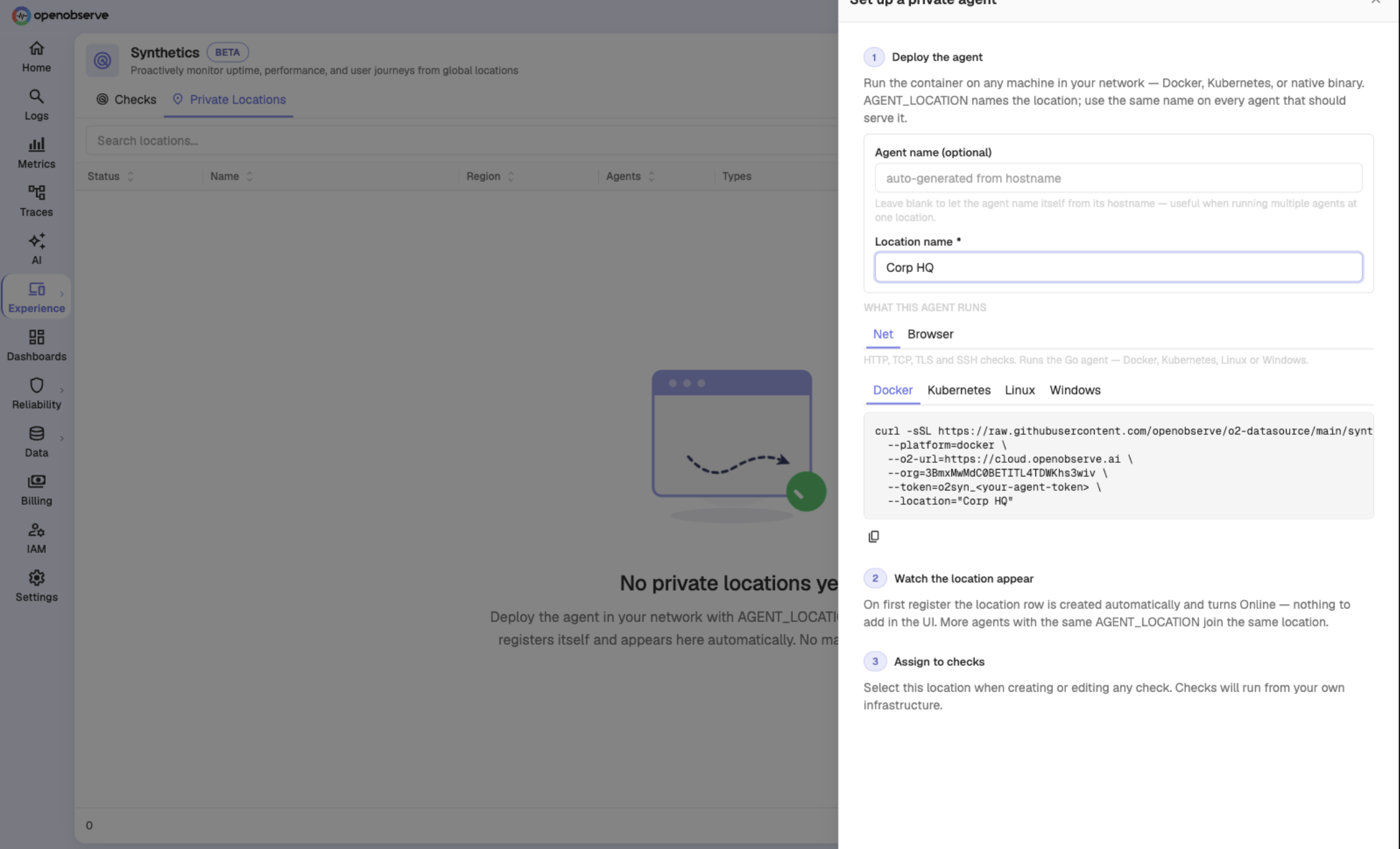
Step 2: Name the location and choose the agent type
Enter a Location name. Reuse the same name on every agent that should serve that location. Optionally name the individual agent. Left blank, it names itself from its hostname, which is useful when running several agents at one location.
Choose what the agent runs:
| Agent type | Runs | Platforms |
|---|---|---|
| Net | HTTP, TCP, TLS, and SSH checks | Docker, Kubernetes, Linux, Windows |
| Browser | Browser journeys | Docker, Kubernetes |
Switching to Browser changes both the command and the available platforms, since browser agents run a container image.
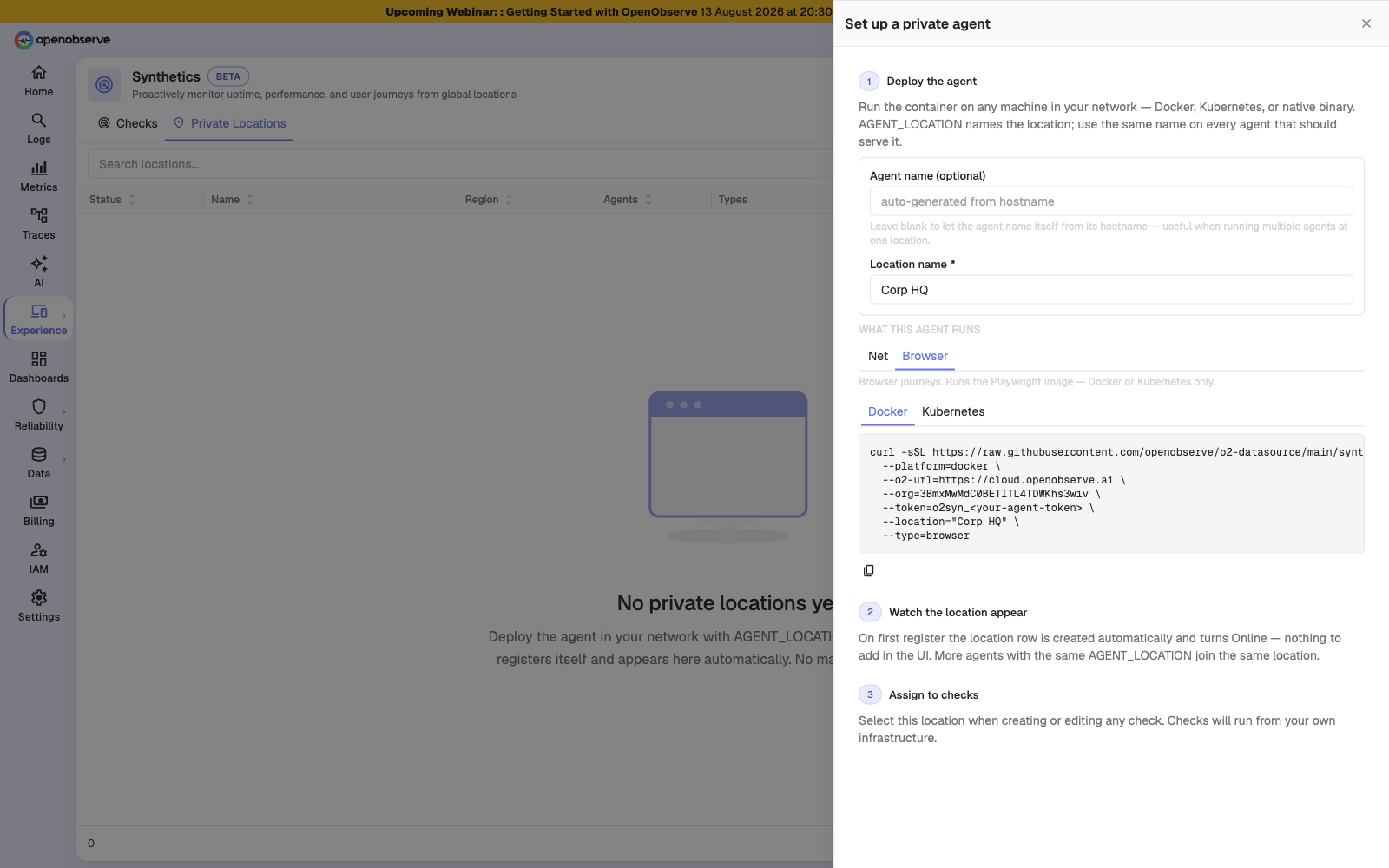
Step 3: Run the install command
Pick your platform tab, copy the command, and run it on a host in your network.
Warning: The generated command embeds a live agent token. Treat it as a credential, and do not paste it into shared documents, tickets, or chat.
Step 4: Assign the location to checks
Once the location is Online, select it in the Locations card when creating or editing a check. See Configuration.
Reading the locations table
| Column | Reports |
|---|---|
| Status | Online, Offline, or Pending |
| Name | The location name, with its pool beneath |
| Region | The region the agents report |
| Agents | Live agents over total registered, with the agent version |
| Types | Check types the live agents can run |
| Checks | How many checks are assigned here |
| C/min | Approximate checks per minute |
| Last seen | When an agent last reported |
Pending means the location exists but no agent has registered yet. Offline means no agent is currently live, so checks assigned here do not run until one returns.
Click a row to open the location detail page, which lists the registered agents and the checks running from them. Agents are read-only there: they self-register, so there is nothing to add or edit by hand.
Managing agent tokens
Every Synthetics probe agent, public and private, authenticates with the same org-level o2syn_ tokens, managed under IAM > Synthetics Tokens. Public locations use the default token automatically; private agents authenticate with whichever token you embed in their install command.
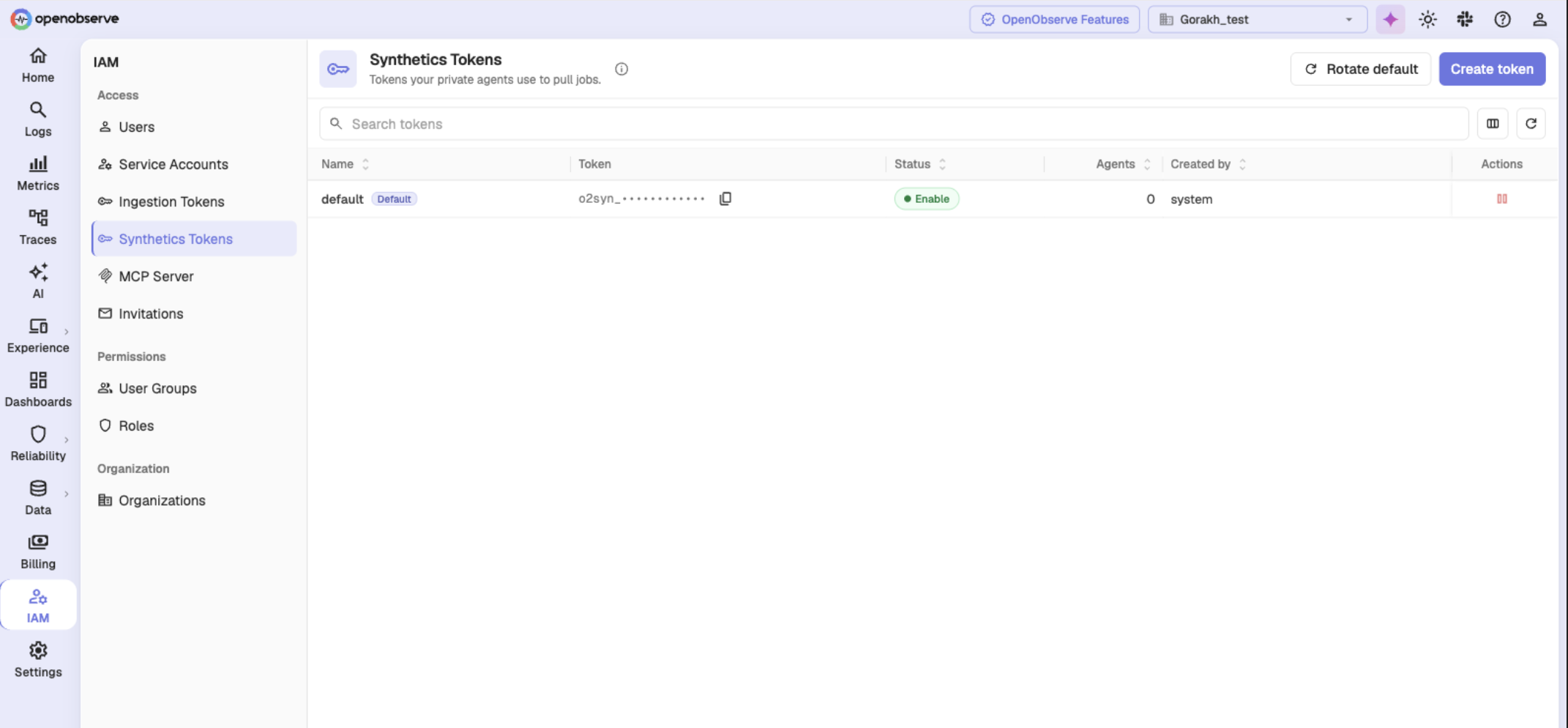
| Action | Use it to |
|---|---|
| Create token | Mint a named token for a region or site |
| Rotate default | Replace the org default token |
| Enable / disable | Turn a token off without deleting it |
Create a named token per region and embed it in that region's private agents to limit the blast radius if one is compromised.
Note: A token is shown in full only once, when it is created. Copy it then, since afterwards only its prefix is displayed.
Tip: Rotating the default token leaves the old one valid until you explicitly disable it, so you can roll agents over gradually rather than taking every location down at once.
Limitations
- Browser tests cannot run from every private location. A location only offers browser tests when it has a live agent running the browser image.
- A location cannot be deleted while checks are assigned to it. Reassign or delete those checks first.
- Agents are read-only in the UI. Configuration lives in the install command, so changing it means re-running that command on the host.
Troubleshooting
A private location will not accept checks
Problem: Your private location does not appear when selecting locations, or shows an offline warning.
Solution:
- Confirm at least one agent is running and reachable. A location with no live agent does not run checks.
- Confirm the agent type matches the check. Browser tests need an agent running the browser image; network agents cannot run them.
- Confirm the agent's token is still enabled under IAM > Synthetics Tokens.
- Check that every agent for the location was deployed with the same location name. A typo creates a second location rather than joining the existing one.
A location cannot be deleted
Problem: The delete action on a private location is disabled.
Solution: Checks are still assigned to it. The tooltip reports how many. Reassign or delete those checks first, then delete the location.
An agent registered as its own location
Problem: You deployed a second agent and a new location appeared instead of the agent joining the existing one.
Solution: The location name in the install command did not match. Names must match exactly. Re-run the command on that host with the correct name, then delete the stray location once no checks reference it.
Need help:
Last updated on
Results
Read pass rate, latency, and flakiness across runs, then open a single run to find the step that failed and what the page was doing.
Traces Overview
Traces in OpenObserve show how requests flow across services in distributed systems, helping you pinpoint performance bottlenecks and troubleshoot errors.