
Add Full Observability to a New Microservice in Under 30 Minutes

Simran Kumari
April 03, 2026
9 min read
Don’t forget to share!



Try OpenObserve Cloud today for more efficient and performant observability.
Here's how it usually goes: you build a new microservice, wire it up to the rest of the system, and observability goes on the backlog. "We'll add it before we go to production," you say. Then production arrives and the ticket gets bumped again until something breaks at 2 AM and you're staring at a wall of blank dashboards wondering what's happening inside your own service.
This isn't a discipline problem. Observability gets skipped because it feels complicated. There's infrastructure to stand up, SDKs to evaluate, pipelines to wire, dashboards to build and none of it has anything to do with the feature you're actually trying to ship.
This guide changes that. In under 30 minutes, you'll have full logs, metrics, and traces on a brand-new Python microservice. No managed infra to configure. No vendor lock-in. Just three signals, fully correlated, and searchable from a single UI. The next time you spin up a service, you'll do this first not last.
By the end of this tutorial, your microservice will have:
trace_id and span_id injected automatically so you can jump from a log entry straight to its trace.Language: Python 3.9+ with Flask (Node.js snippets included where relevant).
Prerequisites: Docker, Docker Compose, Python 3.9+, and about 30 minutes.
OpenObserve is an open-source observability platform that natively accepts logs, metrics, and traces via OTLP (OpenTelemetry Protocol). It stores data on local disk during development and can be pointed at S3-compatible storage in production. One command gets you running.
docker run -d \
  --name openobserve \
  -p 5080:5080 \
  -e ZO_ROOT_USER_EMAIL=admin@example.com \
  -e ZO_ROOT_USER_PASSWORD=admin123 \
  -v $PWD/openobserve-data:/data \
  public.ecr.aws/zinclabs/openobserve:latest
Once the container starts, open http://localhost:5080 and log in with the credentials above. You'll land on the OpenObserve home screen with empty Logs, Metrics, and Traces tabs that's exactly what we want.
What OpenObserve is doing here: it's listening on port 5080 for OTLP data over HTTP (/api/default/v1/traces, /api/default/v1/metrics, /api/default/v1/logs). Your app won't send directly to OpenObserve that's the Collector's job but it helps to know the endpoints exist.
Don't want to run Docker? Sign up for OpenObserve Cloud it's free to start, you get an OTLP endpoint immediately, and you can skip the local setup entirely. Replace
localhost:5080with your cloud endpoint throughout this guide.
This is the part that surprises most developers: you don't need to scatter tracer.start_span() calls through your codebase. OpenTelemetry's auto-instrumentation patches popular libraries at import time Flask, SQLAlchemy, requests, httpx, Redis, and dozens more and produces spans automatically.
pip install flask \
  opentelemetry-distro \
  opentelemetry-exporter-otlp-proto-http \
  opentelemetry-instrumentation-flask \
  opentelemetry-instrumentation-requests
opentelemetry-distro is the convenience package that pulls in the core SDK and the auto-instrumentation runner. opentelemetry-exporter-otlp-proto-http is the exporter that sends telemetry to the Collector.
app.pyimport logging
import random
import time
import requests
from flask import Flask, jsonify
# ── OpenTelemetry setup (5 lines) ────────────────────────────────────────────
from opentelemetry import trace
from opentelemetry.sdk.trace import TracerProvider
from opentelemetry.sdk.trace.export import BatchSpanProcessor
from opentelemetry.exporter.otlp.proto.http.trace_exporter import OTLPSpanExporter
from opentelemetry.instrumentation.flask import FlaskInstrumentor
from opentelemetry.instrumentation.requests import RequestsInstrumentor
provider = TracerProvider()
provider.add_span_processor(BatchSpanProcessor(OTLPSpanExporter()))
trace.set_tracer_provider(provider)
FlaskInstrumentor().instrument() # auto-instruments all Flask routes
RequestsInstrumentor().instrument() # auto-instruments outbound HTTP calls
# ─────────────────────────────────────────────────────────────────────────────
# Structured logging with trace context injection
from opentelemetry.instrumentation.logging import LoggingInstrumentor
LoggingInstrumentor().instrument(set_logging_format=True)
logging.basicConfig(level=logging.INFO)
logger = logging.getLogger(__name__)
app = Flask(__name__)
@app.route("/order", methods=["POST"])
def create_order():
logger.info("Received create_order request") # trace_id injected automatically
# Simulate calling a downstream inventory service
resp = requests.get("http://inventory-service/check") # auto-traced
time.sleep(random.uniform(0.01, 0.05)) # simulate processing
logger.info("Order created successfully")
return jsonify({"status": "created"}), 201
@app.route("/health")
def health():
return jsonify({"status": "ok"})
if __name__ == "__main__":
app.run(host="0.0.0.0", port=8000)
What's happening with those 5 lines:
TracerProvider is the SDK's central object it manages how spans are created and exported.BatchSpanProcessor buffers spans in memory and flushes them to the Collector in batches (much more efficient than sending one span at a time).OTLPSpanExporter sends spans over HTTP to whatever endpoint OTEL_EXPORTER_OTLP_ENDPOINT points to (set via environment variable see Step 3).FlaskInstrumentor wraps every Flask route handler and creates a server span covering the full request lifecycle.RequestsInstrumentor wraps the requests library so every outbound HTTP call becomes a child span automatically.Node.js equivalent: Replace the Python setup with
@opentelemetry/auto-instrumentations-node. Onerequireat the entry point instruments Express,http,fetch, and most popular packages without touching your route handlers.
The OpenTelemetry Collector sits between your app and your observability backend. It receives telemetry from your service, applies any processing you want (batching, sampling, attribute filtering), and forwards it to one or more backends.
Why bother with the Collector instead of exporting directly from the app? Because the Collector decouples your code from your backend. If you want to add a second backend, change sampling rates, or scrub PII from logs, you update a YAML file not your application code.
otelcol-config.yamlreceivers:
otlp:
protocols:
http:
endpoint: "0.0.0.0:4318" # your app sends here
grpc:
endpoint: "0.0.0.0:4317"
processors:
batch:
timeout: 5s
send_batch_size: 1024
resourcedetection:
detectors: [env, system] # auto-tags spans with hostname, OS, etc.
exporters:
otlphttp/openobserve:
endpoint: "http://openobserve:5080/api/default"
headers:
Authorization: "Basic YWRtaW5AZXhhbXBsZS5jb206YWRtaW4xMjM=" # find the token in OpenObserve UI Datasources page
service:
pipelines:
traces:
receivers: [otlp]
processors: [resourcedetection, batch]
exporters: [otlphttp/openobserve]
metrics:
receivers: [otlp]
processors: [resourcedetection, batch]
exporters: [otlphttp/openobserve]
logs:
receivers: [otlp]
processors: [resourcedetection, batch]
exporters: [otlphttp/openobserve]
Find the Authorization token in OpenObserve -> DataSources -> OTEL section
Since OpenObserve is already running, start the Collector and your app as separate containers on the same Docker network:
# Create a shared network (once)
docker network create otel-net

# Connect OpenObserve to it
docker network connect otel-net openobserve

# Run the Collector
docker run -d \
  --name otel-collector \
  --network otel-net \
  -p 4317:4317 \
  -p 4318:4318 \
  -v $PWD/otelcol-config.yaml:/etc/otel/config.yaml \
  otel/opentelemetry-collector-contrib:latest \
  --config=/etc/otel/config.yaml

# Run your app
docker run -d \
  --name order-service \
  --network otel-net \
  -p 8000:8000 \
  -e OTEL_SERVICE_NAME=order-service \
  -e OTEL_EXPORTER_OTLP_ENDPOINT=http://otel-collector:4318 \
  -e OTEL_EXPORTER_OTLP_PROTOCOL=http/protobuf \
  -e OTEL_PYTHON_LOG_CORRELATION=true \
  order-service:latest
Then hit your service to generate some telemetry:
curl -X POST http://localhost:8000/order
curl http://localhost:8000/health
docker-compose.ymlIf you'd rather manage all three containers together, you can use a docker-compose.yml instead of the individual docker run commands above. This is especially handy if you want a single docker compose up to start everything from scratch.
version: "3.9"

services:

  openobserve:
    image: public.ecr.aws/zinclabs/openobserve:latest
    ports:
      - "5080:5080"
    environment:
      ZO_ROOT_USER_EMAIL: admin@example.com
      ZO_ROOT_USER_PASSWORD: admin123
    volumes:
      - ./openobserve-data:/data

  otel-collector:
    image: otel/opentelemetry-collector-contrib:latest
    command: ["--config=/etc/otel/config.yaml"]
    volumes:
      - ./otelcol-config.yaml:/etc/otel/config.yaml
    ports:
      - "4317:4317"   # OTLP gRPC
      - "4318:4318"   # OTLP HTTP
    depends_on:
      - openobserve

  app:
    build: .
    ports:
      - "8000:8000"
    environment:
      OTEL_SERVICE_NAME: "order-service"
      OTEL_EXPORTER_OTLP_ENDPOINT: "http://otel-collector:4318"
      OTEL_EXPORTER_OTLP_PROTOCOL: "http/protobuf"
      OTEL_PYTHON_LOG_CORRELATION: "true"
    depends_on:
      - otel-collector
Bring everything up with:
docker compose up --build
Open http://localhost:5080 and log in. Give it 10–15 seconds for the first flush to arrive, then explore all three tabs.
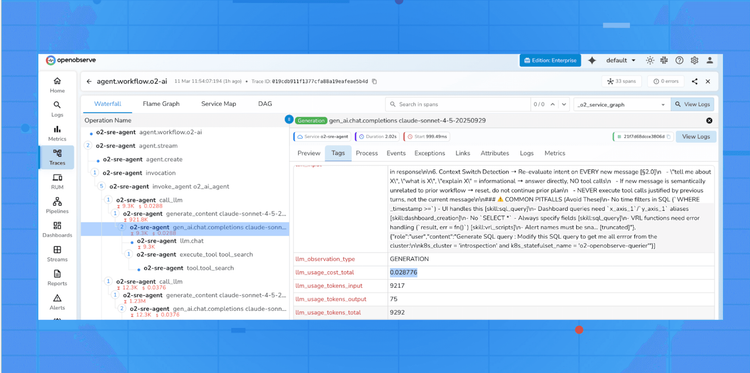
Navigate to Traces and you'll see a list of recent requests. Click any trace to expand the flame graph. You'll see:
/order route, covering the full request duration.requests.get() call to the inventory service, nested underneath.Every span carries service.name, http.method, http.status_code, http.url, and the auto-detected host attributes from the Collector's resourcedetection processor all without writing a single line of tracing code.
Trace: POST /order  [42ms total]
├── flask.request  [42ms]
│   └── requests.GET http://inventory-service/check  [18ms]
Navigate to Metrics and search for http_server_duration. You'll find:
http_server_duration_milliseconds_bucket the histogram used to calculate percentiles.http_server_request_count total requests, labelable by http_route, http_method, and http_status_code.Build a quick dashboard: plot histogram_quantile(0.95, http_server_duration_milliseconds_bucket) to see p95 latency over time. This is your first SLO-relevant signal.
Navigate to Logs and search for order-service. Each log line is a structured JSON object. Notice the trace_id and span_id fields injected automatically by LoggingInstrumentor.
Here's the critical workflow: you see an error log, you copy the trace_id, you paste it in the Traces search bar, and you're looking at the exact request that produced that log. No grep. No log tailing. No mental mapping between timestamps and request IDs.
Example log line (formatted for readability):
{
  "timestamp": "2024-10-15T09:23:41.112Z",
  "level": "INFO",
  "message": "Received create_order request",
  "service.name": "order-service",
  "trace_id": "4bf92f3577b34da6a3ce929d0e0e4736",
  "span_id": "00f067aa0ba902b7",
  "host.name": "order-service-container"
}
In under 30 minutes, starting from nothing, your microservice now has:
| Signal | What you get | How it was added |
|---|---|---|
| Traces | Full request flow with span timings | Auto-instrumentation (0 manual spans) |
| Metrics | Request rate, latency histogram, error rate | Auto-instrumentation (0 manual metrics) |
| Logs | Structured JSON with trace_id correlation |
LoggingInstrumentor (1 line) |
| Backend | Unified search and correlation in OpenObserve | Single Docker container |
The total application code change was 5 lines of OTel initialization plus 2 instrumentation calls. Everything else the Collector, the backend, the pipelines lives outside your application and can be updated independently.
This is your baseline. Every new service you build from here starts with this template, not a JIRA ticket to "add observability later." Later never comes.
Once this baseline is running, the natural next steps are:
tracer.start_as_current_span().
Passionate about observability, AI systems, and cloud-native tools. All in on DevOps and improving the developer experience.