
AI-Assisted Monitoring via MCP

Simran Kumari
March 25, 2026
12 min read
Don’t forget to share!



Try OpenObserve Cloud today for more efficient and performant observability.
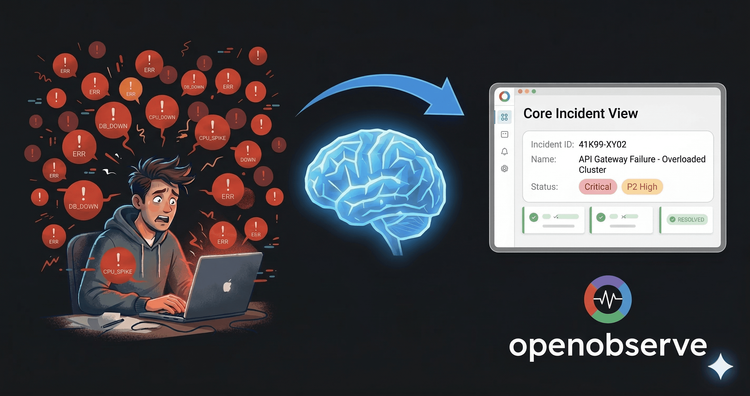
Managing logs, metrics, and traces shouldn't require switching between dashboards, memorizing query syntax, or writing SQL at 2 AM during an incident. With the Model Context Protocol (MCP), you can connect OpenObserve directly to AI assistants like Claude Code CLI and simply talk to your observability data in plain English.
In this guide, we'll walk through exactly how to set this up, what it looks like in practice, and why it fundamentally changes how engineering teams interact with their monitoring stack.
Watch the full demo: How to Use MCP to Connect OpenObserve with AI Tools https://www.youtube.com/watch?v=4qPDQKJx0-Q
The Model Context Protocol (MCP) is an open standard that defines how AI applications connect to external data sources and tools.
Before MCP, connecting an AI to your monitoring data meant building custom API wrappers, handling authentication logic, and writing prompt scaffolding for every tool. MCP standardizes all of that with a single protocol that any compatible AI client can speak.
With MCP, OpenObserve exposes its capabilities : streams, alerts, queries, dashboards : as a set of tools that your AI assistant can call directly. The result is a seamless, conversational interface to your entire observability stack.
MCP enables three core capabilities in OpenObserve:
Traditional observability workflows have a friction problem. Even with a powerful platform like OpenObserve, getting answers still requires:
MCP removes that friction entirely. Here's what changes:
| Without MCP | With MCP + AI |
|---|---|
Write SQL: SELECT * FROM logs WHERE status=500 LIMIT 100 |
Ask: "Show me 5xx errors from the last hour" |
| Navigate to Alerts UI, fill form fields | Say: "Create an alert for when error rate exceeds 5%" |
| Build dashboard panels manually | Ask: "Create a dashboard showing p99 latency and pod count for checkout service" |
| Switch between tabs to correlate logs + traces | Ask: "What were the CPU metrics when that log spike happened?" |
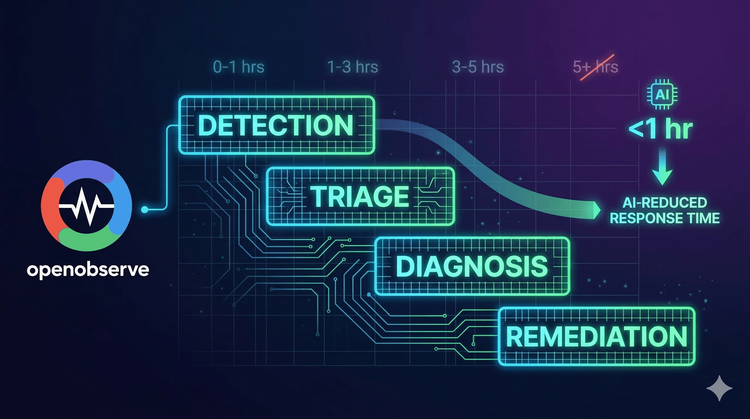
For SREs and developers, this is the difference between a 20-minute investigation and a 2-minute one.
Before you begin, make sure you have the following in place:
If you're self-hosting, you must set this environment variable on your OpenObserve instance before proceeding:
O2_TOOL_API_URL="http://localhost:5080"
O2_AI_ENABLED="true"
Without O2_TOOL_API_URL, the MCP endpoint won't know where to route tool calls. Without O2_AI_ENABLED, the AI features remain dormant.
MCP uses Basic Auth to authenticate connections. You'll need to generate a Base64-encoded token from your OpenObserve credentials.
Open your terminal and run:
echo -n "your-email@example.com:your-password" | base64
Copy the output : this is your authorization token. Keep it somewhere safe; you'll use it in the next step.
If you're on a self-hosted instance, you can find your credentials in the Data Sources section of the OpenObserve UI.
⚠️ Important: Make sure your username and password are exactly correct. Even a single character difference in the password will produce an invalid token, and the MCP connection will fail silently with a 401 error.
Now tell Claude Code where to find your OpenObserve instance. Run this command in your terminal:
claude mcp add o2 https://your-instance/api/default/mcp \
  -t http \
  --header "Authorization: Basic <YOUR_BASE64_TOKEN>"
Replace:
your-instance with your OpenObserve URL (e.g., cloud.openobserve.ai or your self-hosted domain) default with your organization ID if different <YOUR_BASE64_TOKEN> with the token you generated in Step 1What this command does:
o2 in your Claude Code configuration This saves the configuration to a claude.json file, usually located at ~/.claude/claude.json. By default the server is scoped to your current project. To make it available globally across all projects, add the --global flag:
claude mcp add o2 https://your-instance/api/default/mcp \
  -t http \
  --header "Authorization: Basic <YOUR_BASE64_TOKEN>" \
  --global
Before diving into queries, confirm that Claude can reach your OpenObserve instance:
claude mcp list
You should see o2 listed as an active server with a connected status. You can also view the full configuration detail:
cat ~/.claude/claude.json
This will show your account ID, organization, email, and server startup count : confirming the connection is live and authenticated correctly.
If the connection fails:
# Test your credentials directly
curl -u "username:password" https://your-instance/api/default/_meta

# Verify your Base64 token decodes correctly
echo "YOUR_TOKEN" | base64 -d
The most common cause of failure is a token generated with incorrect credentials. If you see a 401, remove the server and re-add it with a freshly generated token:
claude mcp remove o2
# Then re-run the add command with a new token
Now the real power kicks in. Launch Claude Code and type /mcp to see all the tools available from OpenObserve. You'll see a list of capabilities including stream listing, alert management, data querying, and more.
Start by asking Claude to show you what data exists:
List all my log streams
If you have multiple organizations, Claude will ask which organization ID to target. Tell it default (or your specific org name), and it will return details about your streams : including document counts, file counts, and stream metadata.
Instead of writing SQL, just describe what you're looking for:
Show me all error logs from the payment service in the last hour
Find authentication failures grouped by IP address from today
What are the top 10 endpoints by latency in the last 24 hours?
List all failed transactions where response time exceeded 2 seconds
Claude translates these into the appropriate SQL queries against your OpenObserve streams and returns structured results : without you ever touching a query editor.
One of the most powerful aspects of MCP + OpenObserve is that logs, metrics, and traces are all queryable in the same conversation thread. You can ask about a log anomaly, then immediately ask about the corresponding CPU metrics : and Claude maintains context across the entire investigation.
There was a log spike at 3:42 PM. What were the CPU and memory metrics
at that time for the checkout service?
You can build your entire monitoring system through conversation. If you want to start watching for critical errors, just ask:
Create an alert for when the 5xx error rate exceeds 1% in the last 5 minutes
Claude is smart enough to look at your existing stream schema and suggest the best alert configuration. It will propose:
WHERE status >= 500) Claude will always ask for your confirmation before creating anything : you're in control.
An alert without a destination is useless. If you don't have a destination configured (Slack, email, PagerDuty, webhook), Claude will detect this and offer to create one:
Create an email destination for critical alerts
Set up a Slack webhook destination for the #incidents channel
Claude walks you through each required field. Once the destination is created, it automatically links it to any new alerts you create in the same session.
With OpenObserve's MCP tooling, you can also generate complete dashboards from a single natural language prompt:
Create a dashboard showing 5xx error rate, p99 latency, and active pod count
for the checkout service
The dashboard is created in seconds : no clicking through a form wizard, no manual panel configuration.
When you connect via MCP, Claude has access to the following tools. Tool names are prefixed with your server name (e.g., mcp__o2__StreamList):
| Tool | What it does |
|---|---|
StreamList |
List all streams : logs, metrics, traces |
QueryData |
Execute natural language or SQL queries against any stream |
GetStreamStats |
Retrieve document counts, file counts, and stream metadata |
CreateAlert |
Create a new alert with conditions, triggers, and destinations |
UpdateAlert |
Modify an existing alert's conditions or thresholds |
DeleteAlert |
Remove an alert |
ListAlerts |
Show all configured alerts and their current status |
ListDestinations |
Show all alert destinations (email, Slack, webhook) |
As OpenObserve's MCP implementation matures, expect additional tools for dashboard management, pipeline configuration, and user access control.
Connecting AI tools to production observability data requires care. Follow these guidelines:
O2_MCP_VALIDATION_ENABLED="true" on your OpenObserve instance. Use hybrid validation mode for the best balance of security and flexibility. You get paged. Instead of hunting for the right dashboard, you type:
What's broken in production right now? Show me errors in the last 15 minutes.
Claude queries your streams, surfaces the error pattern, and correlates it with trace data : all in one conversation thread. You go from alert to root cause without opening a browser.
Before pushing a new service to production, a developer asks:
Create alerts for the payments-v2 service: alert if error rate > 2% or
p99 latency exceeds 500ms, send to the #deployments Slack channel
Two alerts are created and linked to the Slack destination in under 30 seconds.
A team lead runs a quick review:
What were the top 5 slowest API endpoints last week?
Compare to the week before.
OpenObserve queries the historical data. Claude presents the comparison. No dashboards needed.
Teams can query metrics and create alerts as part of deployment pipelines : using Claude Code in scripted mode rather than interactive mode : making observability a first-class part of the deployment process rather than an afterthought.
/api/{org_id}/mcp echo -n "email:password" | base64 O2_AI_ENABLED="true" and O2_TOOL_API_URL are set on your OpenObserve instance curl -H "Authorization: Basic <TOKEN>" https://your-instance/api/default/mcp# Verify the token decodes to the right credentials
echo "YOUR_TOKEN" | base64 -d
# Should output: your-email@example.com:your-password
Remove and re-add the server with a freshly generated token.
claude restart /mcp to refresh the tool list Confirm both environment variables are set:
# In your OpenObserve environment
echo $O2_TOOL_API_URL   # Should output your instance URL
echo $O2_AI_ENABLED      # Should output "true"
The combination of OpenObserve and MCP represents a genuine shift in how engineering teams interact with observability data. It's not just a convenience feature : it removes the expertise barrier that has always separated "people who can query monitoring data" from "people who need answers from monitoring data."
With this setup, any developer on your team can:
The setup takes less than 10 minutes. You need the OpenObserve Enterprise edition, Claude Code CLI, and a Base64 token generated from your credentials. Connect them with a single claude mcp add command, and you're having conversations with your data.
If you want to see it in action before setting it up yourself, watch the full walkthrough: How to Use MCP to Connect OpenObserve with AI Tools →

Passionate about observability, AI systems, and cloud-native tools. All in on DevOps and improving the developer experience.