Pin a Dashboard to Your OpenObserve Home Page (Org-Wide)




Ready to get started?
Try OpenObserve Cloud today for more efficient and performant observability.
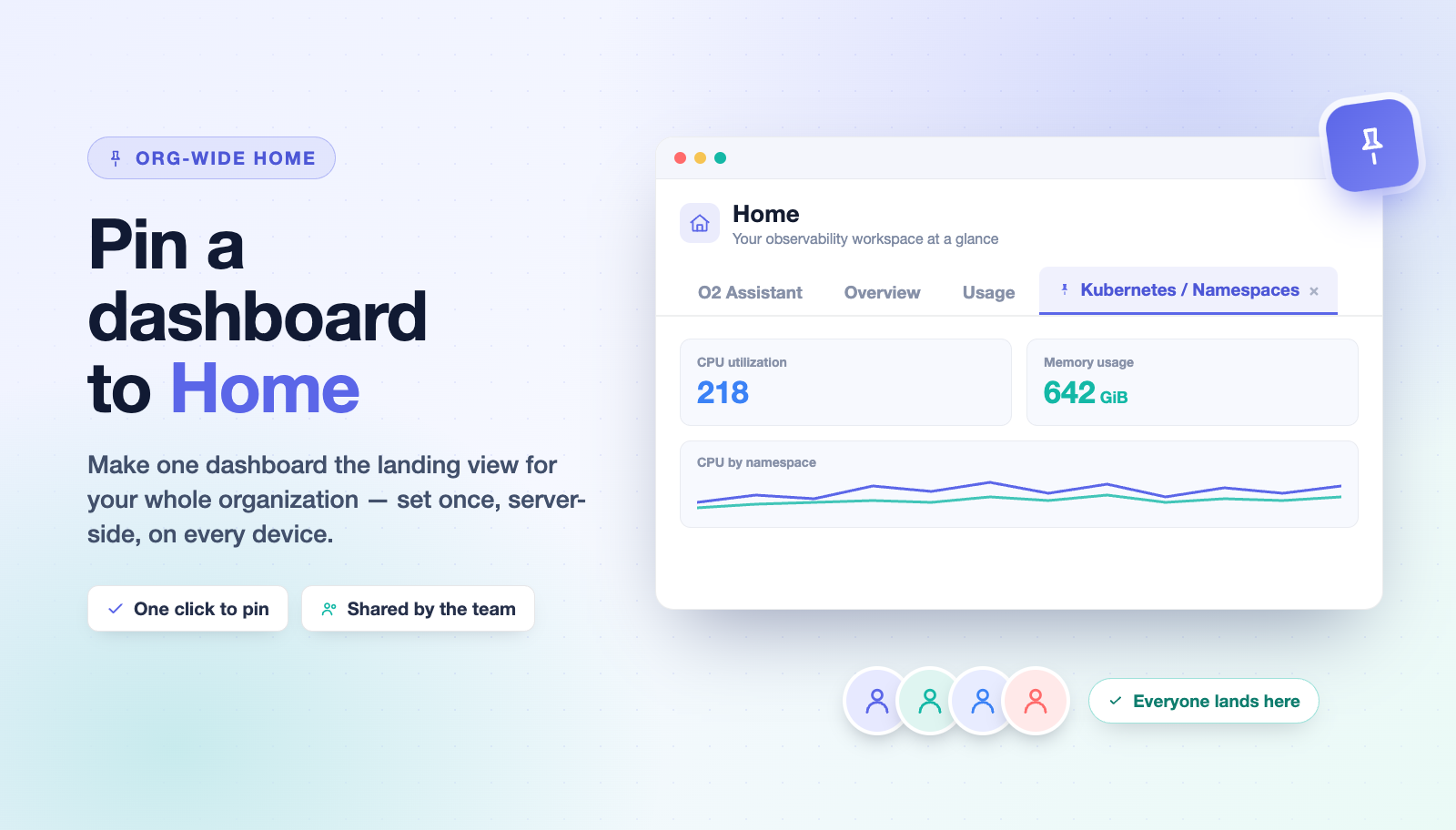
This one came straight from a customer. Their team had a single dashboard that everyone opened first - a Kubernetes namespace view: CPU and memory by namespace, storage pressure, the works. On-call opened it during incidents. New engineers opened it to learn the cluster. Everyone opened it every morning. And every single person got there the same way: click Dashboards, remember which folder it lived in, scroll, click. A whole team re-navigating to the same view, every day, because the product's Home page didn't know that was the view that mattered. Their ask was simple: "Let us put that dashboard on the Home page, for everyone."
So we built it. OpenObserve now lets you pin one dashboard to the Home page for the whole organization in a couple of clicks. The choice is stored on the server, against the org, so it isn't a bookmark that lives in your browser - it's the same Home tab for every member of the org, on every device, whether or not they've ever opened that dashboard before. Set it once, and re-navigating to the team's dashboard stops being a thing anyone does.
This guide walks the whole flow - using that same customer's Kubernetes namespace dashboard as the example: where to pin from, what the pinned state looks like, how to prove it's genuinely org-wide and not just cached locally, and how to change or remove it. It closes with how the feature works under the hood and a short troubleshooting list.
What "pin to Home" actually does
Home in OpenObserve is a tabbed page - it already carries tabs like O2 Assistant, Overview, and Usage. Pinning adds one more tab: your chosen dashboard, rendered read-only with its own time picker. The rules are deliberately small:
- One dashboard per org. Home holds a single pin. Pinning a new one replaces the old one; there's no growing row of tabs to curate.
- Org-wide and server-side. The pin is an organization setting. Everyone in the org sees it, and it survives new browsers and cleared local storage because it isn't stored locally.
- Permission-gated. Because it's an org setting, changing it is governed by the same role-based access control that guards other org settings.
- Non-destructive. Pinning records which dashboard is Home. It doesn't move, copy, or edit the dashboard - that still lives in its folder exactly as before.
Prerequisites
- OpenObserve with the org-wide Home dashboard. It's available now on OpenObserve Cloud - no upgrade needed. For self-hosted, it's in the open-source edition - no Enterprise license required - and ships in v0.92.0; upgrade to that release (or newer) to get it. You'll know it's there when the dashboard list's ⋮ menu shows Pin to home page and an open dashboard's header shows a Set as home button.
- At least one dashboard you want everyone to land on.
- Permission to change organization settings, for the account doing the pinning. If you don't have it, the pin is rejected and reverts (see Troubleshooting) - an org admin can do it instead.
Step 1 - Pin from the dashboard list
Open Dashboards and find the dashboard you want as your team's landing view. In the row's Actions, open the ⋮ overflow menu and click Pin to home page.
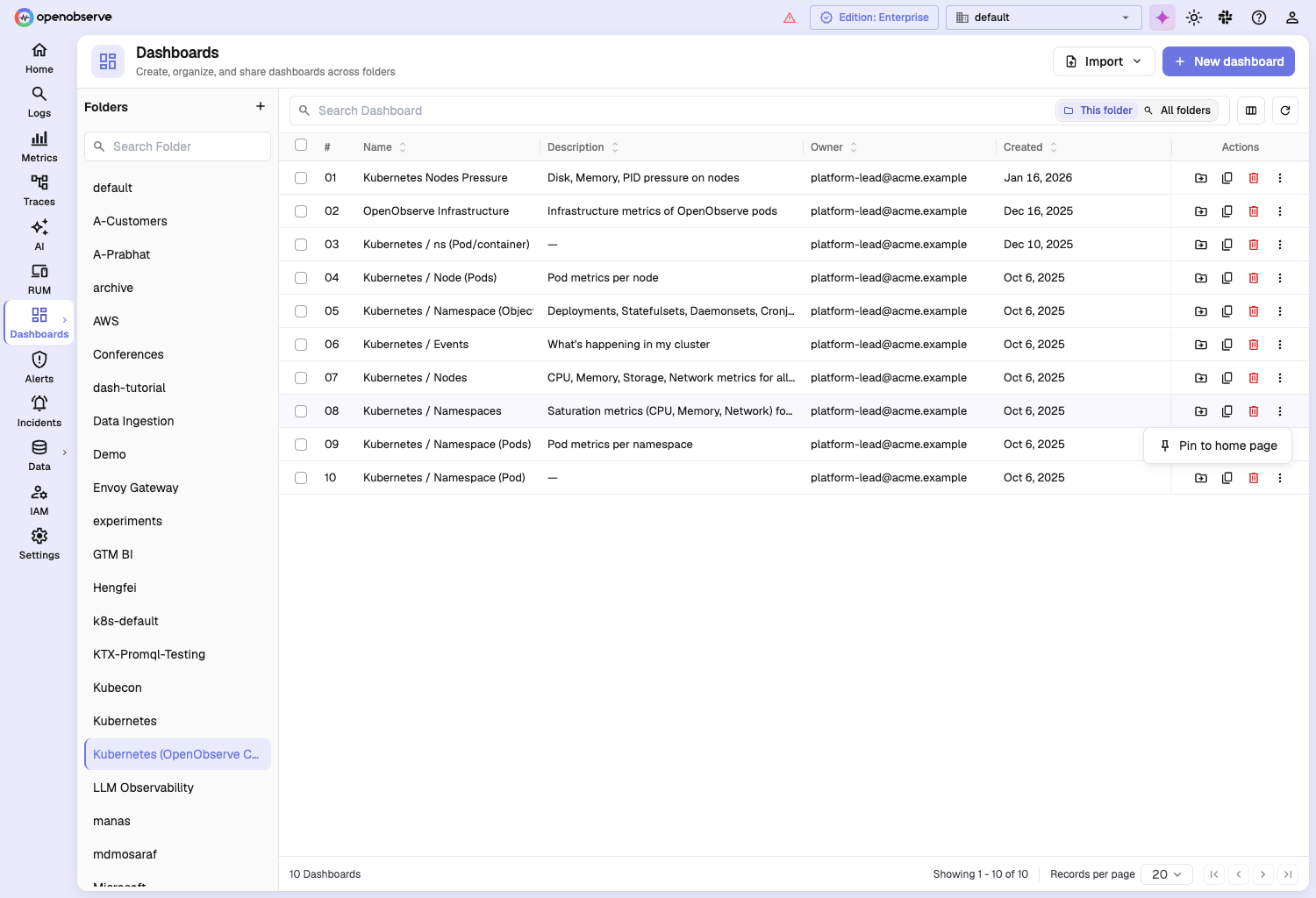
The low-frequency "pin" action lives in the overflow menu on purpose - move, duplicate, and delete stay inline on every row, while pinning to Home tucks out of the way until you want it. There's no confirmation dialog and no separate save: the pin is written the moment you click.
Step 2 - Confirm the pin at a glance
Once pinned, the dashboard list gives you two at-a-glance indicators, so anyone can see which dashboard is the org's Home view without opening a settings page:
- a pin icon next to the dashboard's name in its row, and
- the pinned dashboard's name shown as a chip in the page header, top-right.
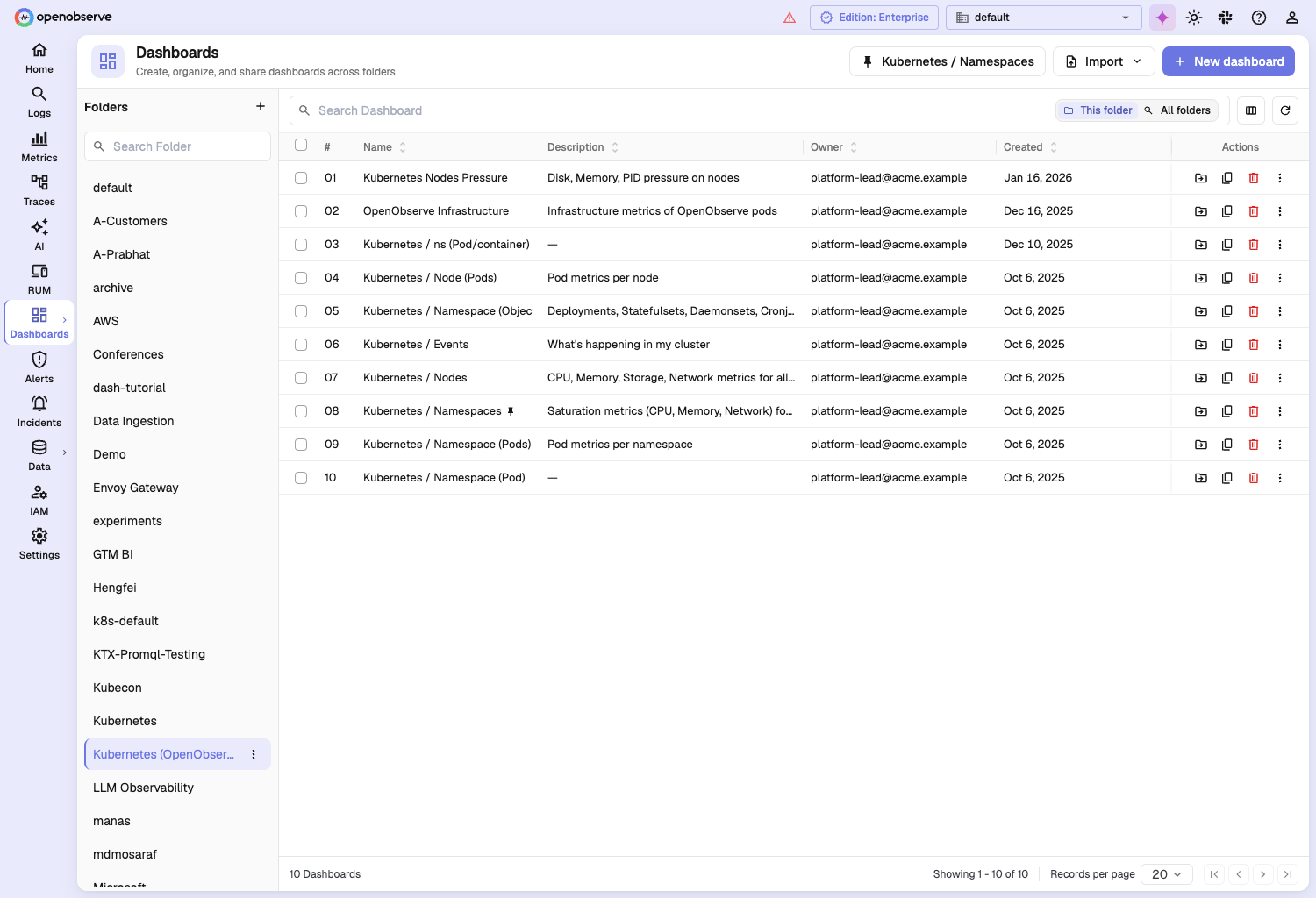
That header chip is a shortcut as much as an indicator - it tells the whole team, from the list, what "Home" currently points at.
Step 3 - Or pin from the dashboard itself
You don't have to go back to the list. Open the dashboard, and its header carries a Set as home button. Once this dashboard is the org's Home view, that button reads Home dashboard (with the pin icon filled in), so the header doubles as a status: you can tell you're looking at the pinned dashboard without leaving it.
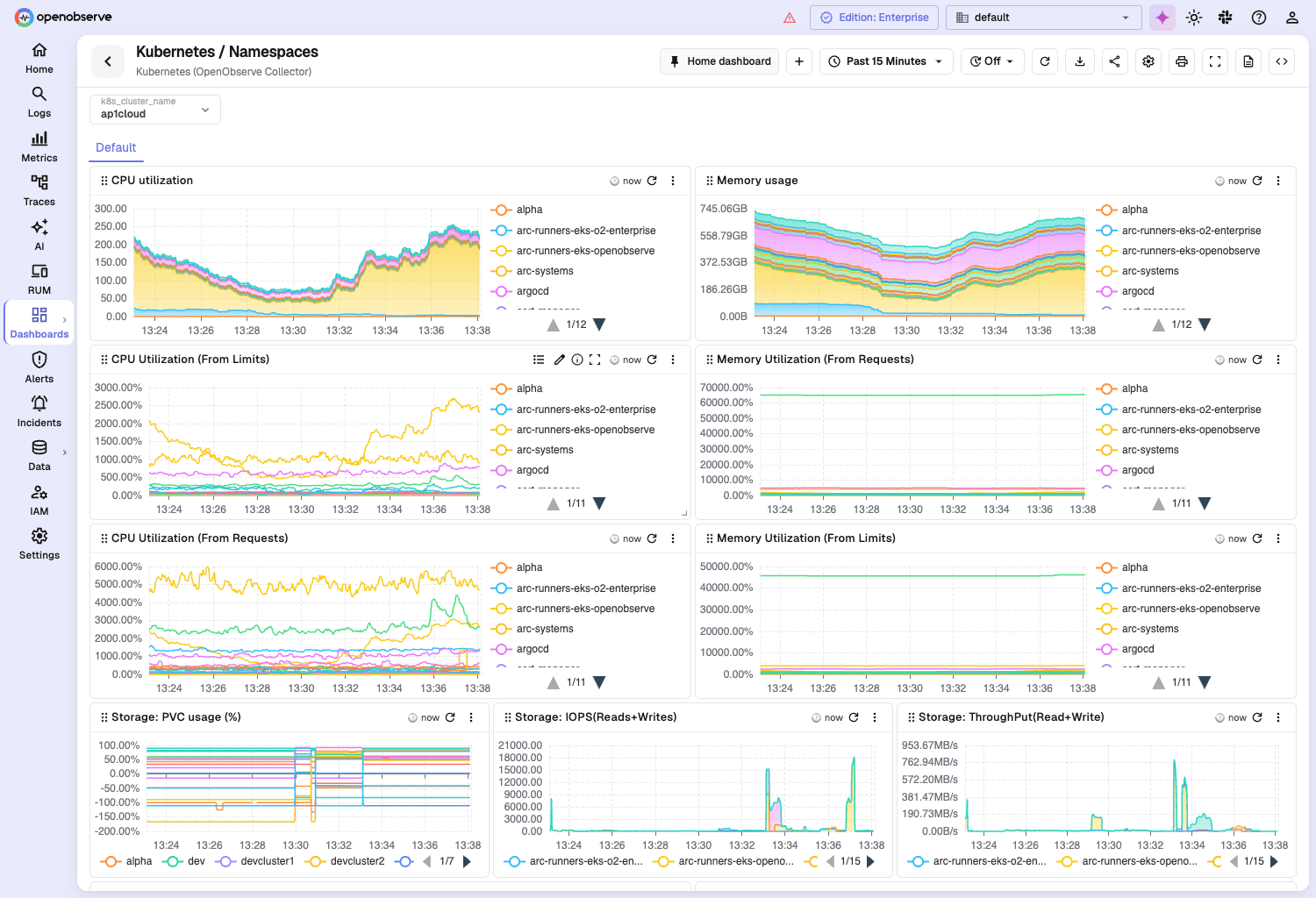
Both entry points drive the same org setting, so it doesn't matter which you use - the list ⋮ and the header button stay in sync.
Step 4 - See it on the Home page
Now open Home. The pinned dashboard appears as its own tab alongside the built-in tabs, and selecting it renders the full dashboard inline - every panel, plus its own time picker so people can widen or narrow the window right there on Home.
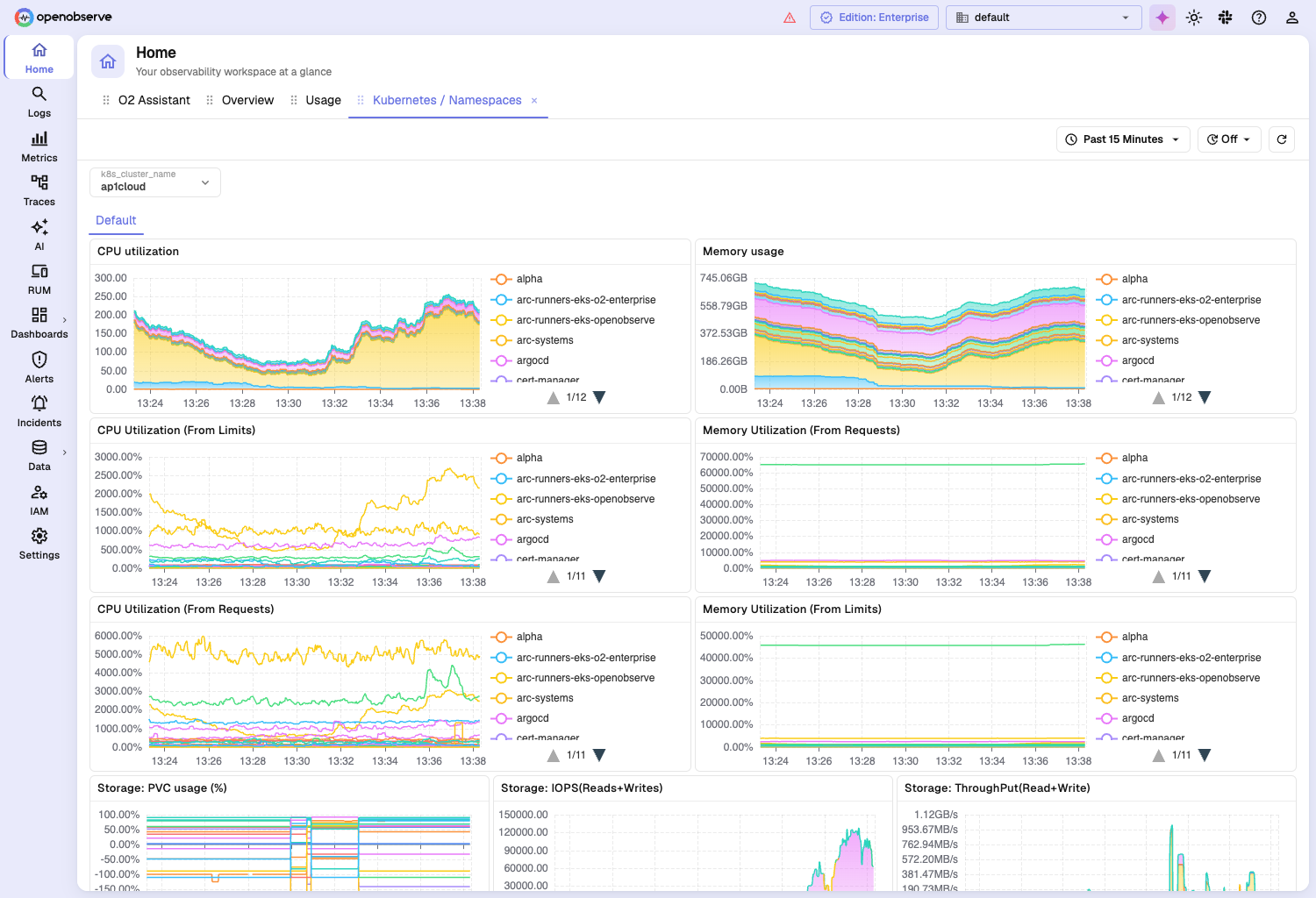
This is the whole point: the first thing anyone in the org sees when they land on Home is the view your team actually cares about - no folder-hunting, no shared wiki link, no "which dashboard was it again?"
Verify it's genuinely org-wide
A local bookmark would look the same to you. The way to be sure this is server-side and shared is to check it from somewhere that has none of your local state:
- Open OpenObserve in a fresh browser profile or a private/incognito window (nothing cached, no local storage), log in, and go to Home. The same pinned tab is there.
- Better still, ask a teammate to open Home. They see the same tab, even if they've never opened that dashboard.
- If your org has more than one organization, switch orgs. Home shows that org's pinned dashboard - or none - with no cross-org leakage. The pin is scoped per organization.
Because the tab is rebuilt from the org setting on each load rather than from anything in the browser, a clean profile is the honest test - and it passes.
Manage: replace or remove the pin
Replace. Pin a different dashboard (from either entry point) and it takes over as the single Home dashboard; the previous one quietly drops off Home. No need to unpin the old one first.
Remove. There are two ways to unpin:
- On the Home page, hover the pinned tab and click its × - the tooltip reads Remove home dashboard.
- In the dashboard list, open the same ⋮ menu; now that the dashboard is pinned, the action reads Unpin from home page.
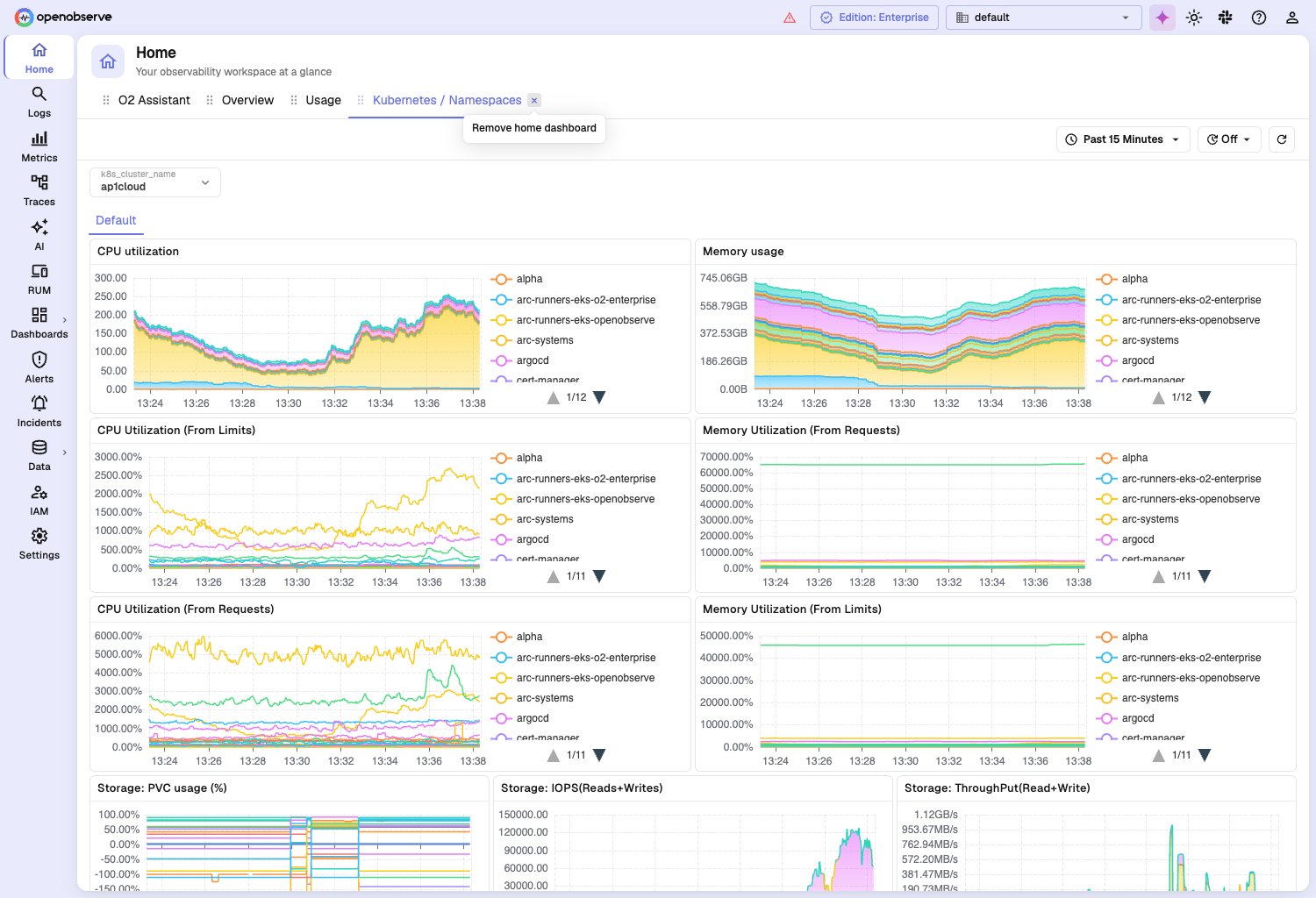
Either way removes the tab for the whole org. And because the pin lives on the server, removing it clears it everywhere - not just in your session.
How it works under the hood
You don't need any of this to use the feature, but it explains the behavior you'll see:
- Server-backed org setting. The pin is stored as a single organization setting (key
home_dashboard) through OpenObserve's existing settings API - the same mechanism and RBAC gate other org settings use. It records the dashboard id, its folder id, and a label. No new backend was added for this; it reuses infrastructure that already exists. - Loaded on boot and org switch. The Home dashboard is read as part of the organization's settings when the app loads and whenever you switch orgs, which is exactly what makes it naturally org-scoped: switch orgs, get that org's Home dashboard, with no cross-org bleed.
- Optimistic, with a safety net. Pinning updates the UI immediately and writes to the server in the background. If the write is rejected - most commonly a permission (403) error - the change reverts and you get a toast explaining why, so you never end up with a pin the server didn't actually accept.
- Self-healing labels and deletes. If the pinned dashboard is renamed, the Home tab's label re-syncs to the new title and that fresh label is persisted. If the pinned dashboard is deleted, the stale pin is cleaned up rather than left dangling: the next time Home is opened it detects the target is gone, drops the tab, and tells you the dashboard is no longer available instead of failing to load - and the cleared setting is written back so the pin doesn't reappear.
That last point is why replacing and deleting feel seamless: the single-value model and the server-side cleanup mean there's never a dangling tab pointing at a dashboard that isn't there.
Troubleshooting
"You don't have permission to change the home dashboard." Setting the org Home dashboard is an org-settings change, gated by RBAC. Your optimistic pin reverts and you see this toast. Have an org admin pin it, or get your role granted settings access.
The tab didn't appear on Home. Reload Home so the organization settings are re-read (the pin loads with the org settings on boot). Confirm you're in the same organization you pinned from - the org selector is top-right - since the pin is per-org. And re-open the dashboard list to check the pin indicator is actually set.
A teammate doesn't see it. Confirm they're in the same organization. If they are and it's still missing, have them reload Home to re-read the org settings. Because the pin is server-side, there's nothing for them to configure locally.
The Home tab shows "no longer available." The pinned dashboard was deleted or moved out of reach. Home clears the stale pin and tells you; just pin a current dashboard to set Home again.
The Home tab's name looks stale. Open the pinned dashboard once - the label re-syncs to the dashboard's current title and persists. (It also self-corrects the next time someone opens the Home tab.)
Wrapping up
Pinning a dashboard to Home is a small feature with an outsized effect on a team's daily friction, and it exists because a customer told us their team's most important dashboard was one they had to hunt for every day. Now the shared "single pane of glass" stops being a place people navigate to and becomes the place they start. Because the choice is stored server-side and scoped to the organization, you configure it once, from the dashboard list or the dashboard's own header, and every engineer, on every device, lands on the same view. New hires included, on day one, without a link.
If you're already running dashboards in OpenObserve, pick the one your team opens most and pin it. If you're new to OpenObserve, try OpenObserve Cloud free and build the dashboard first, then make it the first thing your whole org sees. And if there's a workflow you wish OpenObserve had, tell us, this feature started exactly that way.
For more on building the dashboard worth pinning, see monitoring dashboards with OpenObserve, observability dashboards, and metrics dashboards for SRE and DevOps.
Ready to get started?
- Try OpenObserve Cloud: 14-day free trial, no credit card required
- Read the dashboards docs: build your first dashboard in minutes
Frequently Asked Questions
About the Author
Ashish Kolhe


Ashish leads Engineering at OpenObserve. Ashish is obsessed with building high performance systems with simplicity in mind. He has vast experience in multiple disciplines like streaming, analytics, big data and more.
Follow OpenObserve on Google
Add OpenObserve as a preferred source to see more of our articles in Google Search and Top Stories.