How to Deploy OpenObserve on Spectro Cloud Palette





Ready to get started?
Try OpenObserve Cloud today for more efficient and performant observability.
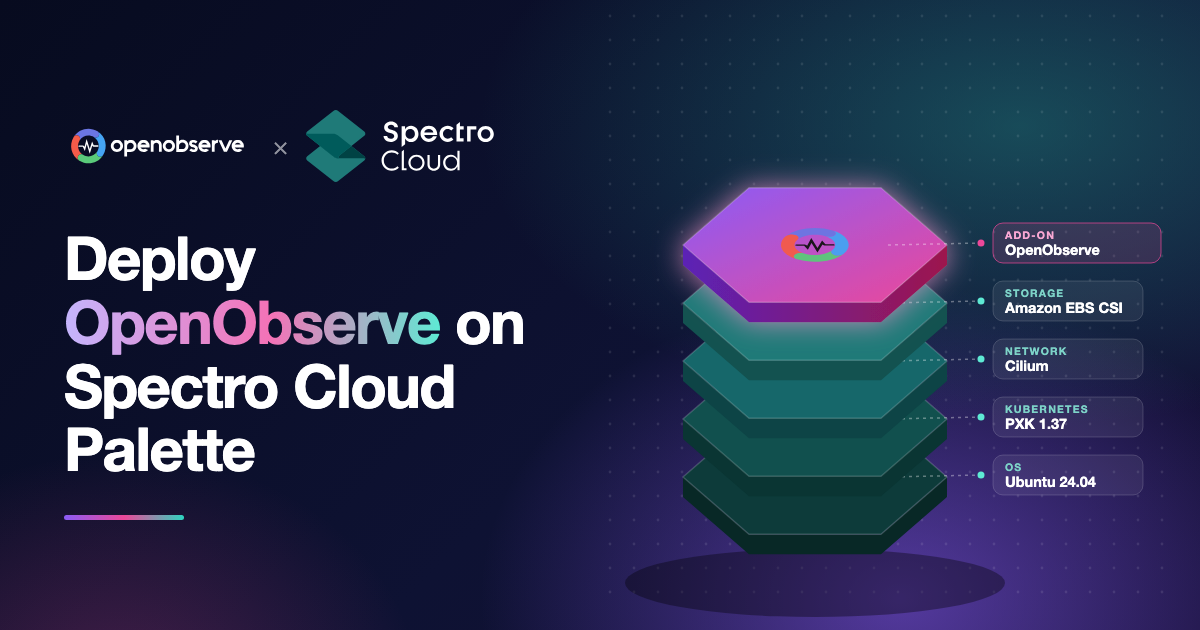
Deploying OpenObserve on Spectro Cloud Palette takes two cluster profiles: a full cluster profile that builds the Kubernetes cluster on AWS, and an add-on profile that installs the OpenObserve pack from the Palette Registry. This guide walks platform engineers through both, end to end, including the PostgreSQL database OpenObserve needs and how to open the UI once it is running.
TL;DR
- Cluster profile: Ubuntu 24.04, Palette eXtended Kubernetes (PXK), Cilium, and Amazon EBS CSI on AWS IaaS.
- Add-on profile: the OpenObserve pack with your root user, S3 storage, service, and PostgreSQL values.
- PostgreSQL is required: add the PostgreSQL pack (embedded database) or use a managed one.
- Access: select the :5080 link under Services on the cluster Overview tab.
Why run OpenObserve on Spectro Cloud Palette?
Spectro Cloud Palette manages Kubernetes clusters through cluster profiles: layered stacks of packs (OS, Kubernetes, network, storage, and add-ons) that Palette deploys and keeps in sync across clusters. Adding OpenObserve as a pack means your observability backend is versioned, repeatable, and deployed the same way as the rest of the platform.
OpenObserve is an open source (AGPL-3.0) observability platform that stores telemetry as Parquet on object storage. Once it is running in your Palette cluster, you get:
- Telemetry: logs, metrics (PromQL and SQL), traces with a service graph and service catalog, and continuous profiling.
- Frontend and synthetics: real user monitoring (RUM), session replay, error tracking, and synthetic browser and protocol checks.
- AI: AI Assistant, SRE Agent for AI root cause analysis, an MCP server, LLM observability and evaluations, anomaly detection, log patterns, and insights.
- Alerting and reliability: scheduled, real-time, composite, and anomaly alerts, incident management, and SLOs with error budgets and burn rate.
- Dashboards and reports, plus pipelines, VRL functions, enrichment tables, and downsampling for data processing.
- Storage and cost: object storage, bring your own bucket, extended retention, and ingest-based pricing with no per-host or per-user fees.
- Security and compliance: SSO, RBAC, multi-tenancy, sensitive data redaction, audit trail, cipher keys, and federated search. OpenObserve is SOC 2 Type II and ISO 27001 certified, with GDPR support through its EU region.
- Open standards: OpenTelemetry-native ingestion for logs, metrics, traces, and profiles.
Some of these, such as SSO, RBAC, and the AI features, are part of OpenObserve Enterprise and Cloud.
How does an OpenObserve deployment on Palette work?
A Palette cluster is built from a full (or infrastructure) cluster profile plus zero or more add-on profiles. OpenObserve lives in an add-on profile, so you can attach it to any healthy cluster without rebuilding the cluster itself.
| Profile | Layer | Pack used in this guide |
|---|---|---|
Full (Openobserve_k8s) |
OS | Ubuntu (AWS) 24.04 |
| Full | Kubernetes | Palette eXtended Kubernetes (PXK) 1.37.0 |
| Full | Network | Cilium 1.20.4 |
| Full | Storage | Amazon EBS CSI 1.67.2 |
Add-on (o2_layer) |
Monitoring | OpenObserve 1.0.3 |
Add-on (o2_layer, embedded database only) |
Database | PostgreSQL |
Prerequisites
- A Palette account and a project you can create profiles and clusters in.
- An AWS account added to Palette, and an EC2 key pair in the region you deploy to. (Source: Spectro Cloud docs, Create and Manage AWS IaaS Cluster, November 2026)
- A PostgreSQL 14 or later database for OpenObserve metadata, or the PostgreSQL pack for the embedded database (Step 4). (Source: Spectro Cloud docs, Deploy OpenTelemetry Monitoring Stack, November 2026)
- Optional: an S3 bucket and access keys if you want OpenObserve to store data in object storage instead of on the pod.
Step 1: Log in to Palette
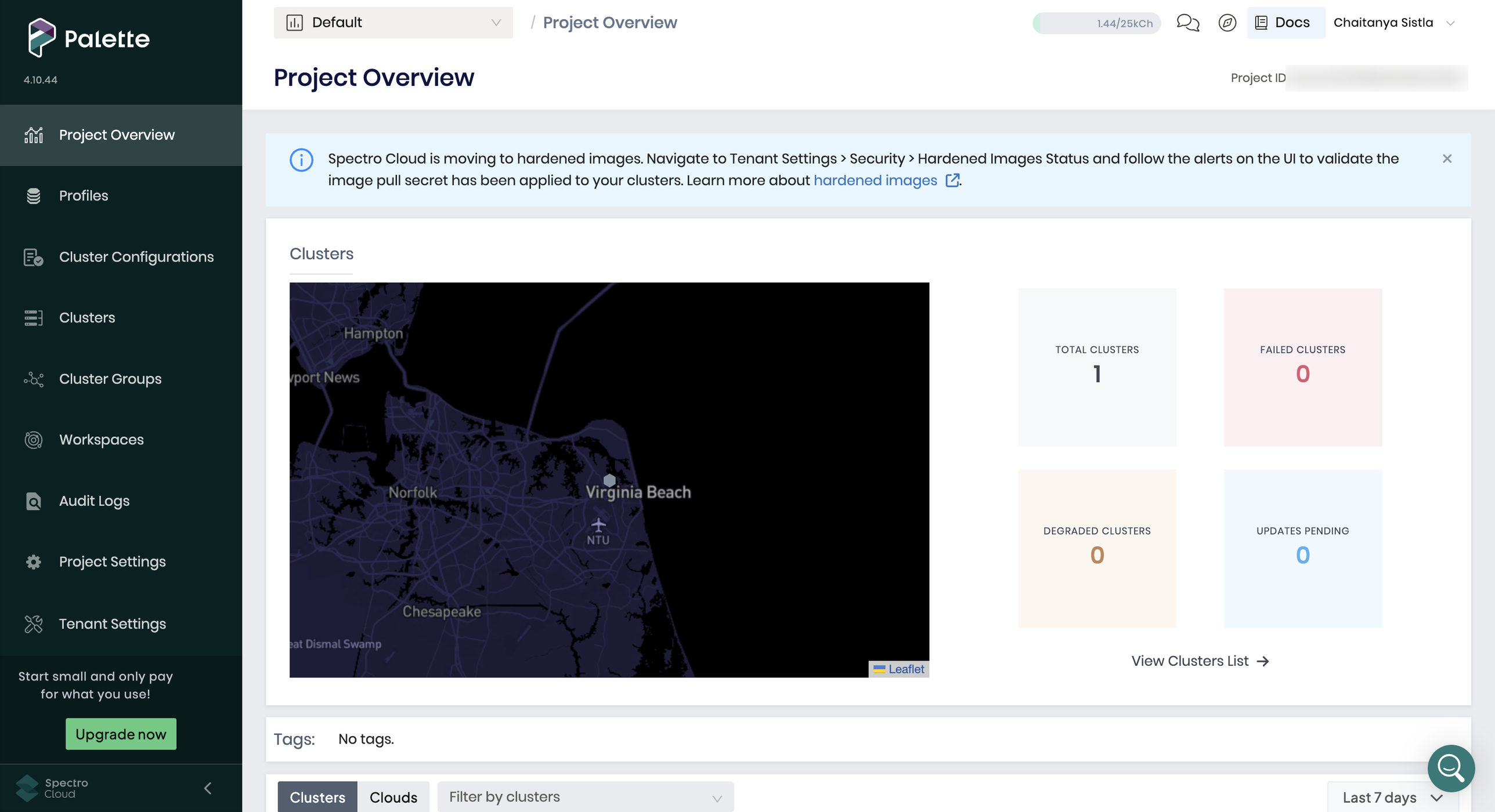
Log in to Palette and select your project. The Project Overview page shows your clusters and their health.
Step 2: Create the cluster profile
The cluster profile defines the OS, Kubernetes distribution, network, and storage for the cluster that will run OpenObserve.
From the left menu, select Profiles, then Add Cluster Profile. Enter a name (this guide uses
Openobserve_k8s), keep version1.0.0, select Full as the Type, and select Next.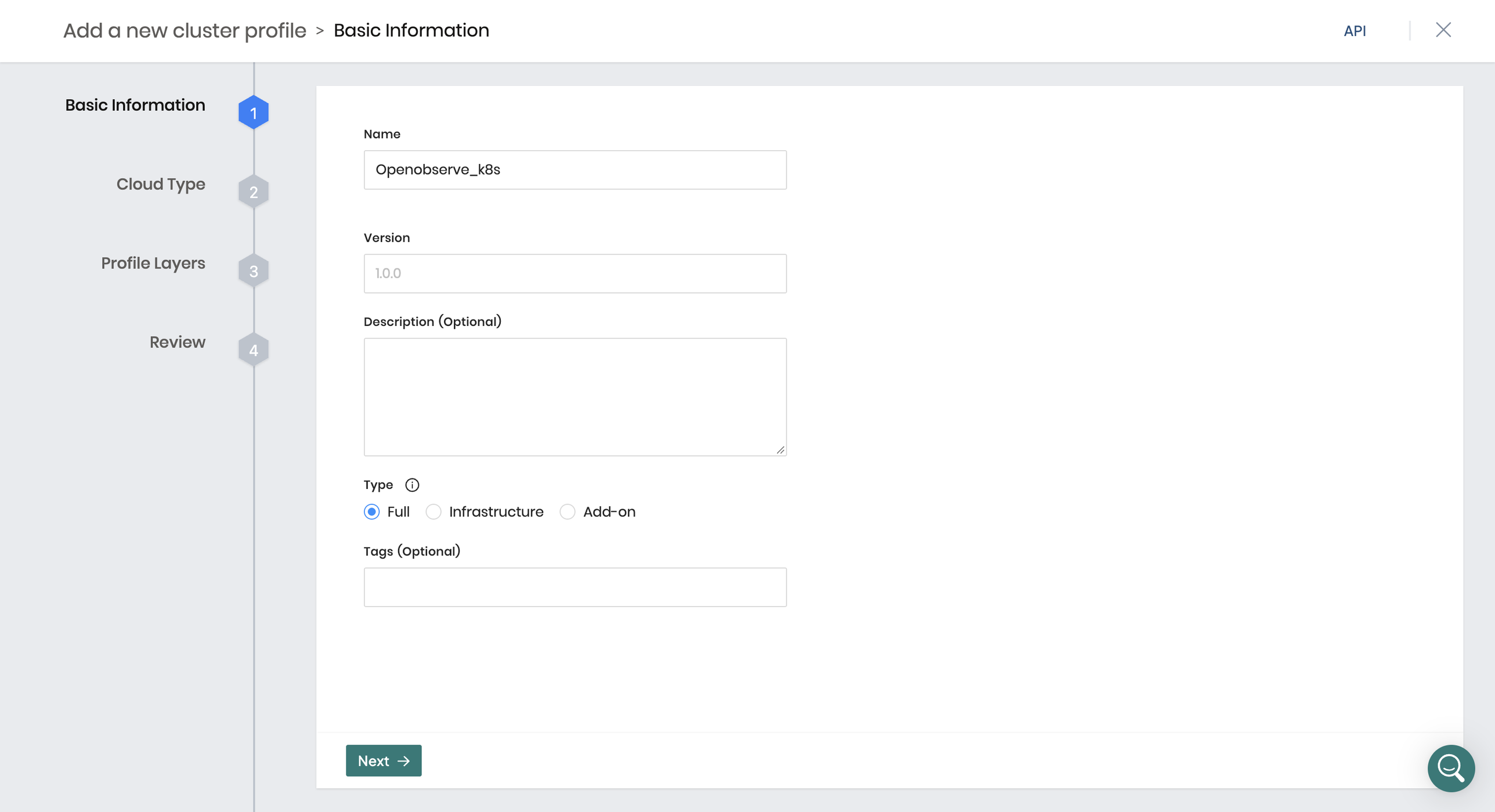
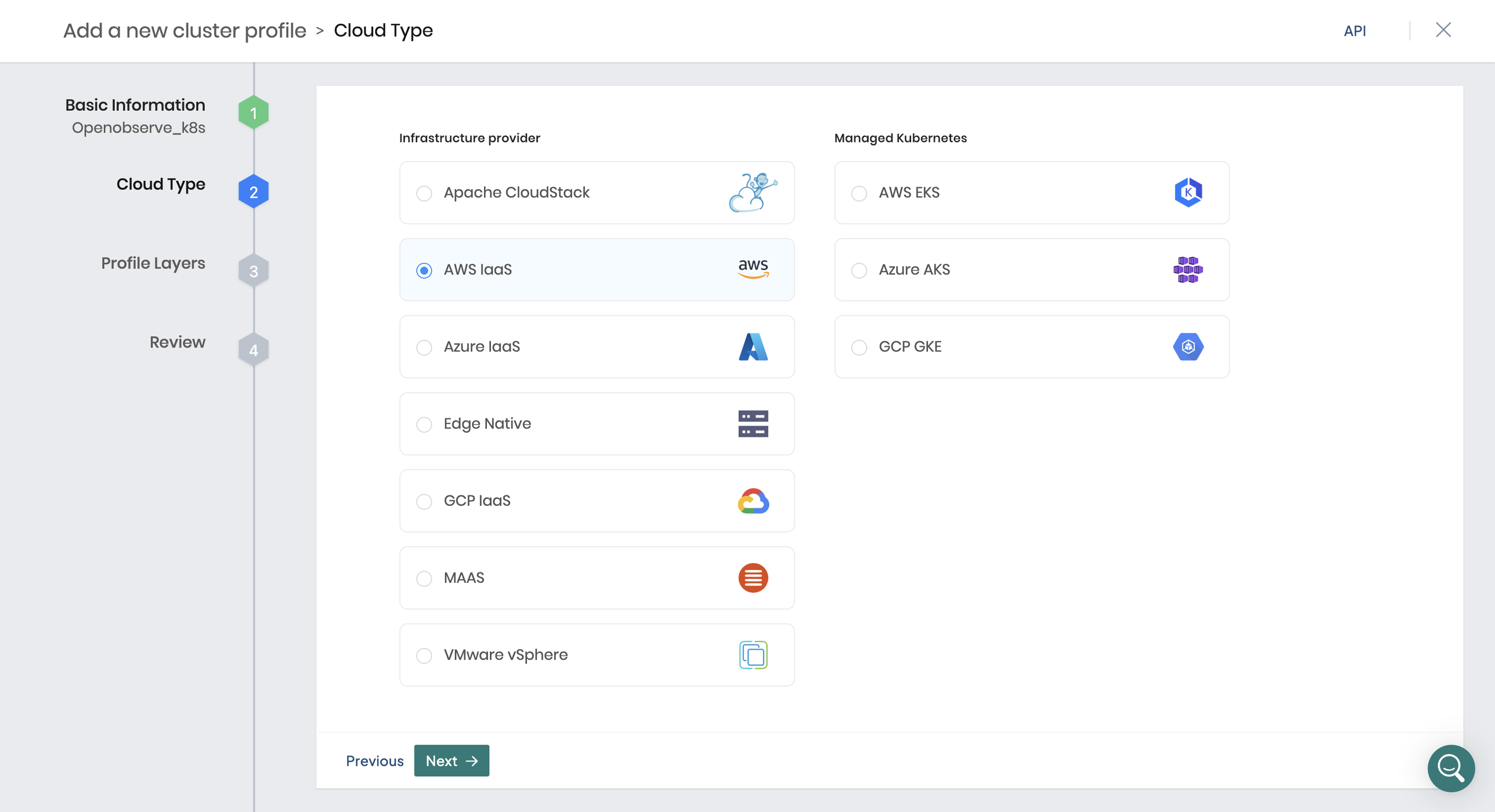
On Cloud Type, select AWS IaaS under Infrastructure provider, then select Next.
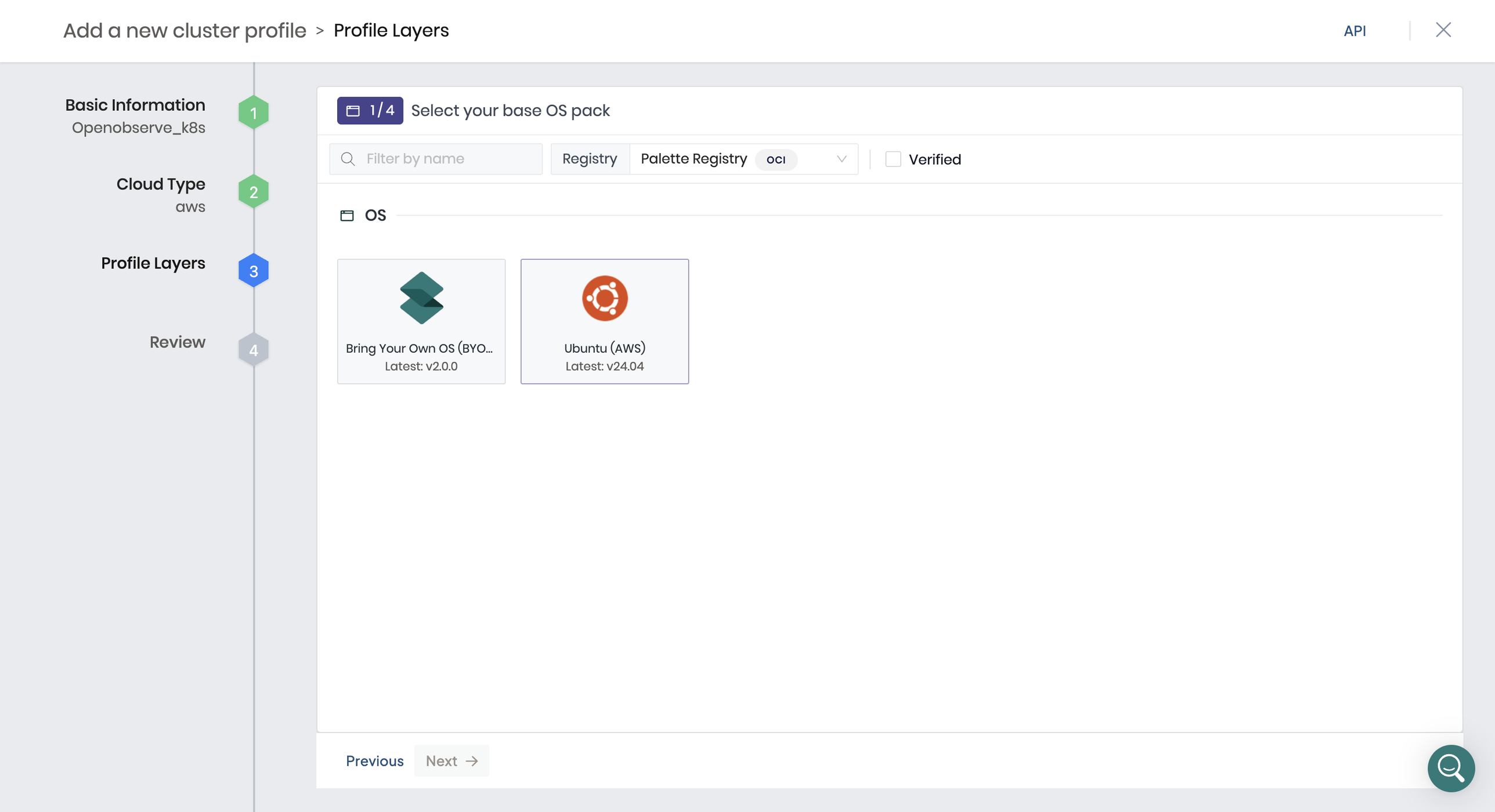
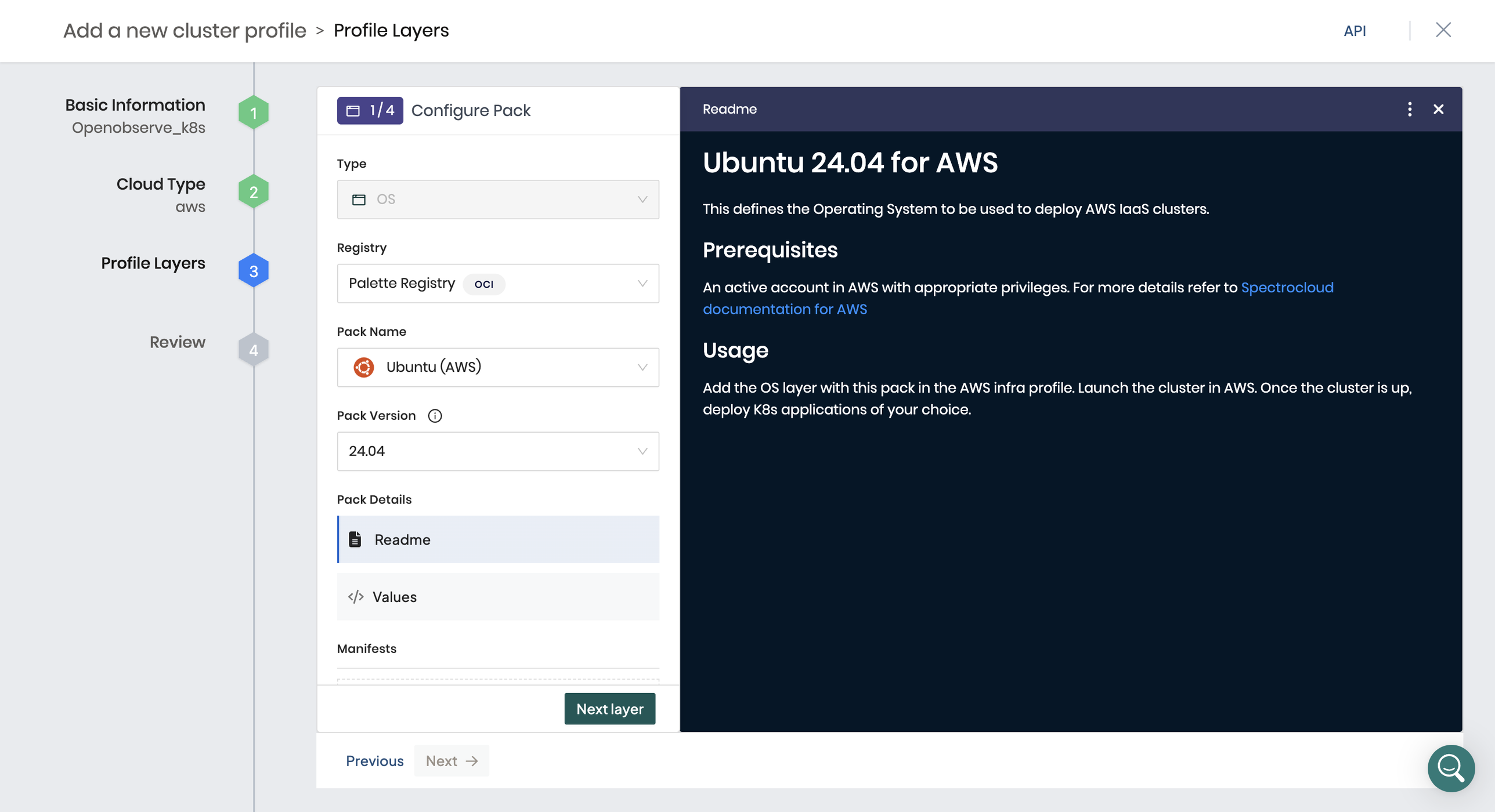
On Profile Layers, select Ubuntu (AWS) as the base OS pack.
Leave the Ubuntu 24.04 values as they are and select Next layer.
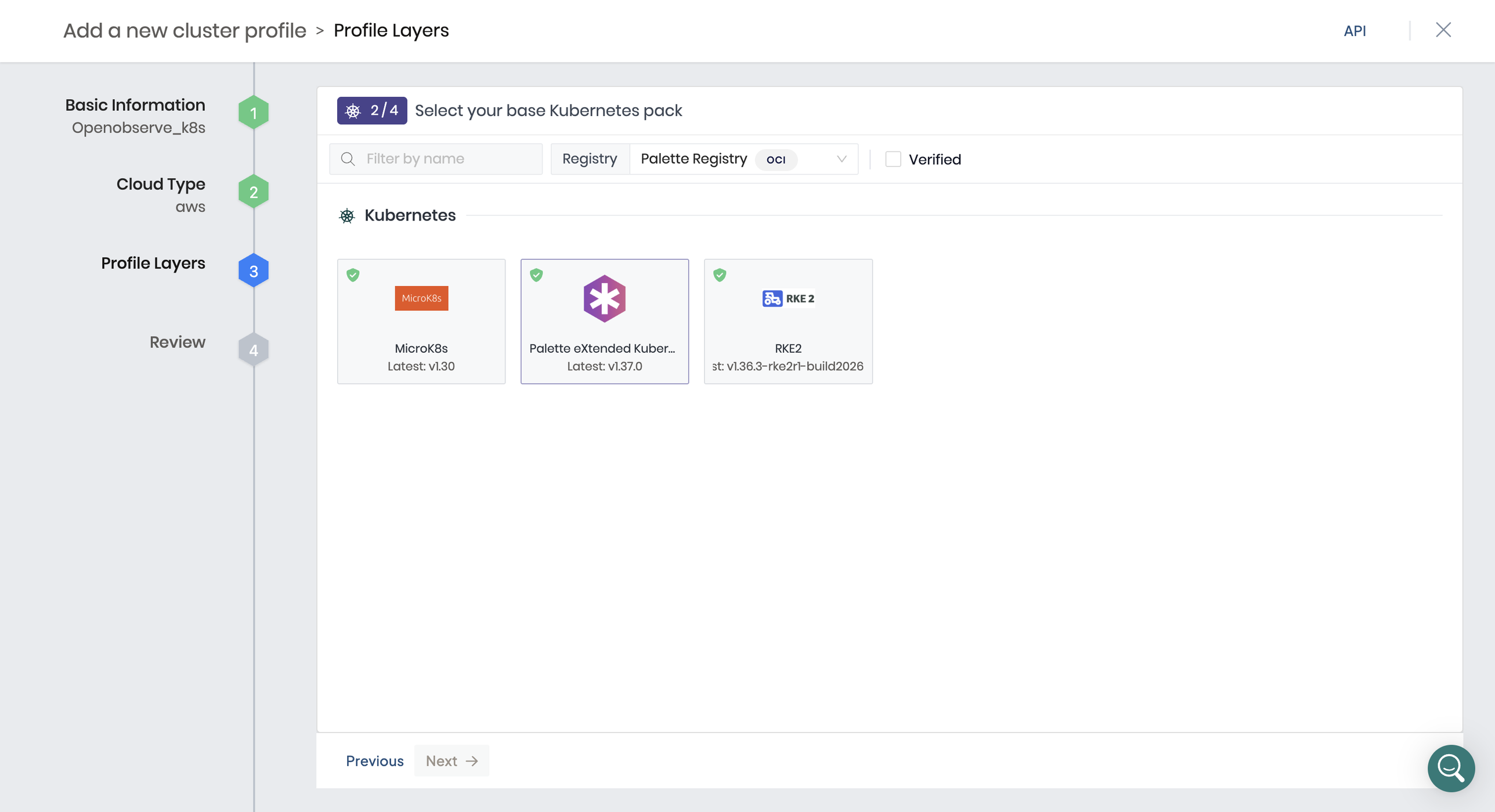
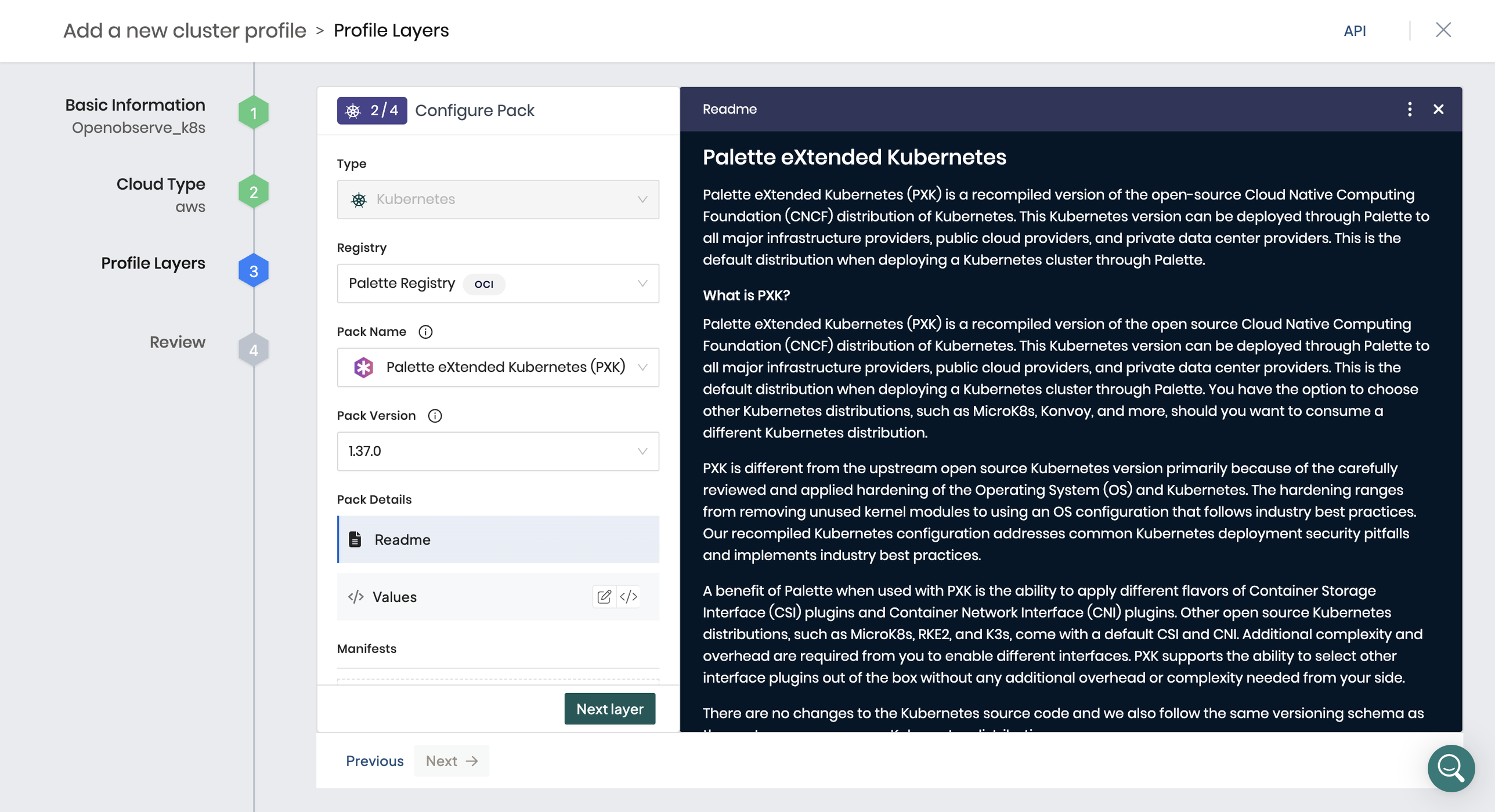
For the Kubernetes layer, select Palette eXtended Kubernetes (PXK).
Keep the default PXK values (version 1.37.0) and select Next layer.
For the network layer, select Cilium. (The screenshot shows Calico highlighted; select Cilium.)
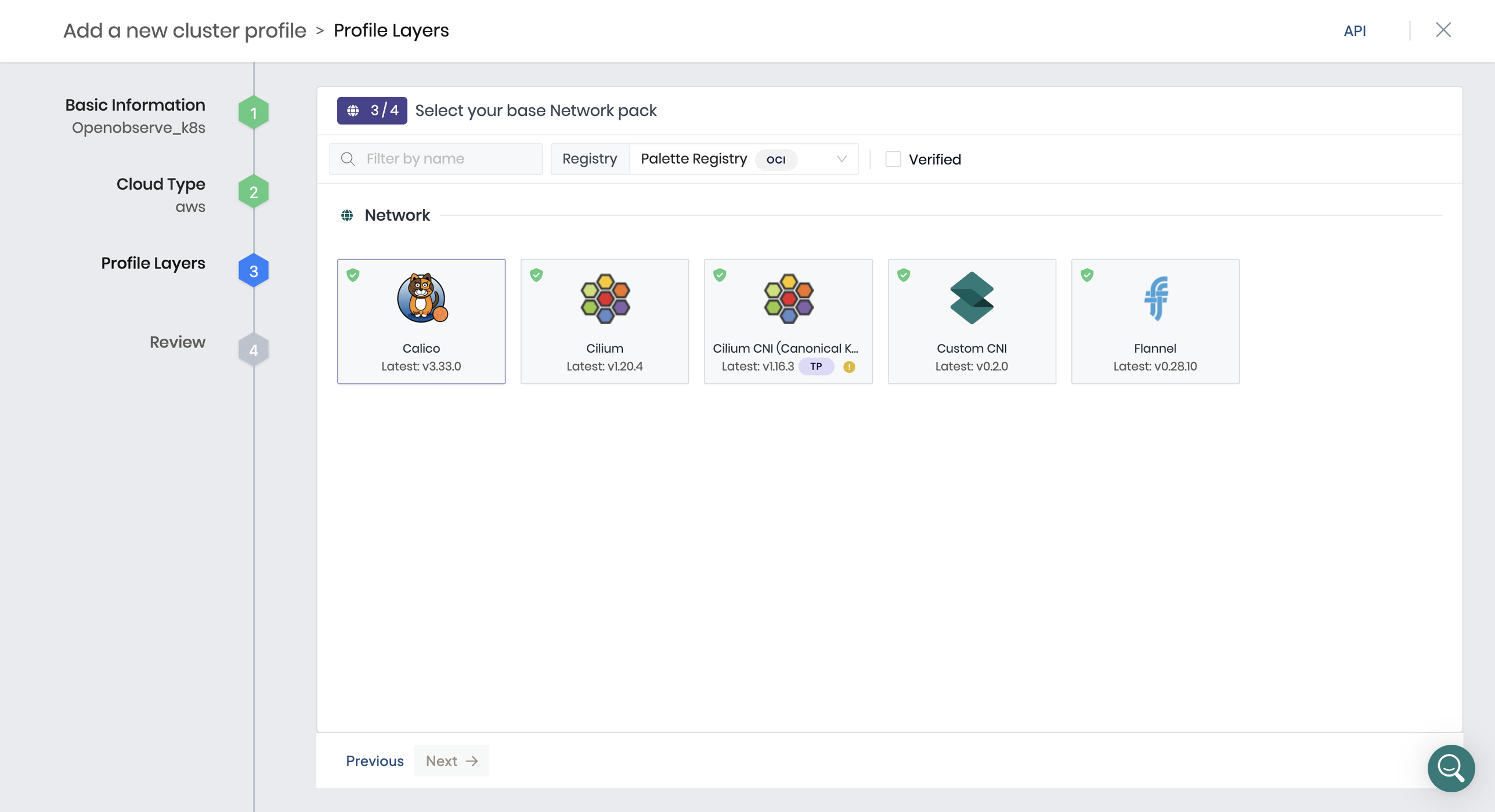
Keep the default Cilium values (version 1.20.4) and select Next layer.
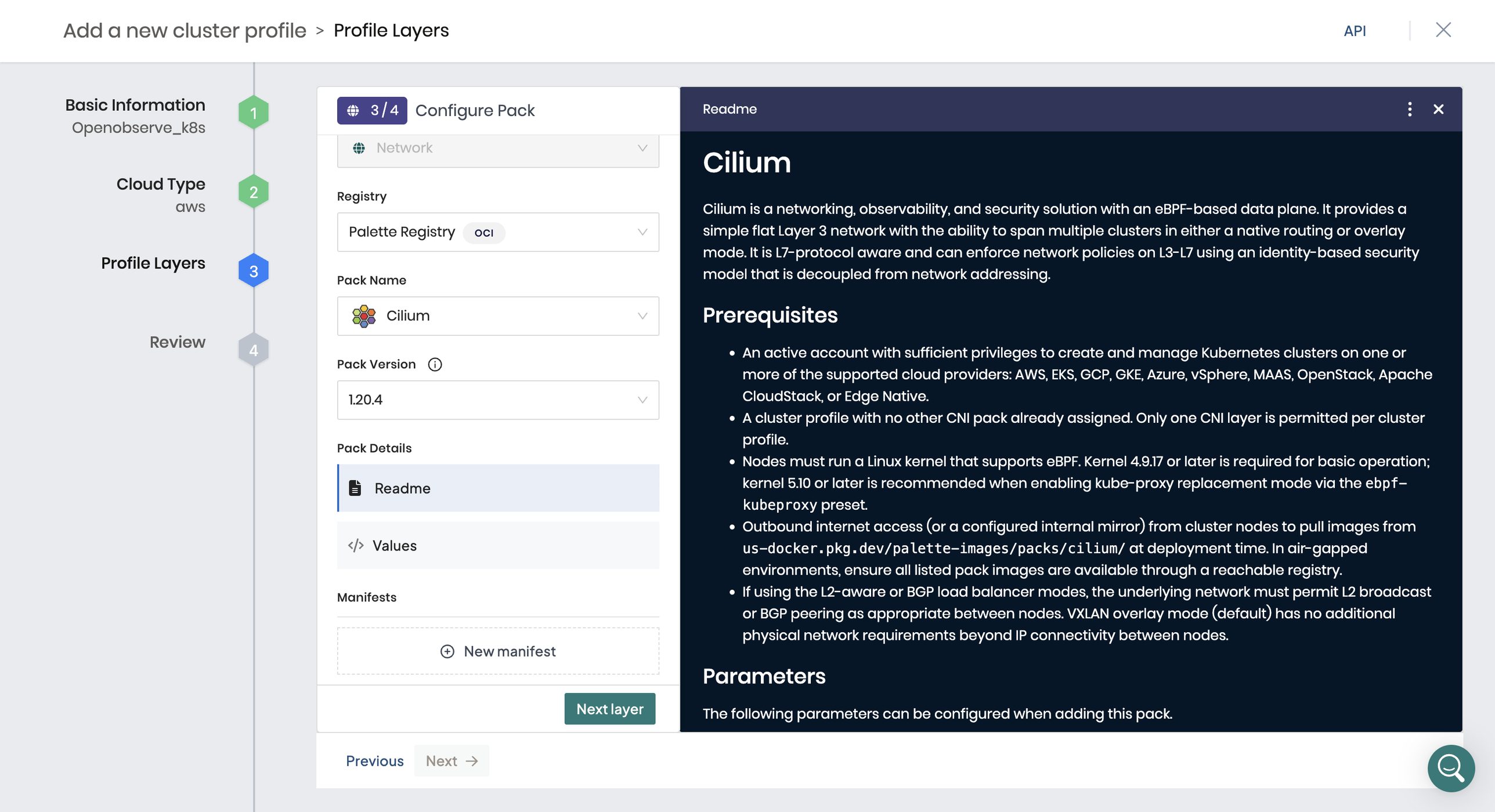
For the storage layer, select Amazon EBS CSI. OpenObserve uses persistent volumes, so this layer provides the storage class for them.
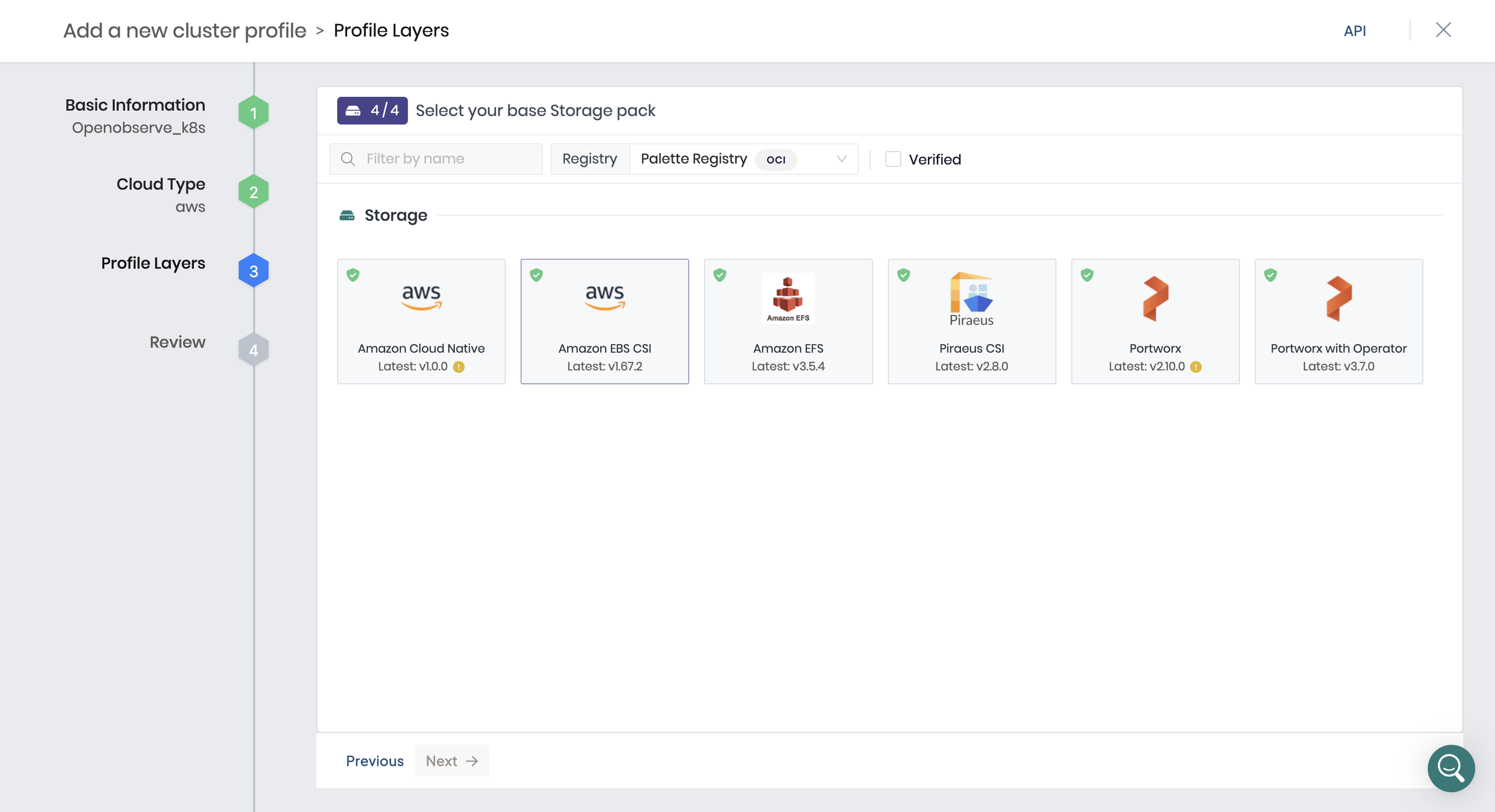
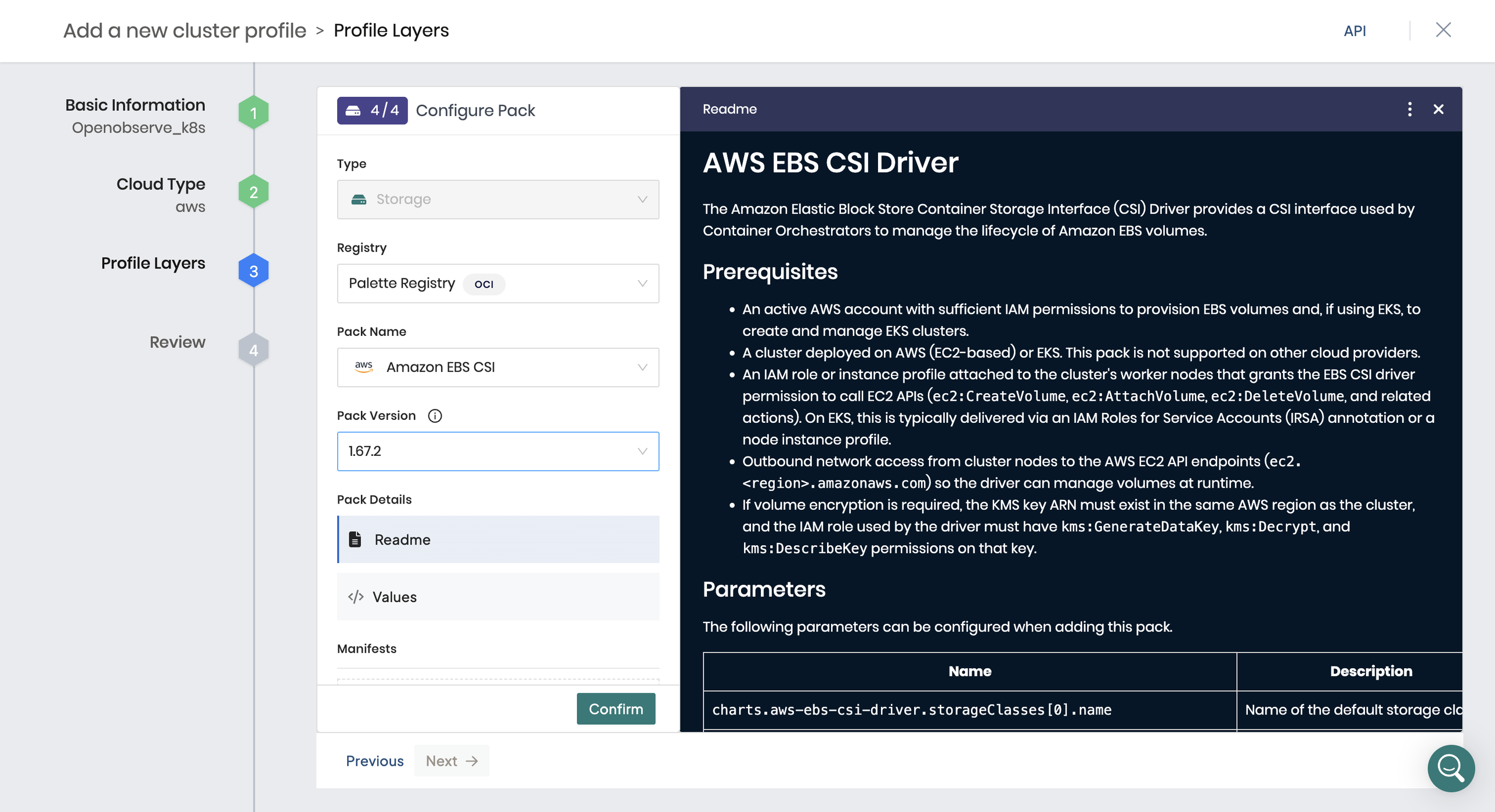
Keep the default EBS CSI values (version 1.67.2), adjusting the storage class only if your environment needs it, and select Confirm.
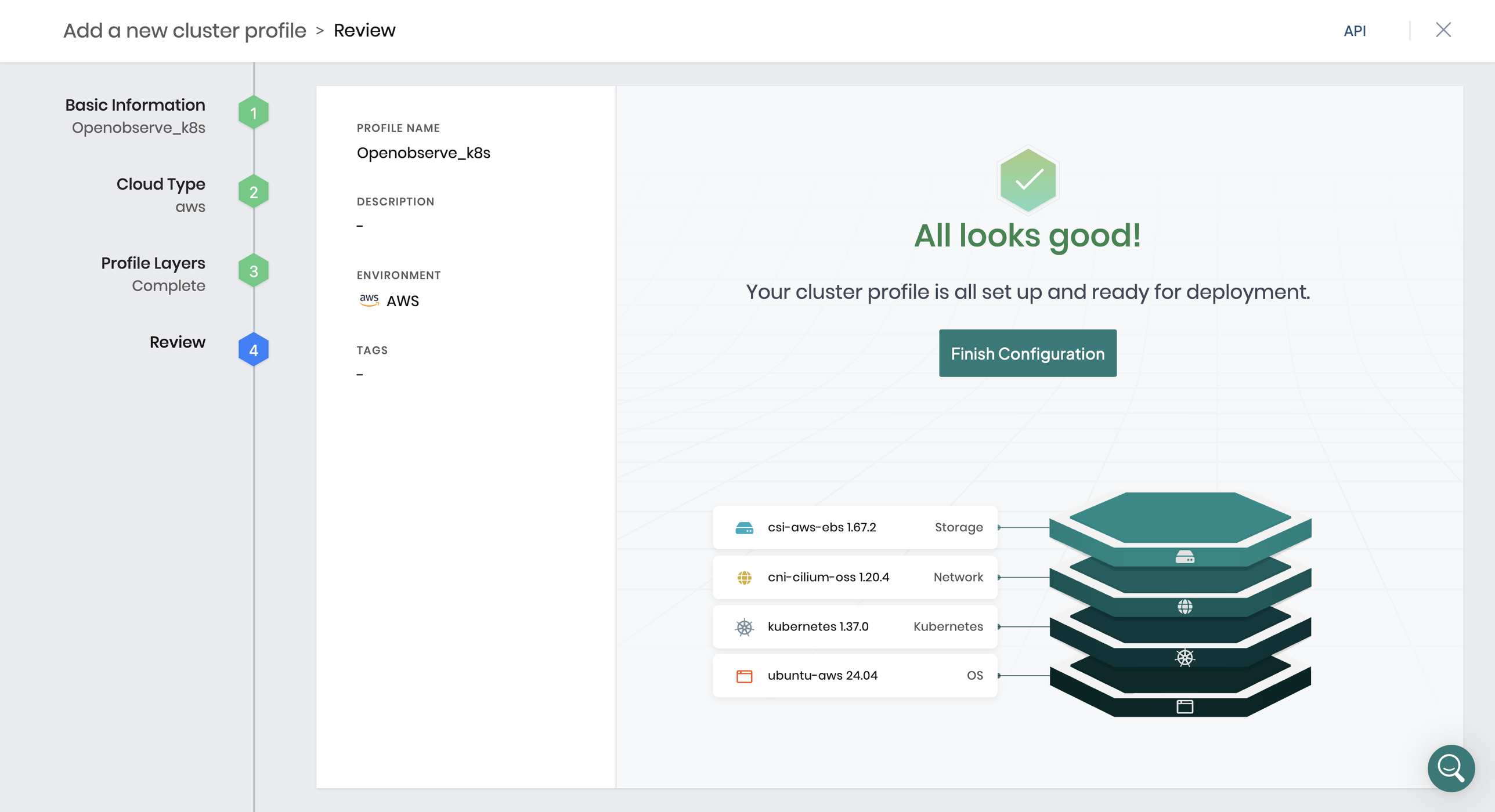
Select Next to review the profile, then select Finish Configuration.
Step 3: Deploy the AWS cluster
After you save the profile, Palette opens it. Select Deploy to create a cluster from it.
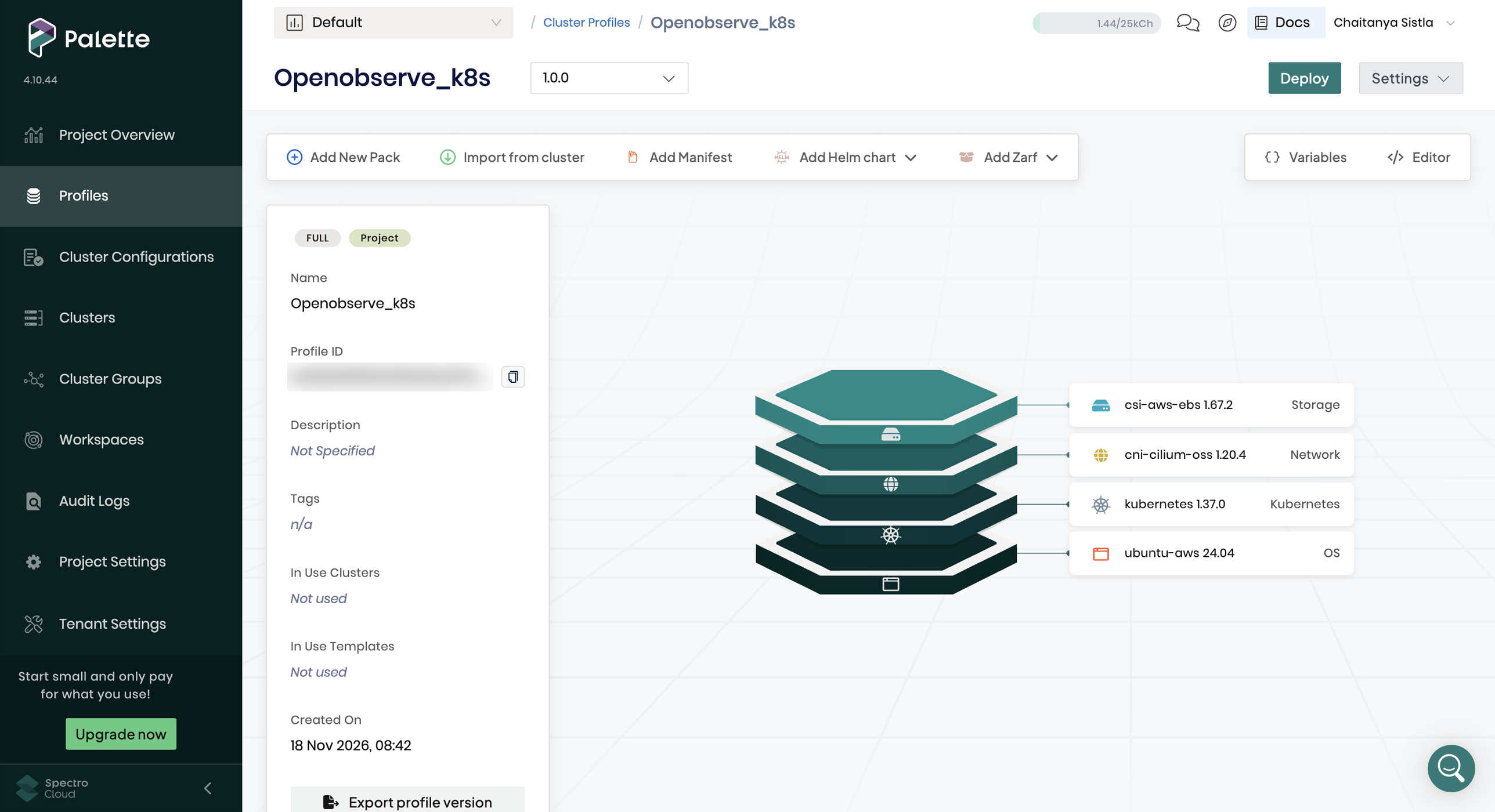
The cluster wizard asks for the following. (Source: Spectro Cloud docs, Create and Manage AWS IaaS Cluster, November 2026)
- Basic information: a cluster name.
- Cluster config: the Cloud Account, Region, and SSH Key Pair Name.
- Node pools: control plane and worker pools, each with an Instance Type and Availability Zones. Spectro Cloud recommends at least 4 CPUs and 4 GB of memory per node; size the workers for the telemetry volume you expect OpenObserve to handle.
- Validate, then Finish Configuration.
Provisioning takes several minutes. When the cluster's Cluster Status shows Running, move on. The full field reference is in Spectro Cloud's Create and Manage AWS IaaS Cluster guide. If you run OpenObserve on AWS without Palette, compare this with deploying OpenObserve on Amazon EKS with ALB ingress.
Step 4: Choose a PostgreSQL option for OpenObserve
OpenObserve stores its metadata in PostgreSQL 14 or later. By default, the OpenObserve pack deploys its own embedded PostgreSQL database, and that database runs on the CloudNative-PG operator, which must be installed in the cluster before the pack deploys. Pick one of two setups before you build the add-on profile, because if OpenObserve has no working database, the add-on deployment fails.
| Option | When to use it | What to configure |
|---|---|---|
| Embedded PostgreSQL (pack default) | Evaluation, or clusters without a managed database | Add the PostgreSQL pack from the Palette Registry to the OpenObserve add-on profile, as Spectro Cloud's own OpenObserve setup does. Give it a lower install order than OpenObserve (Step 5). With the embedded database on, the chart generates its own connection string and ignores ZO_META_POSTGRES_DSN. |
| External managed PostgreSQL (for example, Amazon RDS for PostgreSQL) | Production; you want backups, upgrades, and failover handled for you | Set ZO_META_POSTGRES_DSN to the database's connection string and turn off the embedded database. Allow traffic from the cluster's worker nodes to the database on port 5432. No PostgreSQL pack is needed. |
For an external database, the values look like this. In the upstream OpenObserve Helm chart, the embedded database is on by default and its generated connection string takes priority, so set postgres.enabled to false when you bring your own:
charts:
  openobserve:
    auth:
      ZO_META_POSTGRES_DSN: "postgres://<DB_USER>:<DB_PASSWORD>@<DB_HOST>:5432/<DB_NAME>"
    postgres:
      enabled: false
Step 5: Create the OpenObserve add-on profile
Go to Profiles and select Add Cluster Profile again. Name it (this guide uses
o2_layer), select Add-on as the Type, and select Next.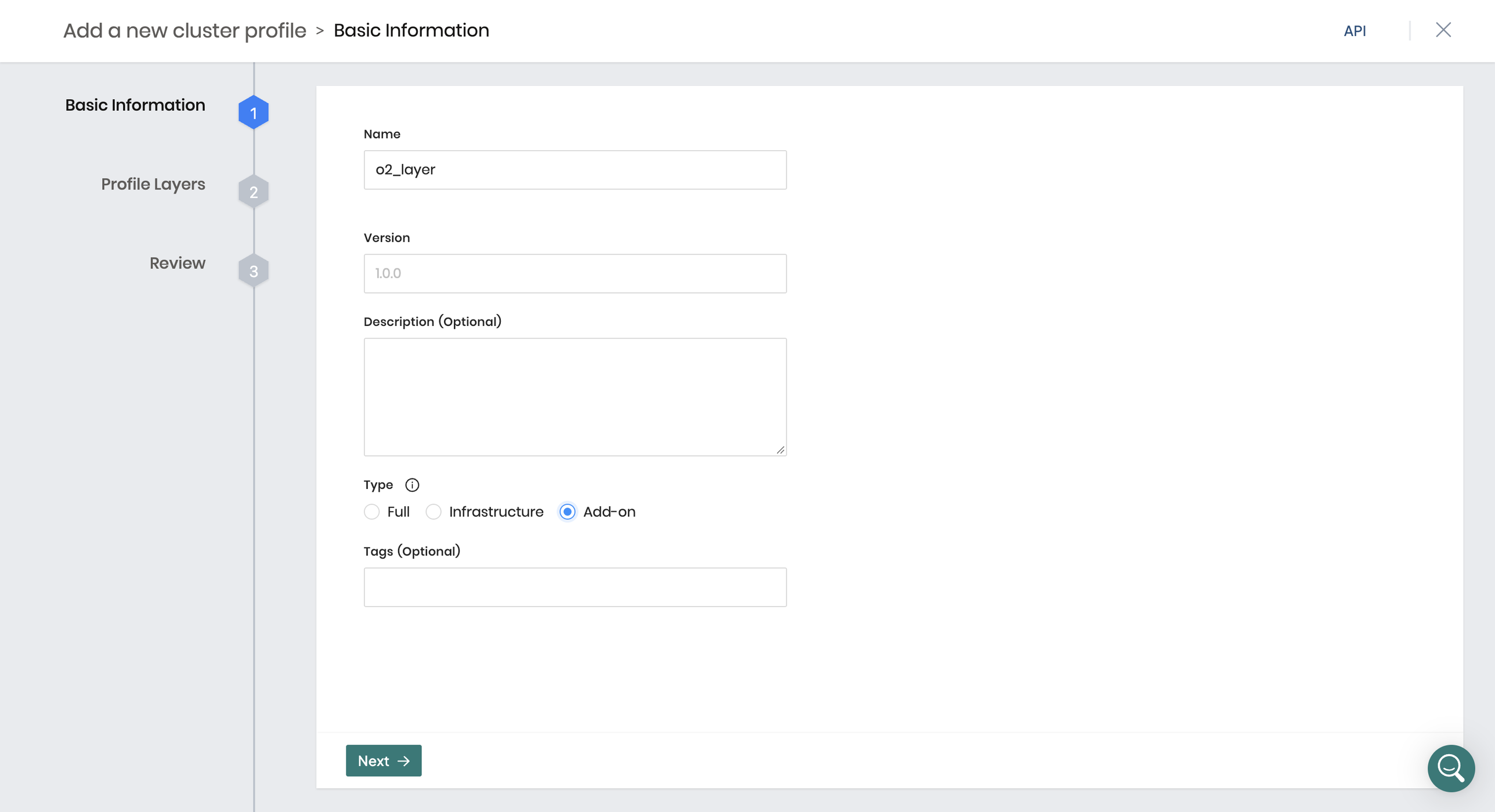
Add a pack, search for
openobservein the Palette Registry, and select the OpenObserve pack.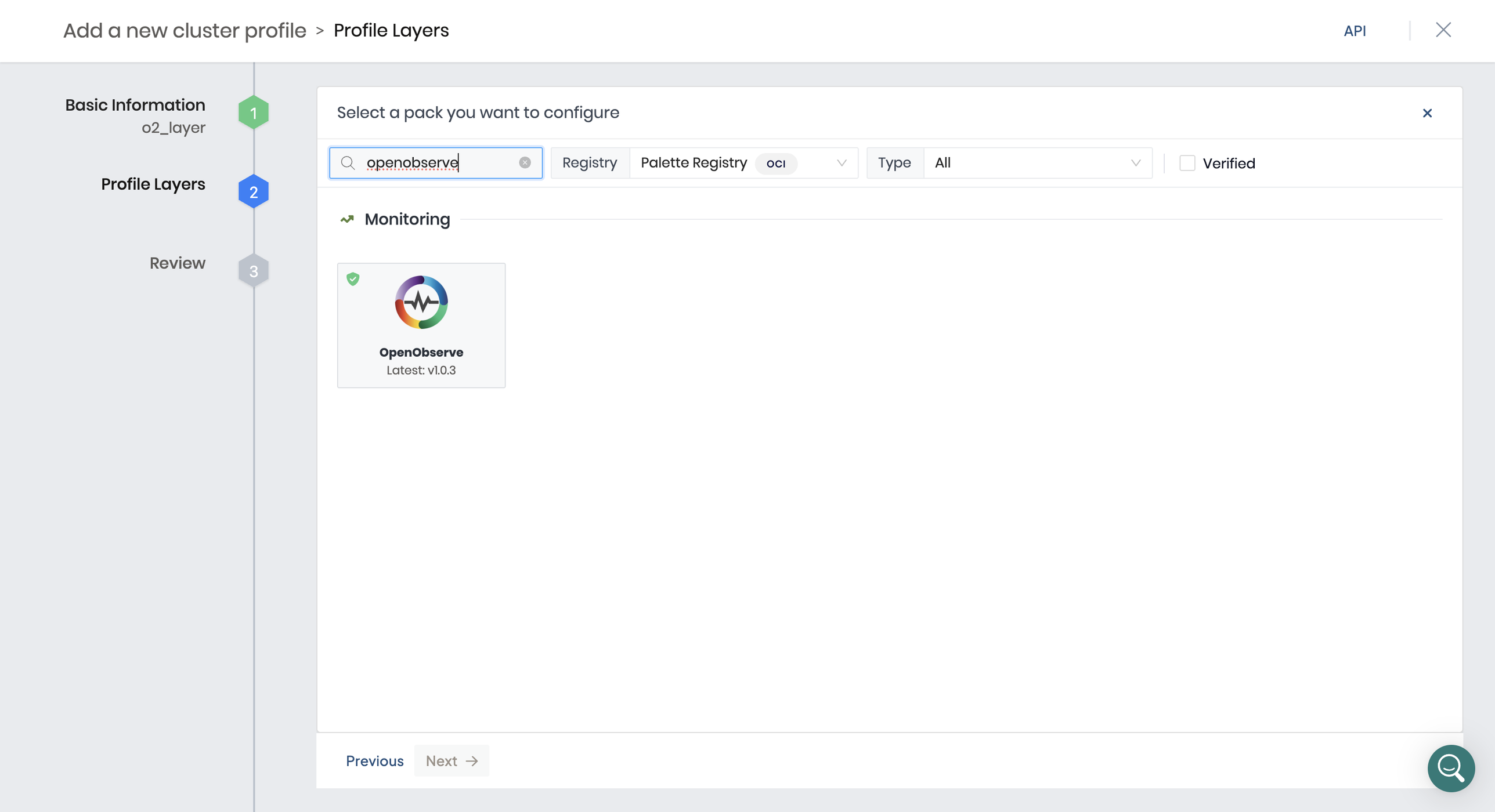
Select Values and set your configuration: the root user, S3 storage, and how the service is exposed. Add the PostgreSQL settings from Step 4 if you use an external database:
charts:
  openobserve:
    auth:
      ZO_ROOT_USER_EMAIL: "admin@example.com"
      ZO_ROOT_USER_PASSWORD: "<STRONG_PASSWORD>"
      ZO_S3_ACCESS_KEY: "<AWS_ACCESS_KEY_ID>"
      ZO_S3_SECRET_KEY: "<AWS_SECRET_ACCESS_KEY>"
    config:
      ZO_LOCAL_MODE: "false"
      ZO_S3_REGION_NAME: "<AWS_REGION>"
      ZO_S3_BUCKET_NAME: "<BUCKET_NAME>"
    service:
      type: LoadBalancer
      annotations:
        service.beta.kubernetes.io/aws-load-balancer-internal: "true"
The upstream OpenObserve Helm chart defaults
service.typetoClusterIP, which is reachable only inside the cluster. ALoadBalancerservice gets an AWS load balancer address, which Palette shows as a link in Step 7. Theaws-load-balancer-internalannotation keeps that load balancer inside your VPC; remove it only if you need public access, and put TLS in front of OpenObserve if you do. Check the pack values to see what your pack version sets.ZO_LOCAL_MODE: "false"runs OpenObserve in cluster mode, storing telemetry in S3 and metadata in PostgreSQL. Spectro Cloud's own OpenObserve guide sets local mode to keep data on the pod, but the OpenObserve docs describe local mode as a single-node deployment, so treat that as evaluation only. Every setting is described in the OpenObserve environment variables reference.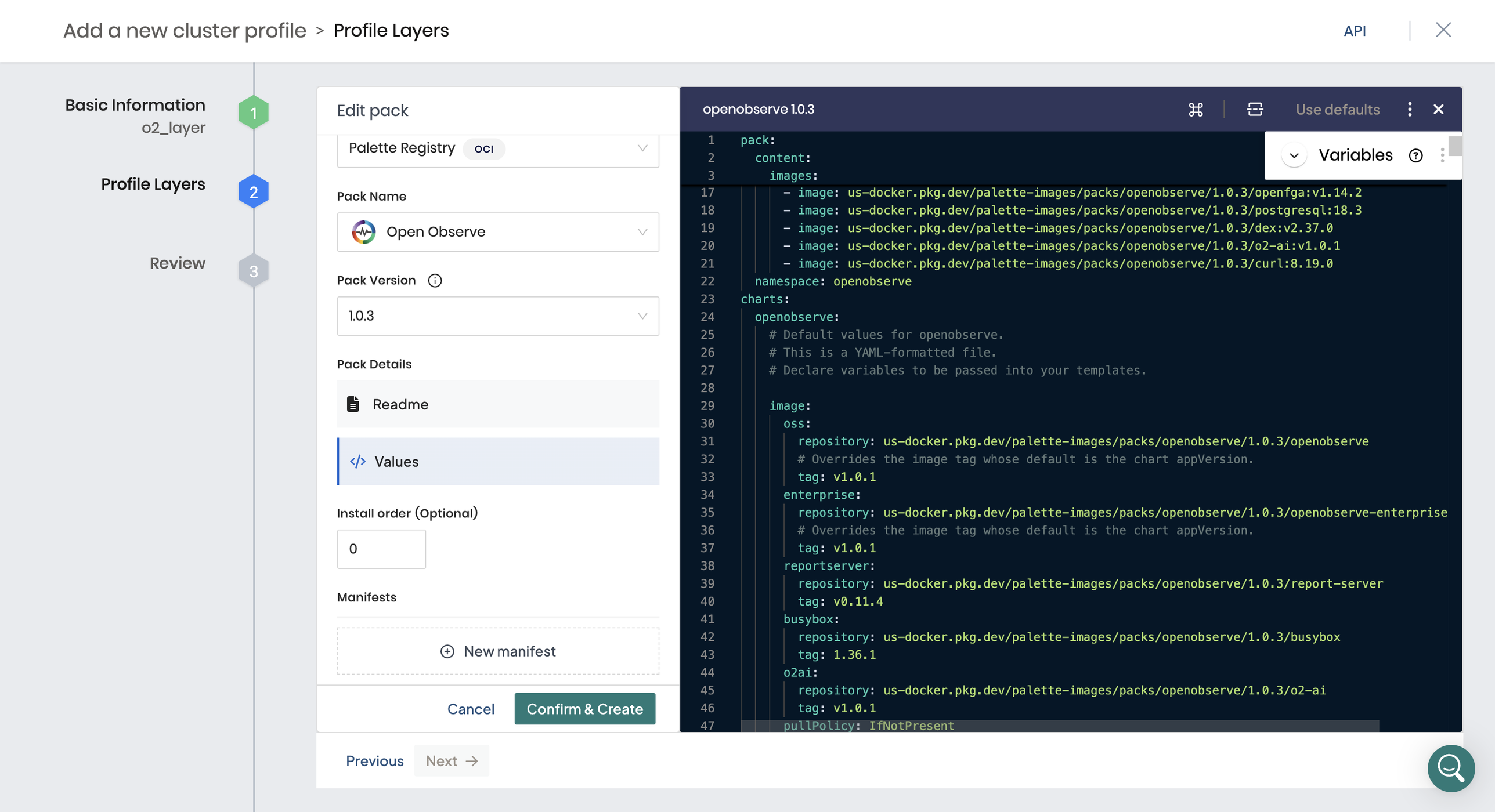
If you use the embedded database, add the PostgreSQL pack to this profile too. Palette installs packs with the lowest Install order value first and waits until they are ready before installing the next ones, so give PostgreSQL a lower value than OpenObserve (for example,
0for PostgreSQL and10for OpenObserve). The field sets thespectrocloud.com/install-priorityannotation on the pack layer. (Source: Spectro Cloud docs, Add-on Profiles, Install Order, November 2026)Select Confirm & Create, then Next, review the profile, and select Finish Configuration.
Step 6: Add the OpenObserve profile to your cluster
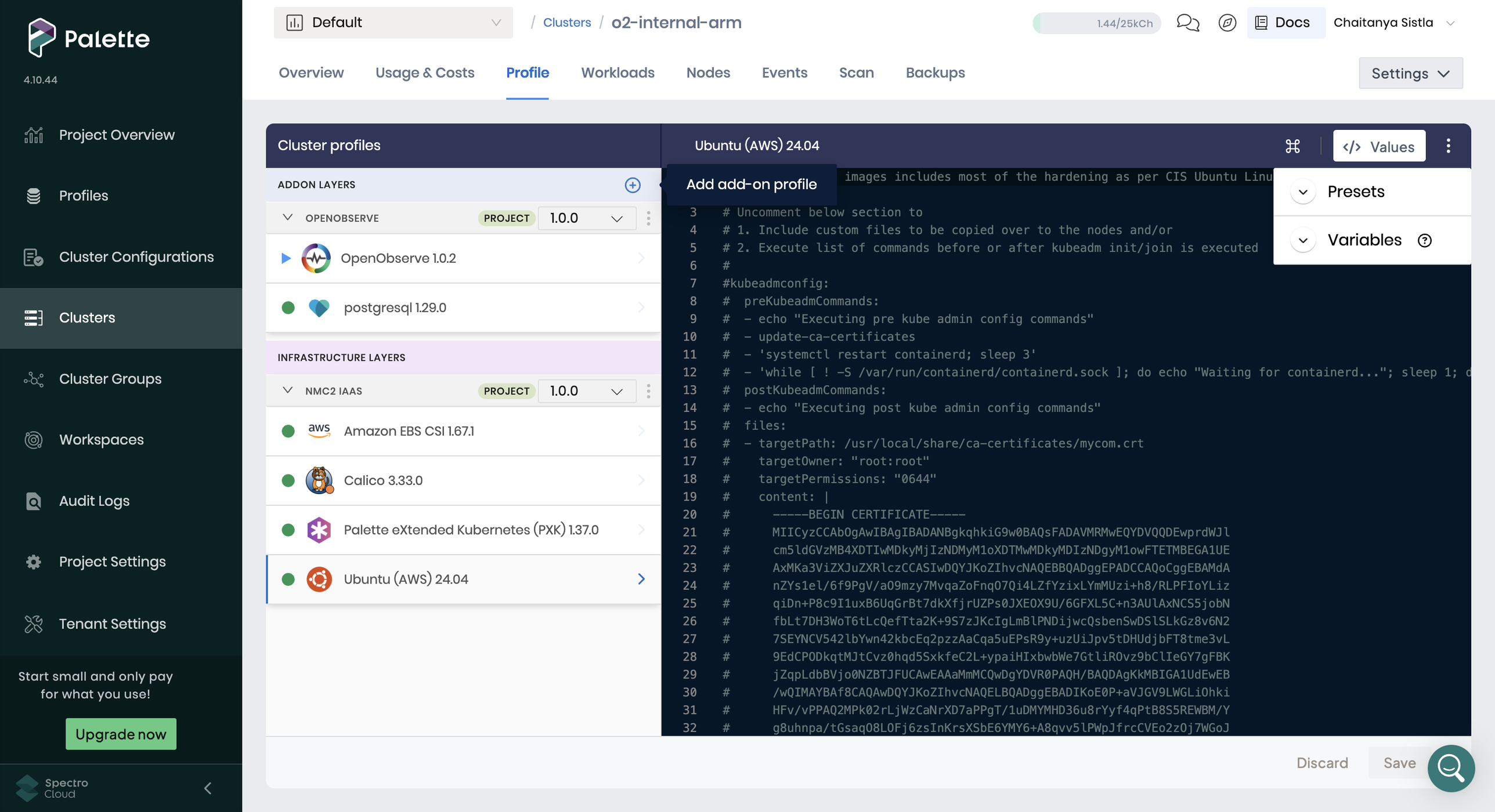
The screenshots in this step and the next come from a different, existing cluster (o2-internal-arm) that already has an OpenObserve add-on attached, so some details differ from the ones built above: the profile names, Calico instead of Cilium, EBS CSI 1.67.1, OpenObserve 1.0.2, and PostgreSQL 1.29.0. The add-on steps are the same.
From the left menu, select Clusters and open the cluster you deployed in Step 3.
Select the Profile tab, then the + next to Addon Layers (Add add-on profile).
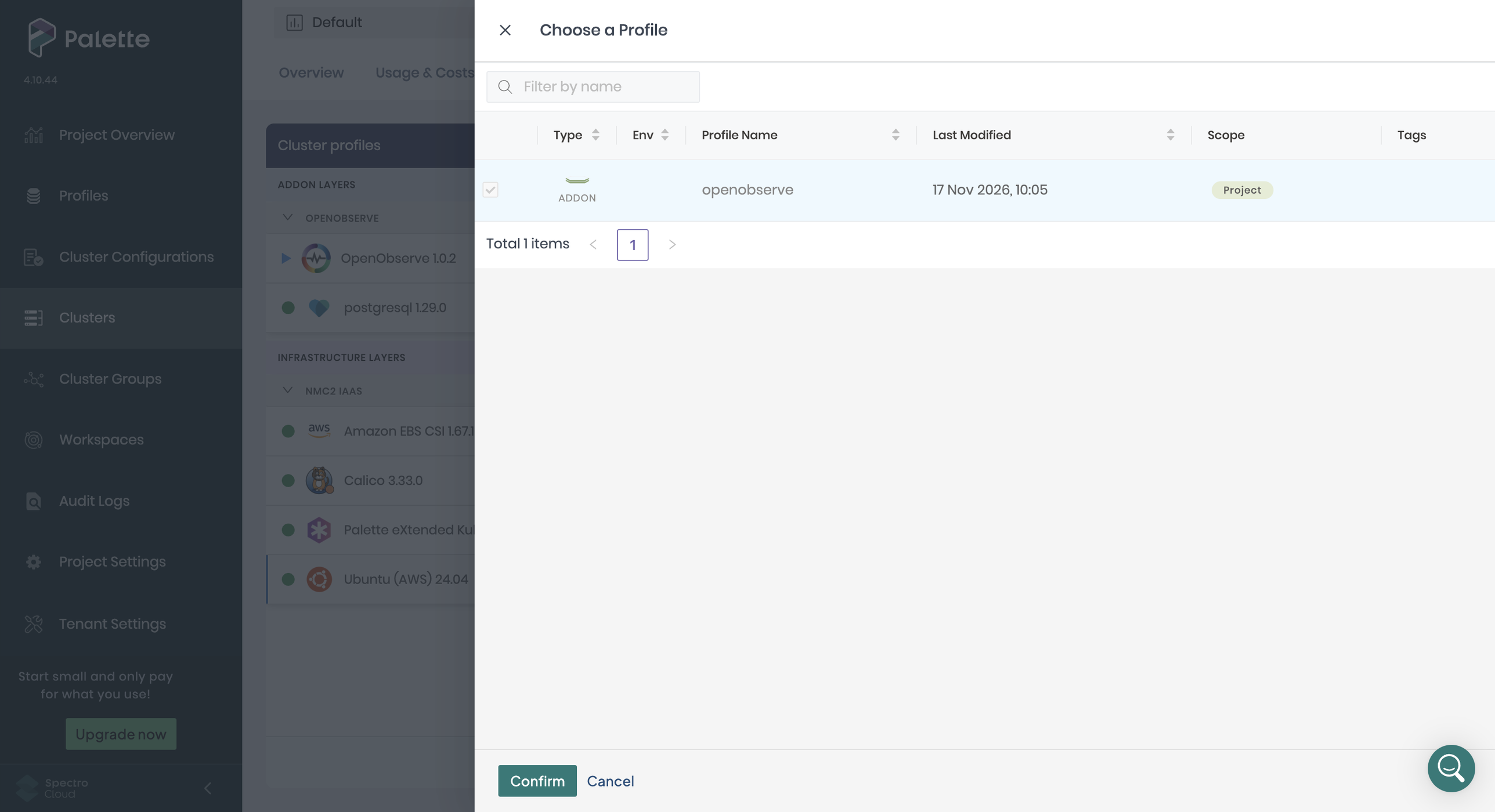
In Choose a Profile, select your OpenObserve add-on profile and select Confirm. Review the layers, then select Save.
Step 7: Open OpenObserve from the cluster Overview
Select the Overview tab to watch the add-on deploy. Cluster Detail Status shows the add-on deployment in progress, and the Cluster Profiles panel shows each pack with a green indicator once it is healthy.
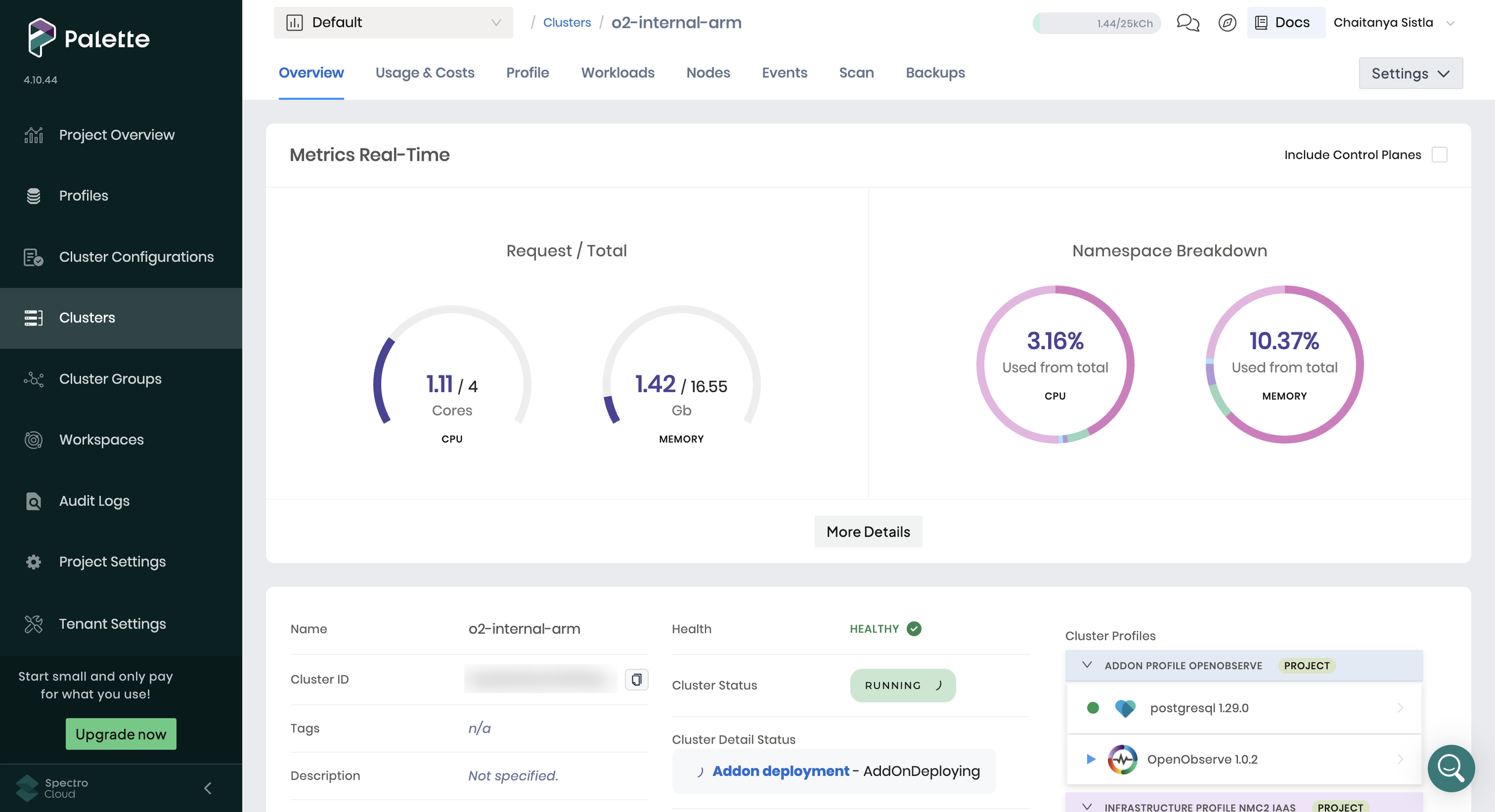
When OpenObserve is up, Palette lists its service under Services on the same Overview tab. Select the :5080 link to open the OpenObserve login page, then sign in with the ZO_ROOT_USER_EMAIL and ZO_ROOT_USER_PASSWORD you set in the pack values.
Troubleshooting
| Symptom | Likely cause | Fix |
|---|---|---|
| Add-on deployment fails with an external database | OpenObserve can't reach PostgreSQL | Check ZO_META_POSTGRES_DSN, postgres.enabled: false, and the security group (port 5432 from the worker nodes) |
| Add-on deployment fails with the embedded database | The PostgreSQL pack is missing or installs after OpenObserve | Add the PostgreSQL pack and give it a lower Install order than OpenObserve |
Pods stay Pending |
No storage class or not enough node capacity | Confirm the Amazon EBS CSI layer is healthy and the worker pool has enough CPU and memory |
| No :5080 link under Services | The OpenObserve service is ClusterIP |
Set charts.openobserve.service.type to LoadBalancer in the pack values |
| Login fails | Wrong credentials | Use the exact root email and password from the pack values |
How do you send telemetry to OpenObserve after deploying it?
OpenObserve accepts OpenTelemetry (OTLP) for logs, metrics, traces, and profiles, so any OpenTelemetry Collector can export to it. Spectro Cloud documents a full pattern for this in Deploy OpenTelemetry Monitoring Stack: workload clusters send to a central collector, which exports to OpenObserve.
From there:
- Collect cluster metrics with the approach in Kubernetes monitoring with OpenTelemetry and Prometheus.
- Load ready-made views with prebuilt Kubernetes dashboards for OpenObserve.
- Manage alerts, dashboards, and pipelines declaratively with the OpenObserve Kubernetes Operator.
- Learn the collector basics in the OpenTelemetry guide.
What should you change for production?
- Use a managed PostgreSQL database instead of an in-cluster one, so metadata survives cluster changes.
- Keep cluster mode with S3 (
ZO_LOCAL_MODE: "false"plus bucket settings) rather than local mode on the pod. - Run OpenObserve in high-availability mode for large telemetry volumes. The OpenObserve HA deployment guide covers the components.
- Keep secrets out of plain values where possible, and rotate the root password after first login.
- Version the add-on profile in Palette, so upgrades to the OpenObserve pack roll out the same way to every cluster.
Get started with OpenObserve
- Read the OpenObserve documentation.
- Try OpenObserve Cloud at cloud.openobserve.ai.
- Self-host it with the OpenObserve quickstart.
Frequently Asked Questions
About the Authors
Chaitanya Sistla

Chaitanya Sistla is a Principal Solutions Architect with 17X certifications across Cloud, Data, DevOps, and Cybersecurity. Leveraging extensive startup experience and a focus on MLOps, Chaitanya excels at designing scalable, innovative solutions that drive operational excellence and business transformation.
Medha Kulamarva
Medha Kulamarva is a backend software professional skilled in C, Golang and Python, with deep expertise in 5G technology, microservices and network programming. She is passionate about deploying and scaling applications using Docker and Kubernetes across AWS, Azure, GCP and on-prem infrastructure.
Follow OpenObserve on Google
Add OpenObserve as a preferred source to see more of our articles in Google Search and Top Stories.