A Complete Guide to Kube-Prometheus-Stack: Setup, Scaling, and Optimization



Ready to get started?
Try OpenObserve Cloud today for more efficient and performant observability.
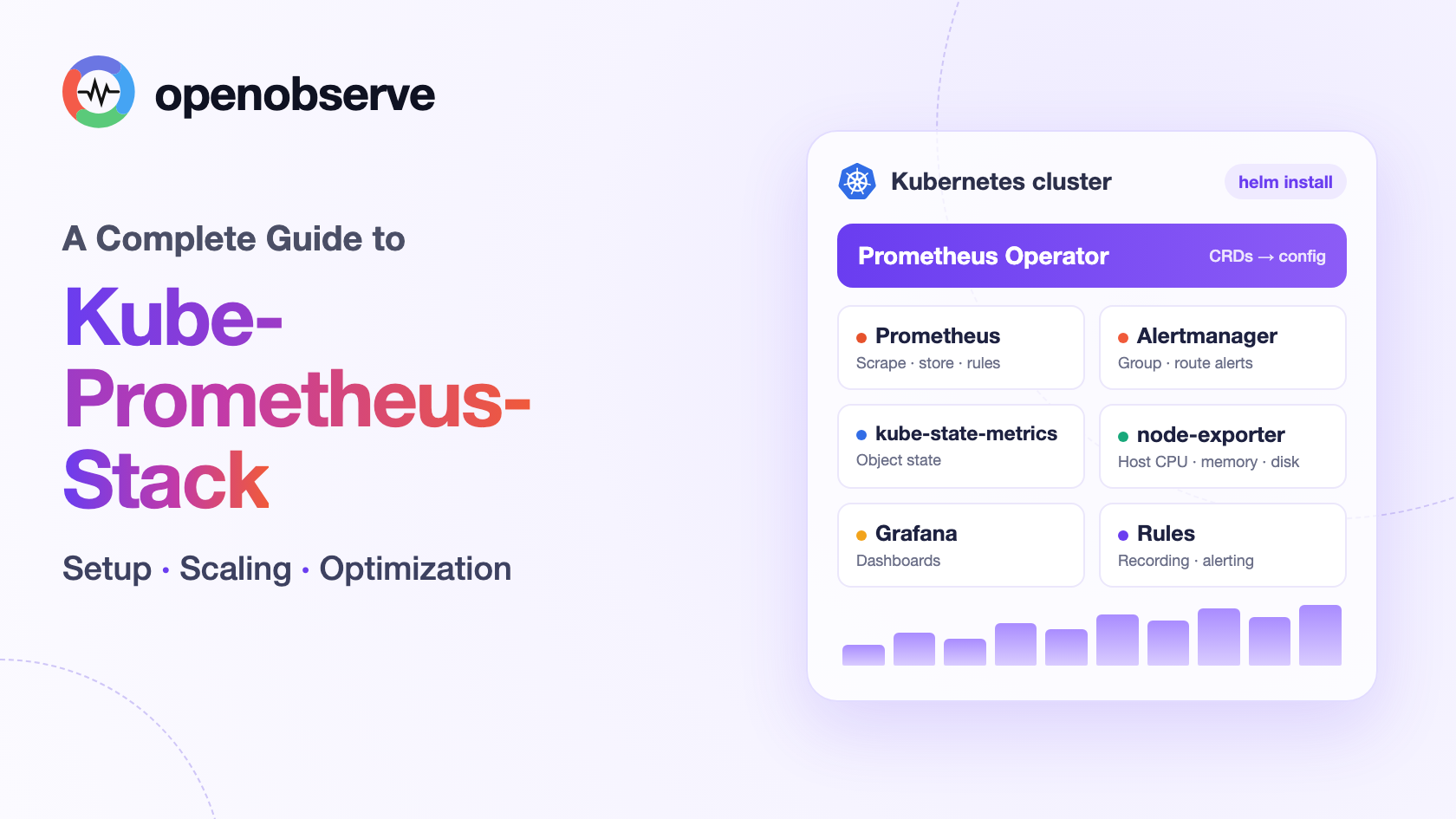
kube-prometheus-stack is a Helm chart that installs a complete Prometheus-based monitoring stack for Kubernetes in one command: Prometheus Operator, Prometheus, Alertmanager, Grafana, kube-state-metrics, node-exporter, and a set of default dashboards and alerting rules. It is the most common starting point for Kubernetes metrics monitoring, for small teams and experienced platform engineers alike.
TL;DR
- kube-prometheus-stack deploys six core components plus preconfigured rules and dashboards, managed through the Prometheus Operator's CRDs.
- It is not the same as kube-prometheus or Prometheus Operator: it is the Helm-packaged version of the core stack.
- The values you will change first: retention and storage, ServiceMonitor selectors, scrape targets, resources, and whether to keep the bundled Grafana and Alertmanager.
- At scale, plan for cardinality, storage sizing, HA deduplication, dashboard sprawl, and manual CRD upgrades.
- OpenObserve can take over storage, dashboards, and alerting via remote write while Prometheus keeps scraping.
A big question when installing kube-prometheus-stack is what you are really installing, and whether you need all of it. Your dashboards might be snappy now, but as your workloads grow, what problems should you anticipate?
This guide walks through what the chart deploys, how the components fit together, how to configure it for your environment, and the storage, resource, and scaling challenges to watch for as your workloads grow. If you want background on Prometheus itself first, see what you need to know about Prometheus architecture.
What does kube-prometheus-stack include?
Although it is typically installed with a single command, kube-prometheus-stack is actually a collection of Kubernetes manifests, Grafana dashboards, and Prometheus rules, combined with scripts and docs that make end-to-end observability easier for operators.
A single Helm install sets up six main components, along with preconfigured dashboards and rules for monitoring your cluster. The Prometheus Operator also introduces its own set of Custom Resource Definitions (CRDs).
| Component | What it does | CRDs introduced |
|---|---|---|
| Prometheus Operator | Manages Prometheus and Alertmanager deployments and turns Kubernetes custom resources into monitoring configuration. | Prometheus, PrometheusAgent, Alertmanager, AlertmanagerConfig, ServiceMonitor, PodMonitor, Probe, ScrapeConfig, PrometheusRule, ThanosRuler. Installed by the chart as the Operator's API. |
| Prometheus | Scrapes and stores metrics, runs PromQL queries, and evaluates recording and alerting rules. | None of its own. Managed through the Operator's Prometheus resource. |
| Alertmanager | Receives alerts from Prometheus, groups and deduplicates them, and routes notifications to the right destination. | None of its own. Uses the Operator's Alertmanager and AlertmanagerConfig resources. |
| node-exporter | Exposes host metrics from your Linux nodes, including CPU, memory, disk and network usage. | None. The chart creates a ServiceMonitor resource to configure scraping. |
| kube-state-metrics | Exposes the state of Kubernetes objects, such as pending pods or the difference between a Deployment's desired and available replicas. | None. The chart creates a ServiceMonitor resource to configure scraping. |
| Grafana | Queries Prometheus and displays the results in dashboards. | None. Dashboards are provisioned through ConfigMaps. |
| Default rules and dashboards | Provide recording rules, alerting rules and dashboards for common Kubernetes monitoring needs. | None. Rules use PrometheusRule resources; dashboards use ConfigMaps. |
How do the kube-prometheus-stack components work together?
Powering metrics collection and storage is Prometheus, which is deployed via the Operator. This is useful because you can manage more than one Prometheus installation, a common pattern if you want a dedicated instance per service or team, each with its own scrape targets and settings (see the Operator design docs).
ServiceMonitor and PodMonitor resources describe what Prometheus should scrape, and the Operator turns these resources into Prometheus configuration.
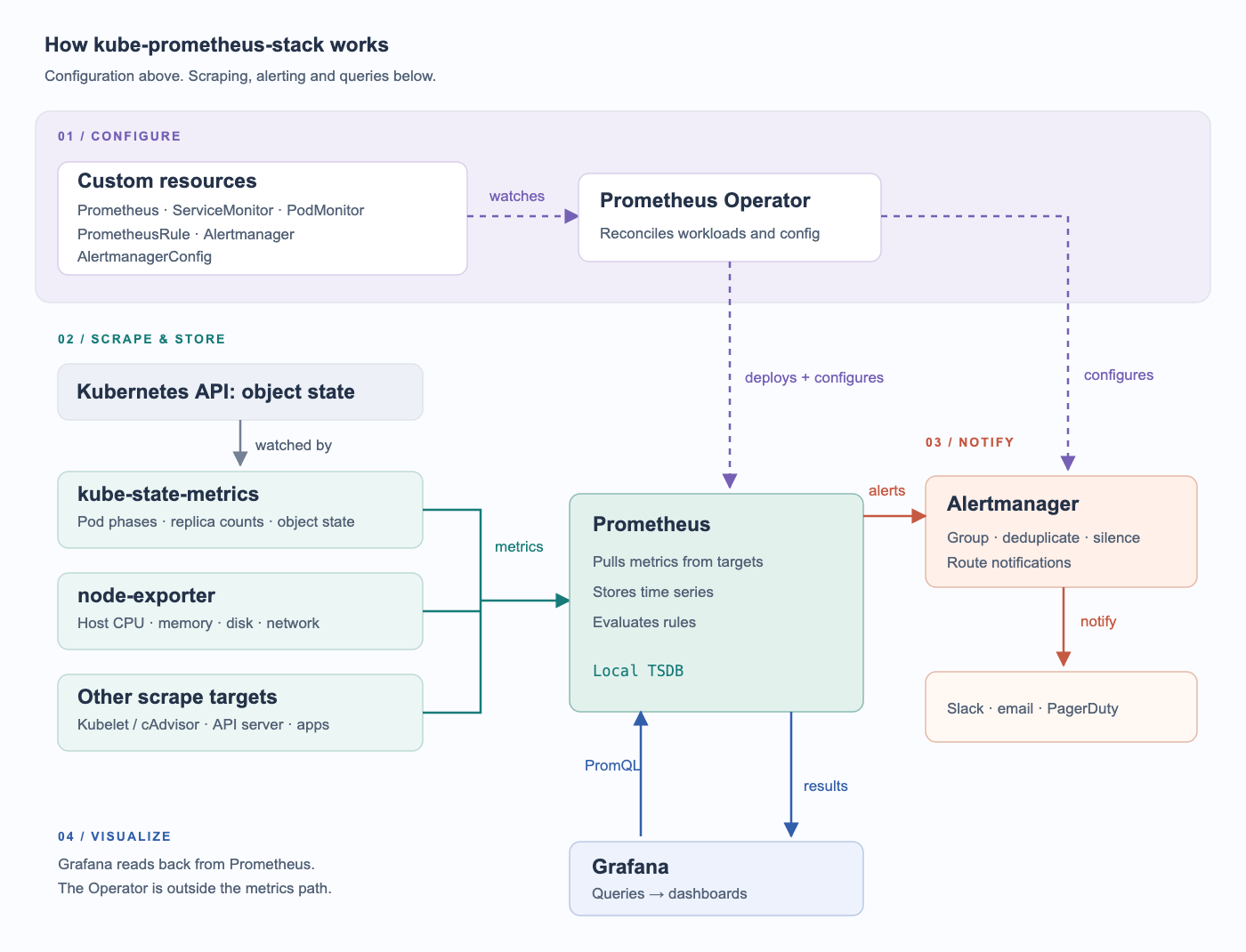
kube-state-metrics exposes metrics about the state of your cluster, using the Kubernetes API as its source of truth. It is a standalone project under the Kubernetes organization, with releases dating back to 2016. Some of the metrics it exposes include pod phases, desired Deployment replicas and available replicas.
Combined with Prometheus node-exporter, this gives you a view of both your workloads and the nodes they run on. node-exporter exposes CPU, memory, disk and network metrics, while kubelet and cAdvisor provide container resource usage.
Closely related to metrics is alerting. Prometheus evaluates alerting rules, which you define through PrometheusRule resources. When an alert fires, Prometheus sends it to Alertmanager. The Alertmanager resource manages its deployment, while AlertmanagerConfig lets you configure routing and receivers. This lets you group related alerts, silence notifications, and route them to destinations such as Slack or email.
Finally, Grafana ties this together by querying Prometheus and displaying the results in dashboards.
kube-prometheus-stack vs kube-prometheus vs Prometheus Operator
You have likely come across all three names and wondered if they refer to the same thing. They are related: Prometheus Operator manages monitoring workloads, kube-prometheus brings together a monitoring stack, and kube-prometheus-stack packages the core components of that stack as a Helm chart.
To add to the confusion, the Helm chart used to be called prometheus-operator. It was renamed to make it clearer that the Operator is only one component of what you are installing. If you come across an older guide using that chart name, that is why.
| Project | What you get | How you work with it |
|---|---|---|
| Prometheus Operator | The controller and CRDs used to manage Prometheus, Alertmanager and related monitoring configuration. | Create custom resources such as Prometheus and ServiceMonitor. You assemble the rest of your monitoring setup. |
| kube-prometheus | A monitoring stack built around the Operator, with component manifests, dashboards and rules. It also includes Prometheus Adapter and blackbox-exporter. | Apply the generated Kubernetes manifests, or customize the Jsonnet library and generate your own. |
| kube-prometheus-stack | A Helm chart that installs the core monitoring components discussed above, along with dashboards and rules. It does not include Prometheus Adapter or blackbox-exporter. | Install and upgrade with Helm, and configure the chart through your values.yaml. |
This guide uses kube-prometheus-stack so you can manage the installation through Helm.
How to deploy kube-prometheus-stack with Helm
This demo uses an existing K3s cluster running Kubernetes v1.35.0+k3s1, with Helm v3.15.3 and chart version 91.5.2, which deploys Prometheus Operator v0.94.1 and Prometheus v3.14.0.
- Check that
kubectlis pointing to the cluster you want to use:
kubectl config current-context
kubectl get nodes
- Install the chart:
helm install kps oci://ghcr.io/prometheus-community/charts/kube-prometheus-stack \
  --version 91.5.2 \
  --namespace observability \
  --create-namespace \
  --wait --timeout 10m
Here, kps is the Helm release name and observability is the namespace. The --version flag pins the chart, while --wait waits for the release's workloads to become ready.
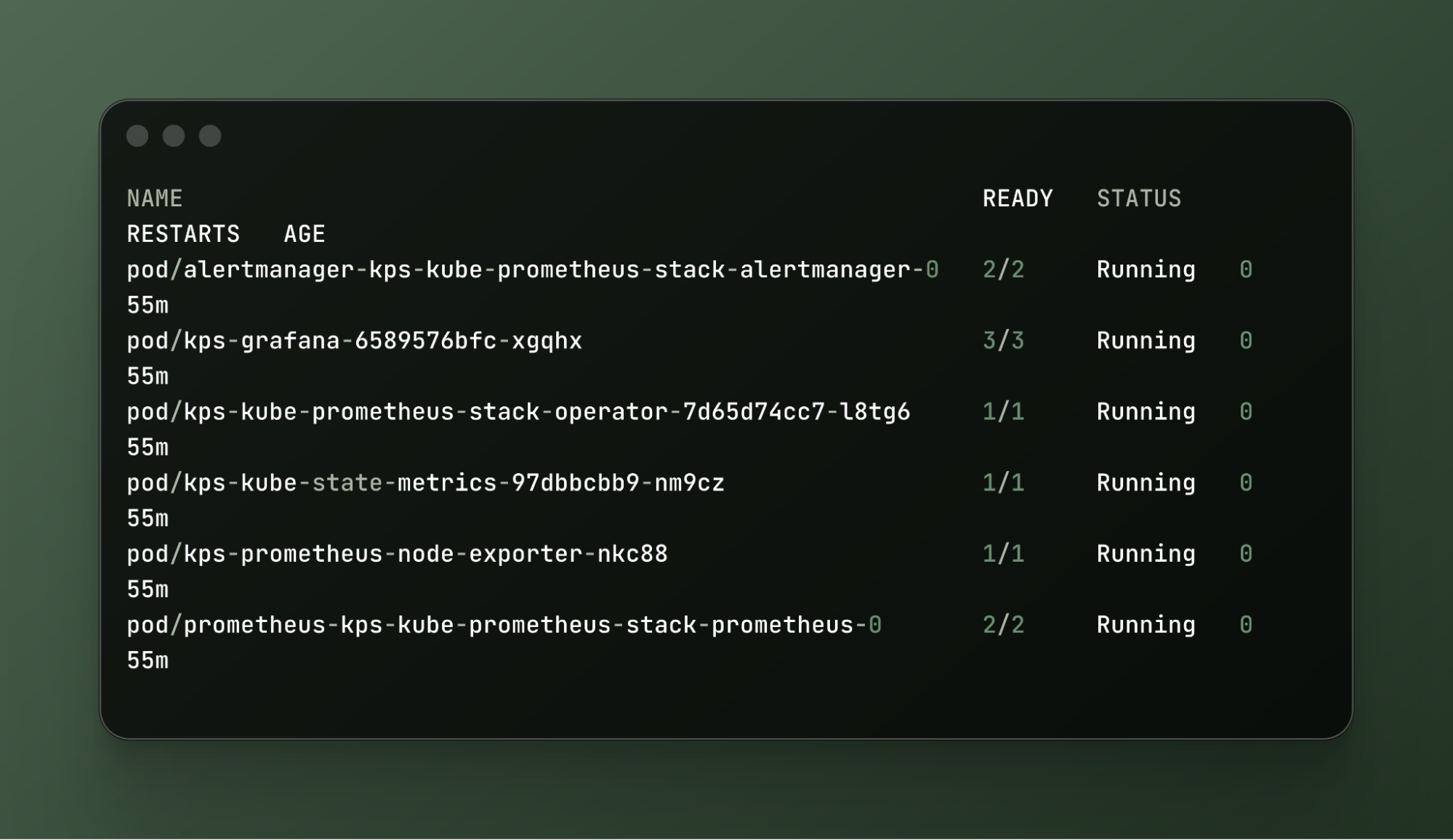
- Once the installation completes, check what was deployed:
kubectl -n observability get all
NAME                                                        READY   STATUS    RESTARTS   AGE
pod/alertmanager-kps-kube-prometheus-stack-alertmanager-0   2/2     Running   0          55m
pod/kps-grafana-6589576bfc-xgqhx                            3/3     Running   0          55m
pod/kps-kube-prometheus-stack-operator-7d65d74cc7-l8tg6     1/1     Running   0          55m
pod/kps-kube-state-metrics-97dbbcbb9-nm9cz                  1/1     Running   0          55m
pod/kps-prometheus-node-exporter-nkc88                      1/1     Running   0          55m
pod/prometheus-kps-kube-prometheus-stack-prometheus-0       2/2     Running   0          55m

NAME                                             TYPE        CLUSTER-IP      EXTERNAL-IP   PORT(S)                      AGE
service/alertmanager-operated                    ClusterIP   None            <none>        9093/TCP,9094/TCP,9094/UDP   55m
service/kps-grafana                              ClusterIP   10.43.154.100   <none>        80/TCP                       55m
service/kps-kube-prometheus-stack-alertmanager   ClusterIP   10.43.122.189   <none>        9093/TCP,8080/TCP            55m
service/kps-kube-prometheus-stack-operator       ClusterIP   10.43.212.182   <none>        443/TCP                      55m
service/kps-kube-prometheus-stack-prometheus     ClusterIP   10.43.209.32    <none>        9090/TCP,8080/TCP            55m
service/kps-kube-state-metrics                   ClusterIP   10.43.189.222   <none>        8080/TCP                     55m
service/kps-prometheus-node-exporter             ClusterIP   10.43.214.7     <none>        9100/TCP                     55m
service/prometheus-operated                      ClusterIP   None            <none>        9090/TCP                     55m

NAME                                          DESIRED   CURRENT   READY   UP-TO-DATE   AVAILABLE   NODE SELECTOR            AGE
daemonset.apps/kps-prometheus-node-exporter   1         1         1       1            1           kubernetes.io/os=linux   55m

NAME                                                 READY   UP-TO-DATE   AVAILABLE   AGE
deployment.apps/kps-grafana                          1/1     1            1           55m
deployment.apps/kps-kube-prometheus-stack-operator   1/1     1            1           55m
deployment.apps/kps-kube-state-metrics               1/1     1            1           55m

NAME                                                            DESIRED   CURRENT   READY   AGE
replicaset.apps/kps-grafana-6589576bfc                          1         1         1       55m
replicaset.apps/kps-kube-prometheus-stack-operator-7d65d74cc7   1         1         1       55m
replicaset.apps/kps-kube-state-metrics-97dbbcbb9                1         1         1       55m

NAME                                                                   READY   AGE
statefulset.apps/alertmanager-kps-kube-prometheus-stack-alertmanager   1/1     55m
statefulset.apps/prometheus-kps-kube-prometheus-stack-prometheus       1/1     55m
- Check which CRDs were installed:
kubectl get crds
alertmanagerconfigs.monitoring.coreos.com      2026-09-25T12:28:27Z
alertmanagers.monitoring.coreos.com            2026-09-25T12:28:28Z
podmonitors.monitoring.coreos.com              2026-09-25T12:28:29Z
probes.monitoring.coreos.com                   2026-09-25T12:28:30Z
prometheusagents.monitoring.coreos.com         2026-09-25T12:28:31Z
prometheuses.monitoring.coreos.com             2026-09-25T12:28:34Z
prometheusrules.monitoring.coreos.com          2026-09-25T12:28:35Z
scrapeconfigs.monitoring.coreos.com            2026-09-25T12:28:37Z
servicemonitors.monitoring.coreos.com          2026-09-25T12:28:37Z
thanosrulers.monitoring.coreos.com             2026-09-25T12:28:39Z
Look for the definitions ending in monitoring.coreos.com. These are cluster-scoped, so the namespace flag is not needed.
- Forward the Prometheus Service to your machine:
kubectl -n observability port-forward \
  service/kps-kube-prometheus-stack-prometheus 9091:9090
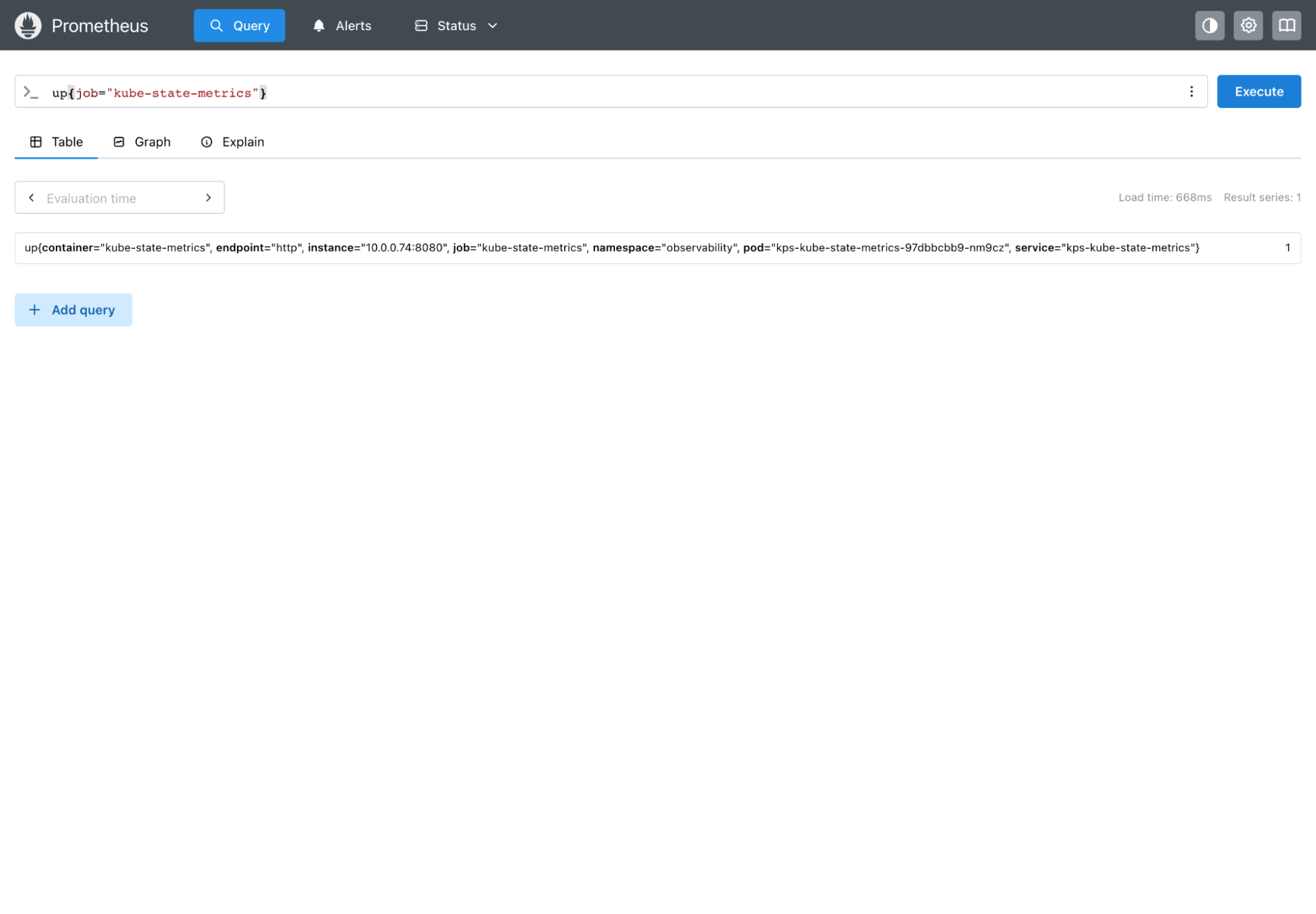
- Keep that terminal running, open http://localhost:9091, and run the following query:
up{job="kube-state-metrics"}
A value of 1 means the last scrape of that target succeeded. On the demo cluster, this returned one series with a value of 1, and all 13 discovered targets were reporting healthy at the time of verification.
This installation uses the chart defaults, including ephemeral storage for Prometheus. The next section configures retention and persistent storage. You can find the remaining chart options on Artifact Hub.
Configuring kube-prometheus-stack for your environment
A big part of choosing an observability stack is how well it fits your environment after the initial installation. You may need to keep metrics for longer, collect data from your own services, or use a Grafana instance you already run.
The values below cover six common changes. Each snippet is a separate example; combine the settings you need under a single prometheus.prometheusSpec block rather than repeating the same YAML keys. They use the keys from chart version 91.5.2, installed in the previous section.
Retention and persistent storage
You will often need to adjust how long Prometheus keeps your metrics and how much disk space it has available:
prometheus:
  prometheusSpec:
    retention: 15d
    storageSpec:
      volumeClaimTemplate:
        spec:
          accessModes: ["ReadWriteOnce"]
          resources:
            requests:
              storage: 50Gi
This requests a 50 GiB persistent volume using your cluster's default StorageClass and sets retention to 15 days. The volume still needs enough space for the metrics you collect during that period, since time-based retention does not prevent it from filling up.
ServiceMonitor selectors
ServiceMonitors describe which Kubernetes Services Prometheus should scrape. If you create them for your own applications, their labels need to match Prometheus's selectors before it will discover their targets:
prometheus:
  prometheusSpec:
    serviceMonitorSelector:
      matchExpressions:
        - key: release
          operator: In
          values: [kps, inference]
    serviceMonitorNamespaceSelector: {}
This selects ServiceMonitors across all namespaces with either release: kps or release: inference, keeping the chart's own monitors and including application monitors with the inference label value.
Adding a custom scrape target
Sometimes you already have a metrics endpoint and want Prometheus to scrape it directly. You can add a scrape job through the chart values, using an address that Prometheus can reach from inside the cluster:
prometheus:
  prometheusSpec:
    additionalScrapeConfigs:
      - job_name: inference-vllm
        metrics_path: /metrics
        static_configs:
          - targets:
              - vllm.inference.svc.cluster.local:8000
This scrapes /metrics on an existing vLLM Service in the inference namespace on port 8000. Replace the address and port with those of your own service.
Disabling Grafana
If you already run Grafana, you may want to use that instance for your Kubernetes dashboards too:
grafana:
  enabled: false
This disables the bundled Grafana. Configure your existing instance to use this Prometheus server as a data source.
Disabling Alertmanager
If you already have an Alertmanager instance that handles notifications for your infrastructure, you can disable the bundled deployment:
alertmanager:
  enabled: false
This does not configure an external destination, so you still need to tell Prometheus where to send alerts.
Setting resource requests and limits
As you collect more metrics and run more queries, Prometheus's CPU and memory needs will change. Requests reserve capacity for scheduling, while limits control how much of each resource the container can use:
prometheus:
  prometheusSpec:
    resources:
      requests:
        cpu: 500m
        memory: 1Gi
      limits:
        cpu: "2"
        memory: 4Gi
This requests half a CPU and 1 GiB of memory, with limits of two CPUs and 4 GiB. Adjust these example values to your workload: CPU limits can throttle queries, and exceeding the memory limit can terminate the container.
What are the challenges of scaling kube-prometheus-stack?
With great power comes great operational responsibility. Prometheus is powerful not just because it collects time series data on infrastructure, but because it can be extended to collect custom telemetry, which is often the source of the first problem.
Cardinality
High cardinality, or a "cardinality bomb" when it grows unexpectedly, occurs when a metric has a large number of distinct label combinations. Each combination creates a separate time series. Adding a request ID or user ID to a metric can turn one useful measurement into an ever-growing collection of series.
On the infrastructure side, this usually means increasing memory usage, slower queries and, if memory runs out, an OOMKilled Prometheus container. Adding pods and services also adds series, even when your application metrics have sensible labels. We covered this in more detail in our guide to Prometheus data cardinality.
Storage and retention
A big consideration for experienced teams is dialing in retention and storage for each Prometheus instance. A single instance may be enough for a small team, but as you add clusters and workloads, there is a trade-off between how much history you keep, how frequently you scrape, and how much storage you provision.
You might notice the disk filling up, writes failing with "no space left on device", or older data disappearing sooner than expected. Time-based retention does not guarantee that the data will fit. If you also configure size-based retention, whichever limit is reached first takes effect.
Set retention against your actual ingestion rate and leave space for the WAL and compaction. A retention size equal to the entire volume leaves no room for temporary growth. Use persistent storage for data you need to keep, and monitor available space (see the Prometheus storage documentation).
This also extends to recovery. After a crash, Prometheus replays its write-ahead log to recover recent samples, which can delay readiness.
High availability and duplicate series
Running Prometheus in high availability often comes up as a solution, and kube-prometheus-stack supports it through prometheus.prometheusSpec.replicas. Each replica independently scrapes targets and keeps its own database. That helps collection continue when one replica fails, but it does not combine their disks or increase retention.
When both replicas send data to a shared backend, you can end up querying two copies of the same measurements. Configure replica labels and the backend's HA deduplication mechanism. For example, Thanos Query can deduplicate replicas when configured with the correct replica label. Adding a replica without planning the query path can produce misleading totals.
Network considerations
Remote write often comes up in response to longer retention requirements. It lets Prometheus send samples to another storage system, but keeping that system up to date now depends on the connection and on the receiver keeping up.
This is also where tools such as Thanos and Longhorn can enter the picture, though they address different requirements. A Thanos sidecar can upload TSDB blocks to object storage for longer retention, and Thanos Receive provides a separate remote-write ingestion path.
Longhorn provides replicated block storage for Kubernetes volumes. It can help keep a Prometheus volume available after a storage failure, subject to replica placement and available healthy nodes. It does not provide PromQL queries or deduplicate Prometheus replicas, and storage replication adds its own network traffic.
Alertmanager clustering
Alertmanager has its own HA configuration. If its peers lose contact, you may receive duplicate notifications even though the Prometheus replicas are working. The cluster shares silences and notification state, and favours sending a duplicate over missing an alert during a network partition.
Check peer discovery, cluster membership, and connectivity, including the configured gossip port over TCP and UDP. Prometheus should send alerts to every Alertmanager replica.
Grafana and dashboard sprawl
So far, most of the considerations have been about collecting and storing metrics, but someone still needs to make sense of all this data. This is where the Grafana dashboards installed earlier come in.
As teams add their own services, it makes sense to have dashboards for each one. A team might copy an existing dashboard, adjust the queries, and add a few panels for the metrics they care about. Over time, you end up with several versions of what started as the same dashboard, each needing attention when a metric or label changes.
Another consideration is where these changes live. If you have spent months building dashboards through the UI, losing Grafana's database could mean losing that work too. Reinstalling the chart brings back the bundled dashboards, but not the ones your team added.
Keeping dashboards in version control and provisioning them into Grafana lets you recreate them and track changes. It does mean getting into the habit of saving changes back to those files, as edits made through the UI can be overwritten when provisioning runs again.
The same applies to the alerting and recording rules teams add along the way. Each copy adds query work for Prometheus, and rules for services that no longer exist are work that serves no one. As these accumulate, rule evaluations can take longer than their configured interval, delaying the alerts you rely on.
Keeping the CRDs up to date
The Operator uses CRDs to manage Prometheus and Alertmanager. That is useful while everything is running, but those CRDs also need attention when it is time to upgrade.
You might expect upgrading the Helm release to take care of everything. With Helm 3, however, CRDs placed in a chart's crds directory are not automatically upgraded. This can leave you with a newer Operator and older resource definitions, so a field supported by the new version may still be rejected by the Kubernetes API.
This is why the chart's upgrade instructions need to be part of every upgrade. Depending on the version you are moving to, there may be a separate CRD update to apply before the rest of the stack can use the new configuration.
Where does OpenObserve fit with kube-prometheus-stack?
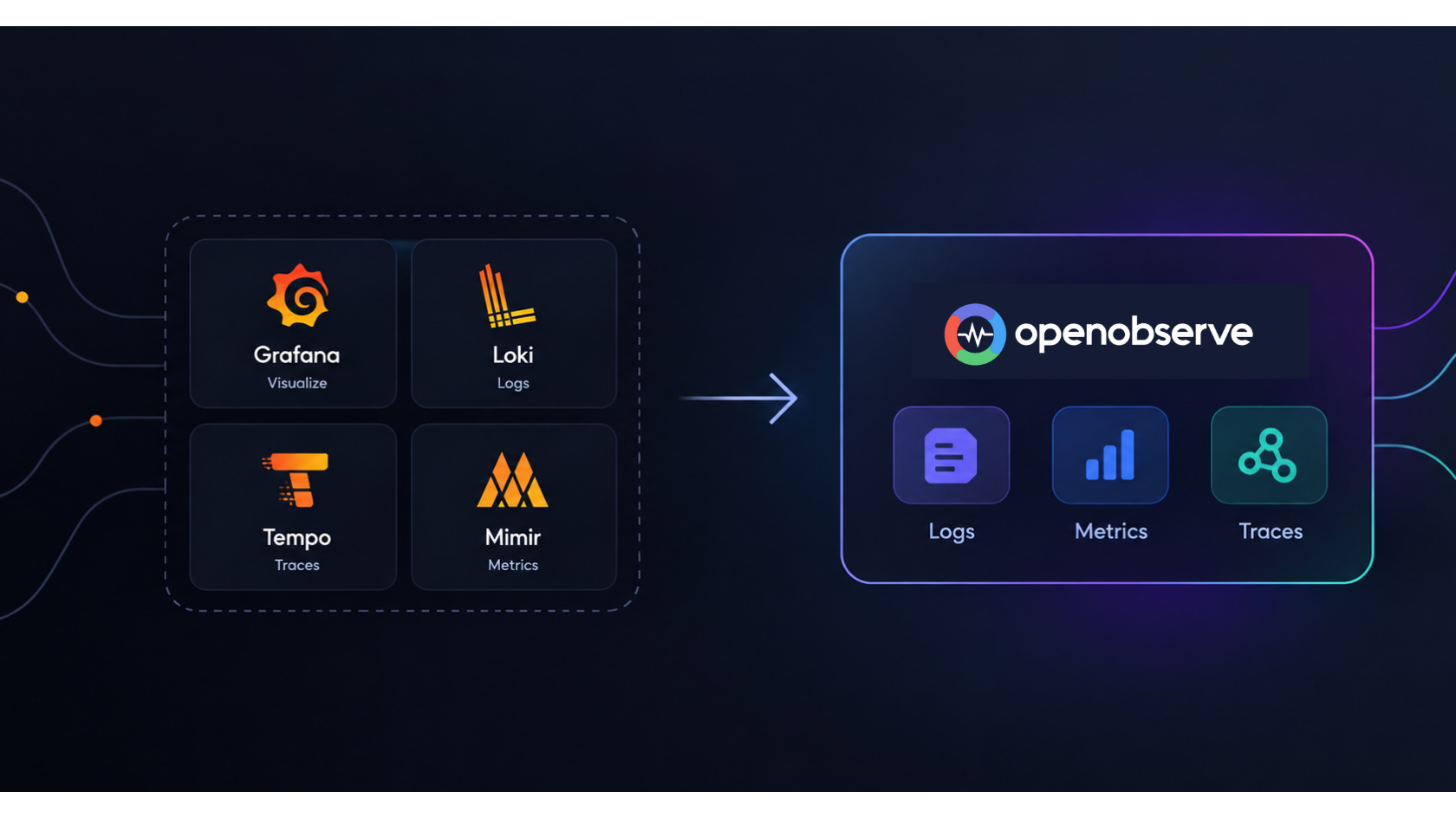
One way to reduce how much of this stack you manage is to keep Prometheus collecting metrics and send them to OpenObserve, an open source (AGPL-3.0) observability platform, using remote write. The Operator still manages Prometheus, and the exporters and scrape targets configured earlier stay in place.
When something goes wrong, you will likely want the logs and traces from the same service too. OpenObserve brings metrics, logs, and traces together, with dashboards and alerts on top of the data you send it. Remote write handles the metrics; logs and traces need their own collection pipelines.
For this demo, OpenObserve was added alongside the existing stack. This makes it possible to check that metrics arrive before deciding what to do with the existing Grafana dashboards and alerting rules.
Sending metrics to OpenObserve with remote write
In OpenObserve, go to Data sources > Custom > Metrics > Prometheus. This shows the remote-write endpoint and ingestion credentials for your organization.
Store those credentials in a Secret called
openobserve-remote-write, in the sameobservabilitynamespace as Prometheus. The Secret has two keys,usernameandpassword, wherepasswordis the ingestion credential supplied by OpenObserve:
kubectl --context inference-lab apply -f - <<'EOF'
apiVersion: v1
kind: Secret
metadata:
  name: openobserve-remote-write
  namespace: observability
type: Opaque
stringData:
  username: "<openobserve-username>"
  password: "<openobserve-ingestion-credential>"
EOF
- Reference that Secret from the Helm values. Replace
<organisation-id>with the identifier from your ingestion page and save this asopenobserve-values.yaml:
prometheus:
  prometheusSpec:
    externalLabels:
      cluster: inference-lab
    remoteWrite:
      - name: openobserve
        url: https://api.openobserve.ai/api/<organisation-id>/prometheus/api/v1/write
        basicAuth:
          username:
            name: openobserve-remote-write
            key: username
          password:
            name: openobserve-remote-write
            key: password
The cluster label identifies this cluster when querying metrics in OpenObserve. The Operator translates remoteWrite into Prometheus's remote_write configuration and supplies the credentials from the Secret.
- Apply these values to the existing release, keeping the chart version installed earlier:
helm upgrade kps oci://ghcr.io/prometheus-community/charts/kube-prometheus-stack \
  --version 91.5.2 \
  --kube-context inference-lab \
  --namespace observability \
  --reuse-values \
  -f openobserve-values.yaml \
  --wait --timeout 5m
- Once metrics start arriving, open Metrics in OpenObserve and switch to Visualize > PromQL > Custom. This query checks the healthy scrape targets for each job:
sum by (job) (
  up{cluster="inference-lab"}
)
From there, you can build a dashboard showing node CPU and memory usage, running pods by namespace, and the health of your scrape targets.
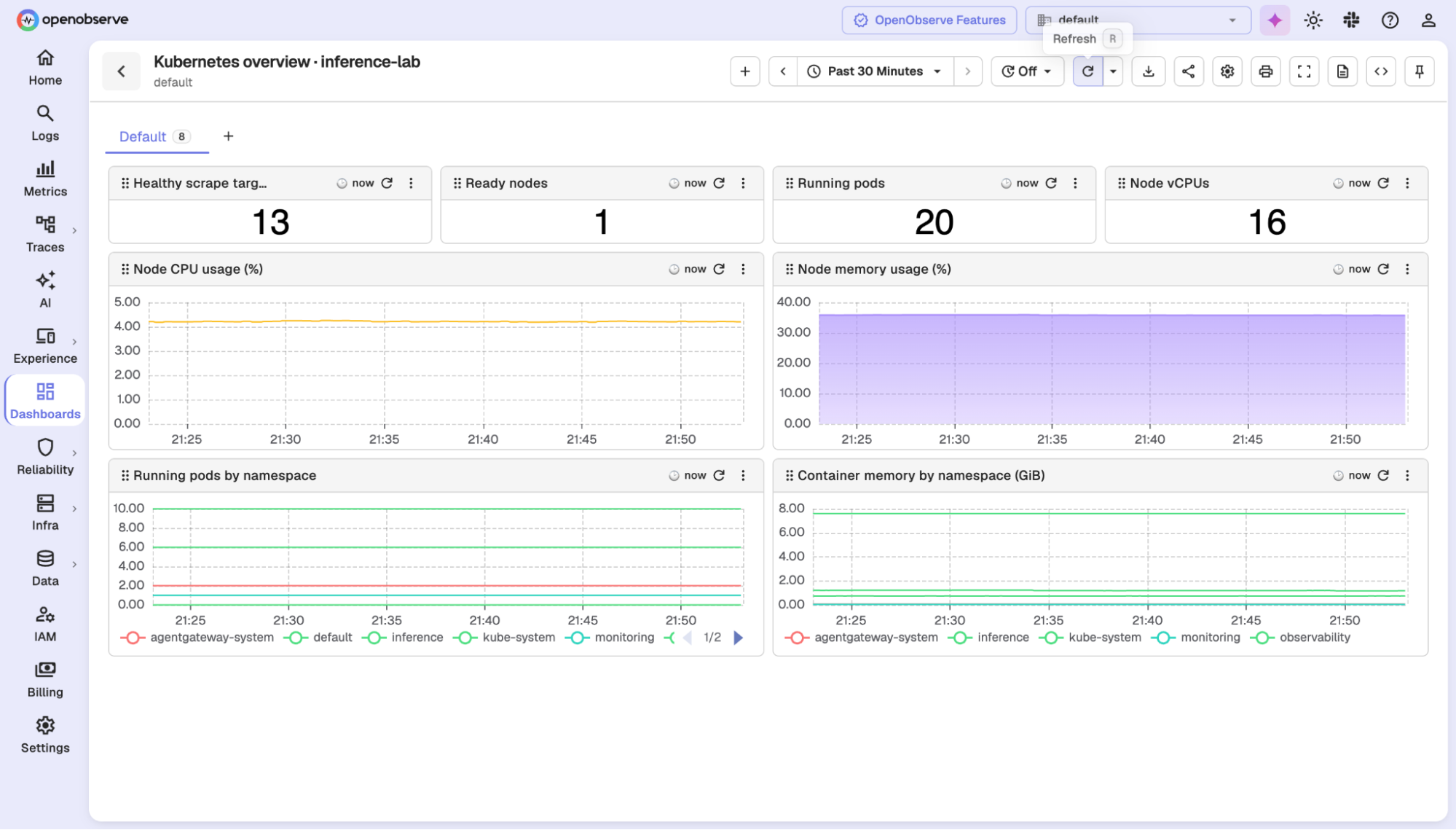
Remote write does not move your existing dashboards or alerting rules. Those still need to be recreated or migrated and checked before retiring Grafana or Alertmanager. It also leaves the local Prometheus database in place. If you eventually want Prometheus only for collection and forwarding, Agent mode is another option, but it gives up local PromQL queries and rule evaluation.
For a more detailed walkthrough, see Send Kubernetes Metrics Using Prometheus to OpenObserve.
Starting with the OpenTelemetry Collector instead
If you are starting fresh and already plan to use OpenObserve for storage, dashboards, and alerting, you may not need the full stack. The OpenTelemetry Collector can scrape Prometheus endpoints and forward metrics to OpenObserve over OTLP. You would still need exporters such as kube-state-metrics and node-exporter for the data they expose, along with scrape discovery, permissions, and a plan for scaling the collectors without scraping everything twice. Our guide to Kubernetes monitoring with OpenTelemetry and Prometheus covers that approach.
For an existing installation, remote write is the smaller change to make first.
When is kube-prometheus-stack alone enough?
If you run a small cluster, only need a short history of metrics, and have a team that already works comfortably in Grafana, kube-prometheus-stack may be all you need for metrics monitoring and alerting.
Much of this post covers what happens as the stack grows, but not every installation needs another storage backend. If your metrics fit within the resources you have allocated, your queries return in good time, and someone on the team can look after upgrades, there is room to keep things as they are.
You still need to pay attention to cardinality and storage, even on a small cluster. Adding another platform should follow a real requirement: longer retention, a view across several clusters, or bringing metrics together with logs and traces.
Conclusion
kube-prometheus-stack earns its place as the default way to monitor Kubernetes: one Helm install gives you the Prometheus Operator, Prometheus, Alertmanager, Grafana, kube-state-metrics, node-exporter, and a solid set of rules and dashboards. Knowing what each piece does makes it far easier to configure the stack for your environment instead of running on defaults.
The real work starts after the install. Retention and storage need sizing against your ingestion rate, cardinality needs watching, HA replicas need a deduplication plan, dashboards and rules need pruning, and CRDs need upgrading alongside the chart. None of this is a reason to avoid the stack, but it is worth planning for before your cluster grows.
When you do outgrow a single Prometheus, you don't have to start over. Keep the scraping you already have, add remote write, and send your metrics to OpenObserve to get long-term storage, dashboards, and alerts alongside your logs and traces in one open source platform.
Ready to try it? Sign up for OpenObserve Cloud or download OpenObserve to self-host, then follow the remote write steps above to start sending your kube-prometheus-stack metrics in minutes.
Frequently Asked Questions
About the Author
Jubril Oyetunji

Follow OpenObserve on Google
Add OpenObserve as a preferred source to see more of our articles in Google Search and Top Stories.